How To Pair Jlab Headphones: Easy Guide
To pair JLab headphones, turn on Bluetooth, open the case or power on the headphones, then select “JLab” on your device.
Learning how to pair JLab headphones is usually quick, but the exact steps can vary by model. Whether you use JLab Go Air earbuds, JBuds, Studio headphones, or another Bluetooth model, this guide explains the pairing process, common problems, reset steps, and useful tips in plain language.

How to pair JLab headphones for the first time
Most JLab headphones use Bluetooth pairing. You do not need a special app for basic audio, although the JLab app can add controls on supported models.
Follow these steps:
- Charge the headphones or earbuds for a few minutes.
- Turn on Bluetooth on your phone, tablet, computer, or TV.
- Take the earbuds out of the charging case, or press and hold the power button on your headphones.
- Wait for the indicator light to flash blue and white, or for the pairing voice prompt.
- Open the Bluetooth menu on your device.
- Select the JLab product name from the list.
- Wait for the “Connected” message or pairing tone.


The name may appear as “JLab,” “JBuds,” “GO Air,” “JBuds Air,” or “Studio.” The name depends on the model.
If your device asks for a PIN, try 0000. Most modern JLab headphones do not ask for a code, but some older Bluetooth devices may.
How to pair JLab earbuds
For many JLab true wireless earbuds, remove both earbuds from the charging case. They should power on and enter pairing mode automatically when used for the first time.
If they do not pair, place both earbuds back in the case. Close the lid, wait a few seconds, and open it again. Then remove both earbuds and look for the JLab name in your device’s Bluetooth settings.
How to pair JLab headphones with a phone
On an iPhone, open Settings, select Bluetooth, and turn Bluetooth on. Tap the JLab model when it appears under “Other Devices.”
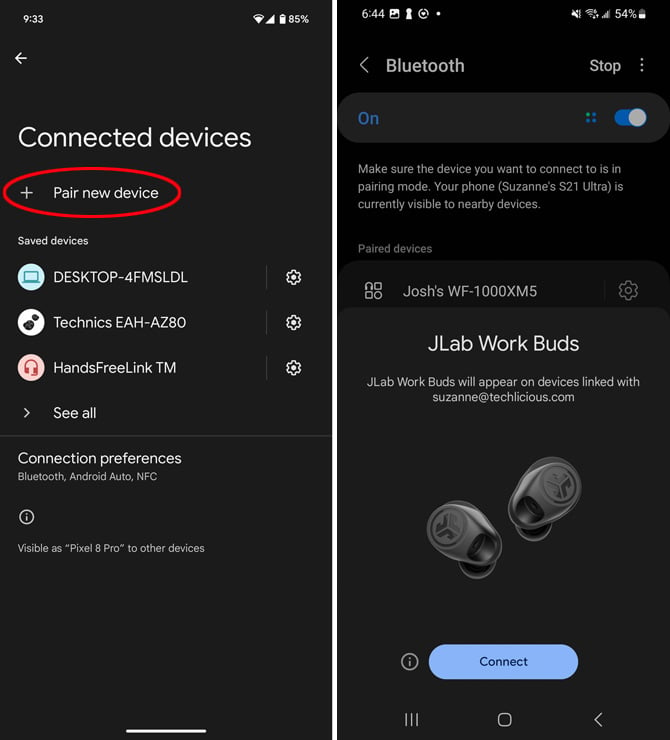
On an Android phone, open Settings, choose Connected devices or Bluetooth, and select Pair new device. Tap the JLab name when it appears.
Menu names can differ between Android brands. The main steps remain the same: activate Bluetooth, place the headphones in pairing mode, and select the correct device.

How to pair JLab headphones with an iPhone
The iPhone pairing process is simple, but your JLab headphones must be discoverable first.
- Open Settings on your iPhone.
- Tap Bluetooth.
- Turn Bluetooth on.
- Power on the JLab headphones.
- Put the headphones into pairing mode.
- Tap the JLab name under Other Devices.
- Wait until the status changes to Connected.
After the first connection, your iPhone should reconnect automatically when the headphones are turned on. Keep the headphones close to the phone during the first setup. A distance of a few feet is best.
If your JLab headphones appear under My Devices but will not connect, tap the information icon beside the name. Choose Forget This Device, then pair the headphones again.


This often fixes a saved Bluetooth profile that has become confused. Think of it like replacing an old key with a new one.

How to pair JLab headphones with Android
Android phones use a similar process, although the menu design may differ.
- Open Settings.
- Tap Connected devices, Connections, or Bluetooth.
- Select Pair new device if needed.
- Turn on the JLab headphones.
- Wait for pairing mode.
- Tap the JLab model in the available devices list.
- Confirm the connection.
Some Android phones show a pop-up when a nearby Bluetooth device is ready to pair. If that happens, tap Pair or Connect.
If you see several JLab names, choose the one that matches your product. Turn off nearby JLab headphones if they are not yours. Otherwise, your phone may connect to the wrong device.
You can also rename the headphones after pairing. This is helpful if you own more than one JLab product.
How to pair JLab headphones with a Windows PC
JLab headphones work with most Windows computers that support Bluetooth. Before you begin, make sure Bluetooth is enabled on the PC.
- Open Settings on Windows.
- Select Bluetooth & devices.
- Turn Bluetooth on.
- Click Add device.
- Choose Bluetooth.
- Put the JLab headphones into pairing mode.
- Select the JLab device.
- Click Done.
After pairing, select the JLab headphones as the sound output. Click the speaker icon on the Windows taskbar, then choose the JLab device.
If the headphones connect but no sound plays, the PC may still be using its built-in speakers. This is one of the most common mistakes when pairing wireless headphones with a computer.
For calls, you may also need to select the JLab microphone in the meeting app. Check the audio settings in Zoom, Microsoft Teams, Google Meet, or another calling service.

How to pair JLab headphones with a Mac
Mac computers can pair with JLab headphones in a few steps.
- Open the Apple menu.
- Select System Settings.
- Click Bluetooth.
- Turn Bluetooth on.
- Put the JLab headphones into pairing mode.
- Find the JLab model in the device list.
- Click Connect.
Once connected, open System Settings, select Sound, and choose the JLab headphones for output. You can also select them from the sound menu in the macOS menu bar.
If the JLab device says Not Connected, turn Bluetooth off and on again. If that fails, click the information button beside the device and choose Forget This Device. Pair it again as a new device.


How to pair JLab headphones with a TV
Pairing JLab headphones with a TV depends on whether the television supports Bluetooth audio.
To start, open the TV’s Settings menu and look for Sound, Audio Output, Bluetooth, or Wireless Speaker. Put the JLab headphones into pairing mode, then select them from the TV’s device list.
Some TVs support Bluetooth for keyboards and remotes but not for headphones. If your JLab headphones do not appear, check the TV manual or settings menu.
You may notice a small delay between the picture and sound. This is called Bluetooth latency. It can be more noticeable when watching movies or playing games. A TV with a low-latency Bluetooth mode may reduce the delay, but results vary by TV and headphone model.
If your TV has no Bluetooth, you may need a Bluetooth audio transmitter. Connect the transmitter to the TV’s optical, headphone, or auxiliary output, then pair the JLab headphones with the transmitter.

How to put JLab headphones into pairing mode
Pairing mode allows another device to find the headphones. Without it, your phone or computer may not show the JLab product.
The method depends on the product type:
• True wireless earbuds often enter pairing mode when removed from the case for the first time.
• Many JLab over-ear headphones enter pairing mode when you press and hold the power button for several seconds.
• Some models use a separate Bluetooth or pairing button.
• A flashing blue and white light often indicates pairing mode.
• A voice prompt may say “Bluetooth pairing” or “Ready to pair.”
If the headphones connect to an old phone immediately, turn Bluetooth off on that phone. Then place the JLab headphones into pairing mode and search again on the new device.
This is a frequent issue in homes with several phones, tablets, and computers. The headphones may not be broken; they may simply be reconnecting to a familiar device.

How to pair JLab headphones when they do not show up
When JLab headphones do not appear in the Bluetooth list, work through these checks in order:


- Charge the headphones and case.
- Turn Bluetooth off and on again.
- Move the headphones close to the device.
- Disconnect the headphones from other devices.
- Restart the phone, tablet, or computer.
- Put the headphones back into pairing mode.
- Remove the old JLab entry from Bluetooth settings.
- Search for the headphones again.
Wireless signals can suffer from interference. Keep the headphones away from Wi-Fi routers, USB 3.0 hubs, microwaves, and other active Bluetooth devices during setup.
Also check the indicator light. A dead light may mean the battery is empty. Connect the charging case or headphones to power and try again after several minutes.
In my troubleshooting experience, the most common mistake is searching for the earbuds while they are still connected to another device. Disconnecting the old device solves the problem more often than changing advanced settings.
How to reset JLab earbuds and headphones
A reset can clear old Bluetooth connections and solve repeated pairing failures. The reset process is not identical across every JLab model, so check the instructions for your exact product when possible.
For many JLab true wireless earbuds, a common reset process is:
- Remove the JLab entry from your phone’s Bluetooth settings.
- Turn Bluetooth off on nearby devices.
- Place both earbuds in the charging case.
- Leave the case open.
- Tap or press the earbuds several times as directed for your model.
- Watch for the indicator light to flash.
- Remove the earbuds and pair them again.
Some JLab headphones reset by holding the power or multifunction button for a longer period. Others require a button combination.
Do not guess repeatedly if your model uses touch controls. The number of taps can differ between product lines. Use the model’s official instruction guide for the exact reset sequence.
A reset usually removes stored connections and personal settings. It does not normally damage the headphones, but you will need to pair them with your devices again.
How to use JLab headphones with two devices
Some JLab models support Bluetooth multipoint. This feature lets the headphones stay connected to two devices, such as a laptop and phone.
With multipoint, you might listen to music on your computer and answer a phone call without manually pairing again. Support depends on the exact JLab model and firmware.
A typical setup looks like this:
- Pair the headphones with the first device.
- Turn Bluetooth off on that device.
- Pair the headphones with the second device.
- Turn Bluetooth back on for the first device.
- Confirm that both devices show the headphones as connected.
Multipoint does not always mean that both devices can play audio at the same time. Usually, one device plays sound while the other waits for a call or alert.
If switching does not work, disconnect the headphones from one device and connect them manually. This limitation is normal for many Bluetooth products.


How to improve JLab Bluetooth connection quality
A strong connection starts with good setup habits. Keep the source device nearby, especially when using the headphones in a busy area.
Use these practical tips:
• Keep your phone or computer within a reasonable Bluetooth range.
• Avoid placing the phone deep inside a backpack or metal locker.
• Keep the earbuds and charging contacts clean.
• Install firmware updates through the JLab app when your model supports them.
• Keep your phone’s operating system updated.
• Avoid pairing several new Bluetooth devices at the same time.
• Charge both earbuds evenly before important calls.
The human body can also weaken a Bluetooth signal when the phone is on one side of the body and the earbud is on the other. This may cause brief dropouts during exercise or walking.
Bluetooth performance can vary by phone, operating system, environment, and JLab model. A short dropout does not always mean the headphones are defective.
Common mistakes when pairing JLab headphones
Many pairing problems come from small setup errors. Avoid these mistakes:
• Searching for the headphones before turning them on.
• Selecting a neighbor’s JLab device by accident.
• Leaving Bluetooth enabled on the old phone.
• Pairing only one earbud when the model requires both.


• Ignoring a low battery.
• Choosing the headphones for calls but not for media audio.
• Assuming every JLab model uses the same reset method.
• Pairing through the JLab app before completing basic Bluetooth pairing.
The JLab app can be useful for supported products. It may offer firmware updates, equalizer controls, button customization, and battery information. However, the app cannot replace the normal Bluetooth pairing process for every model.
When testing a new pair, play music, make a short call, and check both earbuds. This simple test confirms that audio output, microphone input, and left-right balance all work properly.
How to pair JLab headphones safely and comfortably
Pairing is only part of the listening experience. Keep the volume at a comfortable level, especially during long sessions. Extended exposure to loud sound can harm hearing, so lower the volume when you do not need high output.
Clean the earbuds with a dry, soft cloth. Do not push liquid into the speaker openings or charging contacts. Let the earbuds dry fully before placing them in the case.
If one earbud feels loose, try another ear tip size. A secure fit can improve comfort and help the sound feel fuller without raising the volume.
For calls, check the microphone position and reduce wind noise when possible. A quiet room often improves call quality more than any app setting.
Frequently Asked Questions About How to Pair JLab Headphones
Why are my JLab headphones not showing up on Bluetooth?
They may not be in pairing mode, may have a low battery, or may still be connected to another device. Charge them, turn off Bluetooth on nearby devices, reset the old connection, and search again.
How do I put JLab earbuds in pairing mode?
For many models, place both earbuds in the case, open the lid, and remove them. If they do not enter pairing mode, follow the reset instructions for your exact JLab model.
Can I pair JLab headphones with an iPhone?
Yes, JLab headphones can pair with an iPhone through Settings > Bluetooth. Turn Bluetooth on, select the JLab product, and wait for the Connected status.
Can I connect JLab headphones to a laptop?
Yes, if the laptop supports Bluetooth. Open the computer’s Bluetooth settings, choose Add device, place the headphones in pairing mode, and select the JLab name.
Why do my JLab headphones connect but have no sound?
Your phone or computer may still be using its built-in speaker. Open the sound output settings and select the connected JLab headphones for media audio.
How do I reset JLab headphones?
The reset steps vary by model. Remove the headphones from your device’s Bluetooth list first, then use the button or touch-control sequence listed in the product instructions.
Can JLab headphones connect to two devices at once?
Some models support multipoint Bluetooth, while others support only one active connection. Check the features for your exact model before trying to pair two devices.
Conclusion
Learning how to pair JLab headphones usually takes only a few minutes: charge the headphones, activate pairing mode, open Bluetooth settings, and select the JLab device. If the connection fails, remove the old Bluetooth profile, disconnect nearby devices, and reset the headphones when needed.
The best results come from using the instructions for your exact JLab model and keeping the headphones updated. Try the steps above, test your audio and microphone, and explore the JLab app if your product supports it. If this guide helped, share it with someone setting up new wireless headphones or leave a comment with your JLab model.