How To Fix Audio Delay On Bluetooth Headphones: Easy Fixes
Fix Bluetooth headphone audio delay by checking connection, updating devices, using low latency mode, and adjusting app settings.
Bluetooth headphone lag can turn a movie into a badly dubbed scene or make a game feel impossible to play. The good news is that you can often fix audio delay on Bluetooth headphones without buying new ones. In this guide, I’ll explain the main causes, the best fixes for phones, computers, TVs, and game consoles, and the limits of Bluetooth audio so you know what to expect.
What causes Bluetooth headphone audio delay?
Audio delay happens when sound reaches your ears after the video or action appears on screen. This delay is also called latency. It is measured in milliseconds, or ms.
A small delay may not bother you during music playback. However, it becomes easy to notice during movies, video calls, gaming, and musical performances. A delay of 40 to 80 ms may feel acceptable, while delays above 100 ms can become distracting.


Several parts of the audio system can add delay:
• Bluetooth sends sound through a wireless signal that must be encoded and decoded.
• Your phone, computer, TV, or console may use a slow audio codec.
• The headphones may not support the same codec as the source device.
• A weak signal can cause the headphones to buffer more audio.
• Old firmware may create connection or timing problems.
• Video apps may fail to match the picture with delayed sound.
• Other Bluetooth devices and wireless signals may cause interference.
Think of the process like a relay race. Your device prepares the sound, Bluetooth sends it, and the headphones decode it. If one runner slows down, the final sound arrives late.
Quick fixes for Bluetooth headphone audio delay
Before changing advanced settings, try these simple steps. They often fix audio delay on Bluetooth headphones within a few minutes.
Pause and restart playback
Pause the video or music for five seconds, then press play. Some apps rebuild their audio and video timing after playback restarts.


If the delay returns each time you pause, the app may have a synchronization problem. Try closing the app fully and opening it again.
Move closer to the source device
Keep your headphones within 10 to 15 feet of your phone, laptop, or TV. Walls, furniture, and your body can weaken the Bluetooth signal.
Avoid placing the source device inside a bag or behind a television. A clear path can reduce buffering and help fix audio delay on Bluetooth headphones.
Turn Bluetooth off and on
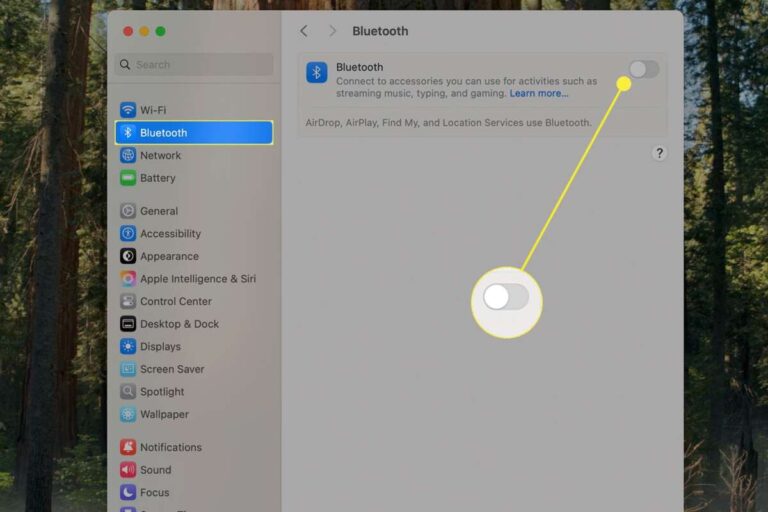
Open your device’s Bluetooth settings and switch Bluetooth off. Wait about 10 seconds, then turn it on again.
This forces the device to rebuild the wireless connection. It is a basic step, but it solves many temporary pairing and timing errors.
Restart both devices
Turn off your headphones and restart the phone, computer, television, or tablet. A full restart clears stuck Bluetooth services and temporary software faults.
This is especially useful after a system update or when the headphones have connected to several devices in one day.
Stop nearby Bluetooth connections
Disconnect smartwatches, speakers, keyboards, and other devices you do not need. Some headphones switch between connected devices, which can create pauses or delayed sound.
If your headphones support multipoint Bluetooth, disable multipoint temporarily. This can help identify whether another device is causing the problem.
Reconnect your Bluetooth headphones correctly
A damaged or incomplete pairing record can cause audio delay on Bluetooth headphones. Removing the headphones and pairing them again gives both devices a clean connection.
Follow these steps:
-
Open Bluetooth settings on your phone, computer, TV, or tablet.
-
Select your headphones from the list of saved devices.
-
Choose Forget, Remove, or Unpair this device.
-
Turn off the headphones.
-
Restart the source device.
-
Put the headphones into pairing mode.
-
Pair them again and test a video.
Do not pair the headphones while they are still connected to another device. For example, turn off Bluetooth on your tablet before pairing the headphones with your laptop.
If the headphones have a companion app, remove the device from that app too. Some apps keep an old connection profile even after the operating system forgets the headphones.
Reset the headphones
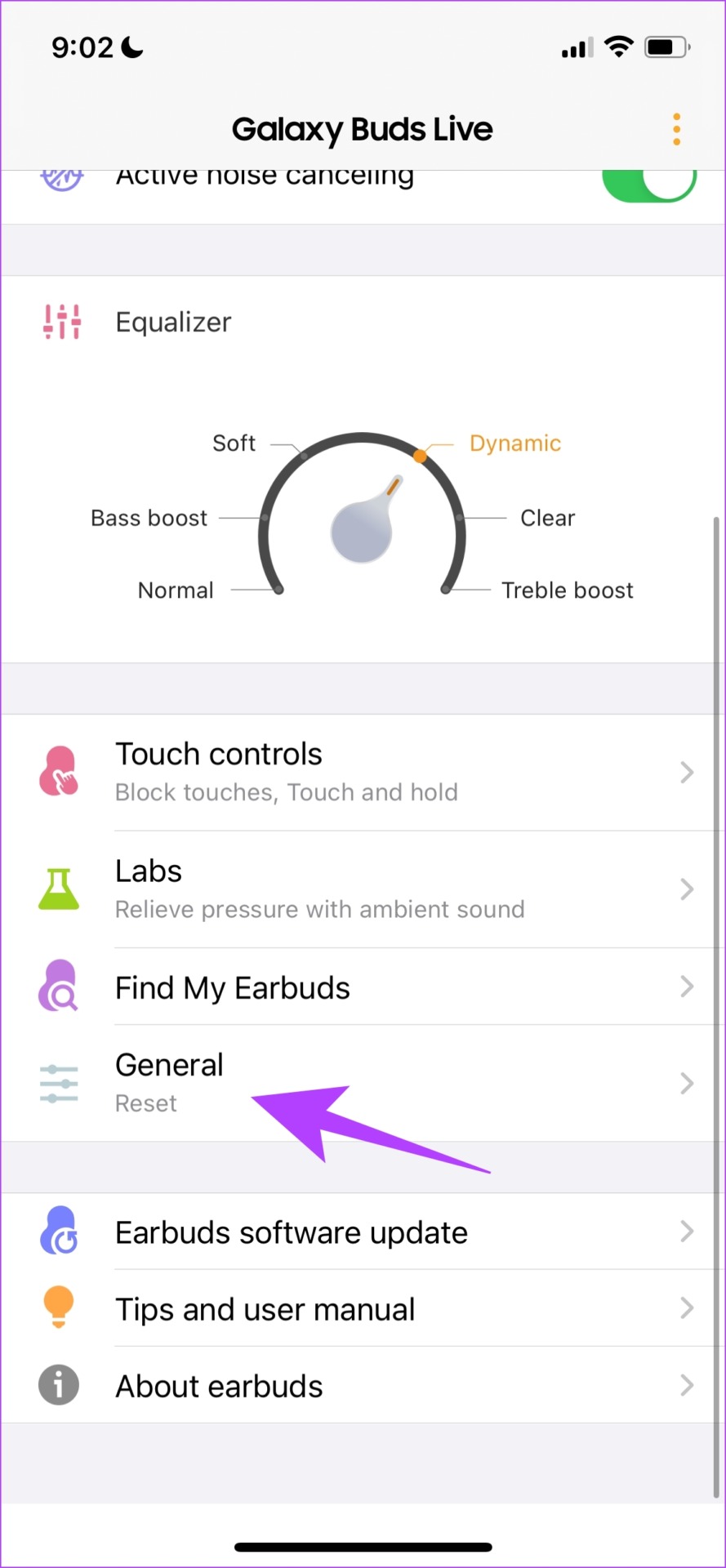
Many models have a factory reset option. The button combination varies by brand, so check the product manual or support page before trying it.
A reset can remove stored pairing data, custom equalizer settings, and multipoint connections. It is useful when reconnecting does not fix audio delay on Bluetooth headphones.


Check Bluetooth codec compatibility
A Bluetooth codec controls how audio is compressed and sent to your headphones. Common codecs include SBC, AAC, aptX, aptX Adaptive, and LDAC.
SBC is widely supported, but it may have higher latency than some newer options. AAC can work well with Apple devices, while aptX variants may offer lower delay on compatible Android phones and computers. LDAC can provide high audio quality, but it does not always provide the lowest latency.
The key point is compatibility. Both the source device and the headphones must support the same codec. If one device does not support a codec, the connection may fall back to SBC.
Choose a lower latency codec
Some Android phones let you view or change the Bluetooth codec in Developer Options. The menu names vary by manufacturer.
Look for settings such as:
• Bluetooth Audio Codec
• Bluetooth Audio Sample Rate
• Bluetooth Audio Bits Per Sample
• Bluetooth Audio LDAC Codec
Choose a codec supported by both devices. Do not assume the highest quality setting is best for video. A lower latency option may provide better timing.
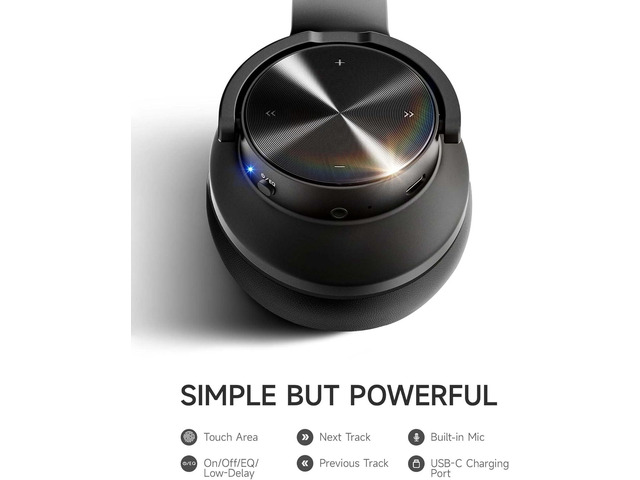
Some headphone apps offer a Gaming Mode, Low Latency Mode, or Video Mode. Turn it on when watching video or playing games. These modes may reduce sound quality slightly, but they can help fix audio delay on Bluetooth headphones.
Know the limits of codec changes
Changing a codec will not always solve the problem. Some phones ignore manual codec choices, and some headphones use a fixed codec.
Also, low latency modes can reduce wireless range or make the connection less stable. Test the setting in the place where you normally use your headphones.

Fix audio delay on Android phones
Android settings differ between brands, but the main troubleshooting steps are similar. First, update the phone and the headphone app. Firmware updates often improve Bluetooth stability and codec support.
Then try these steps:
• Forget and re-pair the headphones.
• Turn off battery saver while testing.
• Disable multipoint connection.
• Check for a Gaming or Low Latency mode in the headphone app.
• Test the headphones in another video app.


• Clear the affected app’s cache if the problem happens only there.
If the delay affects every app, reset network settings. This option may remove saved Wi Fi networks and Bluetooth devices, so save your passwords first.
On some Android phones, enabling Developer Options exposes codec controls. Change only one Bluetooth setting at a time. If the connection becomes worse, return the setting to its default value.
A common mistake is turning on LDAC because it sounds like the most advanced choice. High quality is not the same as low latency. For video and games, stable timing matters more than maximum bitrate.

Fix audio delay on iPhone and iPad
Apple devices usually manage Bluetooth codecs automatically. This makes setup simple, but it gives you fewer manual controls.
To fix audio delay on Bluetooth headphones with an iPhone or iPad, try the following:
-
Update iOS or iPadOS.
-
Update the headphone firmware through the manufacturer’s app.
-
Forget the headphones in Settings and pair them again.
-
Close and reopen the video app.
-
Test another app, such as a different streaming service.
-
Restart the iPhone or iPad.
If only one app has a delay, the problem is likely inside that app rather than in the headphones. Check the app for an audio synchronization setting, then install any available app update.
You can also reset network settings under the device’s transfer or reset menu. This removes saved Bluetooth and Wi Fi information, so use it only after simpler steps fail.

Fix Bluetooth headphone delay on Windows
Windows computers can create delay when they choose the wrong Bluetooth audio profile. Headphones may connect in a high quality stereo mode or a hands free mode designed for microphone use.
The hands free mode can reduce sound quality and sometimes cause timing or connection issues. When you do not need the headphone microphone, select the stereo output device in Windows sound settings.
Try these steps:
• Remove the headphones from Bluetooth settings.
• Restart the computer.
• Pair the headphones again.
• Install the latest Bluetooth and audio drivers.
• Select the headphones as the default output device.


• Close unused communication apps.
• Turn off audio enhancements and spatial audio for testing.
Video call apps may take control of the headphone microphone. This can switch the connection into a different profile. Leave the call, close the app completely, and test a local video file.
If the delay occurs only in a browser, update the browser and test another browser. Hardware acceleration can sometimes affect video timing, although disabling it is a test rather than a guaranteed fix.
Fix Bluetooth headphone delay on Mac
Mac computers normally handle Bluetooth audio well, but software updates, app settings, and connected microphones can still cause delay.
Start by removing the headphones from Bluetooth settings and pairing them again. Then check the sound output menu and make sure your headphones are selected.
If you use the headphones for calls, the Mac may use their microphone. This can change the Bluetooth audio profile and increase delay or lower sound quality. Select the Mac’s built in microphone during a call when possible.
You can also open the Audio MIDI Setup utility and check the output format. The headphones should use a standard format supported by the device. Avoid changing advanced values unless you understand the effect, because incorrect settings can cause distorted or missing sound.
Testing a downloaded video can help. If local video plays correctly but a website does not, the issue may involve the browser, streaming service, or internet connection rather than Bluetooth.

Fix Bluetooth headphone delay on smart TVs
Televisions are one of the most difficult devices for Bluetooth audio. Some TVs add processing for picture enhancement, surround sound, or volume leveling. This processing can make the sound arrive later than the image.
Look in the TV’s sound settings for options such as:
• Audio delay
• Lip sync
• Digital audio delay
• Pass through
• Bluetooth audio synchronization
Increase or decrease the audio delay until speech matches the speaker’s lips. Some TVs let you adjust delay separately for internal speakers, optical output, HDMI audio, and Bluetooth.
Turn off picture features such as motion smoothing for testing. These features can change video timing and make the audio seem late.


If your TV has a dedicated Bluetooth transmitter with a low latency codec, it may perform better than the TV’s built in Bluetooth. However, the headphones must support the same low latency codec for the benefit to work.
A wired connection is often the best choice for television watching. It removes Bluetooth transmission delay, although the TV may still need a lip sync adjustment.
Fix Bluetooth headphone delay while gaming
Gaming requires faster timing than music or casual video. Even a small delay can make a game feel unresponsive, especially in rhythm games, shooting games, and competitive sports titles.
Turn on the headphones’ Gaming Mode or Low Latency Mode. Keep the source device nearby, and disconnect other Bluetooth devices during play.
Many game consoles do not support ordinary Bluetooth headphones directly. You may need a compatible USB Bluetooth transmitter or the brand’s wireless adapter. Check whether the transmitter and headphones support a low latency mode.
For competitive gaming, wired headphones remain the most reliable option. Bluetooth technology has improved, but wireless encoding and decoding still add some delay.
Do not judge performance from the game menu alone. Test the headphones during fast action, where timing errors are easier to notice. If the delay remains after every wireless fix, the limitation may come from the console or game system rather than the headphones.
Update firmware, apps, and system software
Manufacturers release firmware updates to improve Bluetooth performance, fix bugs, and add codec support. An update may fix audio delay on Bluetooth headphones without any change to your hardware.
Install updates for:
• The headphones
• The headphone companion app
• Your phone, tablet, computer, or TV
• Bluetooth drivers
• The streaming or gaming app
Keep the headphones charged during a firmware update. Do not close the companion app or move far from the phone while the update runs.
Firmware updates can also change sound behavior. If a delay begins immediately after an update, check the manufacturer’s support page for known issues. You may need to reset the headphones or install a later update.
Reduce wireless interference
Bluetooth uses the 2.4 GHz wireless band, which is also used by some Wi Fi networks, wireless keyboards, baby monitors, and other devices. Crowded wireless conditions can cause dropouts and buffering.
To reduce interference:
• Keep the source device close to the headphones.
• Move away from crowded Wi Fi routers.
• Avoid covering the phone with your hand or body.
• Turn off devices you are not using.
• Test the headphones in another room.
• Use a 5 GHz or 6 GHz Wi Fi network when possible.
Interference usually causes cutting out, clicks, or unstable sound. It may not be the main cause of delay, but buffering can make timing worse.
If the headphones work well in one location but lag in another, the environment is an important clue. This simple test can save you from replacing perfectly good headphones.
Check whether the problem is the headphones or the source
Testing with a second device is one of the fastest ways to find the cause. Pair the headphones with another phone or computer and play the same type of video.
Use this guide:
• Delay on every device suggests a headphone, firmware, or design issue.
• Delay on only one device suggests a phone, computer, TV, or driver issue.
• Delay in only one app suggests an app or content problem.
• Delay only during calls suggests microphone or hands free mode issues.
Also test another pair of Bluetooth headphones with the original source device. This comparison helps separate headphone latency from source device latency.
In my own troubleshooting, this step has prevented many unnecessary purchases. People often replace the headphones when the real problem is a TV setting or an outdated laptop driver.
When Bluetooth delay cannot be fully fixed
Bluetooth audio will always have some latency because sound must travel through a wireless encoding system. The exact delay depends on the codec, device hardware, firmware, app, and operating system.
Some apps compensate by delaying the video to match the sound. This is why a movie may look perfectly synchronized even when the Bluetooth connection itself has latency.
Live audio is different. A microphone, instrument, game, or video call cannot always hide the delay. In these cases, use wired headphones, a low latency wireless system, or equipment designed for real time monitoring.
Replace the headphones only after testing them with several devices and apps. If they lag everywhere, have poor firmware support, or lack a low latency mode, newer headphones may be a sensible upgrade.
Mistakes to avoid when fixing Bluetooth lag
A few common habits make troubleshooting harder.
• Do not change many settings at once. You will not know which change helped.
• Do not assume expensive headphones have zero latency.
• Do not choose a high quality codec without checking latency.
• Do not ignore TV picture processing.
• Do not use a microphone profile when you only need stereo playback.
• Do not reset your phone before testing another app and device.
• Do not update firmware from an unofficial file or unknown website.
The best method is simple: change one setting, test the same video, and record the result. This turns frustration into a clear process.
Frequently Asked Questions About How to Fix Audio Delay on Bluetooth Headphones
Why is the sound delayed on my Bluetooth headphones?
Bluetooth headphones can lag because of codec processing, weak signal strength, outdated firmware, or audio settings on the source device. The delay may also come from the TV, app, computer driver, or game console.
How do I fix audio delay on Bluetooth headphones for videos?
Restart both devices, forget and re-pair the headphones, update their firmware, and try the headphones in another app. On a TV, adjust the audio or lip sync setting until speech matches the picture.
Can changing the Bluetooth codec reduce audio delay?
Yes, if both the source device and headphones support a lower latency codec. Codec changes are not available on every device, and a low latency mode may reduce audio quality or wireless range.
Why do Bluetooth headphones lag more during gaming?
Games need real time audio, so even small Bluetooth processing delays are noticeable. Turn on Gaming Mode, use a compatible low latency transmitter, or choose wired headphones for competitive play.
Why do my Bluetooth headphones work well with my phone but lag on my TV?
TVs often add picture processing, surround sound effects, or volume leveling. Check the TV’s audio delay settings and test with picture enhancements turned off.
Will resetting Bluetooth settings fix headphone lag?
Resetting Bluetooth connections can remove damaged pairing data and solve software glitches. It will not remove the normal latency caused by the headphones, codec, or source hardware.
Do all Bluetooth headphones have audio delay?
All Bluetooth headphones have some level of latency, but the amount varies widely. Newer codecs, better firmware, and low latency modes can make the delay small enough for normal video use.
Conclusion
You can often fix audio delay on Bluetooth headphones by restarting both devices, reconnecting the headphones, updating firmware, reducing interference, and choosing a suitable low latency mode. Always test the headphones with another device and app before buying replacements.
For movies and casual listening, software and TV lip sync settings may solve the problem. For live monitoring and competitive gaming, wired headphones or a purpose built low latency system may still be the best choice.
Try the steps in order, change one setting at a time, and note what works. If this guide helped, share your solution or explore more practical headphone and Bluetooth troubleshooting tips.