How To Know What SSD Is Compatible With My PC: Easy Guide
Your PC supports an SSD when its connector, size, key, interface, and firmware all match.
Learning how to know what SSD is compatible with my PC can save you from buying the wrong drive, wasting time, or opening your computer twice. The key is to check your PC’s slot, storage interface, drive size, and motherboard support before you order. This guide explains each check in simple terms, with practical examples and safe upgrade tips based on common desktop and laptop builds.

Understand the main SSD types
The first step in learning how to know what SSD is compatible with my PC is knowing the main SSD types. Modern computers usually use one of these formats:
• 2.5 inch SATA SSD
• M.2 SATA SSD


• M.2 NVMe SSD
• PCIe add in card SSD
These drives are not always interchangeable. An SSD may fit inside your computer but still fail to work because it uses the wrong protocol or connector.
2.5 inch SATA SSD
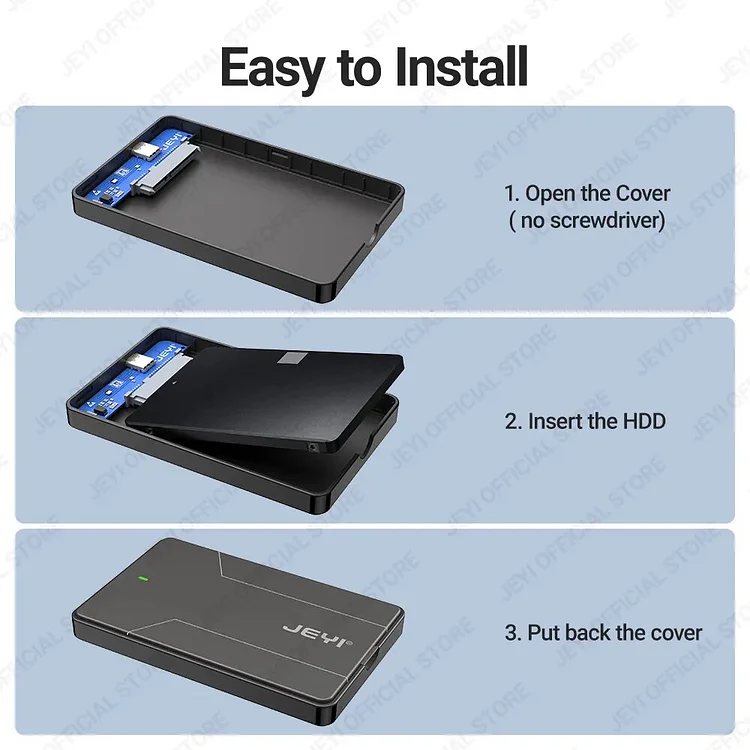
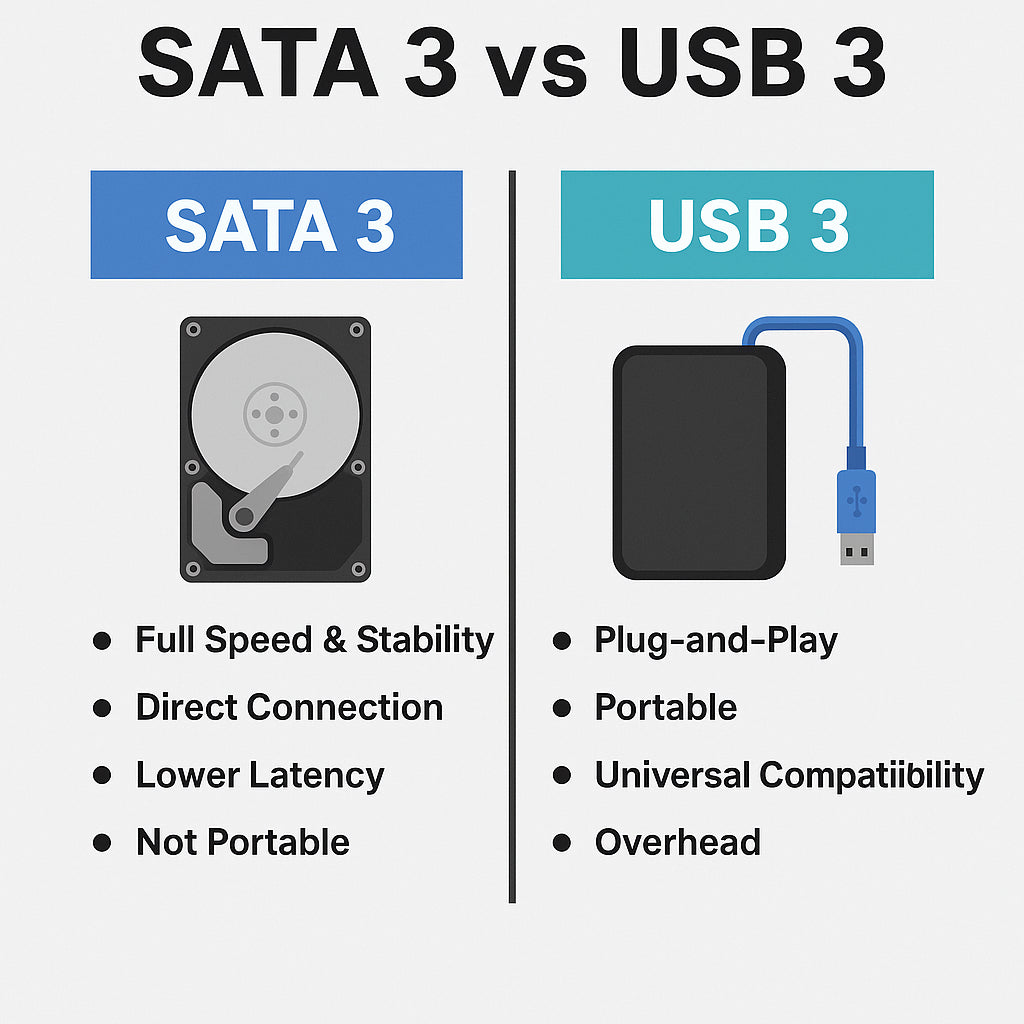
A 2.5 inch SATA SSD looks like a small, flat rectangle. It connects through a SATA data cable and a separate power cable in most desktop computers. Laptops often use a special SATA connector or a mounting bracket.
This type is a safe choice for older desktops and laptops. It usually offers much better speed than a hard disk drive, but it is slower than most NVMe SSDs.
M.2 SATA SSD
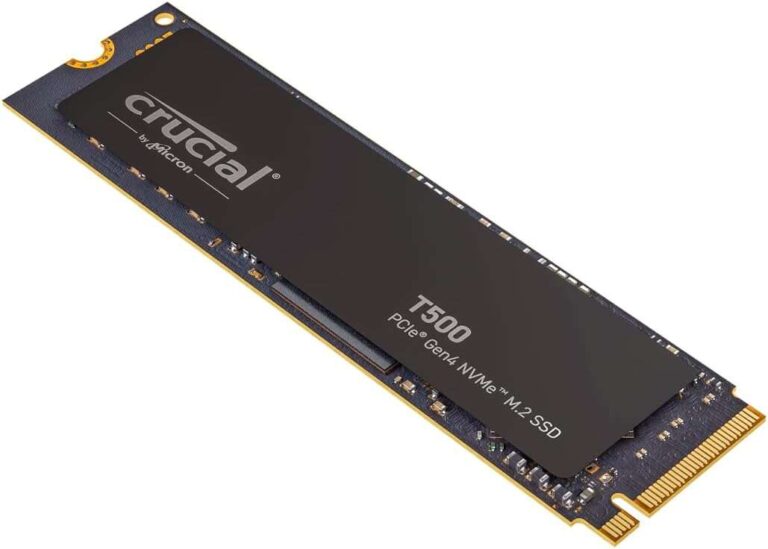
An M.2 SATA SSD is a thin circuit board that slides into an M.2 slot. It uses the SATA protocol, even though it looks like an NVMe drive.
This difference matters. Some M.2 slots support both SATA and NVMe drives, while others support only NVMe. Always check the motherboard or laptop manual before buying one.
M.2 NVMe SSD
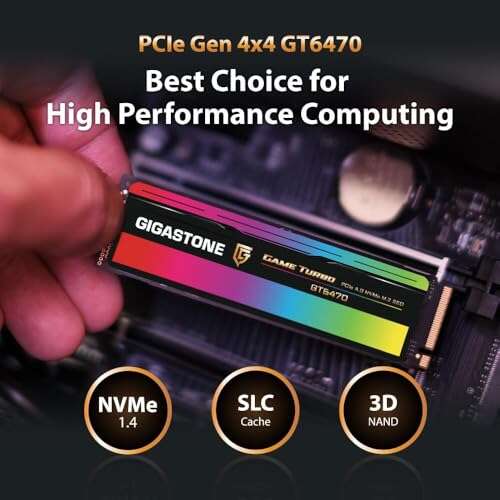
An M.2 NVMe SSD also uses a small circuit board, but it communicates through PCI Express. It is now the most common choice for new computers.
NVMe drives can be much faster than SATA SSDs. However, an M.2 slot must support NVMe for the drive to work. Physical fit alone does not prove compatibility.
PCIe add in card SSD
Some high performance SSDs are expansion cards. They plug into a PCIe slot, much like a graphics card.
These drives are useful in desktop PCs with open PCIe slots. They are rarely suitable for laptops and may need a certain PCIe slot size, motherboard setting, or boot support.

Check your PC’s physical connection
The physical connection is one of the most important parts of how to know what SSD is compatible with my PC. Start by finding the current storage drive or the empty storage slot.


Turn off the computer, unplug it, and remove the side panel or bottom cover only if you feel comfortable doing so. Take a clear photo before disconnecting anything. This simple step can prevent confusion during installation.
Look for these features:
• A wide SATA data port on the motherboard
• A thin M.2 slot with a small screw at one end
• A free PCIe slot on a desktop motherboard
• A laptop drive bay or M.2 storage area
If you cannot open the computer, use the model number instead. Search the manufacturer’s support page for the service manual or technical specifications. These documents often list the supported drive type.
Read the label on your current drive
The label on your existing drive can provide useful clues. A label that says 2.5 inch SATA identifies the basic form and interface. A label that includes NVMe or PCIe usually points to an M.2 NVMe drive.
You can also check Windows. Open Task Manager, select Performance, and choose Disk. This may show the drive name and whether it uses SSD or HDD technology. For more detail, use Device Manager or a trusted system information tool.
Remember that software may not reveal every detail. The exact M.2 slot limits and supported drive sizes are usually found in the computer manual.
Match the SSD form factor and size
M.2 SSDs come in several lengths. The most common size is 2280, which means 22 millimeters wide and 80 millimeters long.
Some small laptops use shorter drives, such as 2230 or 2242. A 2280 SSD may not fit if the laptop has no mounting point at that length.
Check the number printed near the M.2 slot or in the manual. Common sizes include:
• 2230, measuring 22 by 30 millimeters
• 2242, measuring 22 by 42 millimeters
• 2260, measuring 22 by 60 millimeters


• 2280, measuring 22 by 80 millimeters
The drive length is only one part of the answer. You must also match the connector key and protocol.
Understand M.2 keys
M.2 drives have notches called keys. These notches help identify the connector type.
A B key has a notch near one side. An M key has a notch in a different position. Some drives have a B and M key, which allows them to fit into more slot designs.
Still, a matching notch does not guarantee full support. The slot may accept the drive physically but support only SATA or only NVMe. Treat the key as a physical clue, not a complete compatibility test.

Check SATA and NVMe compatibility
The most common mistake people make when choosing an SSD is confusing M.2 with NVMe. M.2 describes the shape of the drive. NVMe describes the communication protocol.
Think of M.2 as the road and NVMe as the language used by the traffic. Two drives may use the same road shape but speak different languages.
Use these rules:
• A 2.5 inch SATA SSD needs a SATA data connection and power.
• An M.2 SATA SSD needs an M.2 slot that supports SATA.
• An M.2 NVMe SSD needs an M.2 slot connected to PCIe.
• A PCIe add in card SSD needs a compatible PCIe slot.
Some motherboard slots share bandwidth with SATA ports. When you install an M.2 drive, one or more SATA ports may stop working. This is normal on some boards and is usually explained in the motherboard manual.
How to check the protocol
Find your computer or motherboard model. Then search its official specifications for terms such as:
• M.2 SATA support
• M.2 PCIe support
• NVMe boot support
• PCIe Gen 3, Gen 4, or Gen 5


• SATA III, also called 6 Gb/s SATA
If the manual says “M.2 PCIe x4,” it normally supports an NVMe drive. If it says “M.2 SATA,” it supports a SATA M.2 drive. If it lists both, you have more flexibility.
Check PCIe generation and speed
PCIe generation affects performance, but it usually does not prevent basic compatibility. For example, a PCIe Gen 4 NVMe SSD can often work in a PCIe Gen 3 slot. It will simply run at the slower Gen 3 speed.
The same idea applies to newer drives in older slots. A PCIe Gen 5 drive may work in a compatible older PCIe slot, but buying an expensive Gen 5 model for a Gen 3 computer usually provides poor value.
Check these points:
• The slot must support PCIe if you want an NVMe drive.
• The drive and slot may run at the slower shared generation.
• A motherboard may limit the slot to two PCIe lanes instead of four.
• Heat and power use can increase with faster SSDs.
For normal gaming, school work, office use, and web browsing, a reliable NVMe SSD is often more important than the highest advertised speed. Large speed numbers matter more during video editing, heavy file transfers, and professional workloads.

Confirm your motherboard or laptop support
Specifications from the computer maker are the strongest evidence when deciding how to know what SSD is compatible with my PC. Use the exact model number, not just the product family.
For a desktop, check the motherboard manual. For a laptop, check the laptop service guide. Look for storage information under sections named Storage, Expansion, M.2, SATA, or PCI Express.
Also check whether the computer supports:
• One or more M.2 drives
• A 2.5 inch drive bay
• NVMe booting
• The SSD capacity you want
• Single sided or double sided M.2 drives


Some slim laptops have tight spaces above and below the M.2 slot. A double sided SSD may not fit even when its length and interface are correct. This issue is easy to miss and is one reason a service manual is valuable.
Check firmware support
Very old computers may not boot from NVMe drives without a BIOS or UEFI update. The drive might appear as secondary storage but fail to start Windows.
Before upgrading, visit the computer or motherboard maker’s support page. Read the BIOS update notes and install the latest stable version only if needed. Keep power connected during the update, and do not interrupt the process.
Choose the right SSD capacity
Capacity is not a compatibility issue in every case, but older systems can have limits. Some computers may not recognize very large drives without a firmware update or a modern partition format.
For most users, these capacities are practical:
• 500 GB for basic office work and light gaming
• 1 TB for Windows, apps, photos, and several games
• 2 TB for large game libraries and creative work
• 4 TB or more for video, backups, and large project files
A 1 TB SSD does not provide exactly 1,000 GB of usable space. Part of the capacity is used for formatting and system functions. Windows also reports storage using a different measurement method than drive manufacturers.
Avoid buying the smallest drive just to save money. An SSD with very little free space may slow down during large writes. Keeping about 10 to 20 percent free can help maintain performance, although the exact result depends on the drive and workload.

Consider heat, power, and performance
An SSD can be compatible yet still perform poorly in a poorly cooled system. High speed NVMe drives may become warm during long file transfers. Some desktop motherboards include an M.2 heatsink, while many laptops use a thin thermal pad or no heatsink at all.
For everyday tasks, heat is rarely a major issue. For sustained work, such as 4K video editing or large data transfers, consider:
• A motherboard M.2 heatsink
• Good airflow in a desktop case
• A laptop model with proper SSD cooling


• A drive with stable long term write performance
Power use also matters in laptops. A high performance SSD may reduce battery life more than a lower power model. Laptop buyers should favor drives listed as compatible by the manufacturer when battery life is important.
Do not judge an SSD only by its peak read speed. Warranty length, endurance rating, controller quality, firmware support, and thermal behavior also matter. A dependable midrange drive is often a better choice than the fastest model on a crowded product page.
Use a simple compatibility checklist
Here is a practical process for how to know what SSD is compatible with my PC:
-
Find your exact desktop, laptop, or motherboard model.
-
Read the official manual or technical specifications.
-
Identify the available storage type: 2.5 inch SATA, M.2 SATA, M.2 NVMe, or PCIe.
-
Check the M.2 length, such as 2230, 2242, or 2280.
-
Confirm the connector key and protocol.
-
Check PCIe generation and lane support for NVMe drives.
-
Confirm that the computer supports booting from the new SSD.
-
Check for BIOS updates if the computer is older.
-
Review clearance, heatsink space, and laptop power limits.
-
Confirm the operating system and data backup plan.
If every item matches, the drive is likely compatible. When one detail is unclear, stop and verify it before buying. A few minutes with the manual can prevent an expensive return.
Install the SSD safely
Back up important files before replacing or adding a drive. Hardware upgrades are usually safe, but mistakes, power loss, or accidental damage can cause data loss.
For a 2.5 inch SATA SSD, connect the SATA data cable to the motherboard and the SATA power cable from the power supply. Secure the drive in a mounting bracket or tray so it does not move.
For an M.2 SSD:
-
Shut down the computer and disconnect power.
-
Touch a metal part of the case to reduce static electricity.
-
Remove the M.2 screw.
-
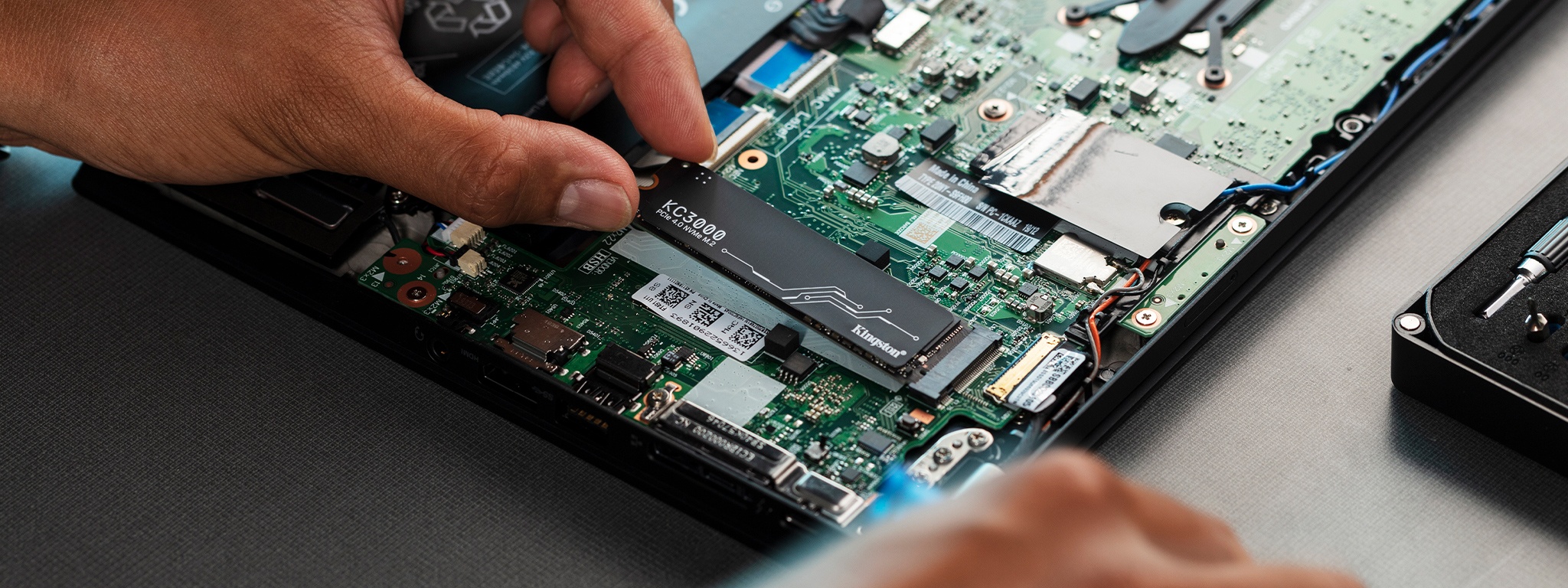
Slide the SSD into the slot at a slight angle.
-
Press it down gently.
-
Secure it with the correct screw.
-
Reinstall the heatsink if the board includes one.
Do not force the drive. If it does not slide in easily, check the key and orientation. The gold contacts should enter the slot evenly.
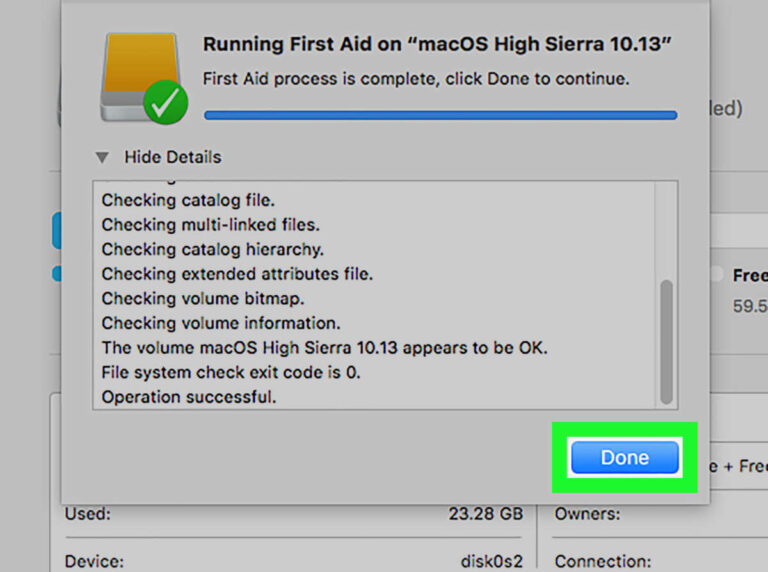
After installation, enter the UEFI or BIOS and check whether the drive appears. In Windows, open Disk Management to initialize and format a new secondary drive. If you are replacing the boot drive, clone the old drive or perform a clean operating system installation.
In my experience helping with PC upgrades, the most common problem is not a defective SSD. It is a missing screw, a loose SATA cable, or an M.2 drive installed in a slot that supports a different protocol. Taking a photo and checking the manual first avoids most of these issues.
Troubleshoot an SSD that is not detected
If the SSD does not appear, work through the problem in order. Start with the simplest checks.
• Shut down the PC and reseat the SSD.
• Check the SATA data and power cables.
• Test another SATA port if available.
• Confirm that the M.2 slot supports the drive protocol.
• Open Disk Management and look for an uninitialized drive.
• Check the UEFI or BIOS storage menu.
• Update the motherboard firmware if the manufacturer recommends it.
• Test the SSD in another compatible computer or enclosure.
A new drive may not appear in File Explorer until it is initialized and assigned a drive letter. That does not mean it is broken.
If an M.2 drive appears in the BIOS but Windows will not boot, the issue may involve the bootloader, partition style, or operating system installation. If it does not appear in the BIOS at all, focus first on the physical slot, protocol, firmware, and installation position.
Common mistakes to avoid
Knowing what SSD is compatible with my PC also means knowing what not to assume. These mistakes appear often during upgrades:
• Assuming every M.2 slot supports NVMe
• Buying a 2280 drive for a laptop that accepts only 2242
• Confusing M.2 SATA with M.2 NVMe
• Ignoring a laptop’s single sided drive limitation
• Forgetting the mounting screw
• Replacing a SATA drive without checking for the required cable
• Buying a high speed PCIe drive for an older SATA only computer
• Skipping a backup before cloning or reinstalling Windows
• Choosing capacity without checking the computer’s documented limit
One lesson I learned early is that product photos can be misleading. Two SSDs may look almost identical while using different interfaces. Always trust the technical specification, not the shape shown in an online listing.
Frequently Asked Questions
How do I know what SSD is compatible with my PC?
Check your PC or motherboard manual for the supported storage type, M.2 size, interface, and boot support. You can then match those details with the SSD specifications.
Can any M.2 SSD work in any M.2 slot?
No. An M.2 slot may support SATA, NVMe, or both. The drive must match the slot’s protocol, key, length, and mounting point.
Is NVMe better than SATA SSD?
NVMe SSDs are usually faster because they use PCI Express. SATA SSDs are still excellent for older computers, basic tasks, and systems without NVMe support.
Can I install an NVMe SSD in a SATA slot?
No. A standard SATA connection cannot communicate with an NVMe SSD. You need an M.2 PCIe slot or a compatible PCIe adapter.
Will a PCIe Gen 4 SSD work in a Gen 3 slot?
Usually, yes, if the slot supports NVMe and the physical connection matches. The SSD will operate at the lower Gen 3 speed.
Do I need to update BIOS before installing an SSD?
Not always. Newer systems commonly support modern SSDs automatically, but older systems may need a BIOS or UEFI update for NVMe boot support.
How can I tell whether my laptop supports a second SSD?
Read the laptop service manual and inspect its internal storage layout. Some laptops have a second M.2 slot, while others have only one drive bay.
Conclusion
The best way to know what SSD is compatible with my PC is to match five details: physical form, drive size, connector key, storage protocol, and motherboard support. Check the manual, confirm whether the system uses SATA or NVMe, and review BIOS, clearance, and capacity limits before buying.
Do not let similar-looking SSDs fool you. A careful compatibility check makes the upgrade smoother, protects your data, and helps you get the speed you paid for. Use this checklist before your next purchase, and share your PC model or upgrade experience in the comments.