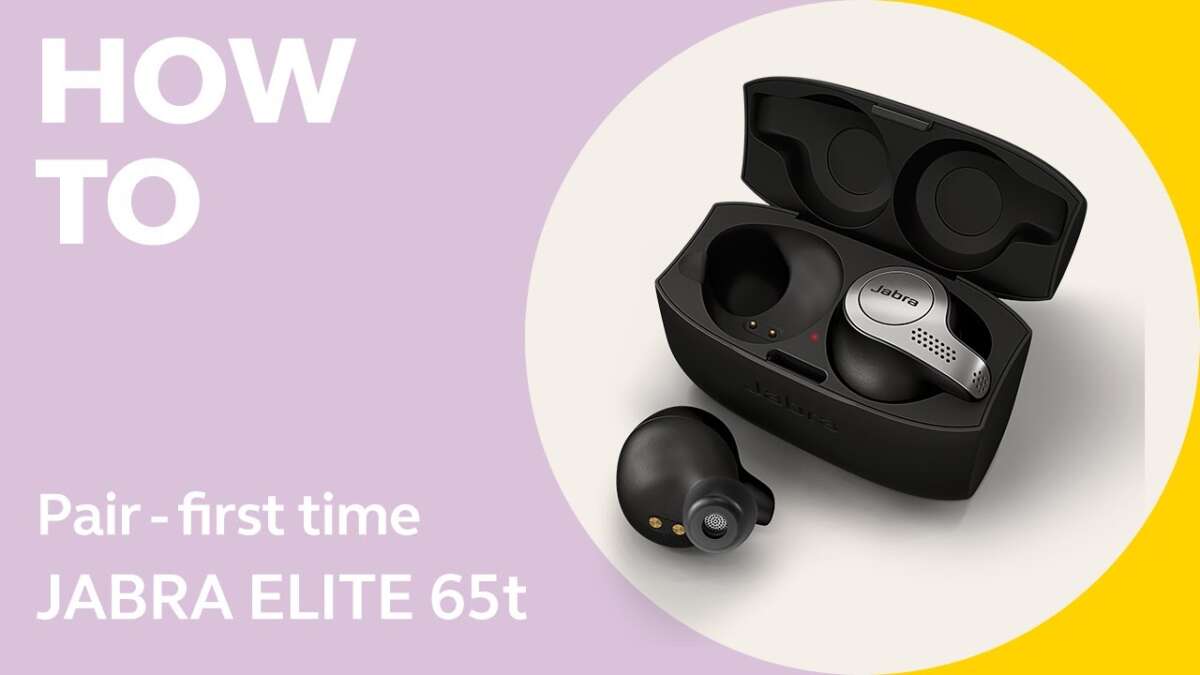
How To Connect Jabra Earbuds: Easy Pairing Guide
To connect Jabra earbuds, turn on Bluetooth, open the charging case, and select your earbuds from the device list.
Learning how to connect Jabra earbuds is simple once you know how pairing mode works. The steps are nearly the same for iPhone, Android, Windows, and Mac, but small differences can cause confusion. This guide explains the full process, fixes common connection problems, and shares practical tips for a faster, more stable setup.

How to connect Jabra earbuds for the first time
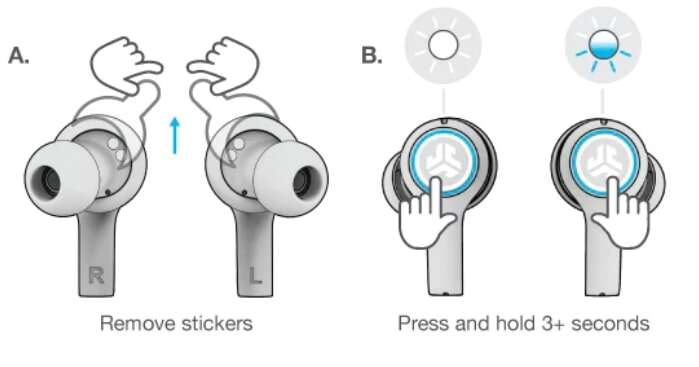
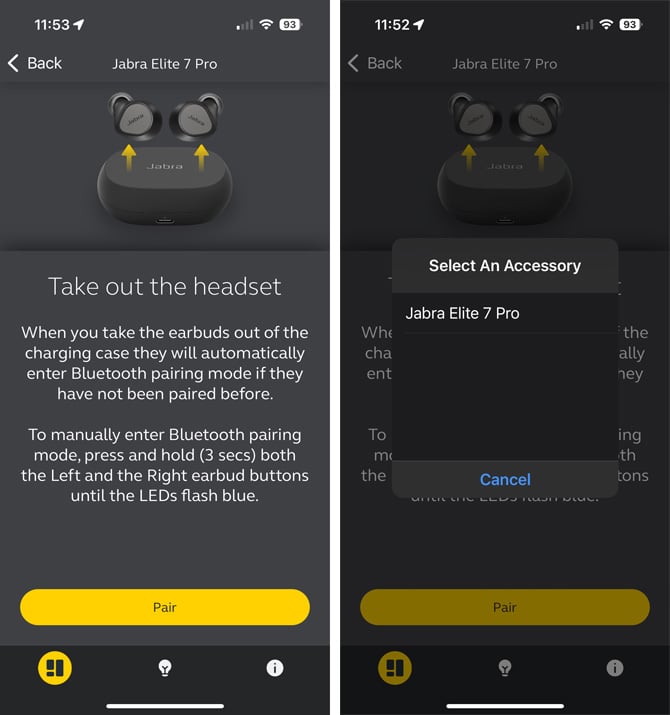
Most Jabra earbuds enter pairing mode the first time you remove them from the charging case. You may hear a voice prompt or see the LED flash blue. This means the earbuds are ready to connect.
Follow these steps:
- Charge the earbuds and charging case for a few minutes.
- Remove both earbuds from the case.
- Open the Bluetooth settings on your phone, tablet, or computer.
- Turn on Bluetooth.
- Look for your Jabra model in the list of available devices.
- Tap or click the device name.
- Wait for the status to show “Connected.”


The device name may look like “Jabra Elite 4,” “Jabra Elite 7 Pro,” or another model name. If you see more than one Jabra device, choose the one that matches your earbuds.
When you learn how to connect Jabra earbuds, remember that both earbuds should usually remain near the device during the first setup. Keep them within a few feet of your phone to avoid a weak first connection.

How to connect Jabra earbuds to an iPhone
Connecting Jabra earbuds to an iPhone takes less than a minute in most cases. Apple uses a simple Bluetooth menu, so you do not need a special app for basic audio.
- Place the earbuds in the charging case.
- Remove them from the case.
- Press and hold the buttons on both earbuds for about three seconds if they do not enter pairing mode.
- On your iPhone, open Settings.
- Tap Bluetooth.
- Make sure Bluetooth is turned on.
- Select your Jabra earbuds under “Other Devices.”
- Wait until they appear under “My Devices” with a connected status.
Some Jabra models use touch controls instead of physical buttons. In that case, press and hold the touch areas on both earbuds until the LED flashes blue.
After you connect Jabra earbuds to an iPhone, the phone should remember them. The next time you take the earbuds from the case, they should reconnect automatically if Bluetooth is active.

How to connect Jabra earbuds to an Android phone
The Android process is similar, although menu names may vary by phone brand. Samsung, Google Pixel, Motorola, and OnePlus phones can use slightly different Bluetooth menus.
Use these steps:
- Open Settings on your Android phone.
- Select Connected devices, Connections, or Bluetooth.
- Turn on Bluetooth.
- Remove the Jabra earbuds from their case.
- Press and hold both earbud buttons if pairing mode does not start.
- Tap Pair new device or Scan.
- Select your Jabra earbuds from the list.
- Confirm the pairing request if one appears.
If your Android phone asks for a PIN, try 0000. Most newer Jabra earbuds do not need a PIN, but older Bluetooth devices sometimes do.
The Jabra Sound+ app can help with firmware updates, sound settings, battery information, and device management. However, the app is not required for basic Bluetooth pairing.

How to connect Jabra earbuds to a Windows PC
Jabra earbuds work well with Windows laptops and desktop computers. They can play music, join video calls, and act as a wireless microphone.


To pair them with Windows 11:
- Open Settings.
- Select Bluetooth & devices.
- Turn on Bluetooth.
- Click Add device.
- Choose Bluetooth.
- Remove the Jabra earbuds from the case.
- Select the earbuds when they appear.
- Click Done.
On Windows 10, open Settings, select Devices, choose Bluetooth & other devices, and click Add Bluetooth or other device.
If your computer connects the earbuds but no sound plays, change the audio output. Click the speaker icon in the taskbar and select your Jabra earbuds. For calls, also check the microphone setting inside apps such as Zoom, Microsoft Teams, or Google Meet.
One common mistake is selecting the “Headset” profile when you want better music quality. Windows may use a hands-free profile during calls, which can reduce audio quality. This is normal Bluetooth behavior, not always a fault with the earbuds.
How to connect Jabra earbuds to a Mac
Mac computers can pair with Jabra earbuds through System Settings or System Preferences.
On newer versions of macOS:
- Open the Apple menu.
- Select System Settings.
- Click Bluetooth.
- Turn Bluetooth on.
- Take the earbuds out of the case.
- Select the Jabra earbuds from the nearby device list.
- Click Connect.
On older macOS versions, open System Preferences and select Bluetooth.
After pairing, click the Control Center icon in the menu bar. Select Sound and choose your Jabra earbuds as the output device. You may also need to choose them as the input device during video calls.
Knowing how to connect Jabra earbuds to a Mac is useful for work because many Jabra models support clear call audio. Still, the microphone quality can change when macOS switches from a stereo music profile to a hands-free call profile.
How to put Jabra earbuds into pairing mode
Pairing mode allows another device to find your earbuds. Without it, your phone or computer may not show the Jabra device in the Bluetooth list.
For many Jabra models, you can enter pairing mode by pressing and holding both earbud buttons for about three seconds. Release the buttons when the LEDs flash blue or when you hear a pairing message.
Some models may use a different method. Check the quick-start guide for your exact model if the standard method does not work.
Try these tips:
• Keep both earbuds outside the case.
• Make sure the earbuds have enough battery power.
• Turn off Bluetooth on devices that were previously connected.


• Place the earbuds close to the device you want to pair.
• Avoid pressing the buttons too briefly.
A blue flashing light often means pairing mode. A green light may indicate a good battery level, while a red light may signal low battery or a charging issue. LED colors can vary by model, so the product guide remains the best reference.
How to connect Jabra earbuds after changing phones
Your Jabra earbuds can remember one or more devices, depending on the model. If you switch from an old phone to a new phone, the earbuds may try to reconnect to the old device instead.
To connect them to the new phone:
- Turn off Bluetooth on the old phone.
- Put the Jabra earbuds into pairing mode.
- Open Bluetooth settings on the new phone.
- Select the Jabra earbuds.
- Confirm the connection.
Some Jabra models support Bluetooth Multipoint. This feature allows the earbuds to stay connected to two devices at the same time, such as a phone and a laptop. You can listen to music on one device and answer a call from the other.
Multipoint support depends on the model and firmware. If it does not work, update the earbuds through the Jabra Sound+ app and check whether the feature is supported.
How to connect Jabra earbuds with the Jabra Sound+ app
The Jabra Sound+ app is useful after Bluetooth pairing. It gives you more control over sound and device features.
To use the app:
- Pair the earbuds through your phone’s Bluetooth settings.
- Install the Jabra Sound+ app from the official app store.
- Open the app.
- Allow Bluetooth and nearby-device permissions.
- Select your Jabra earbuds.
- Follow the setup instructions.
The app may offer:
• Firmware updates
• Custom equalizer settings
• Noise cancellation controls
• HearThrough or transparency settings
• Find My Jabra features
• Battery status
• Voice assistant controls
Update the earbuds when the app recommends it, but do not place them far from your phone during the update. Keep the case open and make sure both earbuds have enough charge.
In my experience, updating firmware solves many small connection issues. It is also wise to update the app itself because older app versions may not detect newer Jabra models correctly.


What to do when Jabra earbuds will not connect
If your Jabra earbuds do not connect, start with simple checks. Bluetooth problems often come from an old saved connection, low battery, or pairing mode not being active.
Try the following steps:
- Turn Bluetooth off and back on.
- Place both earbuds in the case for 10 seconds.
- Remove them and try pairing mode again.
- Restart your phone or computer.
- Move away from other active Bluetooth devices.
- Charge the earbuds and case.
- Forget the old Jabra connection.
- Pair the earbuds again.
To forget the connection on an iPhone, open Settings, tap Bluetooth, select the information icon beside the Jabra device, and choose Forget This Device.
On Android, open Bluetooth settings, tap the gear icon beside the Jabra device, and choose Forget or Unpair.
On Windows and Mac, remove the earbuds from the Bluetooth device list before trying again.
A mistake I often see is trying to pair only one earbud. Remove both earbuds from the case and place them close together first. This helps them link to each other before they connect to your phone.
How to reset Jabra earbuds
A reset removes old pairing data and returns the earbuds to their default connection state. Use it when normal troubleshooting does not work.
For many Jabra models:
- Remove both earbuds from the charging case.
- Press and hold both earbud buttons for about 10 seconds.
- Wait for the LEDs to flash purple or follow the model-specific reset signal.
- Place the earbuds in the case.
- Close and reopen the case.
- Put the earbuds into pairing mode.
- Connect them again.
The reset process differs across Jabra product families. Elite models, Talk models, and older wireless earbuds may use different button combinations.
A reset can remove saved Bluetooth connections, custom settings, and other stored data. It does not usually fix physical damage, blocked charging contacts, or a failing battery.
How to improve Jabra Bluetooth connection quality
A stable connection depends on more than the earbuds. Your phone, computer, surroundings, and software can all affect Bluetooth performance.
Use these practical tips:
• Keep the source device within about 30 feet in open space.
• Keep your phone on the same side as the earbud that handles the main connection.
• Avoid carrying the phone inside a crowded bag or deep pocket.
• Keep the earbuds away from strong wireless interference.


• Clean the charging contacts with a dry cotton swab.
• Keep the earbuds’ firmware current.
• Close unused Bluetooth connections when possible.
Bluetooth can pass through clothing and light barriers, but walls, metal objects, and crowded wireless areas may reduce range. Water can also affect wireless signals, even though some Jabra models offer water or sweat resistance.
Check your model’s protection rating before using it during heavy rain or water sports. Water resistance is not the same as waterproofing, and damage from liquid may not be covered by the warranty.
Common mistakes when pairing Jabra earbuds
The pairing process is easy, but a few habits cause repeated problems.
• Leaving the earbuds connected to an old phone: Turn Bluetooth off on the old device before starting.
• Forgetting to charge the case: The earbuds may appear dead even when the case cannot supply power.
• Removing only one earbud: Use both earbuds during the first setup.
• Tapping the wrong device: Select the exact Jabra model name in the Bluetooth list.
• Skipping firmware updates: Older firmware may cause problems with newer phones.
• Standing too far away: Keep the devices close during pairing.
• Using the wrong audio output: A computer may connect successfully but keep playing sound through its built-in speakers.
The best approach is to treat pairing like introducing two people. Let the earbuds become discoverable, let the phone search, and then connect them without adding extra steps.
How to connect Jabra earbuds for phone calls
After pairing, Jabra earbuds should handle calls automatically. If they do not, check the call audio settings on your phone.


On an iPhone, tap the audio button during a call and select your Jabra earbuds. On Android, tap the Bluetooth icon or audio source button during the call and choose the earbuds.
For clearer calls:
• Speak in a quiet area.
• Keep the phone nearby.
• Make sure the microphone openings are clean.
• Check that the earbuds have permission to access Bluetooth and nearby devices.
• Test the microphone with a voice recording app.
On a computer, select the Jabra earbuds as both the speaker and microphone inside the meeting app. Some apps use their own audio settings and may not follow the Windows or Mac default.
Frequently Asked Questions About How to Connect Jabra Earbuds
Why are my Jabra earbuds not showing in Bluetooth?
They may not be in pairing mode, or they may still be connected to another device. Turn off Bluetooth on nearby devices, then press and hold both earbud buttons until the LEDs flash blue.
How do I connect Jabra earbuds to a new phone?
Turn off Bluetooth on the old phone, place the earbuds in pairing mode, and select them from the new phone’s Bluetooth menu. If the earbuds still do not appear, forget the old connection and reset the earbuds.
Can I connect Jabra earbuds to two devices?
Some Jabra models support Bluetooth Multipoint, which allows two active connections. Check your model specifications and update the firmware before using this feature.
Do I need the Jabra Sound+ app to pair my earbuds?
No. You can connect Jabra earbuds through your device’s normal Bluetooth settings. The app is helpful for firmware updates, sound controls, battery details, and extra features.
How do I reset Jabra earbuds?
For many models, remove both earbuds and hold their buttons for about 10 seconds until the reset light pattern appears. The exact steps vary, so check the guide for your specific Jabra model.
Why do my Jabra earbuds connect but have no sound?
Your phone or computer may be using another audio output. Open the sound settings and select the Jabra earbuds as the active output device.
Conclusion
Learning how to connect Jabra earbuds usually takes only a few steps: charge them, enter pairing mode, open Bluetooth, and select the correct Jabra model. If the connection fails, forget the old device, restart Bluetooth, update the firmware, or reset the earbuds.
Once paired, keep the earbuds updated and store them in the charging case after use. Try the steps above with your model, then explore the Jabra Sound+ app for sound controls and helpful features. Share this guide with anyone who needs help connecting their Jabra earbuds.