How To Use Bluetooth Headphones On Xbox One: Easy Guide
Xbox One does not support Bluetooth headphones directly, but you can connect them through a controller, TV, transmitter, or Xbox app.
Learning how to use Bluetooth headphones on Xbox One is easier once you understand the console’s wireless limits. Xbox One uses Xbox Wireless for many gaming headsets, while standard Bluetooth headphones need another connection method. This guide explains the safest options, chat limits, sound settings, and fixes based on common Xbox setups.
Does Xbox One support Bluetooth headphones?
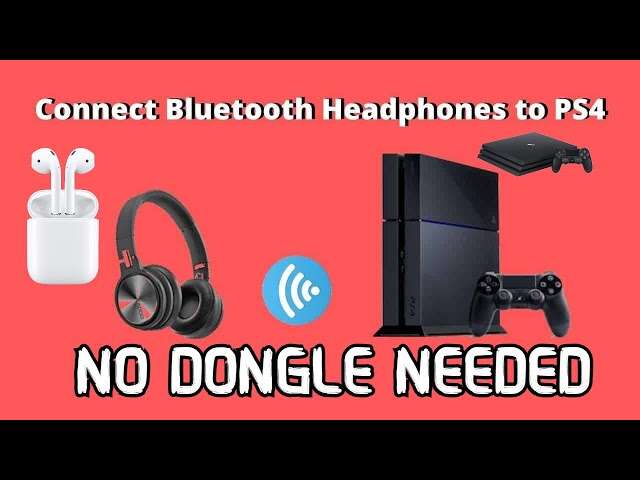
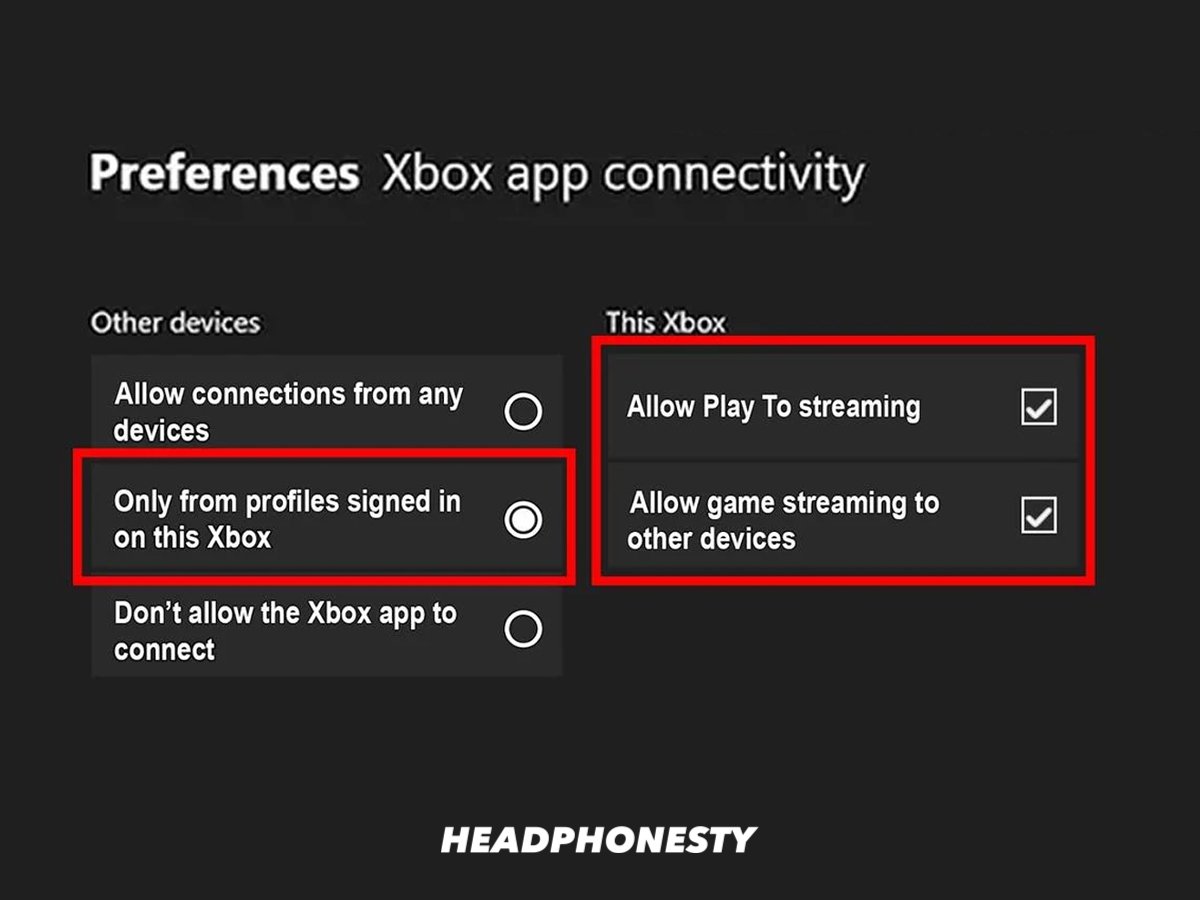
Xbox One consoles do not pair with standard Bluetooth headphones in the same way a phone does. The console does not offer a normal Bluetooth audio menu for wireless earbuds or headphones.
This design helps reduce audio delay and interference during games. Xbox One mainly supports Xbox Wireless accessories and wired headsets connected to the controller.


You can still use Bluetooth headphones with Xbox One. You just need a bridge between the headphones and the console.
The best method depends on what you need:
• For simple game audio, connect Bluetooth headphones to your TV.
• For game audio and voice chat, use a compatible Xbox Wireless headset.
• For wired sound, plug headphones into the controller.
• For Bluetooth sound, use a supported Bluetooth transmitter.
• For party chat, use the Xbox mobile app or Xbox app on a compatible device.

How to use Bluetooth headphones on Xbox One through your TV
Connecting Bluetooth headphones to your television is often the simplest way to hear Xbox One game audio. Your Xbox sends sound to the TV, and the TV sends that sound to your headphones.
This method works best when your television has built-in Bluetooth audio support. Many newer smart TVs include it, but menus differ by brand and model.
Steps to connect Bluetooth headphones to a TV
-
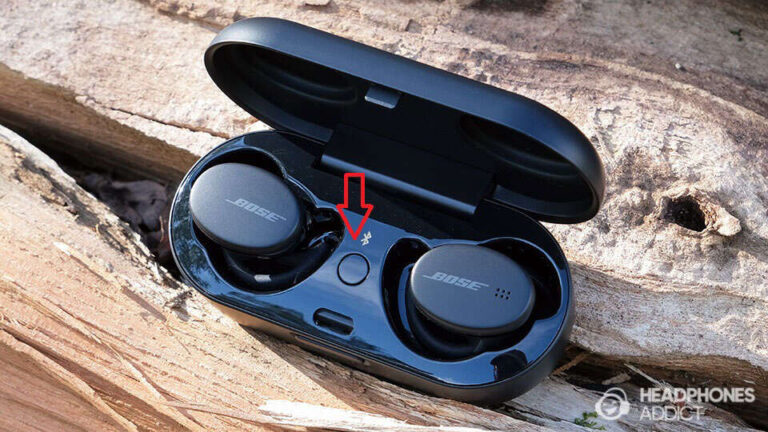
Turn on your Bluetooth headphones and place them in pairing mode.
-
Open your TV’s Settings menu.
-
Look for Sound, Audio Output, Bluetooth Audio, or Bluetooth Speaker List.
-
Select your headphones from the list.
-
Confirm the connection.
-
Turn on the Xbox One and start a game.
-
Adjust the TV volume and headphone volume as needed.
Some TVs disconnect Bluetooth devices after a restart. If that happens, open the TV’s Bluetooth menu and select the headphones again.


This method usually sends game audio to the headphones, but it may not send your microphone input to Xbox. You may hear other players but still need another device for voice chat.
What if the TV has no Bluetooth?
You can add Bluetooth audio with a transmitter. Choose a transmitter that connects to one of these TV outputs:
• A 3.5 mm headphone jack
• Optical audio output
• RCA audio output
A transmitter receives sound from the TV and sends it to your headphones. Check the transmitter’s manual for the correct input mode.
src="https://www.headphonesty.com/wp-content/uploads/2022/08/Via_Bluetooth_transmitter_1.jpg"
alt="How to use Bluetooth headphones on Xbox One with a Bluetooth transmitter”
style=”max-width: 100%; height: auto; border: 2px solid black; border-radius: 10px; display: block; margin: 0 auto;”
loading=”lazy”
/>
How to use Bluetooth headphones on Xbox One with a Bluetooth transmitter
A Bluetooth transmitter can send Xbox game audio to wireless headphones. This is a useful choice if your TV does not support Bluetooth.
A transmitter is not the same as a Bluetooth receiver. A transmitter sends sound out, while a receiver accepts sound from a phone or another source. For Xbox One game audio, you need a transmitter.
Connect through the TV’s 3.5 mm jack
This is usually the easiest transmitter setup.
-
Plug the transmitter into the TV’s 3.5 mm audio output.
-
Connect the transmitter to power if required.
-
Put the transmitter into pairing mode.
-
Put your Bluetooth headphones into pairing mode.
-
Wait for both devices to connect.
-
Set the TV audio output to Headphones or External Speaker if needed.
-
Test the sound in an Xbox game.
Some TVs disable their built-in speakers when a 3.5 mm plug is connected. That is normal.
Connect through optical audio
If your TV has an optical output, you can use an optical Bluetooth transmitter.
-
Connect an optical cable from the TV to the transmitter.
-
Set the TV’s digital audio output to Stereo or PCM.
-
Put the transmitter and headphones into pairing mode.
-
Confirm that the devices connect.
-
Test game audio.
Stereo or PCM is often more reliable than Dolby Digital with basic Bluetooth transmitters. A transmitter may not decode every surround sound format.
Understand Bluetooth audio delay
Bluetooth can add a small delay between the game action and the sound. This delay may be hard to notice in slow games, but it can matter in racing games, rhythm games, and competitive shooters.
For better results, choose headphones and a transmitter that support a low-latency codec. Both devices must support the same codec for the improvement to work.


Bluetooth transmitters also have limits:
• Most do not provide Xbox party chat.
• Some cannot control the TV volume.
• Some connect to only one headset at a time.
• Cheap models may create noticeable audio delay.
• Wireless interference can cause clicks or brief dropouts.
In testing and troubleshooting Bluetooth setups, the most common mistake is buying a receiver instead of a transmitter. Check the product description before buying.
How to use Bluetooth headphones on Xbox One with the Xbox app
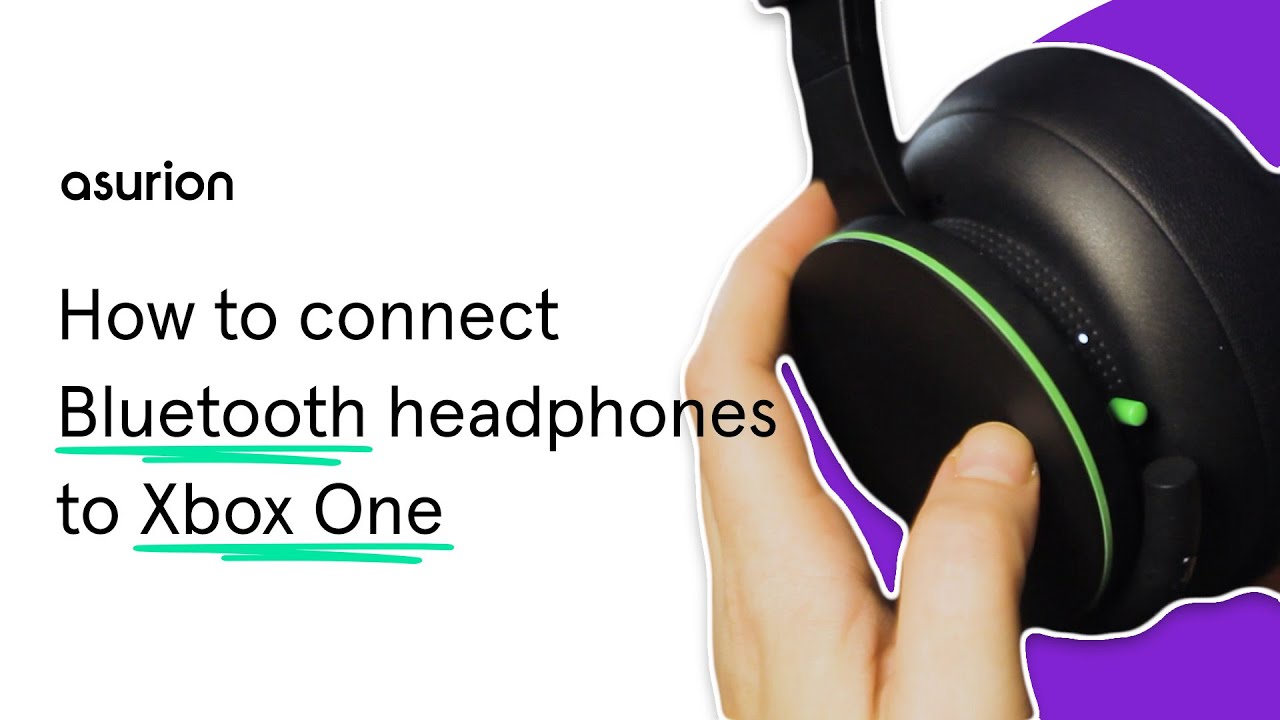
The Xbox mobile app can help you use Bluetooth headphones for party chat. This is different from sending Xbox game audio directly to the headphones.
Your Xbox sends game audio to the TV or another audio device. Your phone runs Xbox party chat, and your Bluetooth headphones connect to the phone.
Steps for party chat
-
Install the Xbox app on your iPhone or Android phone.
-
Sign in with the Microsoft account linked to your Xbox profile.
-
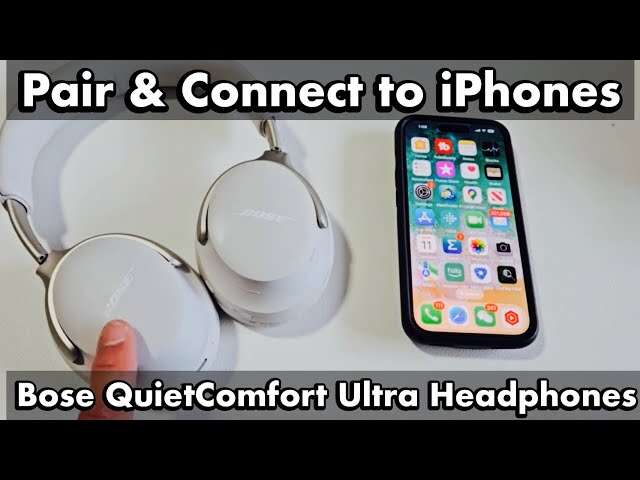
Pair your Bluetooth headphones with your phone.
-
Open the Xbox app.
-
Join or start an Xbox party.
-
Use the phone’s Bluetooth headphones for party chat.
-
Keep the game audio playing through the TV or another output.
This setup can work well for casual multiplayer sessions. However, your game audio and chat audio come from different devices, which may feel awkward at first.
It also depends on a stable internet connection. If the app loses connection, party chat may stop even though your headphones remain paired with the phone.
The best option for game audio and voice chat
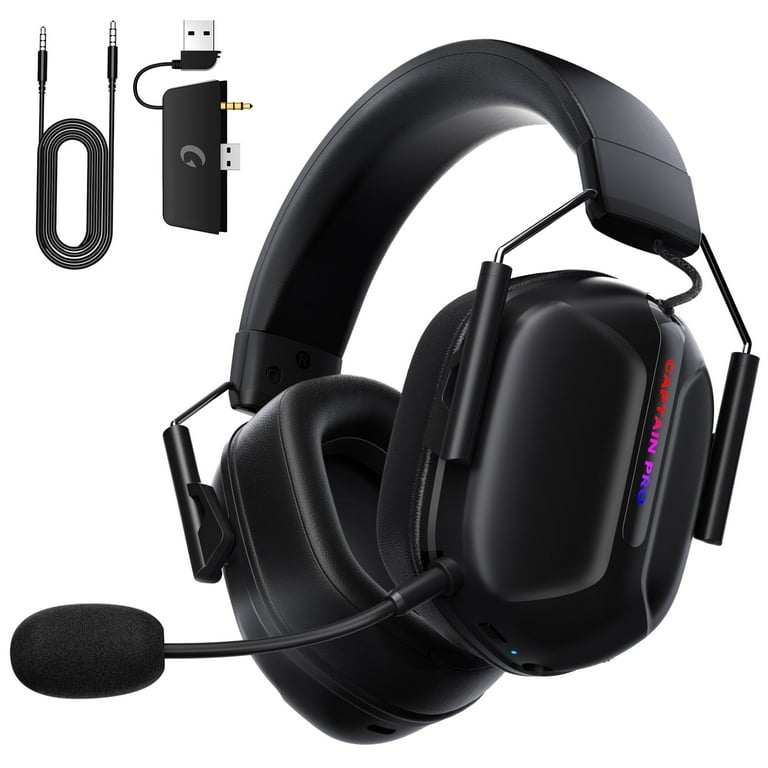
If you want one wireless headset for both game sound and voice chat, choose a headset made for Xbox One. Look for the “Designed for Xbox” label or Xbox Wireless compatibility.
Xbox Wireless headsets connect to the console without a separate USB Bluetooth adapter. Some models also include Bluetooth, which lets you connect a phone at the same time.
This type of headset usually provides:


• Game audio
• Party chat
• A built-in microphone
• Volume controls
• Chat and game audio balance
• Lower delay than basic Bluetooth
Do not assume that every wireless gaming headset works with Xbox One. A headset designed only for PlayStation, PC, or Nintendo Switch may not connect correctly.
A USB Bluetooth adapter also may not solve the problem. Xbox One does not generally support standard USB Bluetooth audio adapters for headphones. The USB port may provide power, but the console may not recognize the adapter as an audio device.
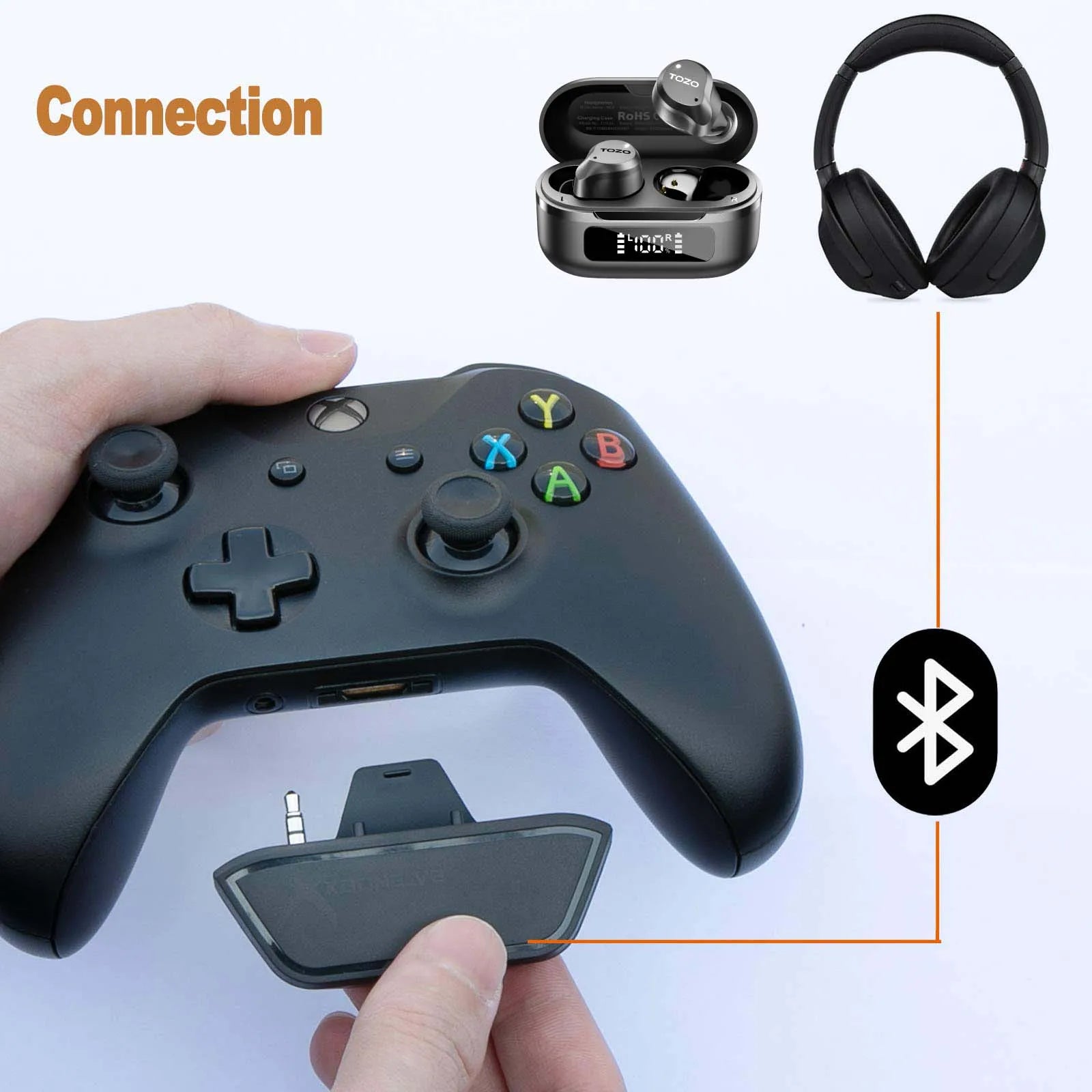
How to use wired headphones with an Xbox One controller
A wired headset is often the most reliable and affordable choice. It avoids Bluetooth delay and normally supports game audio and voice chat.
This method works with Xbox One controllers that have a 3.5 mm headset jack.
Steps to connect wired headphones
-
Turn on the Xbox One controller.
-
Plug the headphone cable into the controller’s 3.5 mm port.
-
Open Settings on the Xbox.
-
Select Devices & connections.
-
Select Accessories.
-
Choose the controller.
-
Adjust headset volume, microphone monitoring, and chat mixer settings.
If your controller has no 3.5 mm jack, you may need the Xbox One Stereo Headset Adapter. The adapter connects to the older controller expansion port and provides a headphone jack.
A wired connection is also useful for testing. If the wired headset works but the Bluetooth setup does not, the console and game are likely working correctly.
Xbox One audio settings to check
Correct settings can make a major difference. Open the Xbox guide, then go to Profile & system, Settings, General, and Volume & audio output.
Check these options:
• Headset format: Choose Stereo uncompressed for basic headphones.
• HDMI audio: Use Stereo uncompressed when your TV or transmitter does not support surround sound.
• Optical audio: Choose Stereo uncompressed for many Bluetooth transmitters.
• Chat mixer: Move the slider toward game or chat, depending on your preference.


• Mic monitoring: Increase it if you need to hear your own voice.
If you use a TV transmitter, confirm that the TV is receiving sound from the Xbox through HDMI. Then confirm that the transmitter is connected to the TV’s active audio output.
Some games have separate volume controls. Check the game’s audio menu if the Xbox settings look correct.

How to fix Bluetooth headphone problems on Xbox One
Bluetooth headphone problems often come from pairing, output, or compatibility issues. Try these fixes in order.
Headphones do not appear during pairing
• Charge the headphones fully.
• Turn off Bluetooth on nearby phones and tablets.
• Remove the headphones from the TV or phone’s saved device list.
• Restart the headphones.
• Restart the TV or transmitter.
• Put the headphones into pairing mode again.
Some headphones enter pairing mode only when you hold the power button for several seconds. A blinking blue or white light often indicates pairing mode, but check the headphone manual.
You hear no game audio
• Confirm that the Xbox sends audio to the TV through HDMI.
• Check the TV’s audio output.
• Make sure the transmitter uses the correct input.
• Set digital audio to Stereo or PCM.
• Raise the volume on both the TV and headphones.
• Test another app or game.
The audio is delayed
• Use a low-latency transmitter and compatible headphones.


• Move the headphones closer to the transmitter.
• Disconnect other Bluetooth devices.
• Use a wired headset for competitive games.
• Check whether the TV has an audio delay adjustment.
TV processing can also create delay. Disable extra sound effects, virtual surround modes, or audio enhancement settings if the delay remains.
The microphone does not work
A TV Bluetooth connection usually carries game audio only. It does not create a working Xbox microphone connection.
For voice chat, use an Xbox-compatible wireless headset, a wired headset connected to the controller, or the Xbox app on your phone. This is one of the key limitations when learning how to use Bluetooth headphones on Xbox One.
Common mistakes to avoid
Many connection problems start with the wrong accessory or the wrong expectation.
• Do not assume Xbox One supports direct Bluetooth headphone pairing.
• Do not buy a Bluetooth receiver when you need a transmitter.
• Do not expect a TV connection to provide Xbox voice chat.
• Do not use a random USB Bluetooth dongle and expect automatic support.
• Do not choose Dolby Digital if your transmitter supports only stereo PCM.
• Do not ignore audio delay if you play competitive games.
• Do not pair the headphones with your phone while testing another Bluetooth connection.
The most dependable setup is usually an Xbox Wireless headset or a wired headset connected to the controller. Bluetooth is convenient, but it works best when you accept its limits.
Bluetooth headphones versus Xbox Wireless headsets
Both options can be useful, but they serve different needs.
| Feature | Bluetooth headphones | Xbox Wireless headset |
|---|---|---|
| Direct Xbox One pairing | Usually no | Yes, with compatible models |
| Game audio | Through TV or transmitter | Direct to headset |
| Voice chat | Usually limited | Usually supported |
| Audio delay | Possible | Usually lower |
| Phone connection | Common | Available on some models |
| Setup cost | Often low to moderate | Moderate to high |
| Best use | TV audio and casual play | Complete gaming audio setup |
Bluetooth headphones may be ideal if you already own a good pair. An Xbox Wireless headset is usually better if you play online often and need clear chat.
Frequently asked questions about how to use Bluetooth headphones on Xbox One
Can I connect Bluetooth headphones directly to Xbox One?
No. Xbox One does not normally support direct Bluetooth audio pairing for standard headphones. Use a TV, Bluetooth transmitter, Xbox Wireless headset, wired controller connection, or the Xbox app instead.
Can I use AirPods with Xbox One?
AirPods cannot normally connect directly to Xbox One for game audio. You can connect them to a compatible TV, use a Bluetooth transmitter, or use the Xbox mobile app for party chat.
Can Bluetooth headphones provide Xbox party chat?
Usually not when they connect through a TV or basic Bluetooth transmitter. For party chat, use an Xbox-compatible headset, a wired controller headset, or Bluetooth headphones connected to a phone running the Xbox app.
Will a USB Bluetooth adapter work on Xbox One?
Most standard USB Bluetooth adapters do not work for Xbox One headphone audio. Xbox One does not generally support these adapters as plug-and-play Bluetooth sound devices.
Why is Bluetooth audio delayed on Xbox One?
Bluetooth audio passes through extra wireless and processing steps. The delay can come from the transmitter, headphones, or TV, and it is more noticeable in fast or rhythm-based games.
Can I use Bluetooth headphones and TV speakers at the same time?
Some TVs allow both outputs, while others switch off the speakers when Bluetooth audio connects. Check the TV’s sound settings for a simultaneous audio or dual output option.
What is the best way to use Bluetooth headphones on Xbox One?
For game audio only, connect the headphones to the TV or use a Bluetooth transmitter. For game audio and chat together, an Xbox Wireless headset or wired controller headset is the better choice.
Conclusion
Learning how to use Bluetooth headphones on Xbox One starts with one important fact: the console does not offer normal direct Bluetooth audio pairing. You can still use Bluetooth through a compatible TV, a Bluetooth transmitter, or the Xbox app, but each option has limits.
Choose a wired or Xbox Wireless headset if you need reliable game sound and voice chat. Choose a TV connection or transmitter if you mainly want convenient wireless game audio. Set the Xbox output to stereo when needed, test for delay, and confirm whether your microphone works before starting a long multiplayer session.
Try the setup that matches your needs, then share your results or explore more Xbox audio guides for a smoother gaming experience.