How To Connect Bose Earbuds To Laptop: Easy Pairing Guide
To connect Bose earbuds to a laptop, turn on Bluetooth, activate pairing mode, and select the earbuds from your device list.
Learning how to connect Bose earbuds to a laptop is usually quick, but the exact steps can vary by model and operating system. This guide explains the process for Windows and Mac laptops, covers common Bose earbuds such as QuietComfort, Sport, and Ultra models, and shows how to fix connection problems when pairing does not work on the first try.
What to Check Before Connecting Bose Earbuds to a Laptop
Before you connect Bose earbuds to a laptop, take a minute to prepare both devices. A short check can prevent most pairing problems.


Make sure your laptop supports Bluetooth. Nearly all modern Windows laptops and MacBooks do, but some older desktop computers and budget laptops may need a USB Bluetooth adapter.
Also check the following:
• Charge the Bose earbuds and charging case.
• Turn on Bluetooth on your laptop.
• Keep the earbuds within about 3 feet of the laptop during setup.
• Disconnect the earbuds from your phone or tablet for now.
• Install pending operating system updates if Bluetooth has been unreliable.
• Place both earbuds in the charging case, then remove them together.
Bose earbuds can usually connect to one active device at a time. Some models support multipoint connections, which allow two devices to stay connected. However, multipoint behavior differs by model and software version, so disconnecting your phone is the simplest way to begin.
I have found that a low battery often looks like a Bluetooth problem. If the earbuds appear for a moment and then vanish, charge the case for at least 15 minutes before trying again.
How to Put Bose Earbuds in Pairing Mode
Pairing mode makes the earbuds visible to nearby Bluetooth devices. Without it, your laptop may not find them, even when the earbuds are powered on.
For many Bose wireless earbuds, follow these steps:


-
Put both earbuds in the charging case.
-
Leave the case open.
-
Press and hold the Bluetooth or setup button on the case.
-
Release the button when the status light begins to blink blue.
-
Keep the case near your laptop while you complete the connection.
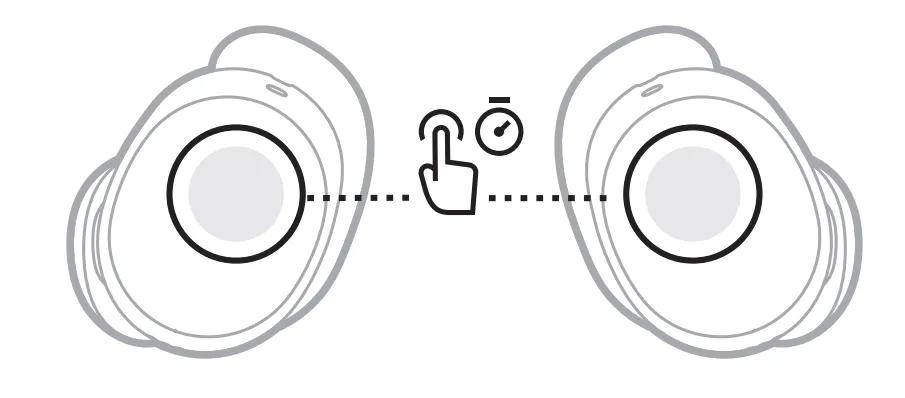
Some Bose models use a touch control or a button on the earbuds instead of a case button. If your model does not enter pairing mode with the steps above, check the model-specific instructions in the Bose app or the product manual.
A flashing blue light normally means the earbuds are ready to pair. A white light may indicate that the earbuds are connecting or already connected. A red or amber light often points to low battery or a charging issue, although light patterns can vary between models.
If the earbuds were paired with another device before, they may automatically reconnect to it. Turn off Bluetooth on your phone for a moment, or remove the earbuds from your phone’s Bluetooth list. Then place the Bose earbuds in pairing mode again.

How to Connect Bose Earbuds to a Windows Laptop
The steps for connecting Bose earbuds to a Windows laptop are similar on Windows 10 and Windows 11. The menu names may look slightly different, but the Bluetooth process is nearly the same.
Windows 11 instructions
-
Open the Start menu and select Settings.
-
Choose Bluetooth & devices.
-
Turn on Bluetooth.
-
Select Add device.
-
Choose Bluetooth.
-
Wait for your Bose earbuds to appear.
-
Select the earbuds by name.
-
Choose Done after Windows confirms the connection.
Your earbuds may appear as “Bose QuietComfort Earbuds,” “Bose Sport Earbuds,” “Bose QC Ultra Earbuds,” or a similar name. Select the entry that matches your model.
Windows 10 instructions
-
Open Settings from the Start menu.
-
Select Devices.
-
Choose Bluetooth & other devices.
-
Turn on Bluetooth.
-
Select Add Bluetooth or other device.
-
Choose Bluetooth.
-
Click your Bose earbuds when they appear.
-
Select Done.
Windows may show the earbuds as “Connected voice, music” or “Connected music.” The first option supports both sound and microphone use. If Windows shows only a generic connection, open the sound settings and select the earbuds as the output device.
Select Bose earbuds as the audio output
Connecting Bose earbuds to a laptop does not always make them the active speakers. If sound still comes from the laptop, change the output manually.
• Select the speaker icon on the Windows taskbar.
• Open the sound output menu.
• Select your Bose earbuds.
You can also go to Settings, System, and Sound. Under Output, choose the Bose earbuds. Under Input, select the earbuds if you want to use their microphone for calls.
Windows may show two audio profiles. A stereo profile usually provides better sound for music. A hands-free profile may activate the microphone but reduce sound quality. This is a Bluetooth limitation, not usually a fault with the Bose earbuds.
How to Connect Bose Earbuds to a MacBook
Connecting Bose earbuds to a MacBook takes only a few steps. The process works with MacBook Air, MacBook Pro, and other recent Mac computers that support Bluetooth.


-
Put the Bose earbuds into pairing mode.
-
Select the Apple menu in the upper-left corner.
-
Open System Settings.
-
Select Bluetooth.
-
Turn Bluetooth on if it is off.
-
Find your Bose earbuds in the list.
-
Click Connect.
Older macOS versions may use System Preferences instead of System Settings. Open System Preferences, select Bluetooth, and click Connect beside the Bose earbuds.
After the MacBook connects, select the Control Center icon in the menu bar. Choose Sound, then select your Bose earbuds. You can also open System Settings, select Sound, and choose the earbuds under Output.
To use the Bose earbuds during a video call, select them in the meeting app as both the speaker and microphone. Apps such as Zoom, Microsoft Teams, Google Meet, and FaceTime may use their own audio settings instead of the Mac’s default output.
When you connect Bose earbuds to a laptop for the first time, macOS may ask for permission to use the microphone. Allow access if you plan to make calls or record audio.

How to Connect Bose Earbuds to a Laptop With the Bose App
The Bose app can help with setup, firmware updates, product names, and device settings. However, the app is not always required to connect Bose earbuds to a laptop.
For many Bose earbuds, the Bose app is designed mainly for iPhone and Android devices. Your laptop can usually pair with the earbuds through its regular Bluetooth menu without installing a desktop Bose app.
The app can still be useful before or after pairing. Depending on the model, it may let you:
• Check the earbud and case battery levels.
• Install firmware updates.
• Rename the earbuds.
• Adjust noise cancellation.
• Change touch controls.
• Manage supported multipoint connections.
Update the earbuds through the Bose app when possible. Firmware updates can improve stability, but do not remove the earbuds from the charging case during an update. Keep the phone close and make sure both the phone and earbuds have enough battery.
A common mistake is searching for a Bose laptop app and assuming it is necessary. In most cases, Bluetooth settings on Windows or macOS are enough to connect Bose earbuds to a laptop.
How to Connect Bose Earbuds to a Laptop Again
Once Bose earbuds are paired, they should reconnect automatically when Bluetooth is on and the earbuds are removed from the case. If they do not reconnect, connect them manually.


On Windows:
-
Open Settings.
-
Select Bluetooth & devices.
-
Find the Bose earbuds under your saved devices.
-
Select Connect.
On a Mac:
-
Open System Settings.
-
Select Bluetooth.
-
Find the Bose earbuds.
-
Select Connect.
If the laptop connects to another Bluetooth headset first, disconnect that headset. Your laptop may keep the most recently used audio device active.
You can also place the earbuds back into the case, close the lid, wait a few seconds, and remove them again. This simple reset often triggers automatic reconnection.
In my own testing, the biggest cause of failed reconnection was an active phone connection. The earbuds were not broken; they were simply still talking to the phone. Turning off phone Bluetooth usually solved the issue in seconds.

Bose Earbuds Not Showing on a Laptop
If your laptop cannot find the earbuds, start with the pairing mode. The earbuds must be discoverable before Windows or macOS can list them.
Try these steps in order:
-
Turn Bluetooth off on the laptop.
-
Put the earbuds in the charging case.
-
Close the case for 10 seconds.
-
Open the case and activate pairing mode.
-
Turn Bluetooth back on.
-
Search for the earbuds again.
If that does not work, move away from other Bluetooth devices. Wireless keyboards, mice, phones, smartwatches, and speakers can create a crowded connection area. Bluetooth normally handles many nearby devices, but removing extra devices makes troubleshooting easier.
Restart the laptop as well. Bluetooth services can stop responding after sleep mode, system updates, or a driver error.
On Windows, open Device Manager and expand Bluetooth. If the Bluetooth adapter has a warning symbol, update or reinstall its driver through the laptop maker’s support page. Avoid downloading random drivers from unfamiliar websites.
On a Mac, restart Bluetooth by turning it off and on in System Settings. A full Mac restart can also clear a temporary Bluetooth service problem.
Bose Earbuds Connected but No Sound
A laptop may show Bose earbuds as connected while sending sound to its built-in speakers. This is one of the most common issues after pairing.
First, select the earbuds as the active output device. On Windows, click the speaker icon on the taskbar. On a Mac, open Control Center and select the Bose earbuds under Sound.
Then check the volume in three places:


• The laptop volume control.
• The application volume control.
• The earbud touch or button controls.
If you are using a browser, close and reopen the video or music tab after changing the output. Some apps keep the old audio device until they restart.
For calls, check the app’s audio menu. A meeting app may still use the laptop microphone and speakers even though the operating system uses Bose earbuds for other sounds.
If the sound cuts out, keep the laptop close to the earbuds. Walls, metal surfaces, and other wireless devices may reduce signal quality. Also place both earbuds in the case and reconnect them if only one earbud produces sound.

How to Fix Bose Earbuds Pairing Problems
When basic pairing fails, remove the old Bluetooth record and start over. This gives the laptop a clean connection profile.
Remove and pair again on Windows
-
Open Settings.
-
Select Bluetooth & devices.
-
Find the Bose earbuds.
-
Select the three-dot menu.
-
Choose Remove device.
-
Put the earbuds into pairing mode.
-
Select Add device and pair again.
Remove and pair again on Mac
-
Open System Settings.
-
Select Bluetooth.
-
Find the Bose earbuds.
-
Select the information button beside them.
-
Choose Forget This Device.
-
Confirm the removal.
-
Put the earbuds in pairing mode and connect again.
Resetting the earbuds is another option, but the exact procedure depends on the model. A reset can erase saved Bluetooth connections and custom settings. Use the instructions for your specific Bose model rather than guessing, because button combinations differ.
Do not reset the earbuds immediately if the issue is only incorrect audio output. First check the laptop’s sound settings, since a reset will not fix an output device that is still set to the laptop speakers.
Tips for Better Sound and Fewer Dropouts
A stable Bluetooth connection depends on both software and the physical environment. These tips can improve everyday use after you connect Bose earbuds to a laptop.
• Keep the laptop within a reasonable range of the earbuds.
• Avoid placing the laptop behind a metal object or inside a closed cabinet.
• Close unused Bluetooth connections.
• Keep Windows, macOS, and Bose firmware updated.


• Use the stereo audio profile for music and videos.
• Use the hands-free profile only when you need the earbud microphone.
• Charge the case before long meetings or flights.
• Avoid connecting the earbuds to many devices at once unless your model supports multipoint.
Bluetooth audio can also change quality during video calls. When an app activates the earbud microphone, the computer may switch to a lower-bandwidth call profile. This can make music sound flatter or less detailed. For the best music quality, use the laptop microphone or a separate microphone when practical.
Noise cancellation also affects battery life. If you use Quiet Mode or strong noise cancellation for many hours, the earbuds may need charging sooner than when noise control is turned off.
Windows and Mac Compatibility Limits
Most Bose Bluetooth earbuds work with laptops that support standard Bluetooth audio. Still, some features may not work exactly as they do with a Bose phone app or a Bose-specific source.
Basic functions usually include:
• Wireless audio playback.
• Microphone use.
• Volume control.
• Pause and play controls.
Advanced features may depend on the model, operating system, and app:
• Automatic device switching.
• Custom touch controls.
• Firmware updates.
• Spatial audio.
• Equalizer settings.
• Detailed battery readings.
Older laptops may support an older Bluetooth version. The earbuds can still connect in many cases, but range, stability, and feature support may be limited. A Bluetooth USB adapter can help an older Windows laptop, but check that its driver supports audio and the operating system you use.
A wired connection is not available with most true wireless Bose earbuds. If Bluetooth is missing or unreliable, a USB Bluetooth adapter is usually the most practical solution.
Frequently Asked Questions About How to Connect Bose Earbuds to a Laptop
Why are my Bose earbuds not showing on my laptop?
Put the earbuds into pairing mode until the status light flashes blue. Then turn Bluetooth off and on again, disconnect the earbuds from your phone, and search for them from the laptop’s Bluetooth menu.
Can I connect Bose earbuds to a Windows laptop?
Yes. Open Bluetooth settings in Windows, choose Add device, select Bluetooth, and click your Bose earbuds. After pairing, select them as the active sound output if Windows continues using the laptop speakers.
Can I connect Bose earbuds to a MacBook?
Yes. Open System Settings, select Bluetooth, and turn Bluetooth on. Put the earbuds in pairing mode, select them from the device list, and choose Connect.
Do I need the Bose app to connect Bose earbuds to a laptop?
No. Most Bose earbuds connect directly through Windows or macOS Bluetooth settings. The Bose app is useful for firmware updates and settings, but it is usually not required for basic laptop audio.
Why do my Bose earbuds connect but have no sound?
The laptop may still be using its built-in speakers as the output device. Open the sound settings and select the Bose earbuds, then check the output settings inside the specific app you are using.
How do I disconnect Bose earbuds from a laptop?
Turn off Bluetooth, place the earbuds in their case, or select Disconnect beside the earbuds in your laptop’s Bluetooth settings. You can choose Forget or Remove device if you want to delete the saved pairing.
Can Bose earbuds connect to two devices at the same time?
Some Bose models support multipoint connections, while others do not. Check your model’s specifications or Bose app settings before relying on automatic switching between a laptop and phone.
How can I reset Bose earbuds that will not pair?
The reset steps vary by Bose model. Use the official instructions for your exact earbuds, because the correct button or touch-control sequence is not the same for every product.
Conclusion
Connecting Bose earbuds to a laptop usually takes less than a minute. Put the earbuds in pairing mode, open Bluetooth settings on Windows or macOS, select the Bose device, and choose it as your audio output.
If the connection fails, charge the earbuds, disconnect your phone, remove the old Bluetooth profile, and pair again. These steps solve most problems without a factory reset or new hardware.
Try the process now with your laptop, and share your Bose model or troubleshooting experience in the comments.