What Is A 2.5 SSD: Sizes, Uses, And Benefits
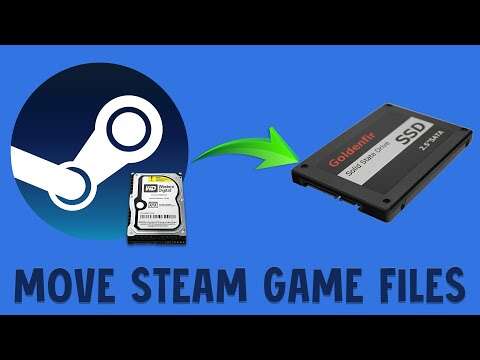
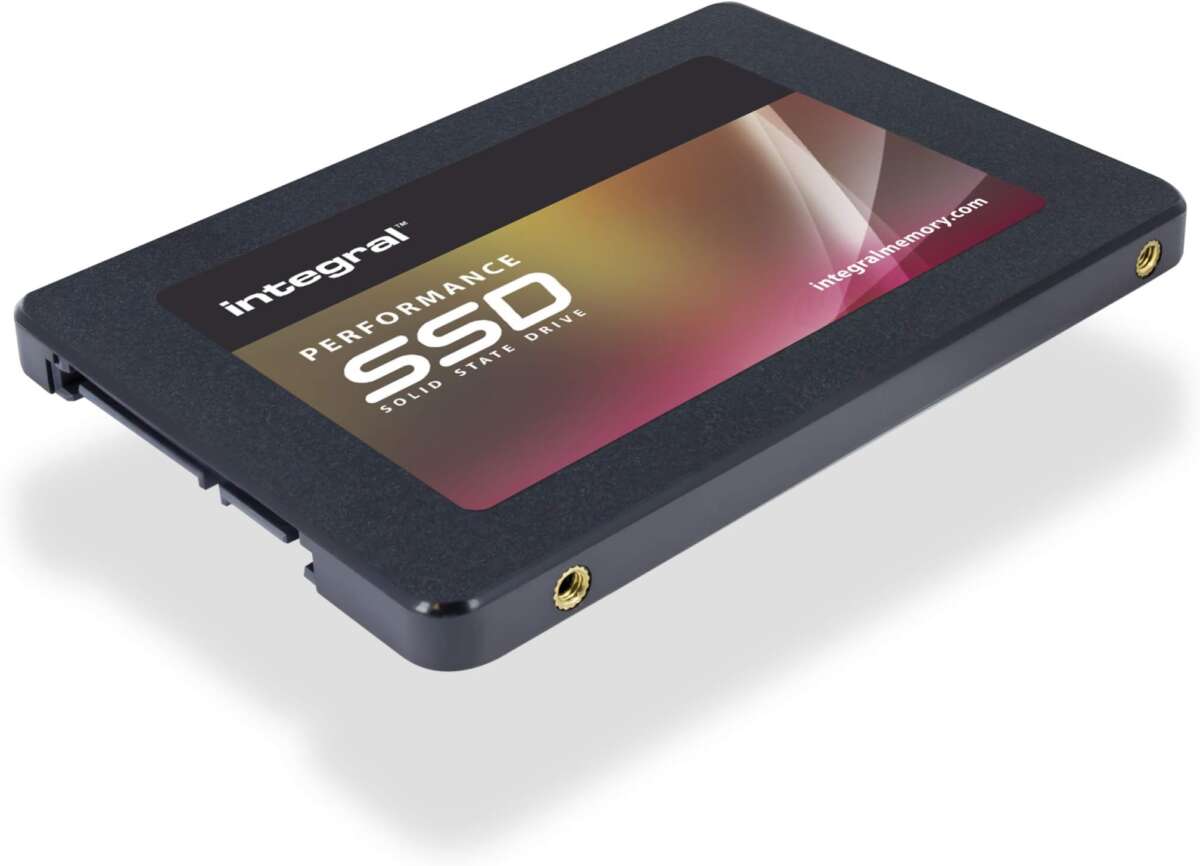
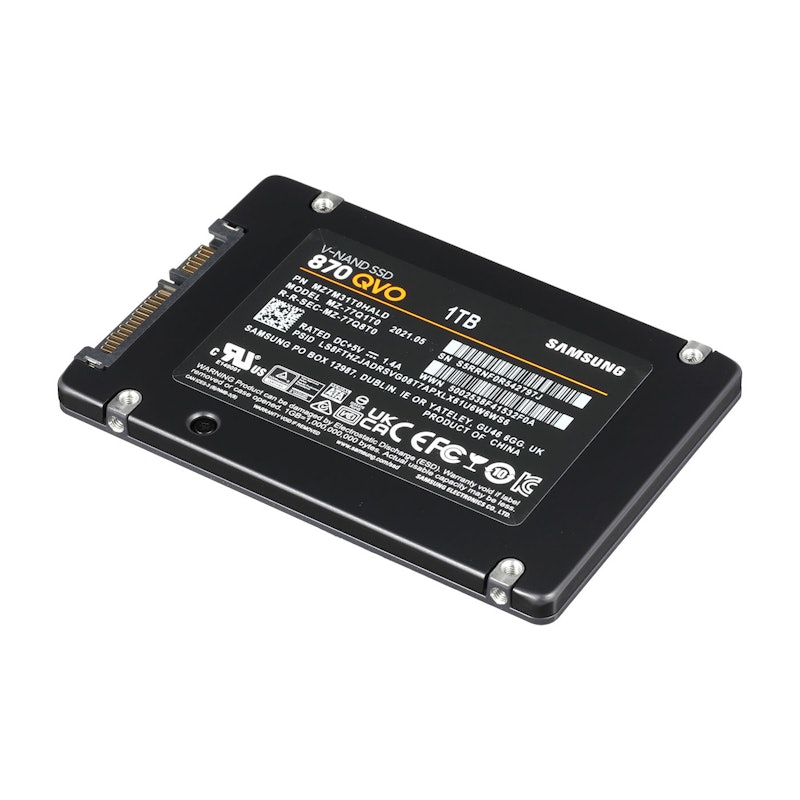
A 2.5 SSD is a solid-state drive made in the common 2.5-inch drive form factor. In the United States, it is often used to upgrade older Windows laptops, desktop PCs, game consoles, and external storage devices. Most 2.5-inch SSDs use a SATA connection, so they can replace many older 2.5-inch hard disk drives.
Unlike a hard drive, a 2.5 SSD has no spinning disks or moving read heads. It stores data on flash memory. This usually makes a computer start faster, load apps sooner, run more quietly, and use less power.

What does “2.5” mean in a 2.5 SSD?
The “2.5” refers to the drive’s form factor, not its storage size or speed.
A typical 2.5-inch SATA SSD measures about:


- 100 millimeters long
- 69.85 millimeters wide
- 7 millimeters thick in many current models
The name comes from the older 2.5-inch hard drive class used in laptops. The drive is not exactly 2.5 inches wide. The term is a standard category name.
A 2.5 SSD may also be called:
- 2.5-inch SSD
- 2.5-inch SATA SSD
- SATA SSD
- 2.5-inch solid-state drive
These terms often describe the same type of product, but “SATA SSD” refers to the connection while “2.5-inch” refers to the physical shape.
The SATA part matters more than the size when you check compatibility. A 2.5 SSD with a SATA interface needs a compatible SATA data connection and SATA power connection.
How does a 2.5 SSD work?
A 2.5 SSD stores files in NAND flash memory. NAND flash keeps data even when the computer is turned off. A controller inside the SSD manages the memory, spreads write activity, corrects errors, and communicates with the computer.
A traditional hard disk uses spinning platters and a moving arm. The arm must find the right part of the platter before the drive can read data. An SSD can access flash memory without waiting for mechanical movement.
That difference gives an SSD much lower access time. It also removes common hard-drive noises, such as clicking, spinning, and seeking.
A 2.5 SSD still depends on its interface. Most consumer 2.5 SSDs use SATA III, also called SATA 6 Gb/s. The link has a theoretical limit of 6 gigabits per second. Due to encoding and other overhead, real SATA SSD speeds are usually well below that number. Many reach roughly 500 to 560 megabytes per second in sequential transfers, depending on the model and test conditions.
This means a 2.5 SATA SSD is much faster than a hard drive for many everyday tasks, but it is usually slower than a modern PCIe NVMe SSD.


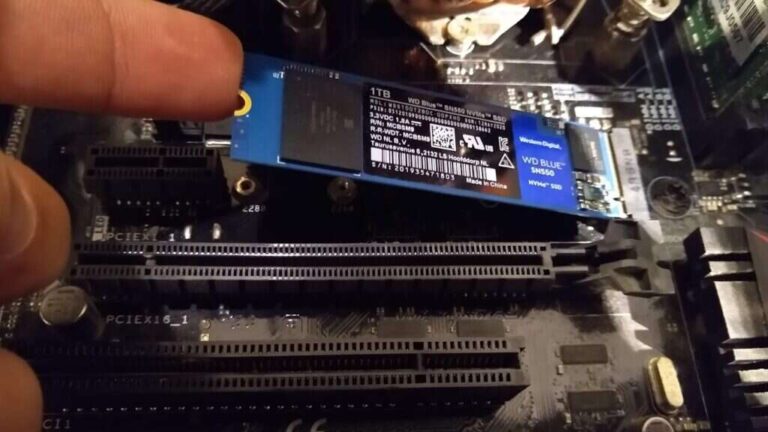
2.5 SSD vs. M.2 SSD: what is the difference?
A 2.5 SSD and an M.2 SSD are different form factors. They may also use different interfaces.
| Feature | 2.5-inch SATA SSD | M.2 SATA SSD | M.2 NVMe SSD |
|---|---|---|---|
| Shape | Small rectangular drive | Thin circuit board | Thin circuit board |
| Common interface | SATA | SATA | PCIe |
| Typical use | Laptop, desktop, console, external enclosure | Compatible laptops and desktops | Newer laptops and desktops |
| Cable needed | Usually SATA data and power cables | No drive cables | No drive cables |
| Typical speed range | Up to about 550 MB/s in many models | Similar to SATA limits | Often much faster |
| Compatibility | Needs a SATA drive bay or enclosure | Needs an M.2 slot with the right support | Needs an M.2 PCIe/NVMe slot |
An M.2 SSD is not automatically an NVMe SSD. M.2 describes the shape and connector. Some M.2 drives use SATA, while others use PCIe and NVMe.
A 2.5 SATA SSD also cannot be installed directly into an M.2 slot. Likewise, an M.2 SSD cannot replace a 2.5-inch drive unless the computer has the correct slot or an appropriate adapter.
Check the computer manual before buying. The slot, key type, protocol, physical clearance, and operating system support can all affect compatibility.
What are the benefits of a 2.5 SSD?
A 2.5 SSD can be a practical upgrade when a computer still uses a hard drive or has an open 2.5-inch SATA bay.
Faster startup and loading
An SSD can reduce boot and application loading times because it accesses data without mechanical movement. The exact improvement depends on the computer, operating system, software, and condition of the old drive.
The biggest change is often the move from a hard drive to any SSD. Replacing one SATA SSD with another may produce a much smaller difference.
Better resistance to movement
A 2.5 SSD has no spinning platters or moving heads. This makes it less vulnerable to problems caused by normal movement than a hard drive. It is still an electronic device, so drops, heat, water, static electricity, and electrical faults can damage it.
An SSD is not a substitute for backups. Important files should exist in at least one other location.
Lower noise
Because it has no motor or moving head, a 2.5 SSD runs silently. This can make an older laptop or desktop feel quieter.
Lower power use in many systems
Many 2.5 SSDs use less power than mechanical hard drives during common workloads. The actual effect on battery life depends on the computer, drive model, power settings, and workload.
Easy replacement for many older systems
A 2.5 SATA SSD often uses the same basic drive bay and SATA connectors as a 2.5-inch hard drive. That makes it a common upgrade for older laptops and desktop computers.
The fit is not guaranteed. Some laptops use a mounting bracket, a drive caddy, a special cable, or a 9.5 mm space designed for an older hard drive.

How do you know if a 2.5 SSD will fit?
Check the computer’s manual or manufacturer support page before you buy. Look for the drive interface, bay size, thickness limit, and mounting method.
Use this checklist:
- Confirm the interface. The computer should support SATA storage if you plan to install a 2.5 SATA SSD.
- Check the bay. Make sure the system has a 2.5-inch drive bay or a compatible mounting location.
- Check drive thickness. A 7 mm SSD fits many laptop bays. Some older systems need a 9.5 mm spacer or bracket.
- Check the connectors. A laptop may use a short SATA cable or a custom connector instead of a standard desktop cable.
- Check storage limits. Some very old systems or operating systems may have limits on drive capacity or partition style.
- Check the operating system. Windows, Linux, and other systems may need proper installation or cloning steps.
- Check the mounting parts. You may need screws, a bracket, a caddy, or a SATA-to-USB adapter.


For a desktop PC, a 2.5 SSD may need a 2.5-to-3.5-inch mounting bracket if the case has only a larger hard-drive bay. The drive itself usually connects with a SATA data cable and a SATA power cable.
For a laptop, the replacement process varies by model. Some laptops have an easy service panel. Others require removal of the bottom cover, battery precautions, and careful handling of small cables.
What cables and adapters does a 2.5 SATA SSD need?
A 2.5 SATA SSD normally uses two connections in a desktop computer:
- A SATA data cable from the SSD to the motherboard
- A SATA power connector from the power supply
Many desktop power supplies have SATA power plugs built in. A SATA data cable may or may not come with the SSD, motherboard, or computer.
A laptop usually uses one combined drive connector or a model-specific cable. Do not force a desktop cable into a laptop connector.
For external use, place the SSD in a 2.5-inch SATA-to-USB enclosure. The enclosure must support a 2.5-inch SATA drive. A USB 3.x connection can provide better practical performance than older USB 2.0 hardware, although the computer and enclosure also affect speed.
A SATA-to-USB adapter can also help you clone a laptop’s old drive before installation.

Is a 2.5 SSD faster than a hard drive?
Yes, a 2.5 SATA SSD is generally much faster than a mechanical hard drive for normal computer use. It can improve boot time, program loading, file access, and system responsiveness.
The improvement is not the same as the difference between a 2.5 SATA SSD and an NVMe SSD. SATA limits the connection to a much lower bandwidth than PCIe. For web browsing, office work, and many older computers, the difference may not matter much. For large file transfers, video work, and some professional workloads, NVMe can offer a larger advantage.
Performance also depends on more than the advertised sequential speed. Important factors include:
- Random read and write performance
- SSD controller design
- NAND flash type
- Available free space
- Drive temperature
- Workload size
- Cache behavior
- Computer hardware and operating system
A drive that claims a higher peak speed may not stay at that speed during a long write. Treat manufacturer speed figures as test results under stated conditions, not as a guarantee for every computer.
How much storage should you buy?
Choose capacity based on the operating system, applications, files, and free space you need.


| Capacity | Practical use |
|---|---|
| 250 GB | Basic system drive or light office use |
| 500 GB | Good starting point for many general-purpose PCs |
| 1 TB | More room for apps, photos, games, and work files |
| 2 TB or more | Large media libraries, games, or heavy local storage |
The usable capacity shown by the operating system is lower than the number on the package. Manufacturers use decimal units, while some operating systems display capacity differently.
Do not fill an SSD completely. Keeping free space helps the drive manage data and maintain consistent performance. The amount needed varies by drive and workload, so follow the manufacturer’s guidance when available.
Capacity also affects endurance. A larger drive may offer more total write endurance, but you should compare the manufacturer’s published specifications rather than assume that every larger model lasts longer.
How do you install a 2.5 SSD?
The exact steps depend on the computer. The general process is:
- Back up important files. Confirm that the backup can be opened before changing the drive.
- Check compatibility. Verify the SATA interface, physical size, thickness, and mounting parts.
- Choose a migration method. You can clone the old drive or perform a clean operating system installation.
- Shut down the computer. Disconnect AC power. For a laptop, follow the manufacturer’s battery and service instructions.
- Install the SSD. Secure it in the bay or connect it to the proper cable.
- Connect the cables. On a desktop, attach both SATA data and SATA power.
- Start the computer and check firmware detection. The SSD should appear in the BIOS or UEFI storage list.
- Complete the software setup. Restore the clone or install and update the operating system.
- Check the result. Confirm that the correct capacity appears and that your files open.
If you clone a drive, the target SSD should usually be at least as large as the used data on the source drive. Cloning software may need to resize partitions when the new SSD has a different capacity.
A clean installation can remove old software and driver problems, but it requires reinstalling applications and restoring files. Cloning is often quicker, but it can copy unwanted problems from the old installation.
If the SSD is not detected, turn the computer off and check the cable, adapter, power connection, drive seating, and firmware settings. Do not repeatedly write data to a drive that makes unusual sounds, disconnects, or reports serious errors. SSDs do not normally make mechanical sounds, so noise may come from another component or from an enclosure.

Common mistakes when buying a 2.5 SSD
Mistaking form factor for interface
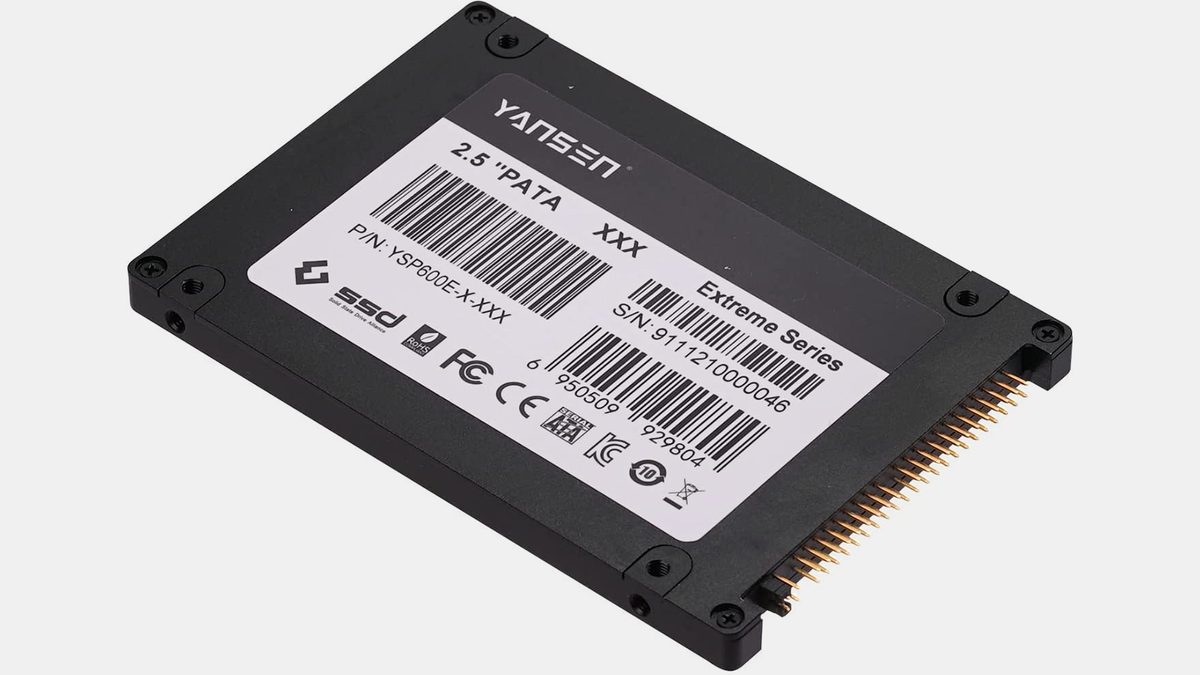
A 2.5-inch drive can use SATA, SAS, or another interface in some professional systems. Consumer 2.5 SSDs are commonly SATA, but do not rely on shape alone.
Buying an M.2 drive for a 2.5-inch bay
M.2 and 2.5-inch drives are not interchangeable without the right hardware. An M.2 drive cannot simply be connected to a standard 2.5-inch SATA bay.
Assuming every SATA connector supports every SATA drive
SATA is widely compatible across generations, but the computer still needs the correct physical connector, power source, firmware support, and mounting space.
Ignoring thickness
A 7 mm SSD may need a spacer in a laptop designed for a thicker 9.5 mm hard drive. A spacer can help the drive sit firmly, but it should not block the connector or create pressure on the laptop cover.
Using a cheap or unsuitable enclosure
An external enclosure can limit speed or cause disconnects. Confirm that it supports 2.5-inch SATA drives and provides enough power for the drive and USB connection.
Treating an SSD as a backup
An SSD can fail without warning. Use a backup plan that fits the value of the data. For important files, keep another copy on a separate device or trusted cloud service.
Defragmenting a solid-state drive
Traditional disk defragmentation is designed for mechanical hard drives. Modern operating systems generally manage SSD maintenance with commands such as TRIM. Follow the operating system and SSD maker’s guidance instead of running old hard-drive maintenance tools manually.


Which 2.5 SSD should you choose?
Choose a 2.5 SATA SSD when your computer has a compatible SATA drive bay, especially if you are replacing a hard drive or adding affordable storage to an older system.
Compare these specifications:
- Storage capacity
- SATA interface
- Drive thickness
- Published sequential and random performance
- Terabytes written, if listed
- Warranty terms
- Manufacturer support
- Power-loss protection, if needed for your work
- Whether the drive is intended for consumer or enterprise use
For a basic laptop or office PC, capacity, compatibility, warranty, and reliable support often matter more than a small difference in advertised peak speed.
Choose an NVMe SSD instead when the computer has a compatible M.2 PCIe slot and you need higher storage bandwidth. Do not buy NVMe only because the name sounds faster. The computer must support the drive type.
Are 2.5 SSDs still useful?
Yes. A 2.5 SSD remains useful for older laptops, desktops, game consoles that support 2.5-inch SATA drives, home servers, external storage, and computers without an NVMe slot.
It is not the best fit for every new computer. Many current systems use M.2 NVMe drives, which take less space and can offer higher bandwidth. The correct choice depends on the available slot and the task, not simply on the drive’s advertised speed.
A 2.5 SATA SSD is often the most practical upgrade when the main goal is to replace a slow hard drive without replacing the whole computer.

Frequently asked questions
Is a 2.5 SSD the same as a SATA SSD?
Not exactly. “2.5-inch” describes the physical form factor. “SATA” describes the connection and communication interface. Most consumer 2.5-inch SSDs are SATA SSDs, but the terms describe different features.
Can a 2.5 SSD replace a laptop hard drive?
Often, yes. The laptop must have a compatible 2.5-inch SATA bay, cable, connector, thickness clearance, and firmware support. Check the laptop’s service manual before ordering.
Can you use a 2.5 SSD in a desktop computer?
Yes. A desktop needs a compatible SATA data connection, SATA power connection, and a place to mount the drive. A 2.5-to-3.5-inch mounting bracket may be needed.
Is a 2.5 SSD better than an NVMe SSD?
Neither is always better. A 2.5 SATA SSD is easier to use in older systems and is much faster than a hard drive. An NVMe SSD can be faster, but it requires a compatible PCIe slot and may not provide a large benefit for simple everyday tasks.
Can a 2.5 SSD be used as an external drive?
Yes. Put it in a 2.5-inch SATA-to-USB enclosure or connect it with a compatible adapter. The USB port and enclosure can limit the final speed.
Does a 2.5 SSD need a heatsink?
Most consumer 2.5 SATA SSDs do not need a separate heatsink. Their SATA interface limits throughput and heat compared with many high-performance NVMe drives. Use the manufacturer’s installation guidance and avoid blocking ventilation.
What should you do before replacing your old drive?
Back up important files, record software license details, prepare recovery or installation media, and confirm that the new SSD is compatible. If you plan to clone the drive, use a suitable SATA-to-USB adapter or install both drives in a desktop system.


Final answer: what is a 2.5 SSD?
A 2.5 SSD is a rectangular solid-state drive that usually connects through SATA and fits the traditional 2.5-inch laptop drive format. It is a strong upgrade for many older computers because it offers faster access, silent operation, and better resistance to movement than a mechanical hard drive.
Before buying one, verify the computer’s interface, drive bay, thickness, cable, storage limit, and mounting parts. If the computer has a compatible M.2 PCIe slot, an NVMe SSD may offer more speed. If it has a 2.5-inch SATA bay, a 2.5 SATA SSD is usually the straightforward choice.