How To Pair Bose Headphones To TV: Easy Guide
You can pair most Bose bluetooth headphones with a compatible TV in a few minutes. Put the headphones in pairing mode, open your TV’s Bluetooth audio menu, select the Bose headphones, and confirm the connection.
The exact menu names vary by TV brand. Samsung, LG, Sony, TCL, Hisense, Vizio, and Roku TV models may use different terms. Also, some TVs support Bluetooth accessories but do not send TV sound to Bluetooth headphones. Check the TV manual if you do not see an option such as Bluetooth Audio, Sound Output, or Bluetooth Speaker List.
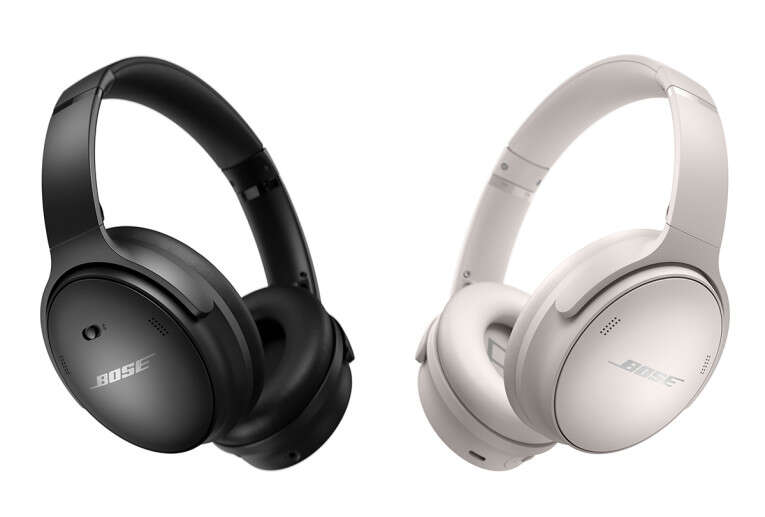
This guide covers Bose QuietComfort headphones, Bose Noise Cancelling Headphones, Bose 700, Bose QuietComfort Ultra Headphones, and similar Bluetooth models.


Before You Pair Bose Headphones to Your TV
Check four things before you start:
- Your Bose headphones have enough charge.
- Your TV supports Bluetooth audio output.
- The headphones are not actively connected to another device.
- You know where the TV’s sound output settings are located.
A TV may have Bluetooth for its remote, keyboard, game controller, or soundbar but still lack Bluetooth audio output. Look for wording such as Bluetooth headphones, Bluetooth speaker, or wireless audio device.
What you need
You will need:
- A Bluetooth-enabled Bose headphone model.
- A TV with Bluetooth audio transmission.
- The TV remote.
- The Bose headphones and their charging cable, if the battery is low.
You do not need the Bose Music app for the basic pairing process. The app can help with updates, settings, and device management, but the TV usually pairs with the headphones directly.
What changes by Bose model?
Most Bose Bluetooth headphones use a similar pairing process. The button or switch may differ:
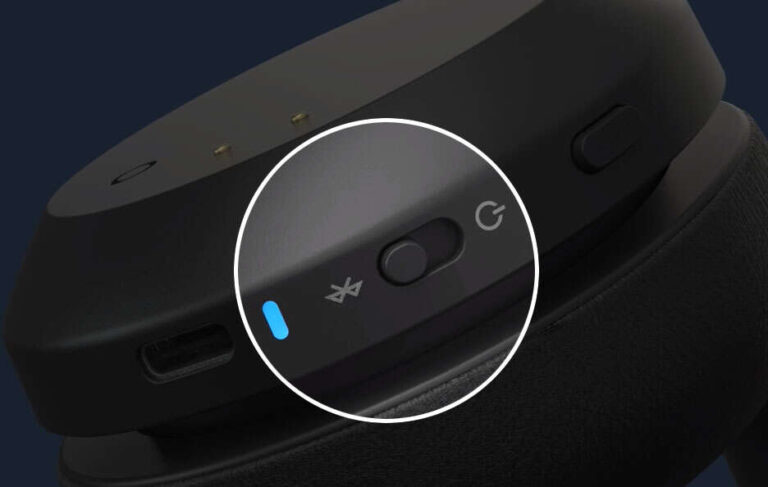
- Bose QuietComfort and older QuietComfort 35 models: Move or hold the Power/Bluetooth switch in the Bluetooth position.
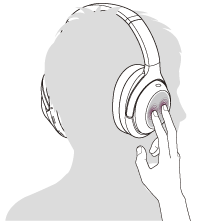
- Bose Noise Cancelling Headphones 700: Press and hold the Power/Bluetooth button.
- Bose QuietComfort Ultra Headphones: Press and hold the Bluetooth button until the headphones announce pairing mode.
- Bose earbuds: Open the charging case and use the Bluetooth button or touch controls, depending on the model.
Use the instructions printed in the model’s manual if the controls do not match these examples.
How to Put Bose Headphones in Pairing Mode
To place Bose headphones in pairing mode, turn them on and press or hold the Bluetooth control until the light flashes blue or the headphones say they are ready to connect.
Follow these steps:
- Turn on the Bose headphones.
- Find the Power/Bluetooth switch or Bluetooth button.
- Press and hold it for about three seconds.
- Release it when you hear “Ready to connect” or see a flashing blue light.
- Keep the headphones close to the TV during setup.
Pairing mode is different from simply turning the headphones on. The headphones may power on and reconnect to a phone without becoming visible to the TV.


If the headphones connect to your phone instead
Turn off Bluetooth on nearby phones, tablets, and computers for a moment. Bose headphones often reconnect to the last device they used. That can stop the TV from finding them.
You can also disconnect the Bose headphones from the Bose Music app or from the phone’s Bluetooth menu. Do not always choose Forget This Device unless you want to remove the saved connection completely.

How to Pair Bose Headphones to a Bluetooth TV
Once the headphones are in pairing mode, open the TV’s Bluetooth sound menu and select them from the device list.
The general process is:
- Turn on the TV.
- Open Settings.
- Select Sound, Audio, or Sound Output.
- Choose Bluetooth Audio, Bluetooth Speaker List, or a similar option.
- Select Add Device, Pair New Device, or Search.
- Choose your Bose headphones.
- Accept the pairing request if the TV displays one.
- Set the TV’s sound output to the Bose headphones.
The headphones may appear under a name such as:
- Bose QuietComfort 45
- Bose QuietComfort Ultra Headphones
- Bose Headphones 700
- Bose QC35
- A custom name you assigned in the Bose Music app
Common TV menu paths
Menu names differ by model and software version. These are common examples, not universal instructions.
| TV brand | Typical Bluetooth audio path |
|---|---|
| Samsung | Settings → Sound → Sound Output → Bluetooth Speaker List |
| LG | Settings → Sound → Sound Out → Bluetooth Device |
| Sony | Settings → Display & Sound → Audio Output → Bluetooth device |
| Vizio | Settings → Audio or Bluetooth Headphones, if supported |
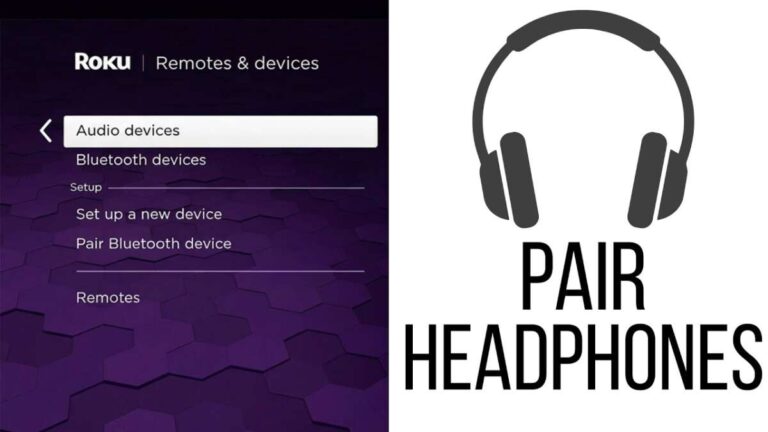
| Roku TV | Settings → Remotes & devices or a model-specific wireless audio option |
| TCL | Settings → Sound → Audio Output or Bluetooth, depending on the model |
| Hisense | Settings → Sound → Audio Output → Bluetooth, if available |
If your TV does not show a Bluetooth audio option, check the TV’s online manual or support page. The Bluetooth settings for an Apple TV, Fire TV, or Roku streaming device may be different from the settings for the television itself.
How to confirm the pairing worked
You should see one or more of these signs:
- The TV lists the Bose headphones as Connected.
- TV speakers stop playing sound.
- Sound comes through the headphones.
- The headphones announce a connection.
- The Bose headphones appear in the TV’s saved device list.
If the TV still plays through its built-in speakers, open the sound output menu again. Pairing the headphones does not always switch the active audio output automatically.

How to Connect Bose Headphones to a TV Without Bluetooth
If your TV cannot send audio over Bluetooth, use a Bluetooth transmitter connected to the TV’s audio output.
A Bluetooth transmitter receives sound from the TV and sends it wirelessly to the Bose headphones. It is different from a Bluetooth receiver, which receives Bluetooth audio and sends it to wired speakers or headphones.
Connection options
A transmitter may connect through:
- Optical digital audio, also called TOSLINK.
- A 3.5-millimeter headphone jack.
- Red-and-white RCA audio outputs.
- HDMI ARC or eARC, if the transmitter supports it.


Optical is often a good choice because it can provide a digital audio signal. A 3.5-millimeter or RCA connection may be easier if the TV has those ports.
Setup steps
- Buy a Bluetooth audio transmitter that supports your TV’s available output.
- Connect the transmitter to the TV.
- Set the TV’s audio output to the matching port, such as Optical or Headphone.
- Put the transmitter into pairing mode.
- Put the Bose headphones into pairing mode.
- Wait for the devices to connect.
- Play a TV program and adjust the volume.
Some TVs require PCM or Stereo output when using optical audio. If the transmitter cannot decode Dolby Digital or another surround format, the TV may show a connection but produce no sound.
Limits of a Bluetooth transmitter
A transmitter can solve the compatibility problem, but it adds another device and may introduce a delay. Choose a model that supports a low-latency Bluetooth codec if both the transmitter and headphones support it. Codec support must match on both sides, and low latency is not guaranteed with every TV or Bose model.
A transmitter may also prevent the TV remote from controlling headphone volume. In that case, adjust volume with the Bose headphones, the transmitter, or the TV’s audio controls.

How to Pair Bose Headphones to a Samsung TV
Samsung TVs often place Bluetooth headphones under the sound output menu.
- Turn on the Bose headphones.
- Hold the Bluetooth or Power/Bluetooth control until pairing mode starts.
- On the Samsung TV, open Settings.
- Select Sound.
- Choose Sound Output.
- Select Bluetooth Speaker List.
- Choose the Bose headphones.
- Select Pair and Connect if prompted.
If the headphones do not appear, select Refresh or turn Bluetooth off on nearby devices. Samsung TV menus can vary by year, model, and software version.
How to Pair Bose Headphones to an LG TV
Many LG TVs use the Sound Out menu for Bluetooth headphones.
- Put the Bose headphones into pairing mode.
- Open Settings on the LG TV.
- Select Sound.
- Choose Sound Out.
- Select Bluetooth Device or Use Wireless Speaker.
- Choose the Bose headphones.
- Confirm the connection.
Some LG models let you choose a Bluetooth device under Additional Device Settings. If the TV only shows LG-compatible sound devices, check the model’s manual for supported Bluetooth audio functions.
How to Pair Bose Headphones to a Sony TV
Sony TVs with Bluetooth audio support usually place the setting under Audio Output.
- Put the Bose headphones in pairing mode.
- Open Settings.
- Select Display & Sound.
- Choose Audio Output.
- Select Bluetooth device.
- Choose the Bose headphones from the list.
- Confirm that the audio output changed to the headphones.
Some Sony TVs use Android TV or Google TV. Menu labels may differ after software updates. Search the TV settings for Bluetooth, Audio Output, or Remote & Accessories.
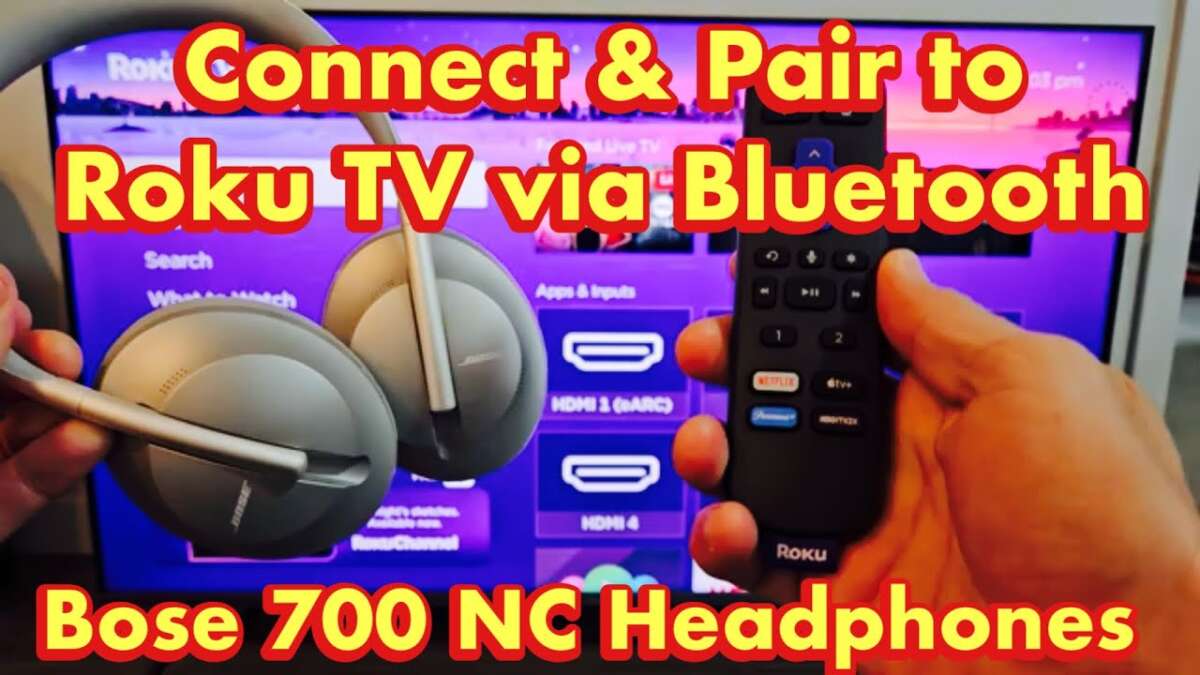
How to Pair Bose Headphones to a Roku TV
Roku TV support for Bluetooth headphones depends on the TV model and Roku feature set. Some Roku TVs support wireless headphones through the Roku mobile app, while others support direct Bluetooth audio or require a separate device.


Try this:
- Put the Bose headphones into pairing mode.
- Open the Roku TV’s Settings.
- Look for Remotes & devices, Audio, or Bluetooth.
- Select the option to add wireless headphones.
- Choose the Bose headphones.
If the Roku TV does not offer Bluetooth headphone pairing, you may be able to use the Roku mobile app’s private listening feature. This normally sends TV audio to a phone, and the Bose headphones then connect to the phone. It may add delay and can drain the phone battery.
A Bluetooth transmitter is another option when the TV has a suitable audio output.
How to Pair Bose Headphones to an Apple TV
Apple TV can connect to compatible Bluetooth headphones through its settings.
- Put the Bose headphones into pairing mode.
- Open Settings on the Apple TV.
- Select Remotes and Devices.
- Choose Bluetooth.
- Select the Bose headphones.
- Wait for the connection to complete.
You can also hold the TV button on the Apple TV remote to open Control Center, then choose the audio output menu and select the Bose headphones.
The Apple TV and television are separate devices. Pairing headphones with Apple TV does not necessarily pair them with the TV’s built-in apps, cable box, or game console.

What to Do If Bose Headphones Will Not Connect to the TV
Most pairing failures come from the wrong audio menu, an active connection to another device, or a TV that does not support Bluetooth audio output.
Work through these checks in order.
1. Confirm that the TV supports Bluetooth audio
Do not assume that a TV with Bluetooth can send sound to headphones. Check the manual for Bluetooth audio output or Bluetooth headphones.
If Bluetooth is listed only for remotes or input devices, use a Bluetooth transmitter instead.
2. Restart both devices
Turn off the TV and Bose headphones. Wait about 30 seconds, then turn them back on.
Restarting clears temporary connection problems. If possible, unplug the TV for a minute before reconnecting it.
3. Put the Bose headphones back into pairing mode
The headphones may have left pairing mode while you were searching the TV menu. Hold the Bluetooth control again until the headphones announce pairing mode or the light flashes blue.
4. Disconnect other Bluetooth devices
Turn off Bluetooth on nearby phones, tablets, and laptops. If the Bose headphones connect to one of those devices, the TV may not find them.


5. Remove the old TV entry from the headphones
Many Bose headphones store several Bluetooth devices. Use the headphones’ Bluetooth device list or Bose Music app to clear the saved device list if the headphones keep choosing the wrong device.
The exact button command varies by model. Follow the model-specific Bose instructions rather than using a button combination from another product.
6. Remove the headphones from the TV
If the TV saved an incomplete connection, delete the Bose headphones from the TV’s Bluetooth device list. Restart the TV, then pair the headphones again as a new device.
7. Update device software
Install available updates for the TV and Bose headphones. Updates can fix connection and compatibility bugs, but do not install an update while a device is low on power or at risk of being disconnected.
8. Reduce distance and interference
Keep the headphones near the TV during pairing. Walls, metal cabinets, Wi-Fi equipment, and other wireless devices can interfere with Bluetooth signals.
9. Reset only when needed
A reset can erase saved Bluetooth connections and personal settings. Use it after the simpler checks fail, and follow the exact reset instructions for your Bose model.

How to Fix Sound Delay or Lip-Sync Problems
A small delay between the picture and sound can occur when a TV sends audio over Bluetooth. The delay comes from the time needed to encode, transmit, and decode the audio.
Try these fixes:
- Open the TV’s Audio, Sound, or Expert Settings menu.
- Look for Audio Delay, Lip Sync, or AV Sync.
- Adjust the delay until speech matches the picture.
- If available, enable the TV’s Bluetooth low-latency setting.
- Try a different Bluetooth transmitter if the delay remains severe.
- Use a wired connection when watching content where timing matters.
Bluetooth codec support varies by TV, transmitter, and Bose headphones. A low-latency setting cannot remove delay if one part of the connection does not support it.
Gaming can make delay more noticeable. For competitive games, a wired headset or a gaming audio system may provide better timing than a standard Bluetooth connection.
How to Control Volume on Bose Headphones Connected to a TV
Volume control depends on the TV, Bose model, and connection type.
With direct Bluetooth pairing:
- The Bose volume buttons may control sound.
- The TV remote may control sound.
- Both may work, depending on the TV.
With an optical connection:
- Optical audio is often fixed-level.
- The TV remote may not change headphone volume.
- The Bose controls or transmitter controls may be required.
With a 3.5-millimeter headphone output:
- The TV may disable its speakers.
- The TV remote may control the output level.
- The Bose headphones may still provide separate volume control.


If the volume is too low, check both the TV volume and headphone volume. Also check whether the TV has a separate Digital Audio Output, Headphone Volume, or Bluetooth Volume setting.

Can You Use Bose Headphones and TV Speakers at the Same Time?
Usually, no. Many TVs mute the built-in speakers when Bluetooth headphones connect.
Some models support simultaneous output, such as Bluetooth headphones plus TV speakers or an optical sound system. Look for settings such as:
- Bluetooth and TV Speaker
- Audio Out
- Multi-output Audio
- Simultaneous Audio Output
If the TV does not offer this setting, do not assume the feature can be enabled through the Bose headphones. A compatible transmitter or sound system may be needed.
There is also a privacy concern. If TV speakers remain active, people nearby can hear the program. Check the TV’s sound output before using headphones for private viewing.
Can Two People Use Bose Headphones With One TV?
Some TVs and Bluetooth transmitters support two Bluetooth audio connections. Many do not.
To check:
- Pair the first Bose headphones.
- Look for an option such as Add Bluetooth Device or Dual Audio.
- Pair the second headphones if the TV supports it.
- Test both sets for stable sound and acceptable delay.
Two headphone connections may reduce range, increase delay, or lower sound quality. If the TV cannot connect to two devices, use a Bluetooth transmitter with dual-headphone support.
The two headphones may also have different volume levels. Each listener may need to adjust volume separately.

Common Pairing Mistakes to Avoid
Avoid these common errors:
- Using the Bose Music app as the TV connection: The app manages Bose products but does not replace the TV’s Bluetooth pairing menu.
- Pairing while the headphones are connected to a phone: The phone may take priority.
- Selecting the TV’s remote-control Bluetooth menu: A menu for keyboards or remotes may not support audio.
- Connecting an optical cable directly to Bose Bluetooth headphones: Optical audio requires a compatible transmitter or receiver.
- Assuming every HDMI port supports headphones: HDMI ARC and eARC send audio to supported equipment, but Bose Bluetooth headphones do not normally plug directly into an HDMI port.
- Leaving the headphones in a case or powered off: The TV cannot discover them in that state.
- Ignoring audio format settings: A transmitter may need PCM or stereo audio instead of Dolby Digital.
- Pairing with the TV instead of the streaming device: Apple TV, Fire TV, and other streaming boxes may handle Bluetooth separately.
Quick Troubleshooting Table
| Problem | Likely cause | Best next step |
|---|---|---|
| Bose headphones do not appear | Pairing mode is off or another device is connected | Re-enter pairing mode and turn off nearby Bluetooth |
| TV has no Bluetooth headphone option | TV does not support Bluetooth audio output | Use a Bluetooth transmitter |
| Headphones connect but there is no sound | Wrong output or unsupported audio format | Select the headphones as output and try PCM/stereo |
| Sound comes from TV speakers | TV did not switch output | Reopen Sound Output and select Bluetooth |
| Sound and picture do not match | Bluetooth processing delay | Adjust AV sync or use a low-latency transmitter |
| Volume buttons do not work | Connection uses fixed-level optical audio | Use Bose or transmitter volume controls |
| Connection drops | Distance or wireless interference | Move closer and reduce nearby interference |
| Headphones connect to a phone | Phone has an active saved connection | Disconnect the phone before pairing |

Frequently Asked Questions
Do Bose headphones work with every smart TV?
No. Bose Bluetooth headphones work with TVs that support Bluetooth audio output. A TV may include Bluetooth for a remote or keyboard but not support Bluetooth headphones.
Do I need a Bose transmitter?
No. You can pair the headphones directly if the TV supports Bluetooth audio. You need a separate Bluetooth transmitter when the TV lacks that function.
Why does my TV find the Bose headphones but fail to connect?
The headphones may be connected to another device, the TV may have an old saved pairing, or the TV may not support that Bluetooth audio profile. Disconnect nearby devices, delete the old TV entry, restart both products, and try again.
Can I use Bose headphones with a cable?
Many Bose models support wired listening through a compatible audio cable, but the included cable and connector vary by model. If the TV has a headphone jack or analog audio output, a wired connection may avoid Bluetooth delay.
Will Bose headphones work with a cable from the TV’s optical port?
No. Optical audio uses a digital signal. Bose headphones generally need a compatible optical-to-headphone converter or Bluetooth transmitter between the TV and headphones.
Why can I hear sound but not control the volume?
The TV may be sending fixed-level audio through an optical output or a transmitter. Adjust the volume on the Bose headphones or on the transmitter. If the TV supports Bluetooth volume control, use its sound settings.
Can I pair Bose headphones with a cable box or game console?
Sometimes. The cable box or console must support Bluetooth audio, or you need a transmitter connected to its audio output. Pairing with the TV does not automatically connect the headphones to other sources.
Key Takeaways
- Put the Bose headphones into Bluetooth pairing mode first.
- Use the TV’s Sound Output or Bluetooth Audio menu.
- Confirm that the TV supports Bluetooth audio, not just Bluetooth accessories.
- Turn off nearby phones and tablets if they capture the connection.
- Use a Bluetooth transmitter for TVs without Bluetooth headphone support.
- Adjust audio delay if voices do not match the picture.
- Optical connections may require PCM or stereo output.
- The Bose Music app is optional for TV pairing.
Conclusion
Pairing Bose headphones to a TV is usually simple: activate pairing mode on the headphones, choose Bluetooth audio in the TV settings, and select the Bose device. The main limitation is TV compatibility. If the TV cannot transmit Bluetooth audio, a Bluetooth transmitter connected through optical, 3.5-millimeter, RCA, or supported HDMI audio can provide the missing link.
Start by checking the TV’s sound output menu. If Bluetooth headphones are not listed, verify the manual before troubleshooting the headphones.