How To Put Skullcandy Headphones Into Pairing Mode: Guide
Introduction
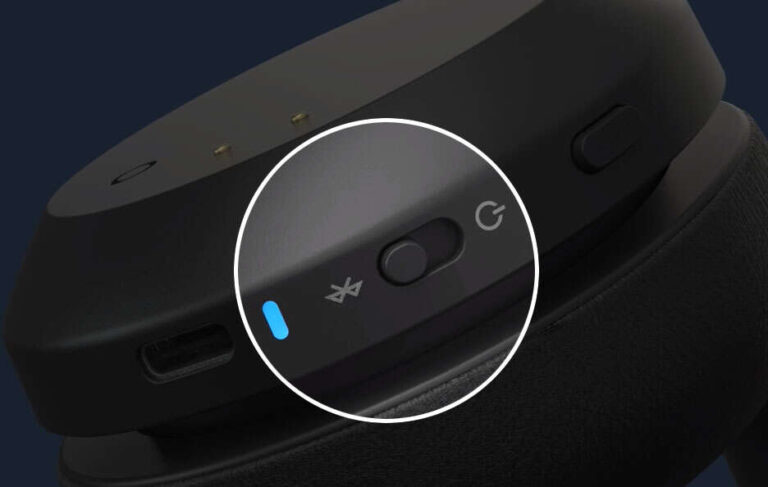
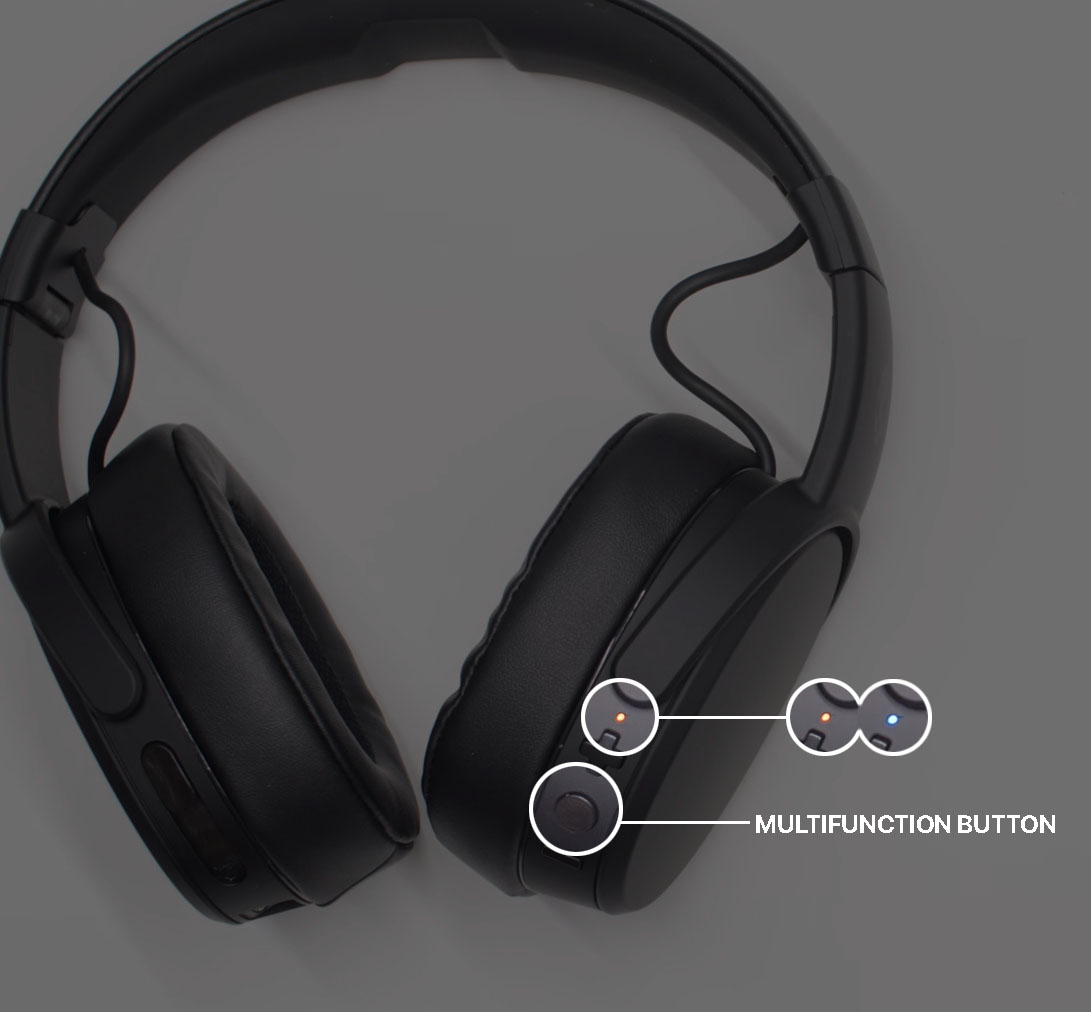
To put most Skullcandy headphones into pairing mode in the United States, turn the headphones off, then press and hold the Power button for about 5 seconds. Release it when the LED flashes, usually blue or red and blue, or when you hear “Pairing.” Then select the headphones from the Bluetooth menu on your iPhone, Android phone, Windows PC, or Mac.
Skullcandy earbuds and newer products can use different controls. If the standard method does not work, use the model-specific steps below and remove old Skullcandy entries from your device before trying again.

What Pairing Mode Means
Pairing mode makes your Skullcandy headphones visible to nearby Bluetooth devices. Your phone or computer can then find the headphones and save them as a trusted Bluetooth connection.
Pairing mode is different from simply turning the headphones on. A headset may power on and reconnect to a device it already knows without entering pairing mode. If you want to connect it to a new device, you may need to hold the Power button longer or reset the existing connection.


Common signs that Skullcandy headphones are in pairing mode include:
- A flashing LED light.
- A voice prompt that says “Pairing.”
- The headphones appearing under Available Devices in Bluetooth settings.
- A name such as Crusher, Hesh, Riff, Dime, Grind, or Indy appearing on your phone.
The exact light pattern can vary by model and product revision. The voice prompt or the appearance of the headphones in your Bluetooth list is the best confirmation.
How to Put Skullcandy Wireless Headphones in Pairing Mode
Use these steps for many Skullcandy over-ear and on-ear headphones, including several Crusher, Hesh, Riff, and similar models.
-
Disconnect the charging cable.
Some headphones will not enter Bluetooth pairing mode while charging. -
Turn the headphones off.
Press the Power button once. If the headphones do not respond, hold the button until the LED turns off. -
Press and hold the Power button.
Keep holding it for about 5 seconds. Do not release the button after the first light or sound if the headphones have not yet entered pairing mode. -
Watch and listen for confirmation.
Release the button when the LED begins to flash or you hear “Pairing.” -
Open Bluetooth settings on your device.
Use the path for your device below. -
Choose the Skullcandy name.
Tap or click the name that matches your headphones. Wait for the status to change to Connected or Paired. -
Play a short audio clip.
This confirms that the headphones are connected for media, not just listed as a saved device.
If the headphones turn on normally but do not appear in Bluetooth settings, turn them off and repeat the process. The first press may only power them on. The longer press is what commonly activates pairing mode.
Pairing with an iPhone or iPad
- Open Settings.
- Tap Bluetooth.
- Turn Bluetooth on.
- Wait under Other Devices.
- Tap your Skullcandy headphones.
- Accept any pairing request.
After the first successful connection, the headphones may reconnect automatically when they are turned on and near the iPhone or iPad.
Pairing with an Android phone or tablet
- Open Settings.
- Tap Connected devices, Connections, or Bluetooth. The wording depends on the Android version.
- Turn Bluetooth on.
- Choose Pair new device if your phone does not scan automatically.
- Tap the Skullcandy product name.
- Confirm the request if one appears.
Keep the headphones close to the phone during setup. A distance of a few feet is usually better than trying to pair from across a room.
Pairing with a Windows PC
- Open Settings.
- Select Bluetooth & devices.
- Turn Bluetooth on.
- Select Add device.
- Choose Bluetooth.
- Select your Skullcandy headphones.


If Windows shows separate audio choices after pairing, choose the Headphones or Stereo option for music. The Headset option may use a microphone mode with lower audio quality during calls.
Pairing with a Mac
- Open the Apple menu.
- Select System Settings.
- Choose Bluetooth.
- Find the Skullcandy headphones under nearby devices.
- Click Connect.
If the Mac connects but produces no sound, open System Settings > Sound and select the Skullcandy headphones as the output device.
How to Put Skullcandy True Wireless Earbuds in Pairing Mode
Skullcandy true wireless earbuds, such as Dime, Indy, Sesh, Grind, and Push models, do not all use the same control pattern. The safest first method is to use the charging case.
- Place both earbuds in the charging case.
- Make sure the case and earbuds have charge.
- Remove both earbuds from the case.
- Wait for the earbuds to power on and connect to each other.
- Open Bluetooth settings on your phone or computer.
- Select the Skullcandy product name.
Many Skullcandy earbuds enter pairing mode automatically the first time they are removed from the case. If they were previously paired with another device, they may try to reconnect to that device instead.
If the earbuds do not enter pairing mode automatically
Try this sequence:
- Turn off Bluetooth on nearby phones, tablets, and computers that have used the earbuds before.
- Put both earbuds back in the case.
- Remove both earbuds at the same time.
- Press and hold the touch control or button on both earbuds for several seconds.
- Look for a flashing LED or a pairing voice prompt.
- Search again from the new device.
The control action varies by model. Some Skullcandy earbuds use a physical button. Others use a touch panel. Pressing the touch surface too hard can be uncomfortable, while tapping too quickly may control playback instead of pairing.
Do not assume that one earbud is the master earbud. On some models, both earbuds must be present and synchronized before the normal pairing process works.
Earbud names that may appear
The Bluetooth list may show:
- The full product name.
- A shortened model name.
- A name followed by a number.
- A left or right earbud entry during an error state.
If you see separate left and right entries instead of one Skullcandy product, the earbuds may have lost their connection to each other. Use the reset instructions for that model rather than pairing only one side.

How to Pair Skullcandy Headphones With a Second Device
Most Bluetooth headphones can remember more than one device, but they may not actively connect to every device at the same time. A second device can also interrupt automatic reconnection.
To pair with a new device:
- Turn off Bluetooth on the device that is currently connected, or move it out of range.
- Turn the Skullcandy headphones off.
- Hold the Power button until pairing mode starts.
- Open Bluetooth settings on the second device.
- Select the headphones.


Some Skullcandy models support multipoint connection, which lets the headphones maintain links with two devices. Support depends on the exact model and firmware. Do not treat a second saved device as proof that multipoint is available.
If you want to switch back later, turn Bluetooth on for the desired device and select the headphones manually. If automatic switching does not occur, disconnect the headphones from the first device before connecting them to the second.
What to Do When Skullcandy Headphones Will Not Pair
Work through the following checks in order. Start with simple connection issues before performing a reset.
1. Confirm that the headphones have power
Charge the headphones or earbuds for at least a short period, then try again. A low battery can cause the LED to flash without completing pairing.
For earbuds, check that the charging contacts are clean and that each earbud sits correctly in the case. If an earbud does not charge, it may not power on or join the pairing process.
2. Move away from other Bluetooth devices
Turn off Bluetooth on nearby devices that have previously connected to the Skullcandy product. The headphones may be reconnecting to a laptop, tablet, smart TV, or old phone instead of appearing for the new device.
3. Remove the old Bluetooth record
On your phone or computer, find the Skullcandy entry and choose Forget, Remove device, or Unpair. Then restart Bluetooth and pair again.
This helps when the device shows Connected but no sound plays, or when the headphones appear but refuse to complete setup.
4. Restart both devices
Turn the headphones off. Restart the phone, tablet, or computer. Then place the headphones into pairing mode again.
A restart clears temporary Bluetooth errors without deleting other saved devices.
5. Check the selected audio output
A successful Bluetooth connection does not always mean the device is using the headphones for sound. On a phone or computer, select the Skullcandy headphones as the media output.
On Windows, check both the output device and the input device if you are using the microphone. On a Mac, check System Settings > Sound.
6. Reset the headphones only when needed
A reset can clear corrupted pairing data, but the procedure is model-specific. It may also remove saved connections and require you to pair the headphones again.
Use the reset instructions for the exact model in the official Skullcandy support guide. Do not guess a reset combination from another Skullcandy product, because button and touch controls differ.

Common Pairing Mistakes
Holding the button for too little time
A quick press often turns the headphones on. Pairing mode may require a longer hold after the headphones are off.


Selecting the wrong Bluetooth entry
Avoid entries that do not match the Skullcandy product name. If two similar names appear, remove old saved entries and try again with only the intended headphones powered on.
Leaving the old device connected
Automatic reconnection is useful, but it can block setup with a new phone or computer. Disable Bluetooth on the old device before starting.
Pairing only one earbud
True wireless earbuds usually need both earbuds to work together. Pairing one side alone can create sound, microphone, or charging problems.
Assuming every Skullcandy model uses the same reset
Skullcandy has released many headphone and earbud designs. A method that works for Crusher headphones may not work for Dime or Indy earbuds. Check the exact model name printed on the product, case, packaging, or original manual.
How to Find Your Skullcandy Model
You need the exact model for reliable reset and troubleshooting instructions. Look in these places:
- The inside of the headband.
- The underside of the charging case.
- The product label.
- The original box.
- The Skullcandy app, if the model supports it.
- The Bluetooth name shown on a previously connected device.
The words Crusher, Hesh, Riff, Dime, Indy, Sesh, Grind, and Push identify product families, not always one exact model. A model number or full product name gives more precise instructions.
The official Skullcandy support center is the best place to verify the process for a specific product: Skullcandy Support.
Key Takeaways
- For many Skullcandy headphones, turn the product off and hold the Power button for about 5 seconds.
- Look for a flashing LED or a “Pairing” voice prompt.
- Open Bluetooth settings and select the Skullcandy product name.
- For true wireless earbuds, start with both earbuds in the charging case, then remove them together.
- Turn off Bluetooth on old devices that may reconnect automatically.
- Forget the old Bluetooth entry if the connection fails.
- Use model-specific instructions before attempting a factory reset.
Frequently Asked Questions
Why are my Skullcandy headphones not showing up in Bluetooth?
They may not be in pairing mode, may already be connected to another device, or may have too little battery power. Turn off Bluetooth on nearby devices, power-cycle the headphones, and hold the Power button until the LED flashes or the pairing prompt starts.
How long should I hold the Skullcandy Power button?
For many wireless Skullcandy headphones, hold it for about 5 seconds while the headphones are off. Exact timing varies by model, so stop when the pairing light or voice prompt appears.
Can I pair Skullcandy headphones without the Skullcandy app?
Yes. Standard Bluetooth pairing works without the app on compatible phones, tablets, computers, and other Bluetooth audio devices. The app may provide extra features or model-specific setup, but it is not required for basic pairing on most products.
Why do my Skullcandy earbuds show as two separate devices?
The earbuds may have lost their connection to each other or may be in a reset state. Put both earbuds in the case, remove them together, and follow the exact re-pair or reset steps for your model.
How do I disconnect Skullcandy headphones from another phone?
Turn off Bluetooth on the other phone, or open its Bluetooth settings and choose Forget or Disconnect for the Skullcandy product. Then place the headphones into pairing mode and select them on the new device.
Conclusion
The usual way to put Skullcandy headphones into pairing mode is to turn them off and hold the Power button until the LED flashes or the headphones announce pairing. For Skullcandy earbuds, place both earbuds in the case, remove them together, and search for the product in Bluetooth settings.


If that fails, disable Bluetooth on old devices, remove the saved Skullcandy connection, restart both devices, and confirm the exact model before resetting it.