How To Listen To TV With Headphones: Easy Setup Guide
You can listen to a TV with headphones in several ways. The best method depends on your TV, headphones, and the device that plays your shows.
For most people in the United States, the easiest options are:
- Connect Bluetooth headphones to a TV with Bluetooth audio.
- Use a Bluetooth transmitter with the TV’s optical or audio output.
- Use private listening in the Roku mobile app.
- Plug wired headphones into a headphone jack, remote, or audio adapter.
Start by checking your TV’s ports and settings. Then choose the method that matches your equipment.


Choose the Right Way to Connect Headphones to Your TV
The best connection depends on whether your headphones are wired or wireless and whether your TV supports Bluetooth audio.
| Your equipment | Best option | Main trade-off |
|---|---|---|
| Bluetooth headphones and newer smart TV | Pair them directly with the TV | Some TVs have audio delay |
| Bluetooth headphones and older TV | Add a Bluetooth transmitter | Requires another device |
| Wired headphones | Use the TV’s headphone jack or audio output | Cable length can limit comfort |
| Roku streaming device | Use Roku Private Listening | Requires the Roku app and a compatible setup |
| Apple TV and AirPods | Pair AirPods with Apple TV | Works best inside the Apple ecosystem |
| TV sound system with Bluetooth output | Pair headphones with the system | Menu steps vary by brand |
A key detail is where the sound comes from. If you watch through a cable box, game console, Roku, or another streaming device, the TV may still control the sound. In some setups, you may need to connect headphones to the source device instead.
Before you begin, check these items:
- Your TV model and year
- Your headphone type
- Available TV ports
- Whether your TV uses external speakers or a soundbar
- Whether more than one person needs to hear the TV
Method 1: Connect Bluetooth Headphones Directly to a Smart TV
If your TV supports Bluetooth audio, you can usually pair headphones from the TV’s settings menu. This is the cleanest option because it does not require a cable or extra transmitter.
Steps for most TVs
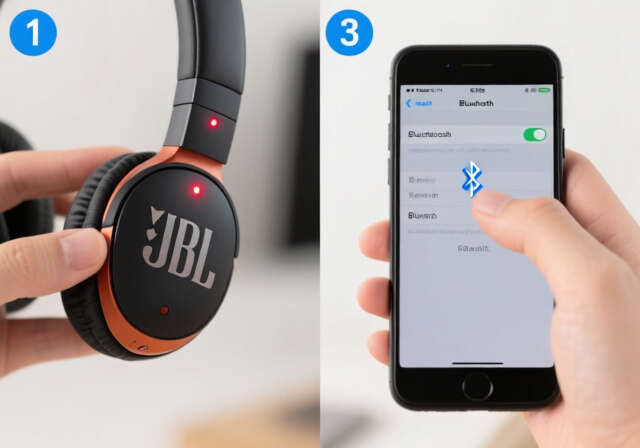
- Turn on your Bluetooth headphones.
- Put the headphones into pairing mode.
- Open the TV’s Settings menu.
- Look for Sound, Audio, Bluetooth, or Device Connection.
- Choose Bluetooth Speaker List, Bluetooth Audio, or a similar option.
- Select your headphones.
- Confirm the connection.
- Play a show and adjust the volume.
Menu names differ by brand. Samsung, LG, Sony, Hisense, TCL, Vizio, and Roku TVs may use different labels. Search the TV’s model number plus “Bluetooth headphones” if you cannot find the setting.
If the TV does not find your headphones
Keep the headphones close to the TV and turn off Bluetooth on nearby phones, tablets, and computers. Those devices may reconnect before the TV can find the headphones.
If the headphones appear but will not connect, remove them from the TV’s saved Bluetooth list. Then place the headphones back into pairing mode and try again.
What happens to the TV speakers?
Many TVs mute their built-in speakers when Bluetooth headphones connect. Some let you use both at once. Look for settings such as:
- TV Speaker
- Bluetooth Speaker
- Audio Output
- Multi-output Audio
- Bluetooth + TV Speaker


If you want one person to use headphones while another listens through the speakers, confirm that your TV supports dual audio. Many models do not.

Method 2: Use a Bluetooth Transmitter With an Older TV
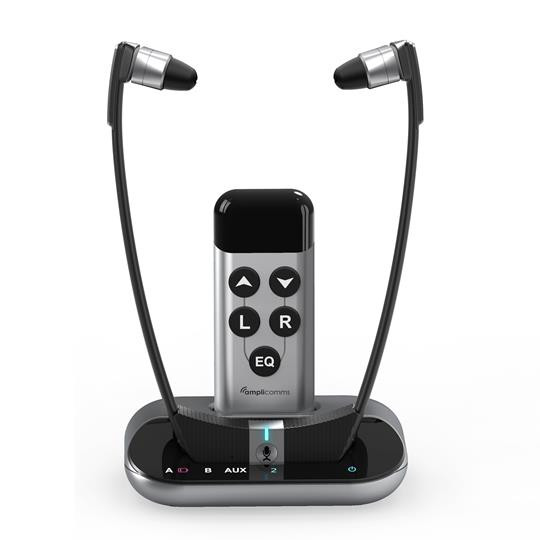
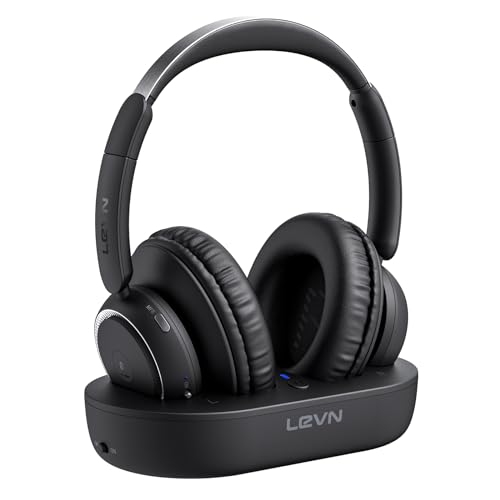
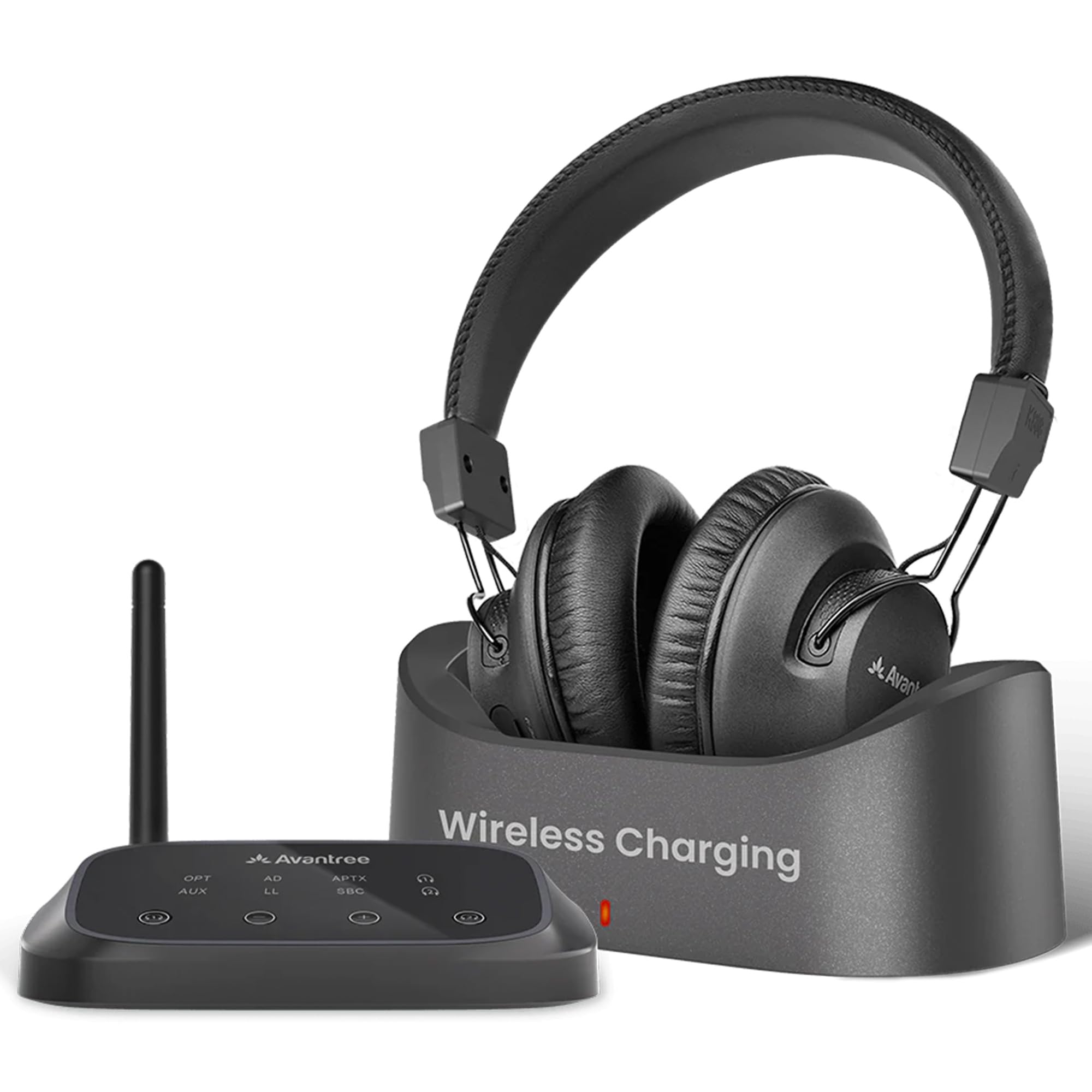
A Bluetooth transmitter adds wireless headphone support to a TV that does not have built-in Bluetooth audio. This is often the best choice for older TVs.
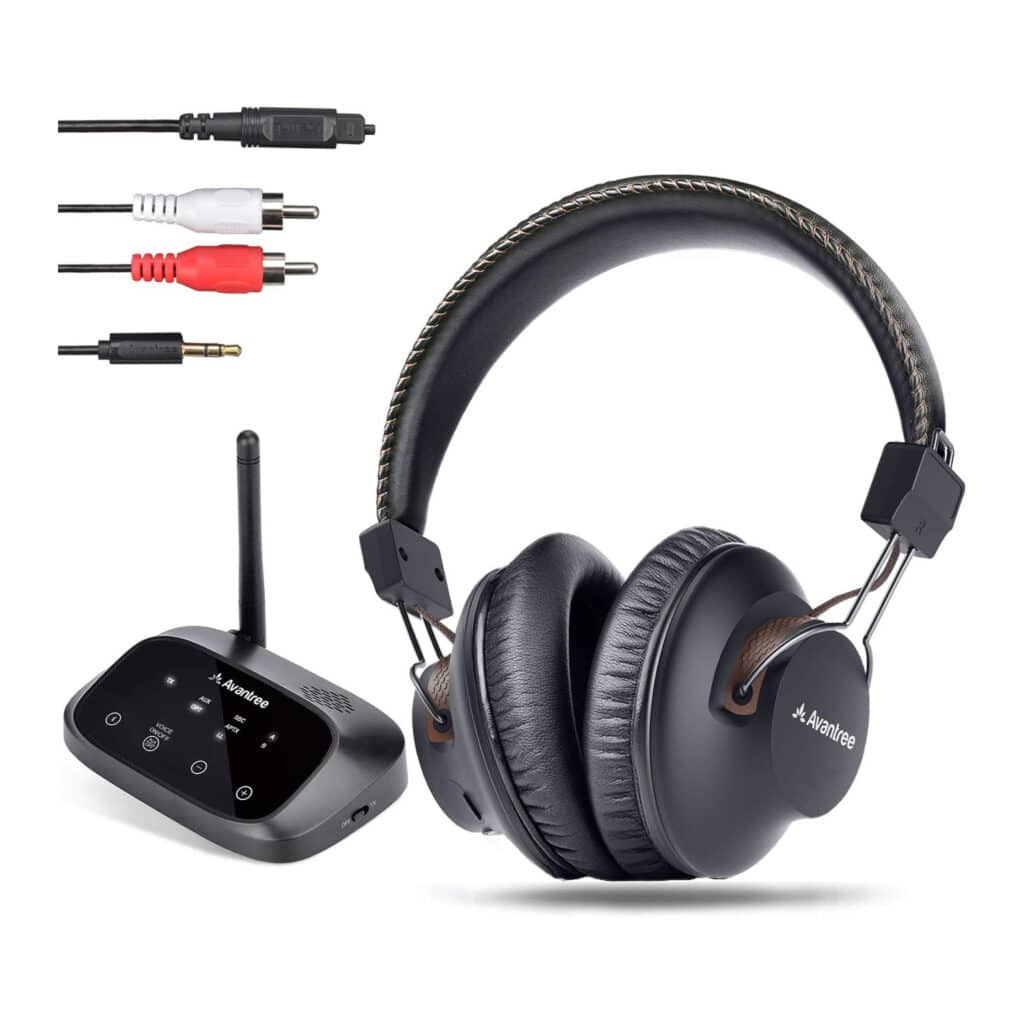
A transmitter receives sound from the TV through a cable and sends it to Bluetooth headphones. It usually connects through one of these outputs:
- Optical, also called TOSLINK or digital optical
- 3.5-millimeter headphone output
- Red-and-white RCA audio output
- Sometimes HDMI ARC, depending on the transmitter
How to set up an optical Bluetooth transmitter
- Plug one end of an optical cable into the TV’s optical audio output.
- Plug the other end into the transmitter’s optical input.
- Set the transmitter to TX, or transmit mode.
- Put your headphones into pairing mode.
- Press the transmitter’s pairing button.
- Wait for the headphones to connect.
- Open the TV’s audio settings.
- Select Optical, Digital Audio Out, or External Speaker if needed.
- Play audio and adjust the volume.
Remove the small plastic caps from the ends of an optical cable before use. Do not force the plug. Optical connectors fit in only one direction.
How to set up a 3.5-millimeter transmitter
- Plug the transmitter into the TV’s headphone jack.
- Turn on the transmitter.
- Put the headphones into pairing mode.
- Pair the two devices.
- Set the headphone volume.
A TV’s headphone jack may control the volume directly. If the sound is too loud or too soft, try both the TV volume and headphone controls.
How to set up an RCA transmitter
If your TV has red and white audio outputs, connect the transmitter to the matching RCA ports. Red usually carries the right audio channel, while white carries the left channel.
Some TVs label these ports Audio Out. Do not use ports labeled Audio In, because they receive sound rather than send it.
Choose a transmitter with low-delay support
Bluetooth can create a small gap between the picture and sound. This is called latency. It may make a person’s lips move before you hear the words.
A transmitter and headphones that support the same low-latency format may reduce this problem. Compatibility matters, though. Buying a transmitter that advertises low delay does not guarantee that every pair of headphones will use that mode.
For television, prioritize:
- A clear connection to your TV’s available output
- Support for your headphone type
- Low-delay operation
- A pass-through feature if you also need TV speakers
- Controls that are easy to reach
- A stable range for your room

Method 3: Use Roku Private Listening
Roku offers private listening on some devices through the Roku mobile app. This sends Roku audio to headphones connected to your phone.
Basic setup
- Install the official Roku mobile app on your phone.
- Connect the phone and Roku device to the same wireless network.
- Open the app.
- Select the Roku device.
- Tap the headphone icon or private-listening option.
- Plug wired headphones into the phone or connect Bluetooth headphones to the phone.
- Start watching.


The exact features depend on the Roku device, app version, phone, and network. Private listening may use more phone battery because the phone receives and plays the TV audio.
Common Roku limits
Private listening usually applies to audio from the Roku device. It may not work for sound produced by other devices connected directly to the TV, such as a cable box or game console.
If the audio stops or becomes choppy, check the wireless network first. Close other high-bandwidth apps, move closer to the router, or restart the Roku app.
Roku remotes with a headphone jack can also support private listening on compatible models. Plug wired headphones into the remote and adjust the volume with the remote controls.

Method 4: Use AirPods With Apple TV
AirPods can connect directly to an Apple TV. This is useful if your television uses Apple TV as the main streaming device.
Pair AirPods with Apple TV
- Open the AirPods case near the Apple TV.
- Put the AirPods into pairing mode if they do not appear.
- On Apple TV, open Settings.
- Select Remotes and Devices.
- Choose Bluetooth.
- Select the AirPods from the list.
- Confirm the connection.
You can also switch audio devices while watching by opening the Apple TV audio controls. The names may differ slightly across tvOS versions.
If your television is not an Apple TV, AirPods may still work if the TV supports Bluetooth audio. Pair them through the TV’s Bluetooth menu instead.
Method 5: Plug Wired Headphones Into the TV
Wired headphones remain a dependable option. They do not need charging, and they usually avoid Bluetooth delay.
Check the TV for a port marked:
- Headphones
- Audio Out
- 3.5 mm
- A headphone symbol
Plug in the headphones and play a show. Many TVs automatically mute the built-in speakers.
If the cable is too short, use a headphone extension cable. Choose one long enough to sit safely without crossing a walkway. Avoid running the cable where it can catch on furniture or become a trip hazard.
When the TV has RCA audio output only
You can use an RCA-to-3.5-mm adapter. Connect the red and white RCA plugs to the TV’s audio output, then connect the headphones to the adapter.
This may not control headphone volume. If the sound is too loud, use headphones with an in-line volume control or add a small headphone amplifier with its own volume knob.
When the TV has no usable headphone output
Use one of these alternatives:


- A Bluetooth transmitter
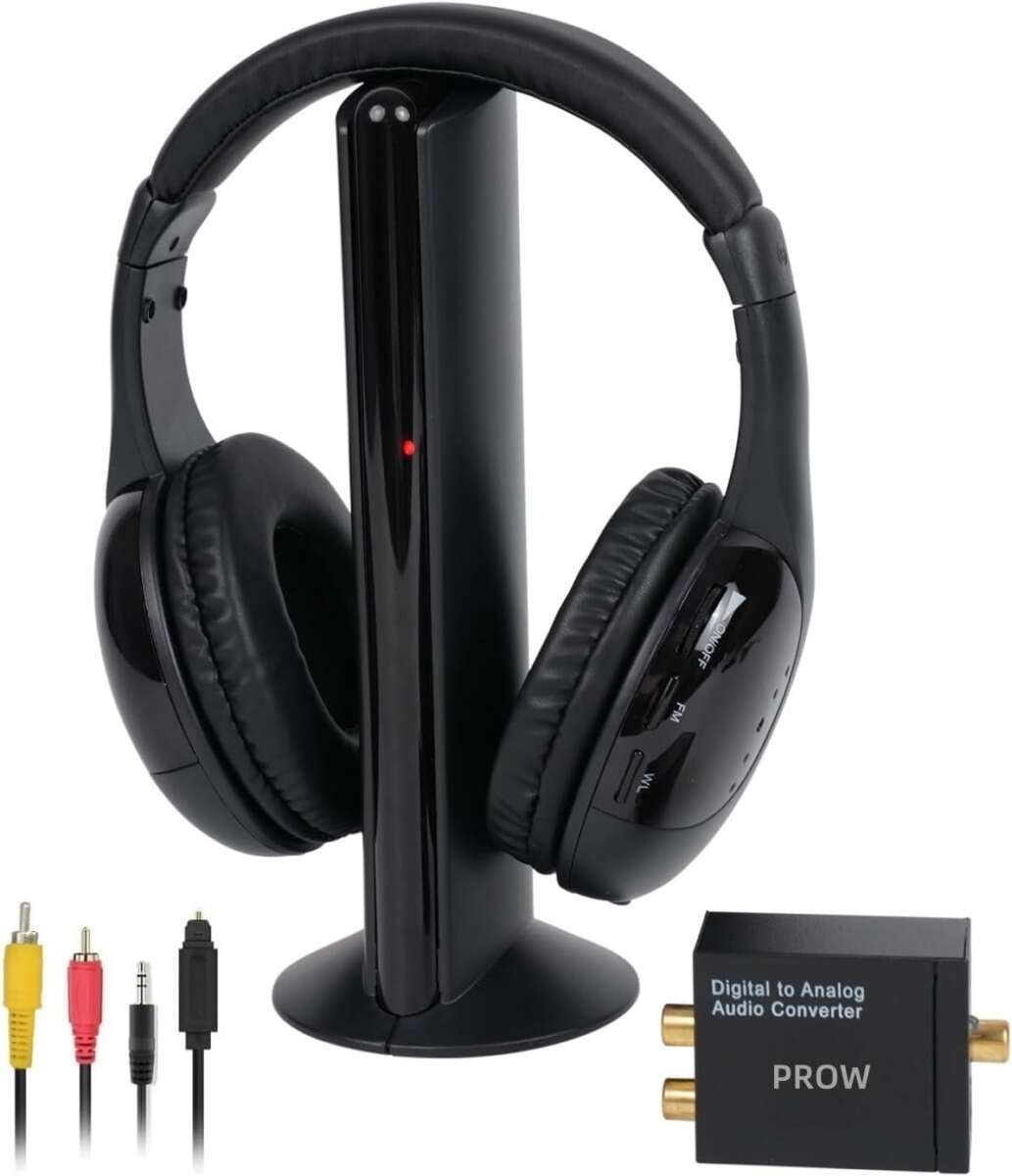
- A digital-to-analog audio converter
- The headphone jack on a cable box or streaming device
- The audio output on a soundbar, if supported
Check whether the output is designed to send audio. An HDMI port, USB port, or RCA input usually cannot provide headphone sound without additional equipment.

How to Listen With Headphones While Others Use the TV Speakers
Some TVs can send sound to headphones and built-in speakers at the same time. Others switch off the speakers as soon as headphones connect.
Look for a setting called:
- Multi-output Audio
- TV Speaker + Bluetooth
- Bluetooth Audio and TV Speaker
- Simultaneous Audio
- Audio Output
If the TV does not support this feature, use a source device that offers separate audio control. A Roku device, for example, may let one person listen through the Roku app while the TV continues playing sound through its speakers.
A Bluetooth transmitter with audio pass-through can also help. It sends sound to headphones while leaving the TV or sound system connected. Confirm this feature before buying, because some transmitters disable the original output.
How to Fix TV Headphones That Have No Sound
Check the connection in this order. Start with the simple and low-risk steps.
1. Confirm that the headphones are connected
Open the TV’s Bluetooth menu and check the connection status. A device can appear in the saved list without being actively connected.
For wired headphones, remove and reinsert the plug. Make sure it is fully seated.
2. Raise the correct volume
Bluetooth headphones may have their own volume level. The TV may also have a separate volume level.
Raise both slowly. If you use a phone for Roku private listening, adjust the phone and headphone volume too.
3. Check the TV audio output
Set the TV to the output you are using:
- Bluetooth for Bluetooth headphones
- Optical for an optical transmitter
- Headphone for a 3.5-mm connection
- External Speaker for some audio systems
If the TV is set to a different output, the headphones may stay silent.
4. Change the digital audio format
Some transmitters cannot decode every digital audio format. If an optical transmitter produces no sound, open the TV’s digital audio setting and try:


- PCM
- Stereo
- 2-channel
PCM is often the most compatible choice for a basic stereo transmitter. This change can affect the sound sent to other devices, so return to the prior setting if another device stops working correctly.
5. Restart and pair again
Turn off the TV, headphones, and transmitter. Wait a few seconds, then turn them back on.
If needed, remove the headphones from the TV’s Bluetooth list and pair them again. Follow the headphone maker’s instructions for clearing old pairings.
6. Test another audio source
Try a different show or app. If one app has sound but another does not, the problem may be with the app, program, or source device.
If no source works, test the headphones with a phone. This helps show whether the problem is with the headphones or the TV setup.
How to Fix Audio Delay Between the Picture and Headphones
Audio delay usually comes from wireless processing. The sound takes a little longer to reach the headphones than the video takes to appear.
Try these fixes:
- Use headphones and a transmitter that support the same low-latency standard.
- Reduce the distance between the transmitter and headphones.
- Remove nearby wireless obstacles and interference.
- Turn off unused Bluetooth devices.
- Look for an Audio Sync, Lip Sync, or Digital Audio Delay setting.
- Try a wired connection.
If the TV has an audio-sync control, adjust it in small steps. The correct setting depends on whether the audio is ahead of or behind the picture.
A wired connection is usually the most consistent choice for live sports, news, and dialogue-heavy shows. Wireless delay may be less noticeable for ordinary viewing but distracting during music or fast action.

Can You Use Headphones With a Soundbar?
You can use headphones with some soundbars, but the result depends on the soundbar’s outputs and settings.
A soundbar may have:
- Bluetooth output
- A headphone jack
- Optical output
- HDMI ARC or eARC
- No headphone output at all
If the soundbar supports Bluetooth headphone pairing, use its Bluetooth menu. If it only has an optical output, connect a Bluetooth transmitter to that output.
Be careful with HDMI ARC and eARC. These connections mainly send audio from the TV to the soundbar. They do not automatically provide a headphone connection. You need a compatible transmitter or audio extractor if the soundbar does not support headphones itself.
Headphone Safety and Comfort
Keep the volume as low as practical. If you need to raise the volume often, check the connection before turning it higher. A poor connection, background noise, or an incorrect output setting may be the real problem.
Use over-ear or noise-isolating headphones only when you can still respond to people or alarms when needed. Do not wear headphones while sleeping unless the design is made for that use and the volume remains safe.


Give your ears breaks during long viewing sessions. If you notice ringing, pain, muffled hearing, or unusual sensitivity after listening, stop using the headphones and consider speaking with a health professional.
For children, an adult should set and check the volume. Built-in volume limits can help, but they do not replace supervision.

Common Mistakes to Avoid
Buying a Bluetooth transmitter without checking the TV output
A transmitter may use optical, 3.5 mm, or RCA input. Make sure it matches a real audio output on your TV.
Confusing optical input with optical output
A device marked Optical In receives sound. You need the transmitter’s input connected to the TV’s Optical Out.
Pairing headphones with the wrong device
If you watch through a cable box or game console, pairing headphones with the TV may not always capture that device’s sound. Test the exact source you plan to use.
Using a Bluetooth adapter made only for sending or receiving
A transmitter sends audio to headphones. A receiver accepts audio from a phone or other source. Check the operating mode before purchase.
Ignoring soundbar and ARC settings
A soundbar can change how the TV sends audio. Test the setup with the soundbar on and off, then choose the output that gives you the needed result.
Expecting every TV to support two audio outputs
Many TVs mute speakers when headphones connect. Confirm simultaneous output support instead of assuming it exists.

Quick Decision Guide
Use this short guide to choose your setup:
- Your TV has Bluetooth: Pair the headphones directly.
- Your TV lacks Bluetooth but has optical output: Use an optical Bluetooth transmitter.
- Your TV has a headphone jack: Use wired headphones for the lowest delay.
- You watch through Roku: Try Roku Private Listening.
- You use Apple TV and AirPods: Pair the AirPods with Apple TV.
- You need speakers and headphones together: Look for multi-output audio or transmitter pass-through.
- You hear a delay: Try a wired connection or matched low-latency equipment.
- You hear no sound: Check the output setting and change digital audio to PCM or stereo.
Frequently Asked Questions
Can I connect Bluetooth headphones to any TV?
No. The TV must support Bluetooth audio, or you need a separate Bluetooth transmitter. Some TVs have Bluetooth for remotes and keyboards but do not send TV sound to headphones.
Can I use two pairs of Bluetooth headphones at once?
Sometimes. A few TVs and streaming devices support two Bluetooth audio connections, but many support only one. A transmitter made for two headphones may be a better option.
Will Bluetooth headphones work with live TV?
Usually, yes. However, wireless delay can make speech look out of sync. A wired connection or compatible low-latency setup is better for live programs.
Can I use headphones with a cable box?
Possibly. You can connect headphones to the cable box if it has a headphone output. Otherwise, connect a transmitter to an available audio output or use a TV output that carries the cable box sound.
Why do my headphones work with Netflix but not live TV?
The two sources may use different audio paths. The streaming app may play through the TV, while live TV comes from a cable box or antenna device. Check which device is producing the sound and connect the headphones to that path.
Conclusion
The simplest way to listen to TV with headphones is to pair Bluetooth headphones directly with a compatible TV. If the TV lacks Bluetooth, add a transmitter through the optical, 3.5-mm, or RCA audio output.
For the least delay, use wired headphones. For flexible private listening, Roku and Apple TV may offer device-specific options. Check the TV’s audio output, pair the correct device, and test the volume before settling in.
Your next step is simple: find your TV’s model number and inspect its audio ports. That will tell you which connection method is most likely to work.