How To Unpair Skullcandy Bluetooth Headphones: Quick Guide
If you use Skullcandy headphones with an iPhone, Android phone, Windows PC, or Mac in the United States, you can unpair them by removing the headphones from that device’s Bluetooth list. Open Bluetooth settings, select your Skullcandy headphones, and choose Forget, Remove, or Remove device.
This stops that device from connecting automatically. It does not always erase the headphones’ full pairing memory. For that, you may need a model-specific reset.

Unpairing vs. resetting: What is the difference?
Unpairing removes Skullcandy headphones from one phone or computer. Resetting clears stored Bluetooth connections from the headphones themselves.
Use unpairing when:
- You are switching from an old phone to a new phone.
- Your headphones keep connecting to the wrong device.
- Bluetooth pairing is stuck.
- You want to stop automatic connections.


Use a reset when:
- The headphones will not pair with any device.
- They appear connected but produce no sound.
- The headphones keep reconnecting to an old device.
- You want to give the headphones to another person.
- Forgetting the device does not solve the issue.
A reset can erase saved connections and restore the pairing system. It may not erase settings in the Skullcandy app. It also does not repair a damaged battery, broken button, or hardware fault.

How to unpair Skullcandy headphones from an iPhone
On an iPhone, remove the Skullcandy headphones from the Bluetooth settings.
- Turn on the iPhone.
- Open Settings.
- Tap Bluetooth.
- Find your Skullcandy headphones under My Devices.
- Tap the ⓘ button beside the headphones.
- Tap Forget This Device.
- Tap Forget Device to confirm.
The headphones should move out of the saved device list. If they are still powered on, they may enter pairing mode again. That does not mean the iPhone kept the old connection.
If the headphones are not listed
If the headphones do not appear under My Devices, they may already be unpaired from the iPhone. Check the Other Devices section. If the name appears there, the headphones are nearby and ready to pair.
To stop them from appearing, turn off the headphones or move them away from the phone. You can also turn off Bluetooth, but this affects every Bluetooth accessory connected to the iPhone.
If the iPhone reconnects to them
After you forget the headphones, power them off. Then turn Bluetooth off and back on. If another device, such as an iPad or Mac, uses the same Apple Account, check that device too. The headphones may still be saved there.
How to unpair Skullcandy headphones from an Android phone
Android menus vary by phone brand and software version. The basic process is similar on Google Pixel, Samsung Galaxy, Motorola, OnePlus, and other Android phones.
- Open Settings.
- Tap Connected devices, Connections, or Bluetooth.
- Tap Bluetooth or See all beside saved devices.
- Find your Skullcandy headphones.
- Tap the Settings or gear icon beside the name.
- Tap Forget, Unpair, or Remove.
- Confirm the choice.


The exact label depends on the Android phone. Forget and Unpair usually perform the same task: they remove the saved Bluetooth connection from the phone.
If your Android phone shows “Connected”
Tap the gear icon beside the headphones and choose Disconnect first, if that option appears. Then return to the same menu and choose Forget or Unpair.
If you only disconnect the headphones, the phone may connect to them again later. Forgetting the device prevents the phone from using the saved connection automatically.
If two Skullcandy names appear
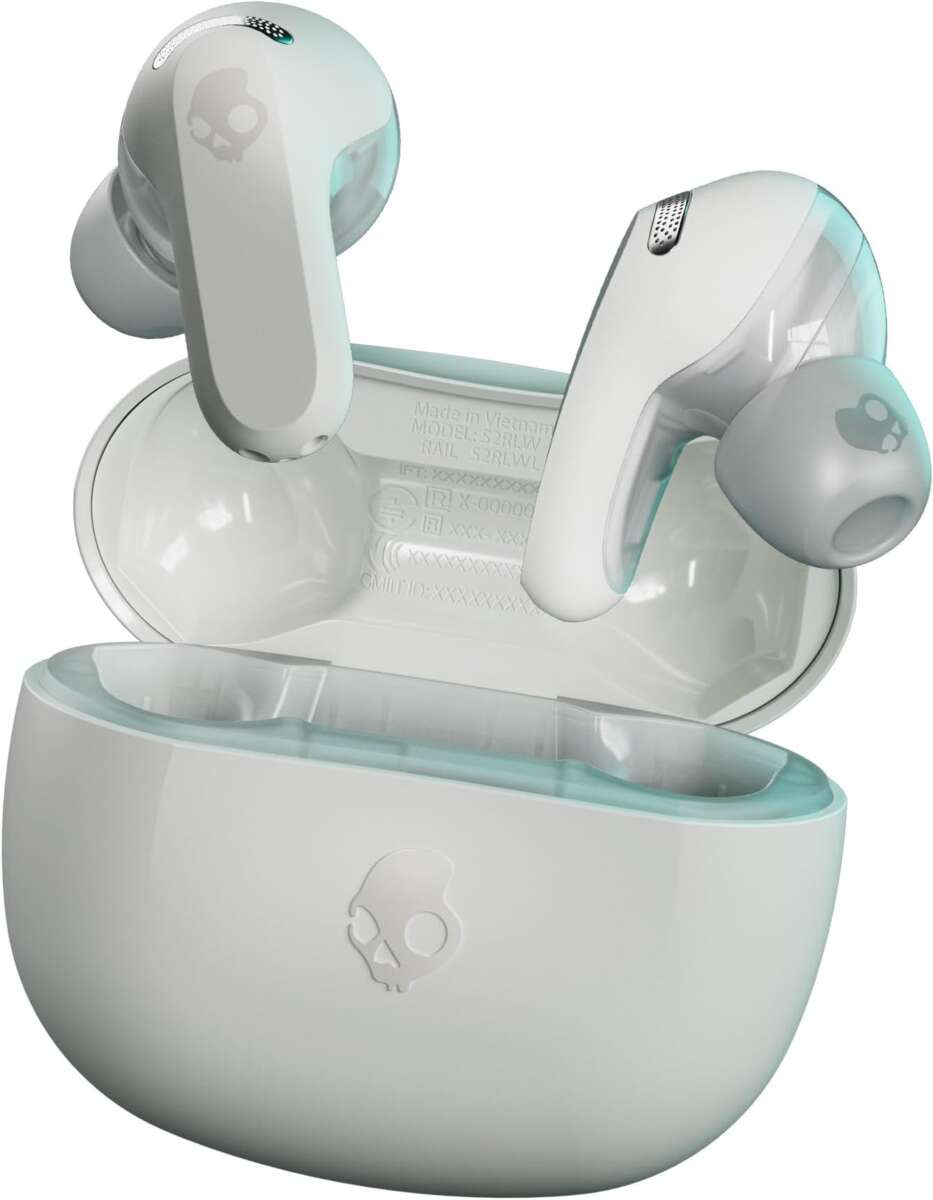
Some Skullcandy true wireless earbuds can show more than one Bluetooth entry. One entry may represent the earbuds, while another may relate to an app or a separate earbud connection.
Remove the entry that clearly shows the headphone or earbud name. If both earbuds appear separately, remove both entries. Then place the earbuds in their case, close the lid, and start the pairing process again according to the model’s manual.

How to unpair Skullcandy headphones from Windows 11 or Windows 10
Windows 11
- Select Start.
- Open Settings.
- Select Bluetooth & devices.
- Find your Skullcandy headphones under Devices.
- Select the three dots beside the headphones.
- Choose Remove device.
- Select Yes when Windows asks for confirmation.
Windows 10
- Select Start.
- Open Settings.
- Select Devices.
- Choose Bluetooth & other devices.
- Select your Skullcandy headphones.
- Click Remove device.
- Confirm the removal.
After removal, Windows should no longer list the headphones as a saved device. To use them again, select Add device, choose Bluetooth, and place the Skullcandy headphones in pairing mode.
If Windows will not remove the headphones
Try these steps in order:
- Turn off the Skullcandy headphones.
- Restart the Windows computer.
- Open Bluetooth settings again.
- Remove the headphones.
- If the entry remains, turn Bluetooth off and back on.
- Check Settings > Bluetooth & devices > Devices again.
Do not remove Bluetooth drivers unless ordinary removal fails. A driver change can affect other Bluetooth devices and may require administrator access.

How to unpair Skullcandy headphones from a Mac
On macOS, remove the headphones from the Bluetooth menu.
- Open the Apple menu.
- Select System Settings.
- Select Bluetooth.
- Find your Skullcandy headphones.
- Click the information button or details button beside the name.
- Choose Forget This Device or Remove.
- Confirm the action.
Older Mac versions may use System Preferences > Bluetooth. Select the headphones, click the X beside the device, and confirm that you want to remove them.
If the headphones still appear, turn them off and restart the Mac. Then open Bluetooth settings again.


How to stop Skullcandy headphones from connecting to the wrong device
The fastest fix is to remove the headphones from every device that should no longer use them.
Check nearby devices such as:
- Old phones
- Tablets
- Laptops
- Smart TVs
- Game consoles
- Work computers
- Family members’ phones
Bluetooth headphones often connect to the first known device that is available. If an old phone is nearby and Bluetooth is active, it may connect before your current phone does.
Follow this order:
- Turn off Bluetooth on old devices.
- Forget the Skullcandy headphones on those devices.
- Turn off the headphones.
- Turn Bluetooth on for the device you want to use.
- Put the headphones into pairing mode.
- Select the Skullcandy name from the Bluetooth list.
If your model supports multipoint connections, it may connect to more than one device. In that case, remove the headphones from the unwanted device or disable multipoint in the Skullcandy app, if that setting is available for your model.

How to reset Skullcandy Bluetooth headphones
A reset is different from removing the headphones from a phone. Skullcandy uses different reset steps across its product lines, so there is no safe button combination that works for every model.
First, find the exact model name. It may appear:
- On the inside of the headband
- On the charging case
- On the product box
- In the Bluetooth name
- In the Skullcandy mobile app
- On the purchase receipt
Then open the official Skullcandy support page and select the model’s user guide or help page. Follow the reset instructions for that model.
Important reset cautions
Before resetting:
- Charge the headphones and case if possible.
- Remove the headphones from your phone’s Bluetooth list.
- Keep the headphones close to the phone or computer.
- Do not press random button combinations from another Skullcandy model.
- Remember that a reset may erase saved device connections.
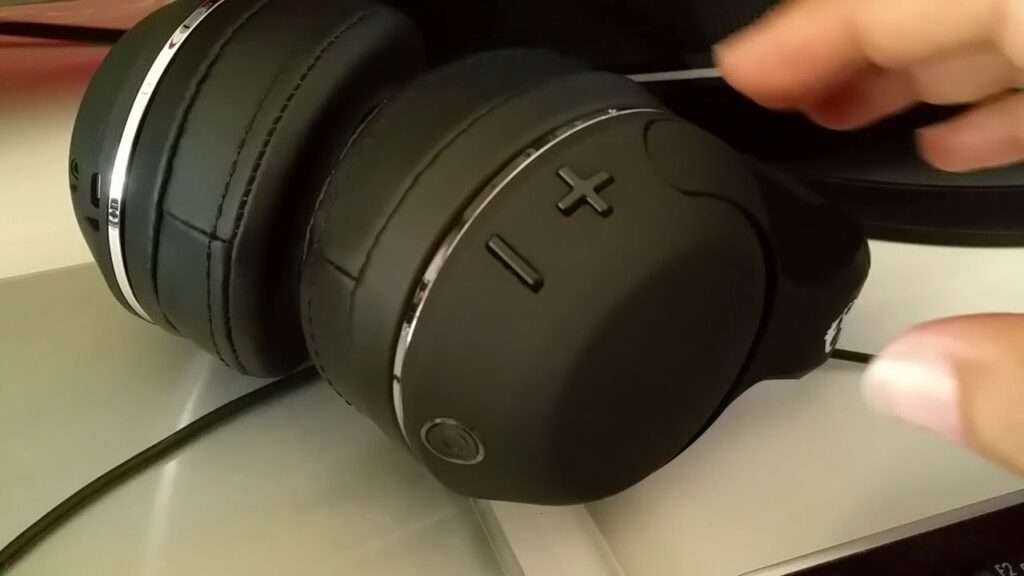
For true wireless earbuds, the reset may involve the charging case and both earbuds. For over-ear headphones, it may involve holding one or more buttons for a set time. The correct steps depend on the product.
What to do after a reset
After the reset:
- Turn Bluetooth off on nearby devices you do not want to use.
- Restart the phone or computer.
- Turn on Bluetooth.
- Put the Skullcandy headphones into pairing mode.
- Select the correct Skullcandy name.
- Play audio to confirm the connection.
A successful reset often makes the headphones appear as a new or available Bluetooth device. It does not always change the displayed product name.


What to do when unpairing does not work
If you cannot remove the Skullcandy headphones, work through the checks below.
The headphones are still connected
Disconnect them first. Then choose Forget, Unpair, or Remove. Some devices do not show the removal option while the headphones are actively playing audio.
The headphones do not appear
They may be powered off, out of range, or connected to another device. Turn off Bluetooth on nearby phones and computers. Then restart the headphones and search again.
The headphones appear twice
Remove every entry that matches the Skullcandy model. This is common with some earbuds and can leave an old connection behind.
The headphones will not enter pairing mode
Charge them first. Then turn them off and back on. Use the model’s official guide for the pairing-mode button or touch control. A reset may be needed if the headphones remain invisible.
The phone connects but there is no sound
Check the audio output setting:
- On an iPhone, open Control Center and select the audio output icon.
- On Android, open the media output panel and select the Skullcandy headphones.
- On Windows, select the speaker icon and choose the headphones as the output device.
- On a Mac, open Control Center > Sound and select the headphones.
Also check that the volume is raised and that the app is not muted.

Common mistakes to avoid
Choosing “Disconnect” instead of “Forget”
Disconnecting ends the current session. It does not remove the saved pairing. Use Forget, Unpair, or Remove when you want to delete the connection.
Resetting before checking the device settings
A reset takes more time and may remove other saved connections. Try removing the headphones from the phone or computer first.
Resetting with instructions for another model
Skullcandy controls vary. A button sequence for Crusher headphones may not apply to Dime, Indy, Sesh, Mod, Rail, or other models. Use the guide for the exact model.
Leaving old devices active
An old phone can reconnect before the new phone. Turn off Bluetooth on old devices during setup.
Forgetting both earbuds in a pair
For true wireless earbuds, both earbuds may need to be placed in the case and reset together. The correct process depends on the model.
How to tell whether your Skullcandy headphones are unpaired
The process worked if:
- The headphones no longer appear under saved Bluetooth devices.
- Your phone or computer asks you to pair them again.
- The headphones do not reconnect automatically to the old device.
- Another device can find them in pairing mode.
- The headphones connect normally after you select them again.


To test the result, turn Bluetooth off on all unwanted devices. Then put the Skullcandy headphones into pairing mode and connect them to the device you want to use.
Frequently asked questions
Does unpairing reset Skullcandy headphones?
No. Unpairing removes the headphones from one phone, tablet, or computer. A reset clears stored connection data in the headphones and is a separate process.
Will unpairing delete the Skullcandy app?
No. Removing a Bluetooth connection does not normally uninstall the Skullcandy app or delete your account. App settings may remain until you remove them separately.
Why do my Skullcandy headphones keep pairing with my old phone?
The old phone may still have the headphones saved and Bluetooth enabled. Turn off Bluetooth on that phone or forget the Skullcandy headphones there.
Can I unpair Skullcandy headphones without the phone?
Yes. You can remove the headphones from any paired device by opening that device’s Bluetooth settings. If you cannot access the old device, reset the headphones by following the official instructions for the exact model.
Do I need to unpair before selling or giving away the headphones?
Yes. Remove the headphones from your phone, tablet, computer, and Skullcandy app if applicable. Then perform the model-specific reset so the next user can pair them as a new device.
Final answer
To unpair Skullcandy Bluetooth headphones, open Bluetooth settings on your iPhone, Android phone, Windows PC, or Mac. Select the Skullcandy device and choose Forget, Unpair, or Remove.
If the headphones still connect to an old device or fail to pair, use the official reset instructions for the exact Skullcandy model. Do not rely on a generic reset button sequence, because the steps differ between product lines.