How To Pair Beats Headphones: Easy Bluetooth Setup Guide
Pairing Beats headphones in the United States usually takes less than two minutes. Turn on bluetooth, place the Beats headphones in pairing mode, then select them from your device’s Bluetooth menu.
The exact button can vary by model. Most Beats headphones use a power button, system button, or case button to start pairing. This guide covers Beats Studio Pro, Beats Solo, Beats Fit Pro, Beats Studio Buds, Beats Flex, Powerbeats, and other Bluetooth Beats models.

Before You Pair Beats Headphones
Before pairing, charge the headphones and keep them near your device. Bluetooth works best when the two devices are close together, with few walls or other wireless devices between them.
You also need:
- A compatible iPhone, iPad, Android phone, Mac, Windows PC, or other Bluetooth device
- Bluetooth turned on
- The Beats headphones powered on
- The headphones disconnected from another nearby device, if possible


If the headphones are brand new, they often enter pairing mode automatically. If they have paired before, you may need to press and hold a button until the status light flashes.
What does pairing mode mean?
Pairing mode lets your Beats headphones announce themselves to nearby Bluetooth devices. A flashing white, blue, or red-and-white light often signals that the headphones are ready to connect.
A steady light usually means the headphones are already connected or powered on but are not searching for a new device.
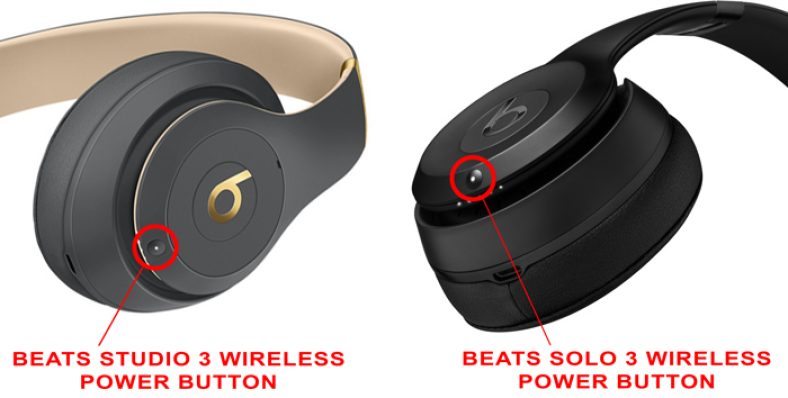
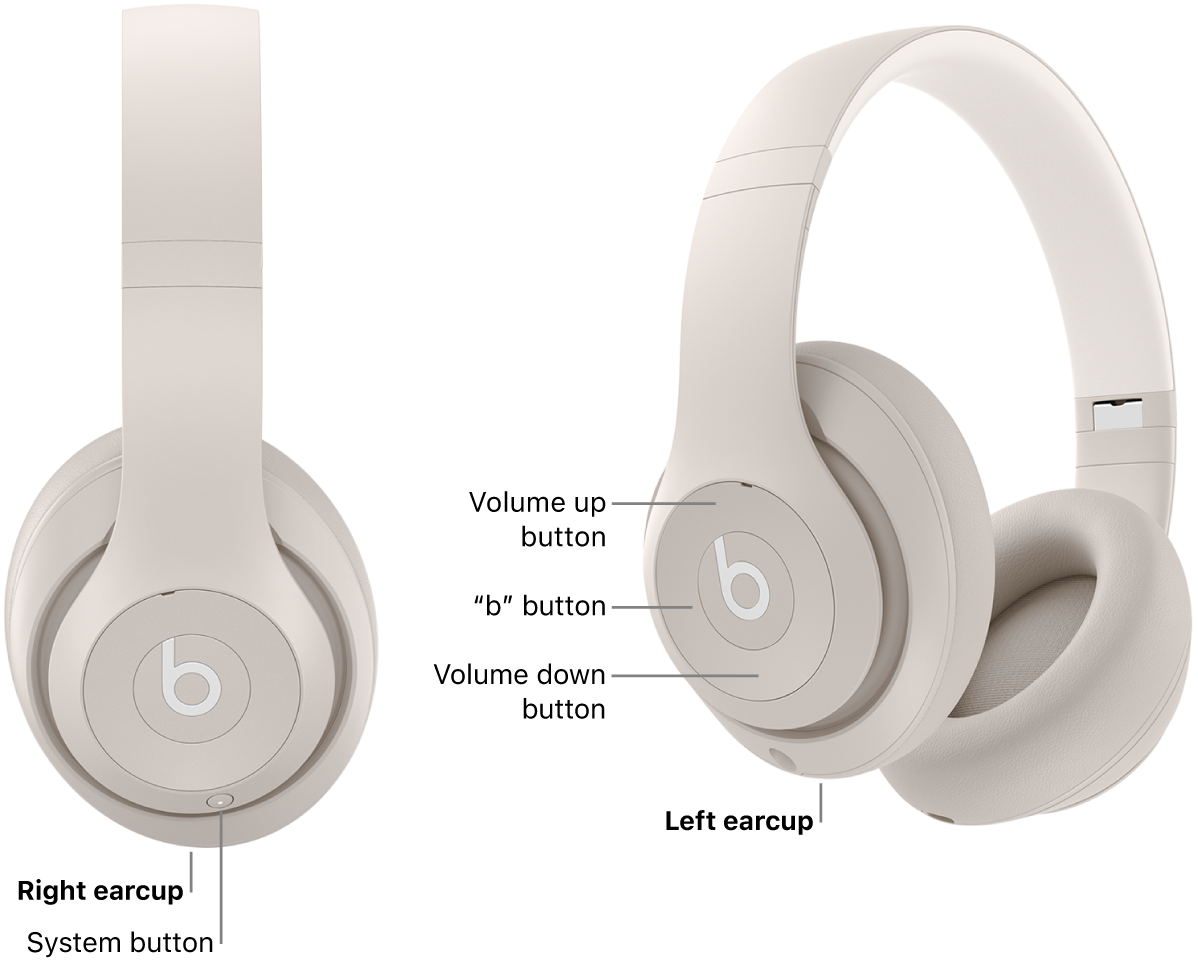
Find the pairing button on your Beats model
Use the control that matches your model:
| Beats model type | Pairing control |
|---|---|
| Beats Studio Pro | Press and hold the system button until the lights flash |
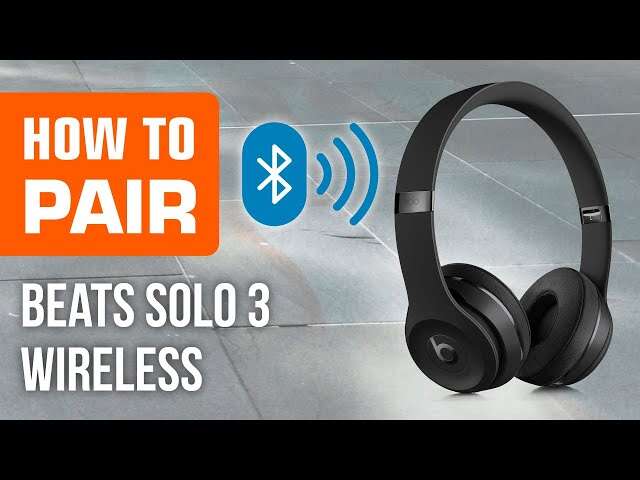
| Beats Solo headphones | Press and hold the power button until the indicator flashes |
| Beats Studio Buds or Studio Buds + | Put both earbuds in the open case, then hold the case system button |
| Beats Fit Pro | Put both earbuds in the open case, then hold the case system button |
| Powerbeats Pro | Open the charging case and hold the case system button |
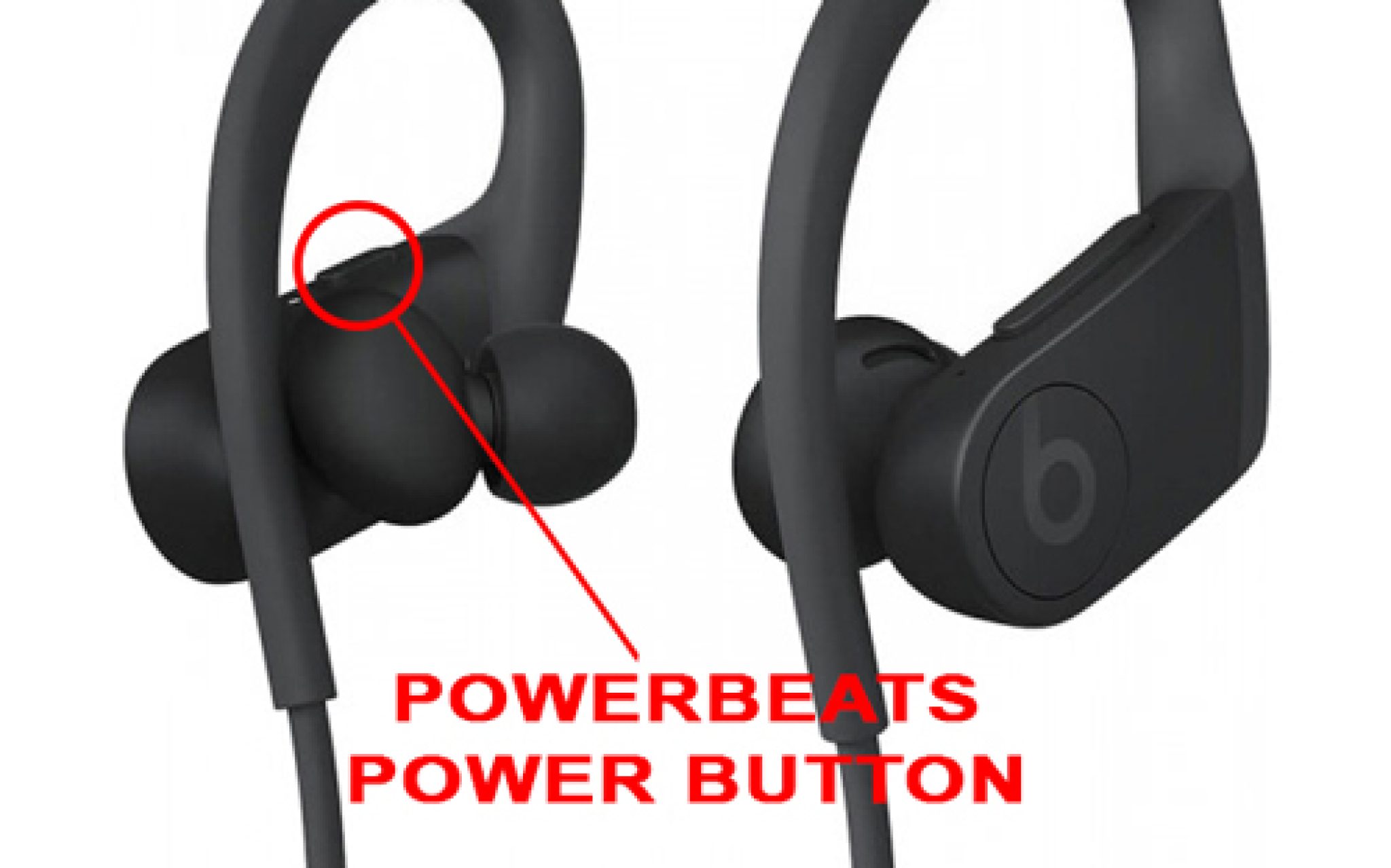
| Beats Flex | Press and hold the power button until the indicator flashes |
| Powerbeats or Powerbeats4 | Press and hold the power button until the indicator flashes |
The button location can differ by generation. If your headphones do not appear, check the model-specific instructions in Apple’s official Beats support resources.

How to Pair Beats Headphones With an iPhone or iPad
The fastest way to pair Beats headphones with an iPhone or iPad is to use the Bluetooth settings menu. Some newer Beats models also support the Apple pairing animation when you hold them near the device.
Pair Beats headphones through Bluetooth
- Open Settings on your iPhone or iPad.
- Tap Bluetooth.
- Turn on Bluetooth if it is off.
- Put the Beats headphones into pairing mode.
- Wait for the Beats name to appear under Other Devices.
- Tap the Beats name.
- Wait until it moves to My Devices and shows Connected.
Your headphones should now play sound from the iPhone or iPad.
If an Apple pairing card appears, follow the instructions on the screen. This can be quicker than opening the Bluetooth menu, but the manual Bluetooth method works for most Beats headphones.
If your Beats are already linked to an Apple device
Beats headphones may connect automatically to other Apple devices signed in to the same Apple Account. This depends on the Beats model, device software, and whether Bluetooth is enabled.
To switch sound to Beats headphones:


- Start playing audio.
- Open Control Center.
- Tap the audio output button.
- Select your Beats headphones.
Automatic switching is not guaranteed in every situation. If the headphones do not connect, select them manually from the Bluetooth menu.
How to Pair Beats Headphones With an Android Phone
Beats headphones work with Android phones through standard Bluetooth. Some models also support the Beats app for Android, which may provide battery information, controls, updates, and device settings.
Pair Beats headphones with Android
- Open Settings.
- Tap Connected devices, Connections, or Bluetooth. The name depends on the Android phone maker.
- Turn Bluetooth on.
- Select Pair new device if that option appears.
- Put the Beats headphones into pairing mode.
- Tap the Beats headphones when they appear in the device list.
- Approve the pairing request if Android asks for confirmation.
The headphones should show as Connected. Play music or a video to test the connection.
Use the Beats app when supported
Some Beats models work with the Beats app for Android. The app is not required for basic Bluetooth audio, but it can help with supported features.
Use the app to:
- Find supported headphones
- Check battery levels
- Change available controls
- Install firmware updates when offered
- Manage some device settings
The app cannot make an unsupported feature available. For example, Apple-only features may not work the same way on Android.
How to Pair Beats Headphones With a Mac
You can pair Beats headphones with a Mac from System Settings. The process is similar to pairing other Bluetooth accessories.
Pair Beats headphones with macOS
- Click the Apple menu in the upper-left corner.
- Open System Settings.
- Select Bluetooth.
- Turn Bluetooth on.
- Put the Beats headphones into pairing mode.
- Find the headphones in the list of nearby devices.
- Click Connect.
After pairing, select the Beats headphones as the sound output if needed:
- Open Control Center from the menu bar.
- Click Sound.
- Select your Beats headphones.
On older Mac versions, open System Preferences, choose Bluetooth, and then select Connect beside the Beats device.
If your Mac keeps using its speakers
A Mac may remain set to its built-in speakers after pairing. This does not always mean pairing failed.
Open Control Center, choose Sound, and select the Beats headphones. You can also open System Settings > Sound > Output and select them there.


How to Pair Beats Headphones With a Windows PC
Windows pairs Beats headphones from the Bluetooth settings page. The steps vary slightly between Windows 10 and Windows 11.
Pair Beats headphones with Windows 11
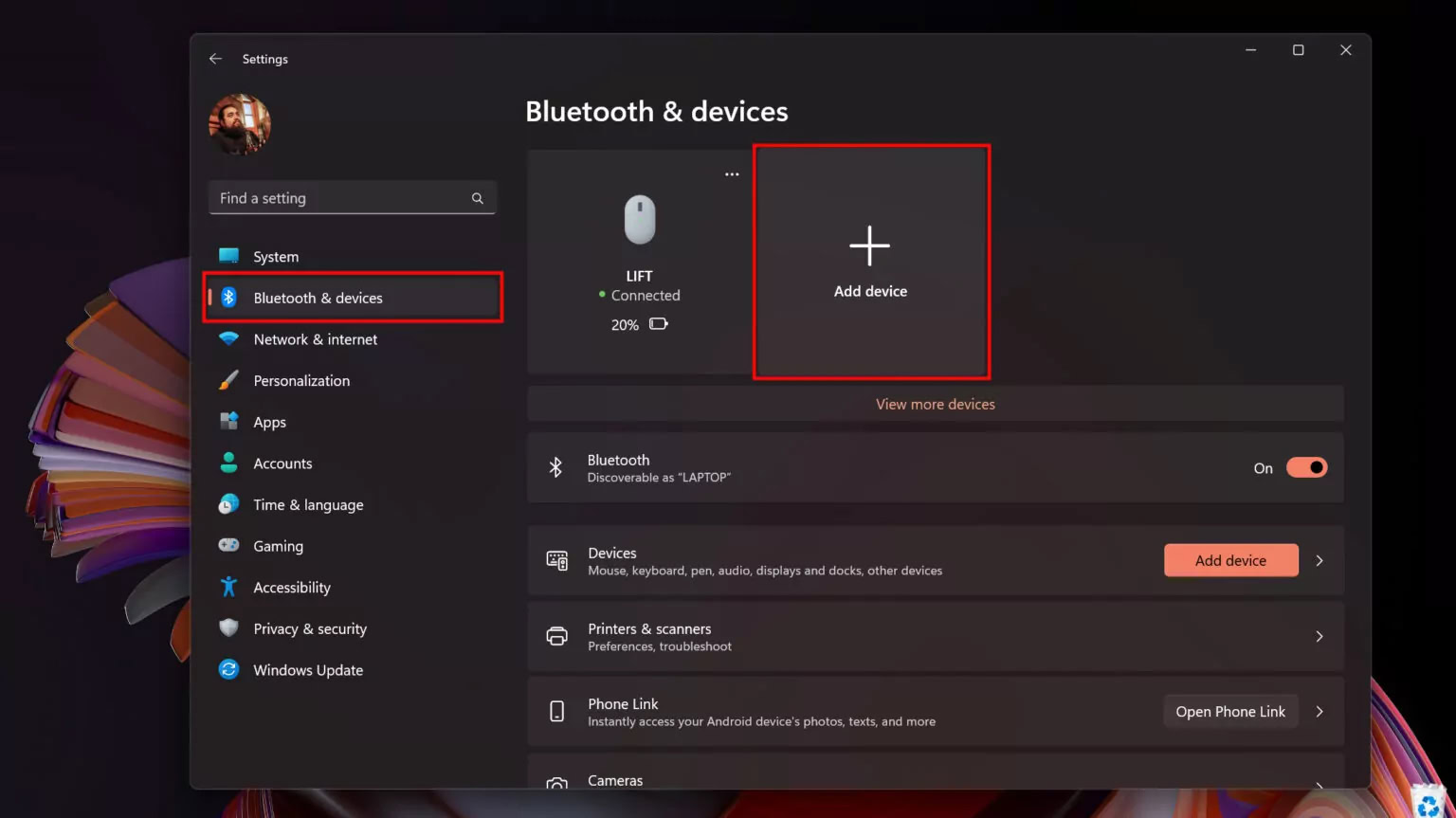
- Open Settings.
- Select Bluetooth & devices.
- Turn Bluetooth on.
- Click Add device.
- Choose Bluetooth.
- Put the Beats headphones into pairing mode.
- Select the Beats headphones from the list.
Windows should display a connected status when the process is complete.
Pair Beats headphones with Windows 10
- Open Settings.
- Select Devices.
- Choose Bluetooth & other devices.
- Turn Bluetooth on.
- Click Add Bluetooth or other device.
- Select Bluetooth.
- Choose the Beats headphones.
If Windows lists separate options for headphones and a headset, choose the normal headphones option for music. The headset option may use a lower-quality microphone mode during calls.
Select Beats as the sound output
If Windows pairs the headphones but audio still comes from the computer speakers:
- Click the speaker icon in the taskbar.
- Open the sound output list.
- Select the Beats headphones.
You can also go to Settings > System > Sound and choose the headphones under Output.
How to Pair Beats Earbuds
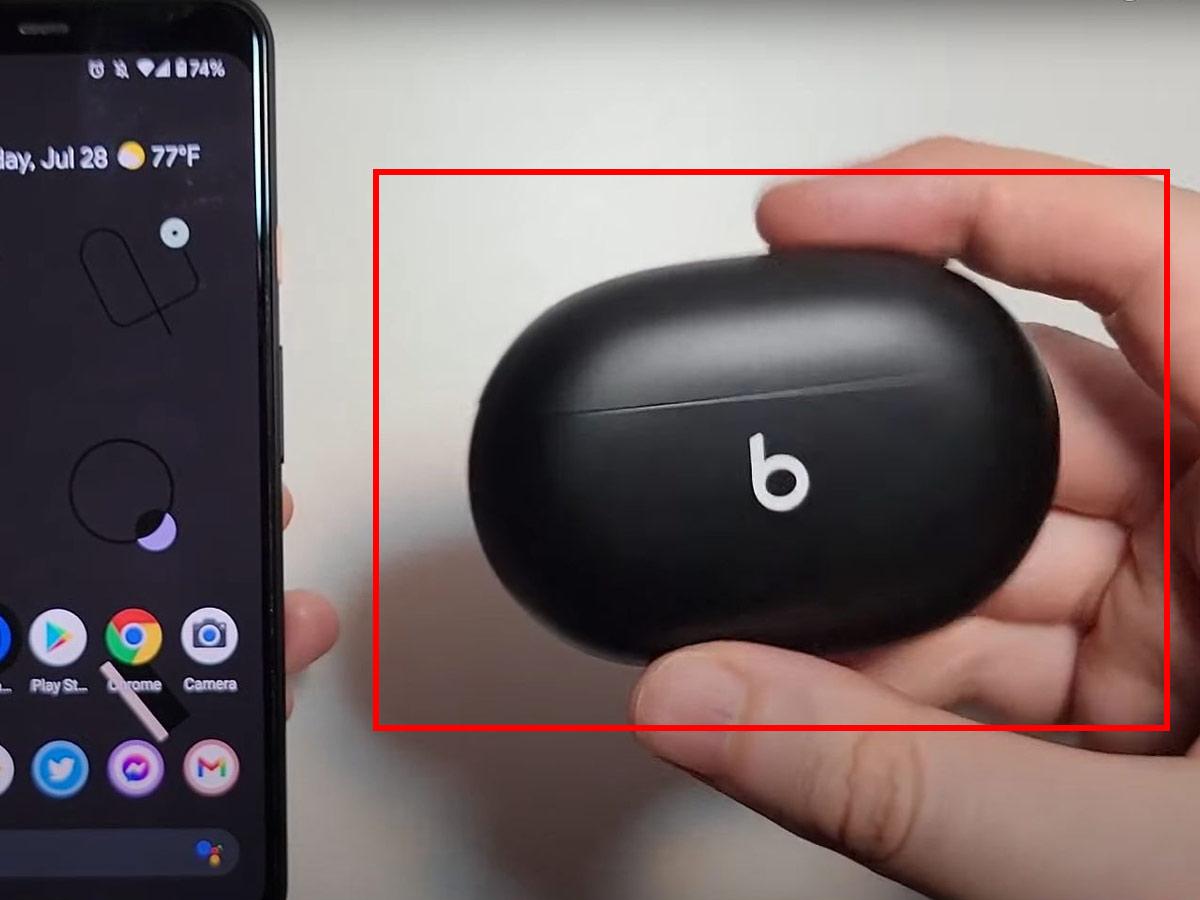
Beats earbuds use the charging case to enter pairing mode. This includes models such as Beats Studio Buds, Beats Studio Buds +, Beats Fit Pro, and Powerbeats Pro.
Pair Beats Studio Buds or Beats Fit Pro
- Place both earbuds inside the charging case.
- Leave the case lid open.
- Press and hold the system button on the case.
- Release the button when the indicator light flashes.
- Open Bluetooth settings on your phone, tablet, or computer.
- Select the Beats earbuds.
Keep the earbuds in the case while pairing. Removing them too soon can interrupt the process.
Pair Powerbeats Pro
- Place both earbuds in the charging case.
- Open the lid.
- Press and hold the system button on the case.
- Wait for the light to flash.
- Open the Bluetooth menu on your device.
- Select Powerbeats Pro.
If only one earbud works, place both earbuds in the case and charge them for a few minutes. Then repeat the pairing process.
Pair one earbud
Many Beats earbuds can play audio from one earbud, but the exact behavior depends on the model. If one earbud does not connect, place both earbuds in the case, close the lid, reopen it, and try again.
If the issue continues, forget the earbuds from your device and reset them using the model’s official instructions.


How to Pair Beats Headphones After They Were Connected to Another Device
Beats headphones may connect to the last device they used. This can prevent a new phone or computer from finding them.
To pair them with a different device:
- Turn off Bluetooth on the old device, or move it out of range.
- Turn on the Beats headphones.
- Press and hold the pairing button until the light flashes.
- Open Bluetooth settings on the new device.
- Select the Beats headphones.
You do not always need to remove the headphones from the old device. Turning off Bluetooth on that device is often enough.
Some Beats models support connections to more than one device or automatic switching. These features depend on the model and software. If the headphones immediately return to the old device, disconnect them there before trying again.
Beats Headphones Not Pairing? Try These Fixes
Most pairing problems come from low battery, an old Bluetooth connection, or the headphones not being in pairing mode. Work through the checks below in order.
1. Charge the headphones
Connect the headphones or charging case to power. A very low battery can prevent pairing or cause repeated disconnections.
Charge both earbuds if you are using a case-based model. Confirm that the case shows a charging light or that the headphones respond to the charging cable.
2. Put the headphones back into pairing mode
A powered-on headset is not always ready to pair. Press and hold the correct button until the status light flashes.
Then keep the headphones close to the device while you search for them.
3. Turn Bluetooth off and on
On the phone or computer:
- Turn Bluetooth off.
- Wait about 10 seconds.
- Turn Bluetooth on again.
- Search for the Beats headphones.
This refreshes the Bluetooth search without changing other settings.
4. Forget the old Beats connection
If your device shows the Beats headphones but will not connect, remove the saved entry.
On an iPhone or iPad:
- Open Settings > Bluetooth.
- Tap the information button beside the Beats headphones.
- Tap Forget This Device.
- Put the headphones into pairing mode.
- Pair them again.


On Android, open the Bluetooth device list, tap the settings icon beside the Beats headphones, and choose Forget, Unpair, or Remove.
On Windows or Mac, remove the Beats device from the Bluetooth settings, then add it again.
5. Restart both devices
Restart the phone, tablet, or computer. Power the Beats headphones off and on, then try the pairing steps again.
6. Reset the Beats headphones
A reset can fix a damaged or confused Bluetooth connection. The reset method varies by model, so use Apple’s instructions for the exact headphones.
Resetting may erase saved connections and settings. You will need to pair the headphones again afterward.
7. Check for software updates
Install available updates for:
- iOS or iPadOS
- Android
- macOS
- Windows
- The Beats app, when used
- Beats firmware, when an update is offered through a supported Apple device or the Beats app
Do not disconnect the headphones during a firmware update.

What to Do When Beats Headphones Connect but Have No Sound
A successful Bluetooth connection does not always mean that the device selected the headphones for audio output.
Try these steps:
- Raise the volume on the device and the Beats headphones.
- Select the Beats headphones in the audio output menu.
- Pause and restart the media.
- Close apps that may be using another audio device.
- Disconnect and reconnect the headphones.
- Check whether the headphones are muted during a call.
- Test a different song, video, or app.
On Windows, the standard headphone output often sounds better for music than the hands-free headset output. The hands-free mode may be active because an app is using the microphone.
On an iPhone, iPad, or Mac, open the audio output selector and choose the Beats headphones manually.
How to Disconnect or Unpair Beats Headphones
Disconnecting stops the current Bluetooth session. Unpairing removes the saved relationship between the device and the headphones.
To disconnect temporarily, turn off Bluetooth on the phone or computer, or select another audio output.
To unpair Beats headphones:
- iPhone or iPad: Go to Settings > Bluetooth, tap the information button, then choose Forget This Device.
- Android: Open Bluetooth settings, tap the gear icon beside the headphones, then choose Forget or Unpair.
- Mac: Open System Settings > Bluetooth, find the Beats headphones, and choose Forget This Device.
- Windows: Open Settings > Bluetooth & devices, select the Beats headphones, and choose Remove device.


Unpairing is useful before giving the headphones to another person or troubleshooting a persistent connection problem.
Common Pairing Mistakes to Avoid
Avoid these mistakes when pairing Beats headphones:
- Searching for the headphones before putting them in pairing mode
- Leaving Bluetooth enabled on a nearby device that connects first
- Removing earbuds from the case while the case is entering pairing mode
- Choosing the wrong audio output after pairing
- Resetting the headphones before trying simpler checks
- Pairing with a device that has a full or corrupted Bluetooth list
- Assuming a steady status light means the headphones are ready for a new connection
- Installing unofficial firmware or pairing software
Keep the headphones close to the device during setup. Also, do not use damaged cables, swollen batteries, or headphones that become unusually hot. Stop using damaged equipment and contact the manufacturer or a qualified service provider.

Key Takeaways
- Turn on Bluetooth on the phone or computer.
- Put the Beats headphones into pairing mode.
- Select the Beats name from the Bluetooth list.
- For earbuds, keep both earbuds in the open charging case while holding the case button.
- If pairing fails, charge the headphones, forget the old connection, and try again.
- Select Beats as the audio output if the device still uses its built-in speakers.
FAQs About Pairing Beats Headphones
Why are my Beats headphones not showing up in Bluetooth?
They may not be in pairing mode, may have a low battery, or may still be connected to another nearby device. Turn off Bluetooth on the old device, charge the Beats headphones, and hold the pairing button until the light flashes.
How do I put Beats headphones in pairing mode?
Press and hold the power, system, or case button until the indicator light flashes. The correct button depends on the Beats model. For Beats earbuds, place them in the open charging case before holding the case button.
Can I pair Beats headphones with a Samsung phone?
Yes. Beats headphones use Bluetooth and can pair with Samsung Galaxy phones and other compatible Android devices. Open Bluetooth settings, select Pair new device, and choose the Beats headphones.
Can I connect Beats headphones to a Windows laptop?
Yes. Windows 10 and Windows 11 support Beats headphones through Bluetooth. Open Bluetooth settings, choose Add device, select Bluetooth, and then choose the Beats headphones.
Why do my Beats connect but play no sound?
The device may still be using its speakers or another Bluetooth accessory. Open the sound output menu and select the Beats headphones manually. On Windows, also check whether an app selected the hands-free headset mode.
How do I reset Beats headphones?
The reset steps depend on the model. Use the official Apple Beats support instructions for the exact model. A reset can remove saved connections, so pair the headphones again afterward.
Conclusion
To pair Beats headphones, turn on Bluetooth, place the headphones into pairing mode, and select them from the device’s Bluetooth list. The main difference is how pairing mode starts: over-ear Beats usually use the power or system button, while Beats earbuds use the button on the open charging case.
If the connection fails, charge the headphones, move them away from old devices, forget the saved Bluetooth entry, and try again. For persistent problems, use the official reset steps for your exact Beats model.