Can I Make My External SSD Run Games Better: Speed Tips
Yes. An external SSD can make games load faster, install faster, and stream game files more smoothly than an external hard drive. It usually will not increase average FPS because frame rate depends mainly on your CPU, GPU, game settings, and display resolution.
For the best result, use a fast SSD, connect it to a fast USB port, keep enough free space, and install games on the drive instead of using it only for backups. On consoles, compatibility rules matter. A PlayStation 5 or Xbox Series X|S may not let every current-generation game run directly from a normal USB drive.
This guide explains how to make an external SSD perform better for PC and console gaming in the United States.
What an External SSD Can Improve
An external SSD mainly improves storage-related tasks. It does not turn a weak gaming PC into a high-FPS system.


You may notice:
- Shorter game loading screens
- Faster level and map loading
- Faster game installation and updates
- Less waiting when moving large games
- Smoother file streaming in some open-world games
- Faster access to saved games and game assets
- Less noise than an external hard disk drive
An SSD has no spinning platters or moving read heads. It can find many small files quickly, which helps games that load thousands of textures, models, sounds, and configuration files.
What it usually does not improve
An external SSD usually does not create a large FPS increase. Your frame rate is more closely linked to:
- Graphics card performance
- Processor performance
- RAM capacity and speed
- Game resolution
- Ray tracing settings
- Texture and shadow settings
- Thermal throttling
- Driver and game optimization
An SSD may reduce stutter caused by slow asset loading, but it cannot fix every type of stutter. If your GPU is already running at 99% use, moving the game to a faster drive will not normally raise FPS.
The biggest upgrade comes when you replace a hard drive. The difference between an internal NVMe SSD and a good external SSD is often much smaller during normal gameplay.

Use the Fastest Connection Available
The USB port and cable can limit the SSD more than the SSD itself. A fast NVMe drive connected through a slow USB port may perform like a much slower drive.
Common USB speed classes include:
| Connection | Theoretical speed | Practical gaming impact |
|---|---|---|
| USB 2.0 | 480 Mb/s | Too slow for a good gaming SSD |
| USB 3.0 or USB 3.2 Gen 1 | 5 Gb/s | Fine for many external SSDs |
| USB 3.2 Gen 2 | 10 Gb/s | A strong choice for external NVMe storage |
| USB 3.2 Gen 2×2 | 20 Gb/s | Useful only when both devices support it |
| USB4 or Thunderbolt | Varies by version | Can be very fast with matching hardware |
Manufacturers may use different names for similar USB speeds. Check the port, cable, SSD enclosure, and computer specifications. The entire connection is limited by its slowest part.
For example, a 20 Gb/s enclosure connected to a 5 Gb/s port will not run at 20 Gb/s. A USB-C plug also does not guarantee high speed. USB-C describes the connector shape, not the data rate.
How to identify a fast port
Look for:
- “SS” or “SuperSpeed” beside a USB-A port
- A USB 3.x, USB4, or Thunderbolt label
- The port details in your computer or motherboard manual
- The manufacturer’s technical specifications


On a desktop PC, connect the SSD to a rear motherboard port when possible. Front-panel ports may use longer internal cables or share bandwidth with other devices.
On a laptop, test the ports listed as USB 3.x, USB4, or Thunderbolt. Avoid hubs while testing performance. A hub can share bandwidth between the SSD, keyboard, mouse, monitor, and other devices.
Use the correct cable
Use the cable supplied with the SSD or a cable rated for the connection you need. A charging-only USB-C cable may power the drive but fail to provide data. A low-speed cable can also reduce performance.
If the SSD disconnects under load, replace the cable first. A short, certified cable is often more reliable than a long or poorly made one.
Choose the Right External SSD Setup
There are two common external SSD designs:
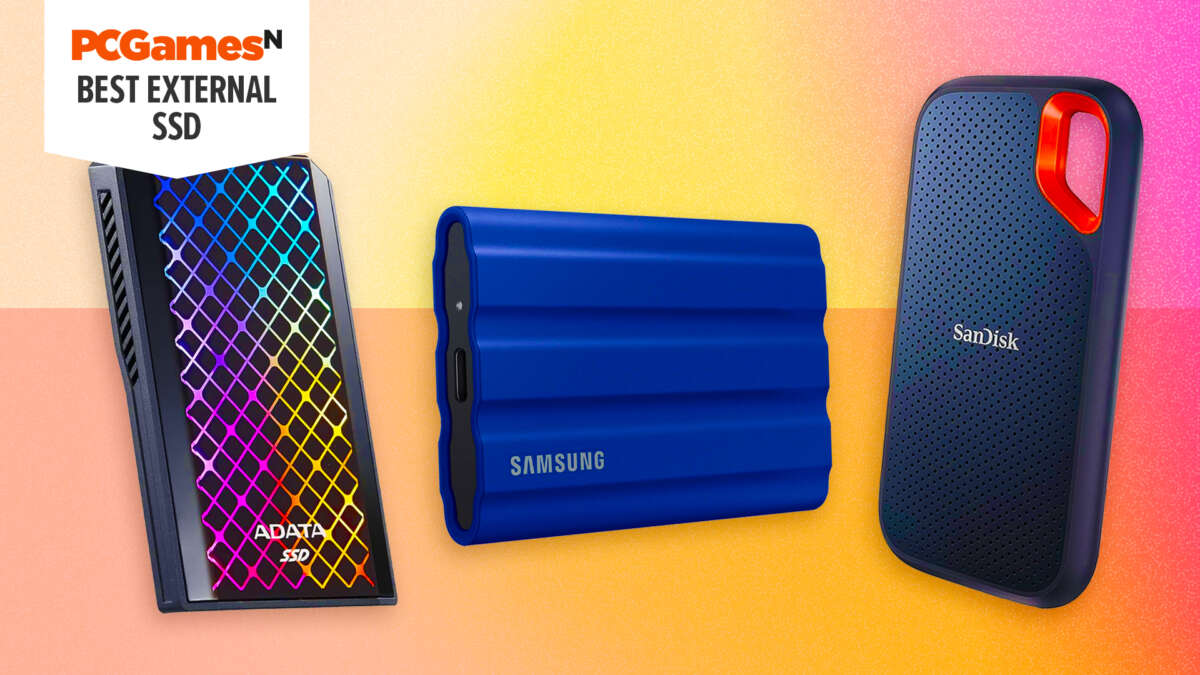
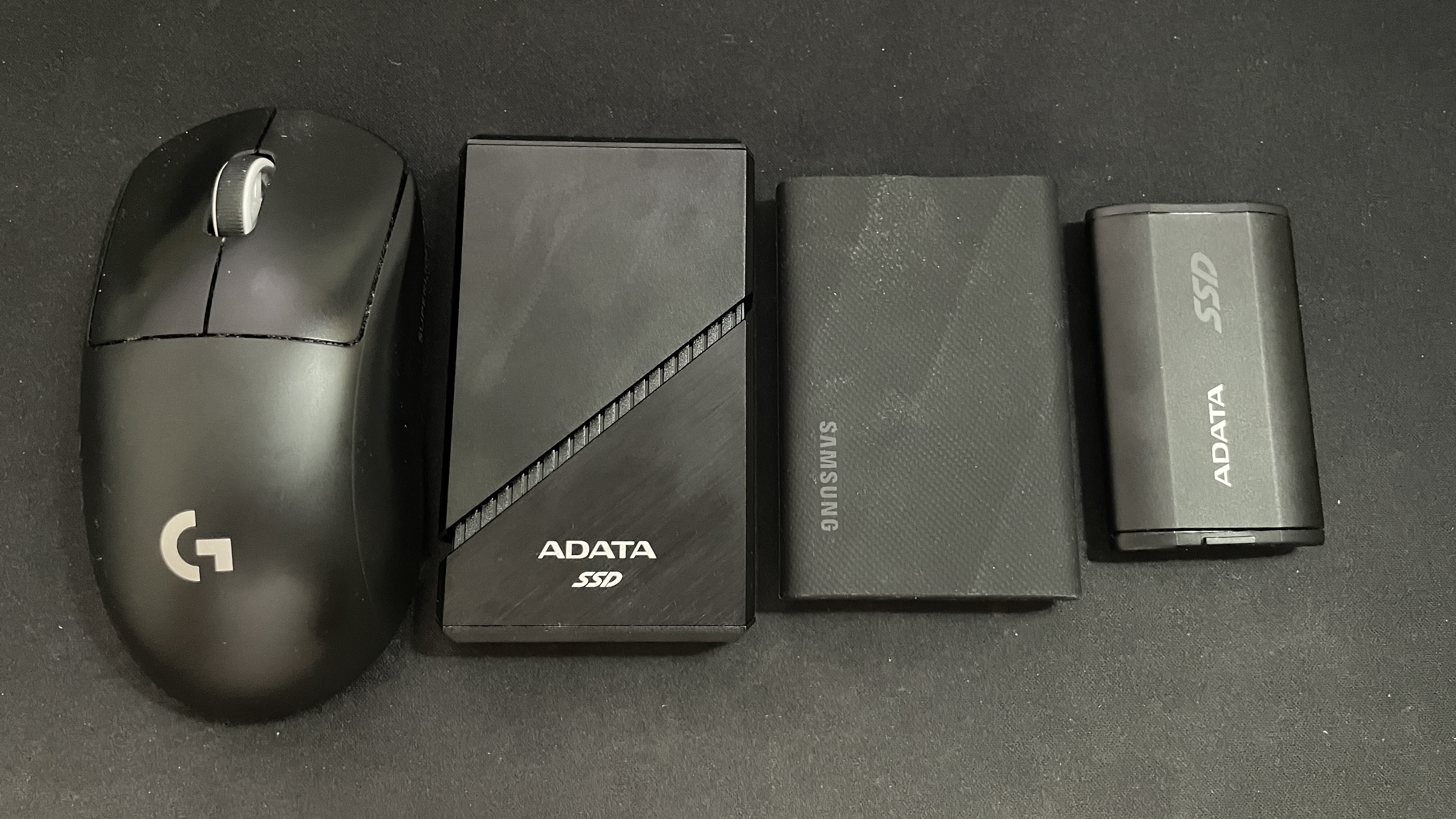
- A portable SSD sold as one finished unit
- An internal SSD installed inside a USB enclosure
A ready-made portable SSD is simple. An enclosure lets you select the internal drive, but the enclosure controls the USB speed, cooling, and compatibility.
SATA SSD versus NVMe SSD
A SATA SSD inside a USB 5 Gb/s enclosure can deliver enough speed for most game loading. An NVMe SSD in a 10 Gb/s enclosure can be faster when copying large files or loading data.
The difference during gameplay is often smaller than benchmark numbers suggest. Game engines, CPU work, file compression, and random access patterns all affect real results.
A practical setup looks like this:
- Budget option: SATA SSD with USB 3.0 or USB 3.2 Gen 1
- Balanced option: NVMe SSD with a USB 10 Gb/s enclosure
- High-speed option: NVMe SSD with USB 20 Gb/s, USB4, or Thunderbolt support on both ends
Do not pay for a 20 Gb/s enclosure if your PC or console only supports 5 Gb/s. The extra speed will remain unused.
Check enclosure heat control
NVMe drives can become hot during large transfers. When a drive gets too hot, it may reduce its speed to protect itself. This is called thermal throttling.
For gaming, sustained heat is more likely during:
- Large game installations
- Game updates
- Moving several hundred gigabytes
- Drive cloning
- Long file-copy sessions
Choose an enclosure with a thermal pad or other heat-transfer system. Keep the drive in open air instead of placing it under clothing, on a carpet, or behind a hot console.


Do not fill the drive completely
Keep free space available. A nearly full SSD may have less room for background maintenance and temporary files. Performance can also suffer when the operating system or game launcher has no room for updates.
A practical target is to keep roughly 10% to 20% of the drive free when possible. This is a general operating recommendation, not a universal requirement for every SSD.
Set Up an External SSD for PC Gaming
Windows can run many games from an external SSD, but the exact behavior depends on the launcher and the game.
Step 1: Connect the SSD directly
Connect the drive to a fast USB port on the PC. Do not use a hub for the first setup.
Wait for Windows to detect it. Open Disk Management if the drive does not appear in File Explorer. A new drive may need to be initialized and formatted before use.
Warning: Formatting erases existing data. Back up the drive before changing partitions or file systems.
Step 2: Use a suitable file system
NTFS is the normal choice for Windows game libraries. It supports large files and works well with Windows permissions and game launchers.
exFAT can help when you need to move the drive between Windows and macOS, but some launchers, tools, or games may work more reliably with NTFS. Choose the file system based on your devices, not just the advertised speed.
Step 3: Create a dedicated game library
Most launchers let you select a library folder on the external SSD.
Examples include:
- Steam library folders
- Xbox app game installation locations
- Epic Games Launcher libraries
- Battle.net game folders
- EA app installation folders
If a launcher does not recognize an existing installation, use its option to locate or scan the game files rather than downloading the entire game again.
Step 4: Move games instead of reinstalling them
Many launchers can move a game to another library. This is safer than manually dragging folders because the launcher can update its file paths.
For Steam, use the game’s storage or installed-files options to move it to the external library. Other launchers may provide a similar move or locate function.
Step 5: Test the drive
Use a storage benchmark only after your files are backed up. Tools such as CrystalDiskMark can show sequential and random performance, but benchmark results are not the same as game load times.
Signs of a healthy setup include:
- The drive stays connected
- The game launcher detects the library
- Large copies do not suddenly fall to very low speeds
- The drive does not become too hot to handle
- Games load more quickly than they did from a hard drive


Do not repeatedly run benchmarks just to chase a higher number. They create extra drive activity and do not improve game performance.

Optimize Windows for External SSD Gaming
Windows needs little manual tuning. The most useful improvements are basic connection, power, storage, and software checks.
Update the right components
Install current versions of:
- Motherboard or laptop chipset drivers
- USB controller drivers
- SSD firmware
- Windows
- Graphics drivers
- Game launchers
Use the SSD maker’s official software for firmware updates when available. Back up important files first. A firmware update can improve compatibility, but it can also carry risk if interrupted.
Use a high-performance power mode when needed
A laptop may reduce USB power or system performance when running on battery. For demanding games, connect the laptop to its charger and use a suitable Windows power mode.
Do not assume the highest power mode is always better. It can increase heat, noise, and battery drain. Use it when performance or drive stability is a problem.
Keep the SSD cool
Place the SSD where air can reach it. Avoid:
- Carpet
- Closed drawers
- Direct contact with a hot laptop
- The top of a console exhaust
- Tight spaces around other hot devices
If the drive becomes hot and copying slows sharply, thermal throttling may be the cause.
Avoid unnecessary “optimization” tools
You do not need a registry cleaner, RAM booster, or game optimizer to make an SSD work properly. These tools can add background tasks or change settings without solving the real problem.
Do not manually defragment an SSD. Windows can manage SSD maintenance through its built-in drive optimization tools. If you use a third-party utility, confirm that it sends the proper maintenance command rather than performing a traditional hard-drive defragmentation.

Can You Use an External SSD on PS5?
Yes, but the PlayStation 5 has an important limit.
A USB external SSD can store PS5 games, but PS5 games generally must be copied to the internal SSD or a compatible internal M.2 SSD before you can play them. A USB external SSD can run compatible PS4 games directly.
This means an external SSD is useful for:


- Storing PS5 games
- Moving games between storage devices
- Playing PS4 games
- Keeping a larger game library without reinstalling titles
For PS5 games, an external SSD reduces transfer time compared with an external hard drive. It does not replace the internal M.2 expansion slot for direct PS5 game play.
PS5 setup tips
- Connect the SSD to a SuperSpeed USB port.
- Use the PS5 storage settings to format it as extended storage.
- Move PS4 games to the external drive if you want to play them from it.
- Move PS5 games to the external drive when you need to free internal space.
- Move a PS5 game back before playing it.
Formatting the drive as PS5 extended storage deletes its existing data. Back up the drive first.
The SSD must also meet the console’s compatibility requirements. Check Sony’s current support information before buying an enclosure or drive, because connector type alone does not confirm compatibility.
Can You Use an External SSD on Xbox Series X or Series S?
Yes, but Xbox Series X|S consoles also separate storage from direct play.
A USB external SSD can store Xbox Series X|S games and run many older Xbox games. Many games optimized for Xbox Series X|S need to run from the console’s internal SSD or an approved Storage Expansion Card.
An external SSD is still useful for:
- Storing current-generation games
- Moving games faster than with an external hard drive
- Playing compatible Xbox One, Xbox 360, and original Xbox games
- Keeping a larger library available
For the best compatibility, check the game’s information in the Xbox interface. The console will show whether a game can launch from the external drive.
Xbox setup tips
- Connect the SSD directly to a USB 3.0 or faster port.
- Let the Xbox format the drive for games and apps.
- Use the storage menu to move or copy games.
- Keep games that require internal or expansion storage in the correct location.
- Do not disconnect the drive while a game is running or data is moving.
Like the PS5, Xbox formatting removes existing data. Back up files before setup.
Why Is My External SSD Not Making Games Faster?
If the SSD feels no faster, find out whether the problem is storage, hardware, or game design.
| Symptom | Likely cause | What to check |
|---|---|---|
| The drive is not detected | Cable, port, power, or formatting issue | Try another cable and direct USB port |
| Copy speed is low | Slow port, cable, small files, or heat | Check USB speed and drive temperature |
| FPS is unchanged | Normal behavior | Check GPU, CPU, and game settings |
| Games stutter | Shader compilation, drivers, RAM, or thermal limits | Update drivers and monitor hardware use |
| Game will not launch | Launcher or console compatibility | Move it to a supported library |
| Drive disconnects | Cable, power, enclosure, or heat | Replace cable and improve airflow |
| PS5 game will not play | Console storage limitation | Move it to internal or compatible M.2 storage |
| Xbox Series game will not play | Game requires internal or expansion storage | Check the game’s storage message |
Troubleshoot in this order
-
Restart the computer or console.
Temporary USB or launcher errors can clear after a restart. -
Try another USB port.
Connect directly to the system rather than through a hub. -
Replace the cable.
A damaged or low-speed cable is a common cause of poor results. -
Check free space.
Leave room for updates and temporary files. -
Check drive temperature.
Slow performance after several minutes can point to heat. -
Check the launcher library.
Confirm that the game is installed on the SSD and not still running from the old drive. -
Monitor CPU and GPU use.
If the GPU is fully loaded, storage is probably not the main limit. -
Test another game.
One game may load slowly because of its engine, shader compilation, or online services. -
Back up important files before deeper repairs.
Do not format the drive or delete partitions until the data is safe.

How Much Faster Will Games Run From an External SSD?
The answer depends on what you used before.


Compared with an external hard drive
The improvement can be large. An SSD has much faster access to small files, which helps loading screens and game data streaming.
Compared with an internal SATA SSD
The difference may be modest. Both drives can already provide quick access, so the game engine or CPU may become the next limit.
Compared with an internal NVMe SSD
The difference is often smaller still. An external NVMe SSD may approach internal SSD performance in some file transfers, but USB overhead, enclosure limits, heat, and game behavior can reduce the advantage.
A useful way to think about it is:
An external SSD improves waiting time more often than it improves frame rate.
A hypothetical example shows why. If a game spends 30 seconds loading from a hard drive and 12 seconds from an SSD, the SSD saves 18 seconds. It does not mean the game will render more frames each second once play begins.
Actual results vary by game, system, connection, and drive.

Common Mistakes to Avoid
Buying by advertised speed alone
A drive rated at 7,000 MB/s cannot deliver that speed through a 5 Gb/s USB port. Match the SSD, enclosure, port, and cable.
Using a slow hub
A hub may share its bandwidth across several devices. Connect the SSD directly when gaming or testing.
Ignoring console storage rules
A fast SSD cannot bypass PS5 or Xbox storage requirements. Check whether the console allows the specific game to run from USB storage.
Filling the drive to its limit
Large games need room for updates. A nearly full drive can make game management harder and may reduce sustained write performance.
Removing the drive while a game is open
Close the game and use the operating system’s eject function when available. Sudden removal can corrupt files.
Treating benchmark speed as FPS
Storage benchmarks measure data transfer behavior. They do not directly measure frame rate, graphics quality, or input response.
Using an untrusted enclosure
A poorly designed enclosure may overheat, disconnect, or misreport drive capacity. Buy from a reliable seller and verify the drive’s actual capacity.
Storing the only copy of valuable files on the game drive
Game files can be downloaded again, but personal files and save data may not be replaceable. Keep backups of anything important.

Best Setup for Most Gamers
For a Windows gaming PC, a balanced setup is an NVMe SSD in a reputable USB 10 Gb/s enclosure, connected directly to a matching USB port. A SATA SSD in a USB 5 Gb/s enclosure is also a good choice when the goal is faster loading at a lower cost.
For a PS5, use the external SSD mainly for PS4 games and PS5 game storage. For direct PS5 game play, use the internal drive or a compatible internal M.2 SSD.
For an Xbox Series X|S, use the external SSD for storage and compatible older games. Use the internal SSD or an approved expansion card for games that require it.
If your current games already run from a fast internal SSD, spending more on an external SSD may produce only a small improvement. In that case, check your GPU, CPU, cooling, RAM, and game settings first.
FAQs
Will an external SSD increase FPS?
Usually, no. It may reduce loading time and sometimes reduce storage-related stutter, but average FPS is mainly controlled by the CPU, GPU, resolution, and graphics settings.
Is an external SSD better than an internal hard drive for gaming?
Yes. An external SSD usually offers faster file access and shorter loading times than an internal hard drive. An internal SSD is usually preferable when your system has a free slot, but an external SSD is a useful upgrade when internal space is limited.
Can I install Steam games on an external SSD?
Yes. Steam supports game libraries on external drives. Use Steam’s storage settings to create or select a library on the SSD. Keep the drive connected before starting the game.
Does USB-C make an external SSD faster?
No. USB-C describes the connector shape. The actual speed depends on the USB standard supported by the computer, cable, enclosure, and SSD.
Should I buy an external NVMe SSD or SATA SSD?
Choose an NVMe setup if your computer supports a 10 Gb/s or faster connection and you often move large files. Choose SATA if you want a lower-cost gaming drive and your port is limited to 5 Gb/s. Both can be much faster than an external hard drive.
Can I play games from an external SSD on a laptop?
Yes, if the game launcher and operating system support the installation. Connect the drive directly, keep it cool, and use a suitable power mode when the laptop is plugged in.
Final Answer
You can make games run better from an external SSD mainly by making them load faster and access data more reliably. Use a fast USB port and cable, select a suitable SSD and enclosure, keep the drive cool, leave free space, and install games on the SSD library.
Do not expect a major FPS increase. If performance during gameplay is poor, check the GPU, CPU, RAM, drivers, temperatures, and graphics settings. Before buying anything, identify whether your current problem is slow loading or low frame rate—that single distinction usually determines whether an external SSD is the right upgrade.