How To Pair Jabra Headphones: Easy Setup Guide
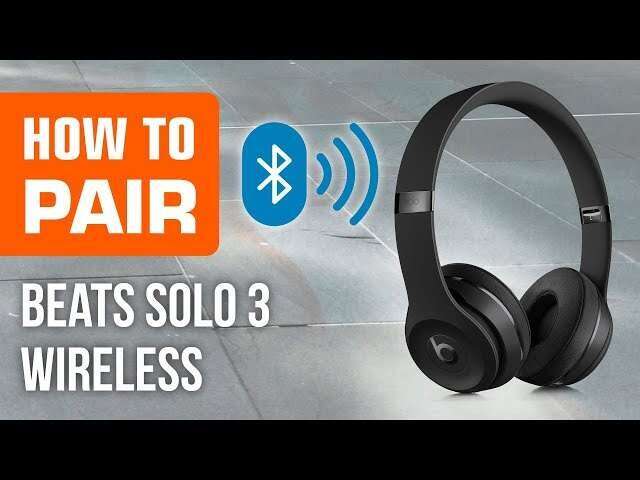
If you use Jabra headphones with an iPhone, Android phone, Windows PC, or Mac in the United States, pairing usually takes less than two minutes. Turn on Bluetooth, place the headphones in pairing mode, select the Jabra name on your device, and confirm the connection.
The exact button can vary by model. This guide covers Jabra Elite earbuds, Evolve headsets, Talk headsets, and most other Jabra Bluetooth headphones.

Before You Pair Your Jabra headphones
Before you start, check these simple points:
- Charge the headphones and charging case.
- Keep the headphones near your phone or computer.
- Turn off Bluetooth on devices that may connect to the headphones first.
- Remove the headphones from the case if they are true wireless earbuds.
- Know whether you want to pair with a phone, tablet, computer, or another device.


Jabra headphones use Bluetooth for wireless audio. Pairing creates the first link between the headphones and your device. After that, the headphones may connect on their own when Bluetooth is on.
Some Jabra models also support multipoint Bluetooth. This lets one pair of headphones stay connected to two devices at the same time. Support varies by model and may depend on a firmware update.
How to Put Jabra Headphones in Pairing Mode
The headphones must be in pairing mode before your phone or computer can find them.
Jabra Elite earbuds
For many Jabra Elite models:
- Remove both earbuds from the charging case.
- Press and hold the left and right earbud buttons at the same time.
- Keep holding for about three seconds.
- Release the buttons when the earbuds announce pairing mode or the LEDs flash blue.
Some models enter pairing mode when you open the case for the first time. If the earbuds have been paired before, you may need to hold the buttons to make them discoverable again.
Jabra headphones
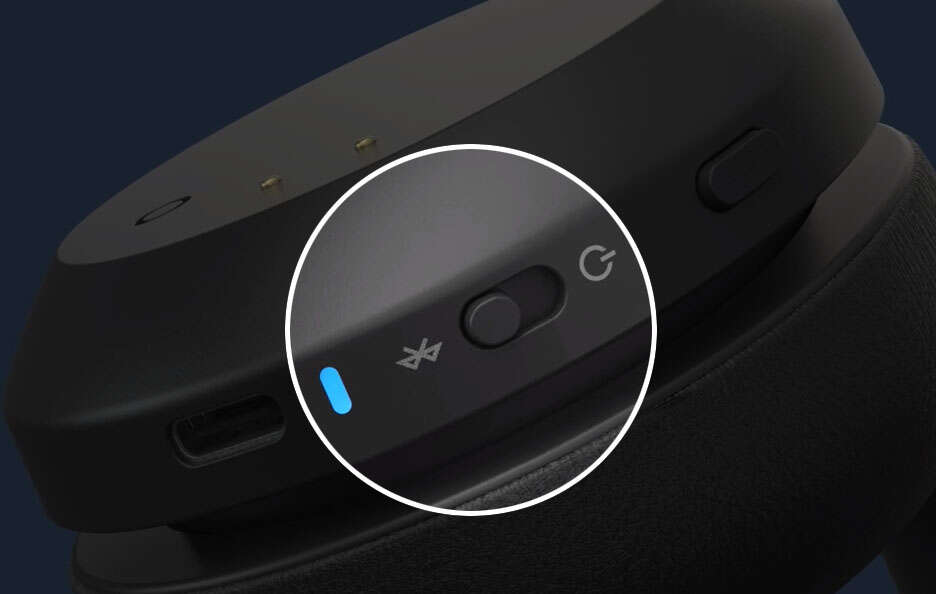
For over-ear and on-ear Jabra headphones:
- Turn off the headphones if they are on.
- Press and hold the Power or Bluetooth button.
- Keep holding until the light flashes blue or the headphones say they are ready to pair.
- Release the button.
On some models, holding the button for only a short time turns the headset on. Keep holding it longer to enter pairing mode.
Jabra office headsets
Many Jabra Evolve and office headsets use a dedicated Bluetooth button. Press and hold that button until the headset enters pairing mode.
If the headset is connected to a desk phone or USB adapter, disconnecting that accessory may help. Some office models pair with a supplied USB adapter instead of pairing directly with a computer.


The LED pattern and button controls differ by model. If the steps above do not work, use the model-specific guide on Jabra Support.
How to Pair Jabra Headphones With an iPhone
You can pair Jabra headphones with an iPhone through the Bluetooth menu.
- Put the Jabra headphones in pairing mode.
- Open Settings on your iPhone.
- Tap Bluetooth.
- Turn Bluetooth on.
- Wait for the Jabra model name to appear under Other Devices.
- Tap the Jabra name.
- Wait for the status to change to Connected.
The name may look like Jabra Elite 8 Active, Jabra Evolve2 65, or another model number. Select the name that matches your headphones.
How to check that pairing worked
Play music or a video. You should hear sound through the Jabra headphones. You can also open the iPhone audio output menu from Control Center and select the Jabra headphones.
If the headphones appear under My Devices but do not connect, tap the name. If that fails, tap the information icon next to the name and choose Forget This Device. Then place the headphones back into pairing mode and try again.
How to Pair Jabra Headphones With an Android Phone
The menu names can differ slightly between Samsung Galaxy, Google Pixel, Motorola, and other Android phones. The basic steps are the same.
- Put the Jabra headphones in pairing mode.
- Open Settings.
- Tap Connected devices, Connections, or Bluetooth.
- Turn Bluetooth on.
- Tap Pair new device if that option appears.
- Select the Jabra model from the list.
- Tap Pair if Android asks you to confirm.
The headphones should move to the list of saved or connected devices.
If Android asks for a PIN, try 0000 only if the Jabra manual lists it for your model. Most newer Jabra headphones do not need a PIN.
Use the Jabra Sound+ app
The Jabra Sound+ app can help manage supported Jabra earbuds and headphones. It may offer firmware updates, battery details, sound settings, and device controls.
Pair the headphones in Android Bluetooth settings first unless the app gives different instructions. The app does not replace the normal Bluetooth connection.
How to Pair Jabra Headphones With a Windows PC
You can connect most Bluetooth Jabra headphones to a Windows 10 or Windows 11 computer.
- Put the Jabra headphones in pairing mode.
- Open Start.
- Select Settings.
- Choose Bluetooth & devices.
- Turn Bluetooth on.
- Select Add device.
- Choose Bluetooth.
- Select the Jabra headphones.
- Follow any prompt on the screen.
Windows may show two audio choices after pairing:


- Headphones or Stereo: better sound for music and video.
- Headset or Hands-Free AG Audio: needed when the computer uses the headset microphone.
This is a normal Bluetooth limit. The hands-free mode may reduce audio quality during a call because the headset is sending and receiving voice data at the same time.
Set Jabra as the sound output
If Windows pairs with the headphones but sound still comes from the speakers:
- Select the speaker icon on the taskbar.
- Open the sound output menu.
- Select the Jabra headphones.
- Open the microphone menu if you also want to use the Jabra mic.
For work calls, select the Jabra device in the audio settings inside Microsoft Teams, Zoom, Google Meet, or another calling app. The app can use a different device than Windows.
How to Pair Jabra Headphones With a Mac
The steps are similar on MacBook and desktop Mac computers.
- Put the Jabra headphones in pairing mode.
- Open the Apple menu.
- Select System Settings.
- Click Bluetooth.
- Turn Bluetooth on.
- Find the Jabra headphones under nearby devices.
- Click Connect.
On older versions of macOS, open System Preferences, select Bluetooth, and click Connect next to the Jabra device.
To choose the headphones for sound:
- Open System Settings.
- Select Sound.
- Choose the Jabra headphones under Output.
- Choose the Jabra microphone under Input when needed.
If you use the headphones for a video call, select the Jabra device inside the call app as well.

How to Pair Jabra Headphones With a Second Device
Many Jabra headphones can remember several paired devices. Some models can connect to two devices at once, while others can actively use only one connection.
To pair a second device:
- Disconnect the headphones from the first device, or move the first device out of range.
- Put the Jabra headphones into pairing mode.
- Open Bluetooth settings on the second device.
- Select the Jabra model.
- Confirm the connection.
If the headphones connect to the first device before the second device can find them, temporarily turn off Bluetooth on the first device. Turn it back on after the second device is paired.
Does every Jabra model support two active devices?
No. Multipoint support depends on the model. Some Jabra products support two active Bluetooth connections. Others can store several devices but connect to only one at a time.


Check the product page or user manual for your exact model. A firmware update may also change or add multipoint support on some products.
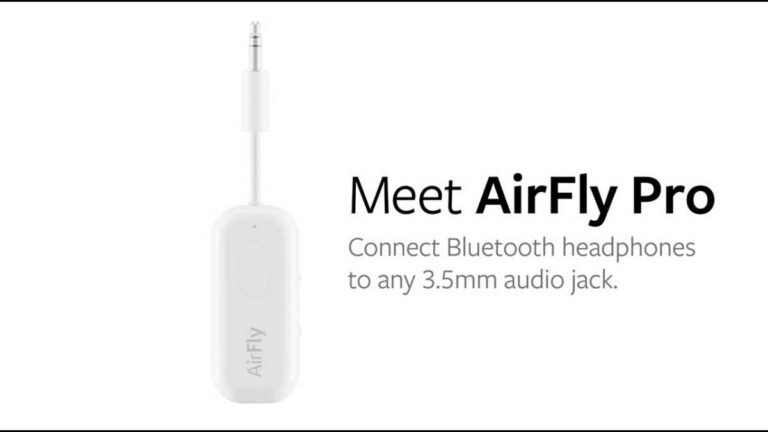
How to Pair Jabra Headphones With a Bluetooth Adapter
A Bluetooth adapter can connect Jabra headphones to devices that lack built-in Bluetooth. This may include some desktop PCs, airplanes, TVs, game consoles, and older media devices.
The general process is:
- Plug the Bluetooth adapter into the device.
- Put the adapter into pairing mode.
- Put the Jabra headphones into pairing mode.
- Wait for the adapter and headphones to connect.
- Select the adapter as the audio source if the device requires it.
A USB adapter made for a specific Jabra office headset may not work like a general Bluetooth adapter. Jabra Link adapters are often designed for compatible Jabra headsets and computers. Check compatibility before buying or using one.
Some Bluetooth transmitters do not support headset microphones. They may send audio to the headphones but cannot receive your voice.
Jabra Headphones Are Not Showing Up
If your phone or computer cannot find the Jabra headphones, check the following in order:
- Confirm pairing mode. A solid light may mean the headphones are on but not discoverable.
- Move the headphones close to the device. Keep them within a few feet during setup.
- Charge the headphones. A low battery can prevent pairing.
- Turn Bluetooth off and back on.
- Close the charging case, wait a few seconds, and try again if you use Jabra earbuds.
- Turn off Bluetooth on nearby devices that may already be connected.
- Restart the phone or computer.
- Reset the Jabra headphones if the problem continues.
Do not repeatedly tap the model name if the headphones are not in pairing mode. The device cannot connect until the headphones are discoverable.
Jabra Headphones Show as Connected but Have No Sound
A Bluetooth connection does not always mean the Jabra headphones are the active audio output.
Try these steps:
- Select the Jabra headphones from the phone or computer sound output menu.
- Raise the volume on both the source device and the headphones.
- Check whether the media app is muted.
- Close and reopen the app.
- Disconnect the headphones from another nearby device.
- Test with a different song, video, or app.
- Restart the headphones and reconnect them.
On Windows, check both the output device and the app-specific sound settings. On a Mac, check System Settings > Sound. On an iPhone or Android phone, check the audio output control while media is playing.
Jabra Headphones Keep Disconnecting
Frequent disconnections usually come from distance, interference, low battery, or another device taking over the connection.
Try the following:
- Keep the source device nearby.
- Remove walls and large metal objects between the device and headphones.
- Charge the headphones fully.
- Turn off Bluetooth on devices that are not in use.
- Install available firmware updates through the Jabra Sound+ app, when supported.
- Remove the Jabra entry from Bluetooth settings and pair again.
- Restart both devices.
Bluetooth performance can change in crowded wireless areas. Wi-Fi routers, other Bluetooth products, and USB 3 devices may add interference. Test the headphones in another room to see whether the problem follows the headphones or the original location.

How to Reset Jabra Headphones Before Pairing Again
A reset can clear old connection data. It is useful when the headphones connect to the wrong device, fail to appear, or refuse a new connection.


The reset method depends on the model. Many Jabra Elite earbuds use a long press on both earbud buttons while the earbuds are outside the case. Some headsets use a specific button combination.
Before resetting:
- Remove the Jabra headphones from Bluetooth settings on your phone or computer.
- Check the model name and exact reset instructions.
- Charge the headphones and case.
- Reset the headphones.
- Put them in pairing mode.
- Pair them as a new device.
A reset may erase saved Bluetooth connections and custom settings. It does not usually repair physical damage, a failed battery, or a broken charging contact.
Use the official Jabra Support guide for the exact model. Do not hold random buttons for long periods if the manual does not list that action.
Common Pairing Mistakes to Avoid
These mistakes cause many failed Bluetooth connections:
Selecting the wrong Jabra device
Nearby Jabra headphones may have similar names. Match the model shown on the box, case, or product label.
Pairing only one earbud
For true wireless earbuds, remove both earbuds and follow the model’s pairing steps. If only one earbud works, place both earbuds in the case, close the lid, and try again.
Leaving the old device connected
The headphones may reconnect to a saved phone before a new computer can find them. Turn off Bluetooth on the old device during setup.
Confusing pairing with audio output
The word Connected does not always mean the device is playing sound through the headphones. Check the active output device.
Using the wrong app
Jabra Sound+ supports many consumer headphones, but not every Jabra product. Office headsets may use Jabra Direct or a different management tool. Use the app listed for the exact model.
Skipping software updates
A firmware update may improve compatibility or fix a connection problem. Install updates only through the official Jabra app or support tool, and keep the headphones charged during the process.

Jabra Pairing Quick Reference
| Device | Pairing path |
|---|---|
| iPhone | Settings > Bluetooth > select Jabra |
| Android phone | Settings > Connected devices or Connections > Bluetooth |
| Windows PC | Settings > Bluetooth & devices > Add device > Bluetooth |
| Mac | System Settings > Bluetooth > Connect |
| TV or older device | Use compatible Bluetooth transmitter or adapter |
| Office computer | Use Bluetooth or the supplied Jabra USB adapter |
The most important step is the same for every device: put the Jabra headphones into pairing mode first.
Frequently Asked Questions
Why can’t my Jabra headphones find my phone?
The headphones may not be in pairing mode, or they may already be connected to another device. Turn off Bluetooth on nearby devices, restart Bluetooth on the phone, and place the Jabra headphones in pairing mode again.
How do I put Jabra Elite earbuds into pairing mode?
On many Jabra Elite models, remove both earbuds from the case and hold both earbud buttons for about three seconds. Release them when the LEDs flash blue or the earbuds announce pairing mode. The exact method can vary.
Can I pair Jabra headphones with an iPhone and a laptop?
Usually, yes. Many Jabra models can remember multiple devices. Whether they can stay connected to both devices at once depends on the model and its multipoint support.


Do Jabra headphones work with Android phones?
Yes. Jabra Bluetooth headphones generally work with Android phones that support compatible Bluetooth audio profiles. Some features, such as app controls or firmware updates, may require the Jabra Sound+ app.
Why do my Jabra headphones connect but not work in Zoom?
Zoom may be using the computer’s built-in speaker and microphone. Open Zoom’s audio settings and select the Jabra headphones for both speaker and microphone. On Windows, the hands-free Jabra option may be needed for calls.
How do I unpair Jabra headphones?
Open Bluetooth settings, select the Jabra device, and choose Forget, Remove, or Unpair. Then turn Bluetooth off on that device or reset the headphones if you plan to connect them to someone else’s device.
Final Steps
To pair Jabra headphones, charge them, place them in Bluetooth pairing mode, open Bluetooth settings on your device, and select the correct Jabra model. If pairing fails, disconnect nearby devices, restart Bluetooth, and reset the headphones only after checking the model-specific instructions.
Once the headphones connect, select them as the active audio output. Save the official Jabra model guide for future resets, firmware updates, and feature checks.