How To Pair JVC Wireless Earbuds: Easy Bluetooth Setup Guide
To pair JVC wireless earbuds, turn on Bluetooth, open the case, and select JVC from your device’s list.
Learning how to pair JVC wireless earbuds is usually simple, but the exact steps can vary by model. Most JVC earbuds enter pairing mode when you remove them from the charging case. This guide explains the full process for iPhone, Android, Windows, and Mac, plus easy fixes when your earbuds do not appear or connect.

How to pair JVC wireless earbuds for the first time
Before you begin, charge both earbuds and the charging case. A low battery can stop the earbuds from entering pairing mode or cause the Bluetooth connection to drop.
Keep your phone or computer close to the earbuds. Bluetooth works best at short range during setup, with no thick walls or other wireless devices between them.


Follow these steps:
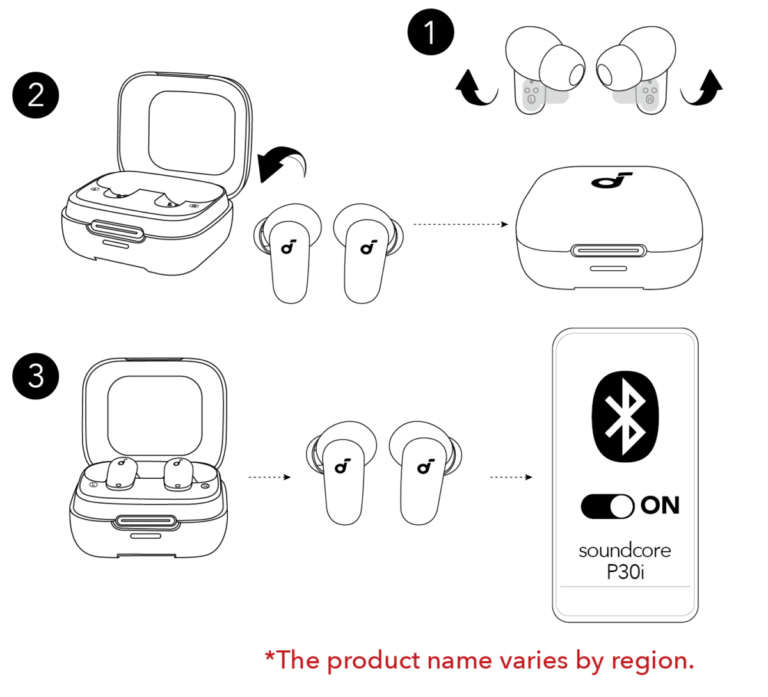
- Remove both JVC earbuds from the charging case.
- Turn on Bluetooth on your phone, tablet, or computer.
- Open the Bluetooth settings menu.
- Look for a device name such as “JVC HA-A25T,” “JVC Gumy Mini,” or another model number.
- Tap or click the JVC device name.
- Wait for the status to change to “Connected” or “Paired.”
- Play a song to test both earbuds.
On many JVC models, the earbuds enter pairing mode automatically the first time you remove them from the case. You may see flashing blue, white, or red and blue lights. The exact light pattern depends on the model.
If the earbuds do not appear, place them back in the case. Close the lid for a few seconds, open it, and remove the earbuds again. This simple reset often solves the issue.

How to pair JVC wireless earbuds with an iPhone
The iPhone pairing process is quick because iOS lists nearby Bluetooth devices in one clear menu. Make sure your JVC earbuds are not already connected to another phone, tablet, or laptop.
Here is how to pair JVC wireless earbuds with an iPhone:
- Open the Settings app.
- Tap Bluetooth.
- Turn Bluetooth on.
- Remove the JVC earbuds from their charging case.
- Wait for the earbuds to enter pairing mode.
- Find the JVC model name under “Other Devices.”
- Tap the name.
- Wait until it moves to “My Devices” and shows “Connected.”
If your earbuds support separate left and right connections, you may see only one JVC name. That is normal. The earbuds usually connect to each other first, then connect to the iPhone as one audio device.
If the iPhone asks for a passcode, try 0000 or 1234. Most modern JVC earbuds do not need a code, but older Bluetooth products sometimes do.
After pairing, open the Control Center and check the audio output menu. Confirm that the JVC earbuds are selected instead of the iPhone speaker or another Bluetooth product.
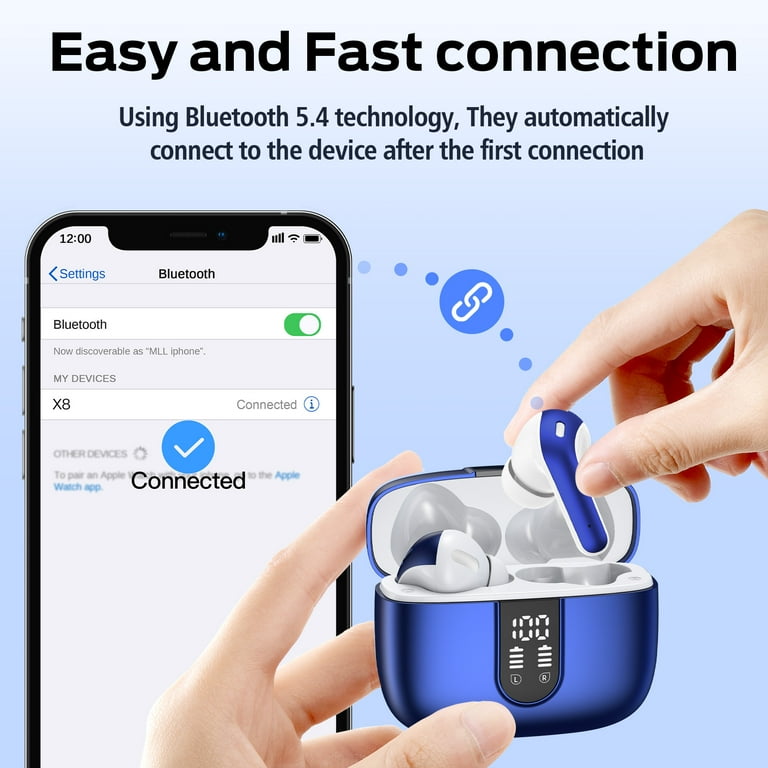
How to pair JVC wireless earbuds with an Android phone
Android menus can look different across Samsung, Google Pixel, Motorola, and other phones. However, the Bluetooth process is nearly the same on every Android device.
To pair JVC wireless earbuds with Android:


- Open Settings.
- Tap Connected devices, Connections, or Bluetooth.
- Turn Bluetooth on.
- Select Pair new device if needed.
- Remove both JVC earbuds from the case.
- Wait for the JVC model name to appear.
- Tap the name.
- Approve the pairing request.
Some Android phones show a pop-up when JVC earbuds are nearby. If the pop-up appears, tap Pair or Connect. Do not select Cancel unless you want to stop the setup.
Once the earbuds connect, play audio for a few seconds. Check that sound comes from both sides. If only one earbud works, the earbuds may have lost their left-right connection and may need a reset.
Android also lets you manage extra settings after pairing. Open the Bluetooth device settings to check options such as phone calls, media audio, contact sharing, and battery level.

How to pair JVC wireless earbuds with a Windows PC
Windows computers can pair with JVC earbuds for music, video calls, and online meetings. Your PC must have Bluetooth support. Many laptops include Bluetooth, but some desktop computers need a Bluetooth adapter.
Here is how to pair JVC wireless earbuds with Windows 11:
- Open Settings.
- Select Bluetooth & devices.
- Turn Bluetooth on.
- Click Add device.
- Choose Bluetooth.
- Remove the JVC earbuds from the case.
- Select the JVC model when it appears.
- Click Done after Windows confirms the connection.
On Windows 10, open Settings, choose Devices, select Bluetooth & other devices, and click Add Bluetooth or other device.
If Windows connects the earbuds but no sound plays, check the speaker icon on the taskbar. Select the JVC earbuds as the sound output device. For calls, also check the microphone settings in the meeting app.
Windows may show two audio options for the same earbuds. One may say Stereo, while the other says Hands-Free AG Audio. Stereo usually provides better music quality. Hands-Free mode is designed for calls and uses the earbud microphone.

How to pair JVC wireless earbuds with a Mac
A Mac can connect to JVC earbuds through the Bluetooth menu in System Settings. Keep the earbuds near the computer during the first setup.
Follow these steps:
- Click the Apple menu.
- Open System Settings.
- Select Bluetooth.
- Turn Bluetooth on.
- Remove both earbuds from the charging case.
- Find the JVC model in the nearby device list.
- Click Connect.
On older versions of macOS, open System Preferences and select Bluetooth instead.
If the Mac pairs with the earbuds but keeps using its built-in speakers, click the Control Center icon in the menu bar. Choose Sound, then select the JVC earbuds.
For video calls, open the audio settings in apps such as Zoom, Microsoft Teams, or FaceTime. Select the JVC earbuds for both the speaker and microphone if you want to use them for calls.


How to put JVC earbuds into pairing mode
Most JVC true wireless earbuds enter pairing mode automatically. Take both earbuds out of the case, and look for a flashing indicator light. A flashing light usually means the earbuds are searching for a device.
Some models require a manual process. Common methods include:
• Press and hold the touch sensor on one or both earbuds for several seconds.
• Press and hold the physical buttons until the indicator flashes.
• Place both earbuds in the case, open the lid, and hold the case button if your model has one.
• Turn the earbuds off, then hold the power or touch controls while turning them on again.
The correct method depends on the model. Check the printed model number on the case or inside the charging area. Then use the instructions for that specific JVC product.
Do not press the controls repeatedly while pairing. Too many taps may pause the earbuds, change the volume, activate an assistant, or turn them off.
When I help troubleshoot wireless earbuds, I first look at the indicator lights. They often tell the story faster than the phone menu. No light may mean a low battery, while a steady light may mean the earbuds are already connected.
How to pair JVC wireless earbuds after changing phones
JVC earbuds often reconnect to the last device they used. If you change phones, the earbuds may keep searching for the old phone instead of appearing on the new one.
To pair JVC wireless earbuds with a new phone, first turn off Bluetooth on the old phone. You can also remove the old JVC connection from its Bluetooth settings.
Next, place the earbuds in pairing mode. Open Bluetooth on the new phone and select the JVC model name. After the first connection, the earbuds should reconnect to the new phone when you remove them from the case.
Some JVC earbuds do not support two active Bluetooth connections. This means they may connect to only one device at a time. You may need to disconnect them from a laptop before using them with your phone.
If the old phone is nearby, temporarily turn off its Bluetooth. This prevents it from taking control of the earbuds during setup.
How to fix JVC wireless earbuds that will not pair
Pairing problems are common, but most have a simple cause. The earbuds may be connected to another device, outside pairing mode, too far away, or low on power.


Try these solutions in order:
- Charge the earbuds and case for at least 15 minutes.
- Turn Bluetooth off and on again on your phone.
- Move the earbuds within a few feet of the device.
- Turn off Bluetooth on nearby phones and computers.
- Restart the phone or computer.
- Remove the old JVC entry from the Bluetooth list.
- Put the earbuds back into pairing mode.
- Try the connection again.
To remove an old connection on an iPhone, tap the information icon beside the JVC name and choose Forget This Device. On Android, tap the settings icon beside the device and choose Forget or Unpair. On Windows and Mac, remove the JVC device from Bluetooth settings.
Avoid pairing inside a crowded place when possible. Airports, gyms, offices, and public transit areas may contain many Bluetooth devices. The earbuds can still pair there, but the device list may be harder to read.
How to reset JVC wireless earbuds
A reset clears stored Bluetooth data and restores the earbuds to a fresh pairing state. It is useful when one earbud connects but the other does not, or when the earbuds connect to the wrong device.
The reset method varies by JVC model. Common steps include:
- Forget the JVC earbuds from every nearby device.
- Turn off Bluetooth on those devices.
- Place both earbuds in the charging case.
- Remove the earbuds and press their touch controls for several seconds.
- Return them to the case.
- Remove them again and wait for pairing mode.
Some models reset when you touch both earbuds several times in a set pattern. Others use a long press while the earbuds are in the case. Because these steps differ, use the manual for your model when possible.
A reset removes saved connections, but it does not normally damage the earbuds. After the reset, you must pair JVC wireless earbuds again as if they were new.
If a reset does not help, clean the charging contacts with a dry cotton swab. An earbud that does not charge may not turn on or enter pairing mode.
How to keep JVC earbuds connected
A strong connection depends on more than the first pairing. Keep your phone within the normal Bluetooth range, which is often around 30 feet in open space. Walls, metal objects, and the human body can reduce that range.
Keep the JVC earbuds and case charged. Low power can cause short dropouts or automatic shutdowns. Also keep your phone’s operating system updated, since updates may improve Bluetooth stability.
Use these habits for a more reliable connection:
• Keep the earbuds clean and dry.
• Avoid covering the phone’s Bluetooth area with thick metal or magnetic accessories.
• Disconnect unused Bluetooth devices.


• Store the earbuds in their case when you are finished.
• Use the correct JVC companion app if your model supports one.
Bluetooth audio can still drop in busy wireless areas. This does not always mean the earbuds are faulty. If the connection fails in one location but works well at home, local interference may be the cause.
Common mistakes when pairing JVC wireless earbuds
The most common mistake is selecting the wrong device name. Nearby earbuds, speakers, cars, and televisions may appear in the same Bluetooth list. Check the JVC model number before tapping Connect.
Another mistake is pairing only one earbud. Take both earbuds out of the case at the same time unless the manual says otherwise. This gives the left and right earbuds time to link together.
People also forget that earbuds may be connected without producing sound. Check the audio output menu after pairing. A phone can show “Connected” while sending sound to its built-in speaker.
One lesson from hands-on troubleshooting is to avoid changing several settings at once. Turn Bluetooth off, reset the earbuds, and restart the phone only when needed. Testing one step at a time makes the real cause easier to find.
Finally, do not assume every JVC model uses the same button pattern. Model names may look similar, but pairing and reset controls can differ. The product manual is the best reference for model-specific light patterns and touch commands.
Benefits and limits of JVC Bluetooth pairing
JVC wireless earbuds offer a convenient way to listen without cables. Once paired, most models reconnect automatically when removed from the case. They are useful for music, podcasts, travel, work, and phone calls.
Bluetooth also has limits. Wireless range can change with walls and interference. Battery life depends on volume, codec use, call time, and model design. Some earbuds cannot connect to two devices at the same time.
Sound quality can also change during phone calls. Many Bluetooth earbuds switch from a high-quality music mode to a lower-bandwidth call mode when the microphone is active. That behavior is normal and does not necessarily indicate a defect.
Understanding these limits helps set realistic expectations. Pairing JVC wireless earbuds should take only a few minutes, but stable use depends on battery care, clean contacts, and proper device management.
Frequently Asked Questions
Why are my JVC wireless earbuds not showing up on Bluetooth?
Make sure the earbuds are charged and in pairing mode. Turn off Bluetooth on nearby devices, restart your phone, and place the earbuds back in the case before trying again.
How do I pair JVC wireless earbuds with only one earbud?
Remove the earbud you want to use and place the other one in the case. If it does not connect, forget the JVC device, reset both earbuds, and pair them again according to the model instructions.
Can JVC wireless earbuds connect to two devices at once?
Some JVC models may support multipoint connections, but many connect to only one device at a time. Check your model’s specifications or manual to confirm whether multipoint Bluetooth is available.


Why do my JVC earbuds connect but have no sound?
Open your device’s sound output menu and select the JVC earbuds. Also check that media audio is enabled in the Bluetooth settings and that the volume is turned up.
How do I disconnect JVC wireless earbuds from my phone?
Turn off Bluetooth, place the earbuds in their case, or select Disconnect in the Bluetooth menu. Choose Forget or Unpair only if you want to remove the saved connection completely.
Do I need an app to pair JVC wireless earbuds?
Usually, no app is needed for basic Bluetooth pairing. A JVC app may provide extra features, firmware updates, sound controls, or battery information on supported models.
Conclusion
Learning how to pair JVC wireless earbuds is usually a matter of charging the earbuds, entering pairing mode, and selecting the correct JVC name in your device’s Bluetooth menu. The same basic process works with iPhone, Android, Windows, and Mac, though the menu labels may differ.
When pairing fails, forget the old connection, turn off nearby Bluetooth devices, charge the earbuds, and try a reset. Take a moment to identify your exact JVC model, since button controls and reset steps can vary.
Try the steps above with your earbuds today, and check the model manual for advanced features. If this guide helped, share it with someone setting up new JVC earbuds or leave a comment with your model and pairing issue.