How To Pair Technics Earbuds: Easy Setup Guide
Pairing Technics earbuds with a phone, tablet, or computer usually takes less than two minutes. Put both earbuds in pairing mode, open the device’s Bluetooth settings, and select the Technics model shown in the list.
The exact button or touch-control steps can vary by model. This guide covers common Technics true wireless models sold in the United States, including many EAH-AZ series earbuds. If a step differs on your model, use the manual for that exact model.
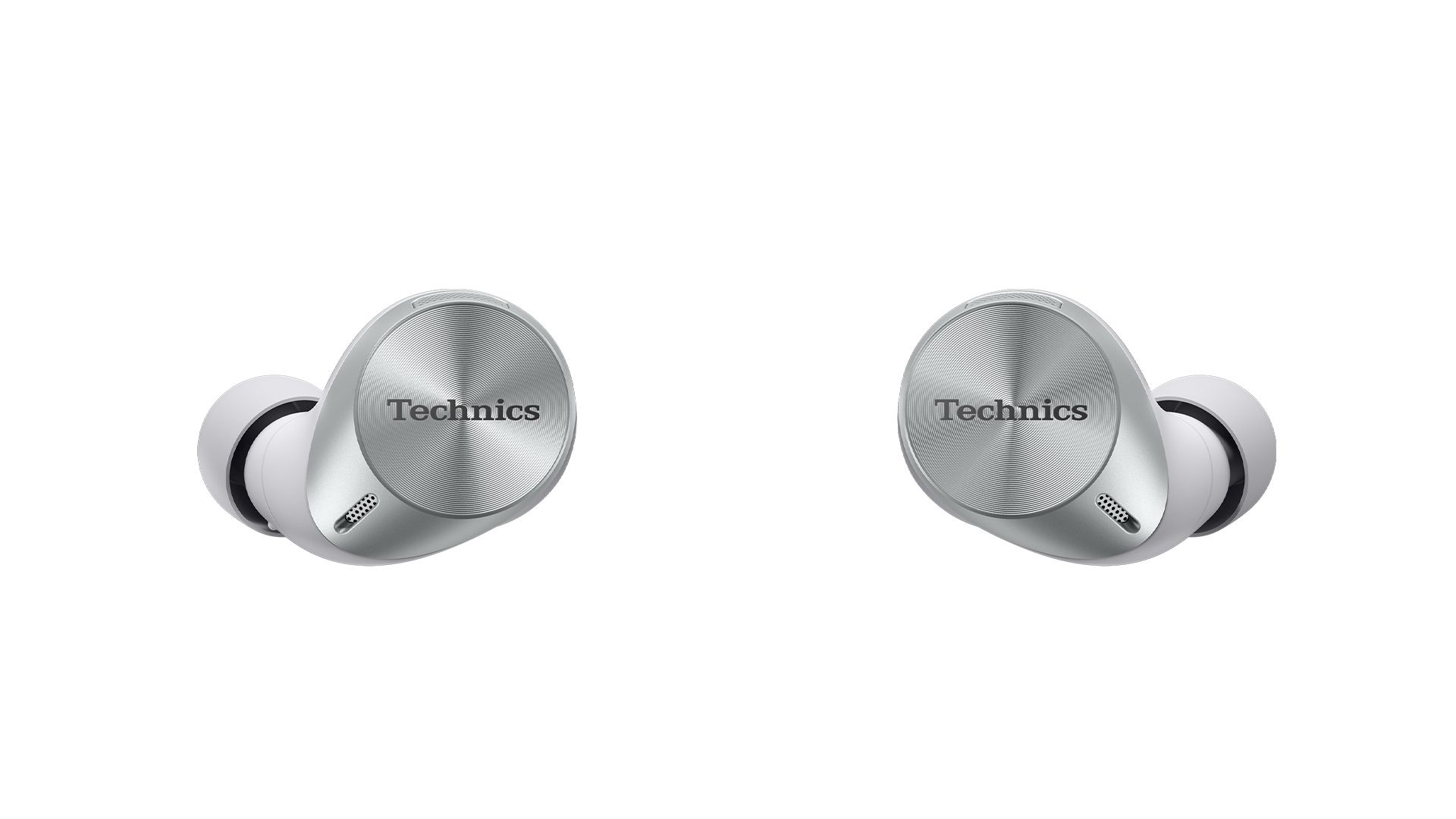
Before You Pair Technics Earbuds
You need three things before you start:
- Both Technics earbuds
- The charging case
- A device with Bluetooth turned on


Charge the earbuds and case first if they are new or have been stored for a long time. Low power can prevent pairing mode from starting or cause the connection to drop.
Also turn off Bluetooth on nearby phones, tablets, or computers that have used the earbuds before. Technics earbuds may try to reconnect to a saved device instead of entering pairing mode for your new device.
Remove the earbuds from other Bluetooth devices
If the earbuds already connect to another device, disconnect them there before pairing them again. You do not always need to delete the old pairing, but disconnecting can make the process easier.
On an iPhone or iPad:
- Open Settings.
- Tap Bluetooth.
- Tap the i next to the Technics earbuds.
- Tap Forget This Device if you want to remove the old connection.
On Android:
- Open Settings.
- Tap Connected devices, Connections, or Bluetooth.
- Tap the gear icon beside the Technics earbuds.
- Choose Forget, Unpair, or Remove.
The wording can differ by phone maker and Android version.
How to Pair Technics Earbuds for the First Time
Most Technics true wireless earbuds enter pairing mode automatically during first setup. The steps below work for many EAH-AZ models, but the touch-control method may differ on some versions.
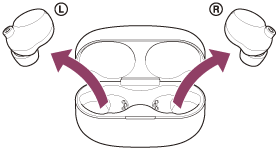
- Place both earbuds in the charging case.
- Open the case.
- Remove both earbuds.
- Wait for the earbuds to enter Bluetooth pairing mode. Some models announce pairing mode or show a flashing light.
- Open the Bluetooth menu on your phone, tablet, or computer.
- Select the Technics name shown in the available devices list.
- Accept the pairing request if one appears.
- Play audio to confirm the connection.
The device name may look like Technics EAH-AZ80, Technics EAH-AZ60M2, or another model number. Select the name that matches the model printed on the case, box, or manual.
How to put Technics earbuds into pairing mode manually
If the earbuds do not appear in the Bluetooth list, place them in manual pairing mode:
- Put both earbuds in the charging case.
- Remove them from the case.
- Touch and hold the controls on both earbuds, or use the model’s specified pairing command.
- Keep holding until the indicator flashes or you hear a pairing announcement.
- Open Bluetooth settings on your device.
- Select the Technics earbuds.


Many Technics EAH-AZ earbuds use a touch-and-hold action for pairing mode. The exact hold time and control area can vary, so check the model’s quick-start guide if the earbuds do not respond.
How to tell if pairing worked
Pairing is complete when:
- The Technics earbuds show as Connected.
- You hear a connection sound or voice prompt.
- Audio plays through both earbuds.
- The earbuds appear under your device’s saved Bluetooth devices.
If only one earbud plays sound, the earbuds may not be linked to each other correctly. Follow the reset steps later in this guide.
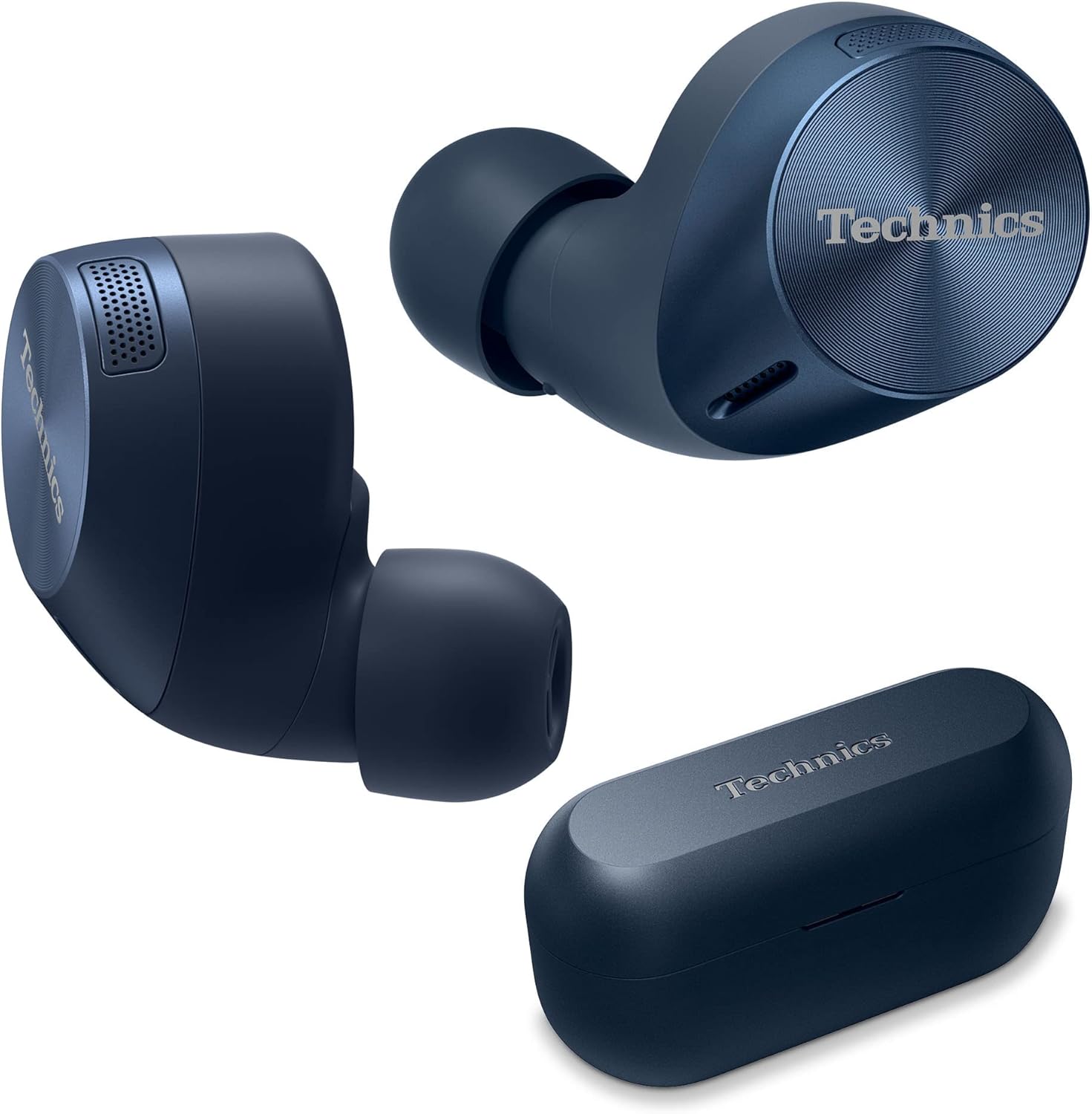
How to Pair Technics Earbuds With an iPhone or iPad
The iPhone and iPad use the same basic Bluetooth process.
- Put the Technics earbuds into pairing mode.
- Open Settings on the iPhone or iPad.
- Tap Bluetooth.
- Turn Bluetooth on.
- Wait under Other Devices.
- Tap the Technics earbuds.
- Wait until the name moves to My Devices and shows Connected.
Keep the earbuds close to the iPhone during setup. A distance of a few feet is best for first pairing.
If the Technics earbuds appear under My Devices but do not connect, tap the name once. If that fails, tap the information button and choose Forget This Device, then pair them again.
Change the audio output on an iPhone
Sometimes the earbuds connect, but the iPhone still sends sound to its speaker.
To change the output:
- Start playing music or a video.
- Open Control Center.
- Tap the audio output button in the media panel.
- Select the Technics earbuds.
You can also tap the AirPlay icon inside many audio and video apps.
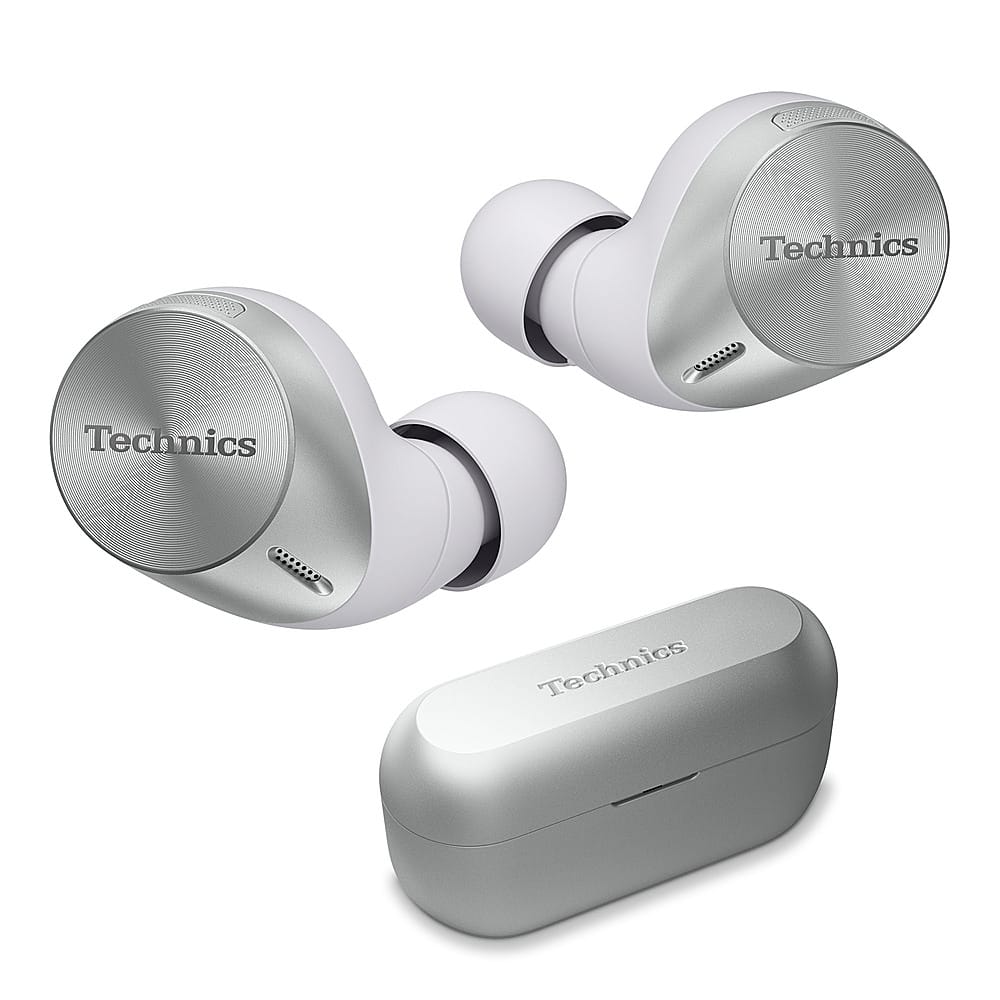
How to Pair Technics Earbuds With an Android Phone
Android menus vary between Samsung, Google Pixel, Motorola, OnePlus, and other phones. The names may differ, but the process is similar.
- Put the Technics earbuds into pairing mode.
- Open Settings.
- Tap Connected devices, Connections, or Bluetooth.
- Turn Bluetooth on.
- Tap Pair new device if that option appears.
- Select the Technics earbuds from the list.
- Tap Pair or Allow if Android asks for permission.
Some Android phones show a quick Bluetooth menu when you swipe down from the top of the screen. You can use that menu, but the full Settings menu is often easier when pairing fails.
Pair with Fast Pair when available
Some Android phones may show a pop-up when a compatible Bluetooth accessory is nearby. If the Technics earbuds support the required feature, the phone may offer a Pair button.


If no pop-up appears, use the regular Bluetooth steps. A missing pop-up does not mean the earbuds are defective.
Use the Technics Audio Connect app
Technics offers the Technics Audio Connect app for compatible earbuds. The app can help with supported model setup, firmware updates, sound settings, and device controls.
Basic Bluetooth pairing usually does not require the app. Pair the earbuds in Android Bluetooth settings first, then open the app if the app asks you to connect them.
Install the app only from the official Apple App Store or Google Play Store. App features depend on the Technics model, phone, operating system, and current app version.

How to Pair Technics Earbuds With a Windows PC
A Windows PC must support Bluetooth for wireless pairing. Many laptops do, but some desktop computers need a separate Bluetooth adapter.
Windows 11
- Put the Technics earbuds into pairing mode.
- Open Start and select Settings.
- Choose Bluetooth & devices.
- Turn Bluetooth on.
- Select Add device.
- Choose Bluetooth.
- Select the Technics earbuds.
- Click Done.
Windows 10
- Put the earbuds into pairing mode.
- Open Start.
- Go to Settings > Devices > Bluetooth & other devices.
- Turn Bluetooth on.
- Click Add Bluetooth or other device.
- Choose Bluetooth.
- Select the Technics earbuds.
After pairing, click the speaker icon in the Windows taskbar and choose the Technics earbuds as the sound output.
If you see two audio options for the earbuds, choose the Stereo option for music. A Hands-Free option may be used during calls, but it can provide lower audio quality because it activates the headset microphone mode.

How to Pair Technics Earbuds With a Mac
Technics earbuds can connect to a Mac through macOS Bluetooth settings.
- Put the earbuds into pairing mode.
- Open the Apple menu.
- Select System Settings.
- Click Bluetooth.
- Turn Bluetooth on.
- Find the Technics earbuds under nearby devices.
- Click Connect.
On older macOS versions, Bluetooth may appear under System Preferences instead of System Settings.
If the earbuds connect but the Mac uses its internal speakers, open Control Center, select Sound, and choose the Technics earbuds.
For video calls, select the Technics earbuds as both the speaker and microphone in the meeting app. Using the microphone can change Bluetooth audio quality on some computers.

How to Pair Technics Earbuds With a Second Device
Many Technics earbuds can store more than one Bluetooth device. Some models also support multipoint, which lets the earbuds stay connected to two devices at once. These are different functions.


- Multiple-device memory: The earbuds remember devices and can reconnect to them.
- Multipoint: The earbuds maintain active connections to two devices at the same time.
Support depends on the exact Technics model and firmware. Do not assume that every Technics earbud supports multipoint.
To pair a second device:
- Disconnect the earbuds from the first device, or move that device out of range.
- Put the earbuds into pairing mode.
- Open Bluetooth settings on the second device.
- Select the Technics earbuds.
- Complete the pairing request.
If the earbuds keep reconnecting to the first device, temporarily turn off Bluetooth on that device. Once the second device is paired, you can turn Bluetooth back on.
Switching between two connected devices
With multipoint, the earbuds may switch when audio starts on another device. Calls often take priority over music.
If the switch does not happen:
- Pause audio on the first device.
- Stop video playback.
- Close apps that may be using the earbuds.
- Check whether multipoint is enabled in the Technics Audio Connect app.
- Confirm that both devices support the model’s multipoint feature.

Technics Earbuds Not Showing Up? Try These Fixes
When Technics earbuds do not appear in Bluetooth settings, pairing mode is the most likely issue. Work through these checks in order.
1. Check the case and earbud battery
Place both earbuds in the case and confirm that they charge. Clean dirt from the charging contacts with a dry, soft cloth.
Do not use water, metal tools, or liquid cleaner inside the charging case. Moisture or a short circuit can damage the contacts.
2. Turn Bluetooth off and on
Turn Bluetooth off on your phone or computer, wait a few seconds, and turn it back on. Then put the earbuds back into pairing mode.
3. Move away from old connections
Turn off Bluetooth on nearby devices that have used the earbuds. The earbuds may be connecting to a saved device before your new device can find them.
4. Restart the phone or computer
A restart can clear a temporary Bluetooth service problem. This is especially useful when other Bluetooth accessories also fail to connect.
5. Remove the old Technics entry
If the earbuds appear as Saved, Paired, or Not Connected, remove that entry and pair again. The new connection may fail if the saved record is damaged or incomplete.
6. Reset the earbuds
A reset removes pairing information and returns the earbuds to a setup state. The exact reset method depends on the model.
For many Technics true wireless models, the process involves placing the earbuds in the case and holding the touch controls or case button for a specified time. Do not guess if the controls do not respond. Use the official manual for your exact model.


Resetting should be the later step, not the first one, because it can remove saved Bluetooth connections and custom settings.

Common Technics Pairing Problems and Solutions
| Problem | Likely cause | What to try |
|---|---|---|
| Earbuds do not appear | They are not in pairing mode | Put both earbuds into pairing mode manually |
| Earbuds connect to the wrong device | An old device is nearby | Turn off Bluetooth on the old device |
| Only one earbud works | Earbuds lost their left-right link | Place both in the case, then reset if needed |
| Connected but no sound | Wrong audio output is selected | Choose Technics as the output device |
| Audio cuts out | Range, obstacles, or interference | Keep the device nearby and remove barriers |
| Pairing worked before but now fails | Saved Bluetooth record has an error | Forget the earbuds and pair again |
| App cannot find the earbuds | App permissions or model support issue | Update the app and check Bluetooth permissions |
| Earbuds disconnect during calls | Computer changes headset profiles | Select the earbuds in the call app’s audio settings |
Bluetooth range is not a guarantee of equal performance in every room. Walls, metal objects, crowded wireless areas, and the phone’s position can affect the connection.
When one earbud has no sound
First, check the device’s left-right audio balance. On an iPhone, this is under Settings > Accessibility > Audio & Visual. Android and computer menus use different names.
Then check:
- Whether the quiet earbud is charged
- Whether the earbud is seated correctly in the case
- Whether its charging contacts are clean
- Whether the phone is connected to both earbuds
- Whether the earbud’s touch controls respond
If these checks fail, reset the earbuds using the model-specific instructions.
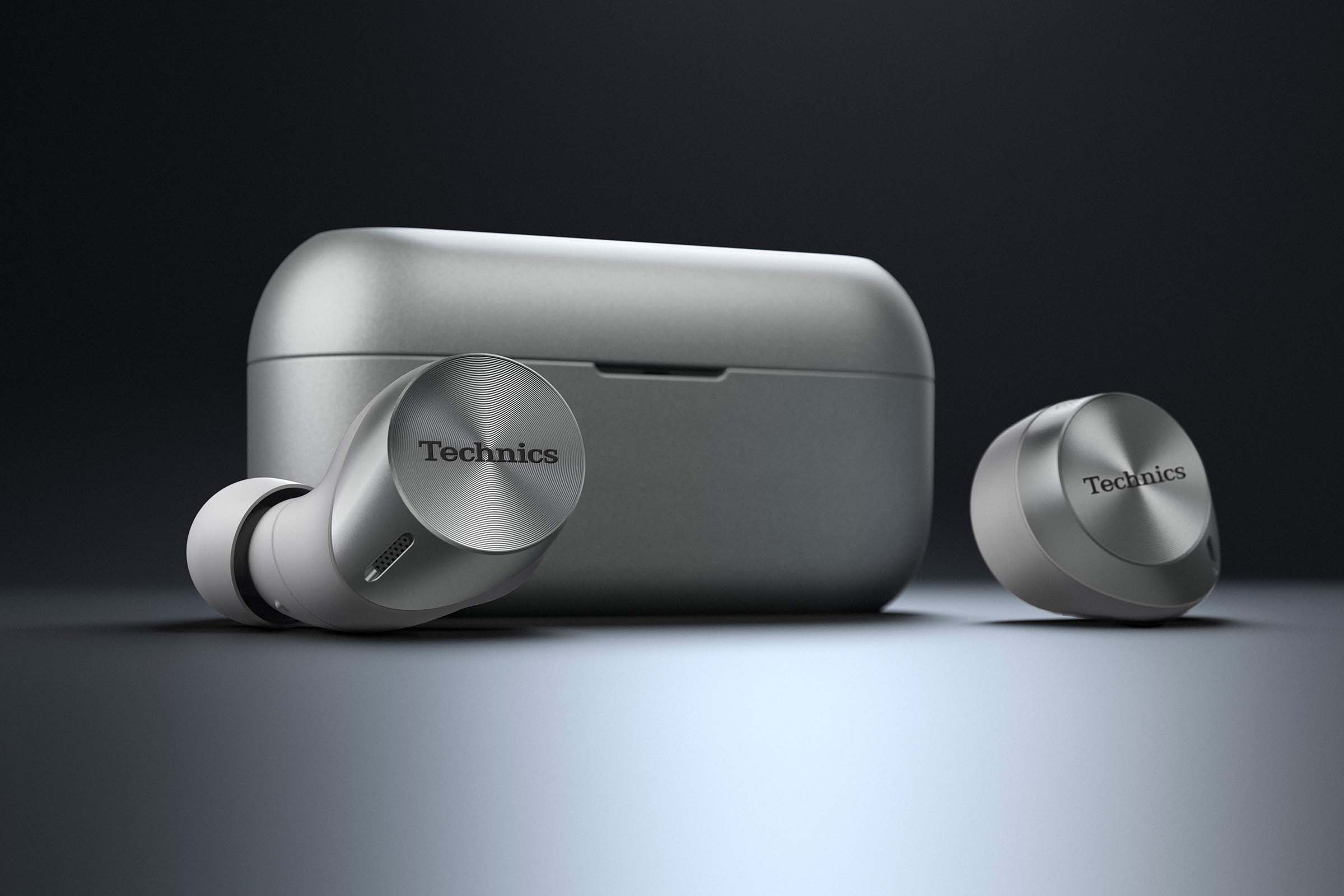
How to Keep Technics Earbuds Connected
After pairing, keep the Bluetooth record simple. Delete old entries for the same earbuds from devices you no longer use. This reduces the chance that the earbuds will reconnect to the wrong phone or computer.
Keep the Technics Audio Connect app and earbud firmware current when updates are offered for your model. Firmware updates can change features and controls, so read the update notes and follow the app’s instructions.
Avoid storing wet earbuds in the case. Sweat and moisture can collect around the charging contacts, even when a model has some water resistance. Water-resistance ratings do not mean the earbuds are safe to wash, soak, or use in every wet condition.
If Bluetooth pairing keeps failing after a reset, test the earbuds with a second phone. If they fail with several devices, the problem may involve the earbuds, case, or charging system rather than the original phone.

Frequently Asked Questions
Do I need the Technics Audio Connect app to pair my earbuds?
No. You can usually complete basic Bluetooth pairing through your phone, tablet, Windows PC, or Mac settings. The app may provide extra controls and updates for compatible Technics models.
Why do my Technics earbuds connect but play no sound?
The device may still be using its built-in speaker. Open the sound output menu and select the Technics earbuds. On a computer, also check the output setting inside the music, video, or meeting app.
Can I pair Technics earbuds with an iPhone and Android phone?
Yes, you can pair them with both types of phone. Whether they can stay connected to both at once depends on the model’s multipoint support.
How do I make Technics earbuds forget an old phone?
Forget or remove the earbuds in the old phone’s Bluetooth settings. If you no longer have that phone, reset the earbuds using the instructions for the exact Technics model.
Why do my Technics earbuds keep disconnecting?
Common causes include low battery, an old device taking over the connection, distance, wireless interference, or a damaged saved Bluetooth record. Charge the earbuds, turn off nearby old connections, forget the earbuds, and pair them again.
Final Answer: The Fastest Way to Pair Technics Earbuds
To pair Technics earbuds, charge both earbuds, put them in pairing mode, open Bluetooth settings on your device, and select the Technics model name. If it does not appear, turn off Bluetooth on nearby old devices, remove the saved Technics entry, and try pairing mode again.


For the correct reset or touch-control sequence, check the manual for the exact model. Technics uses different controls across its earbud range, so a model-specific guide is safer than applying one button sequence to every pair.
For official instructions, check the Technics U.S. support page and the manual supplied with your earbuds.