How To Pair Brookstone Earbuds: Easy Setup Guide
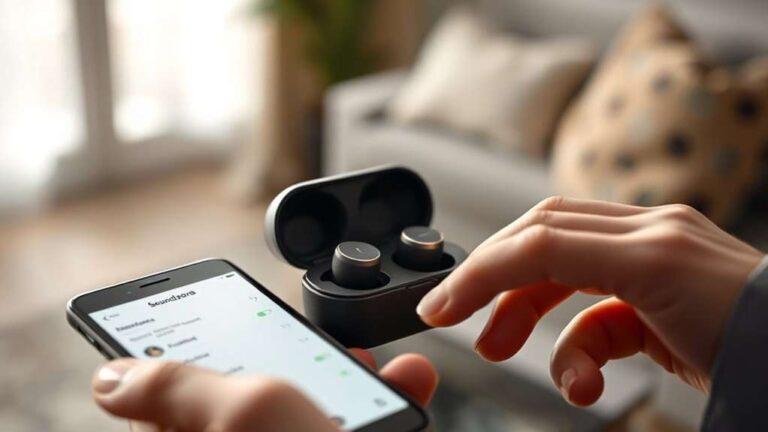
To pair brookstone earbuds, charge the earbuds, open your device’s Bluetooth settings, put the earbuds into pairing mode, and select the Brookstone name from the list. Most Brookstone models pair in a similar way, but the button or touch controls may differ by model.
This guide is written for people using Brookstone earbuds with phones, tablets, computers, and other Bluetooth devices in the United States. It covers the most common setup method, model differences, pairing problems, resets, and what to do if only one earbud connects.

Before You Pair Brookstone Earbuds
Before starting, charge the earbuds and case, keep the earbuds near your device, and turn off Bluetooth on devices that may connect to them first. Your phone, tablet, or computer should support Bluetooth audio.
You will need:
- Brookstone earbuds and their charging case
- A charged phone, tablet, or computer
- Bluetooth turned on
- The Brookstone earbuds within a few feet of the device
- The earbuds removed from other active Bluetooth connections


Most Bluetooth earbuds can connect to one main device at a time. If the earbuds were paired with another phone, laptop, or tablet, they may try to reconnect to that device instead of entering pairing mode.
Find the exact Brookstone model
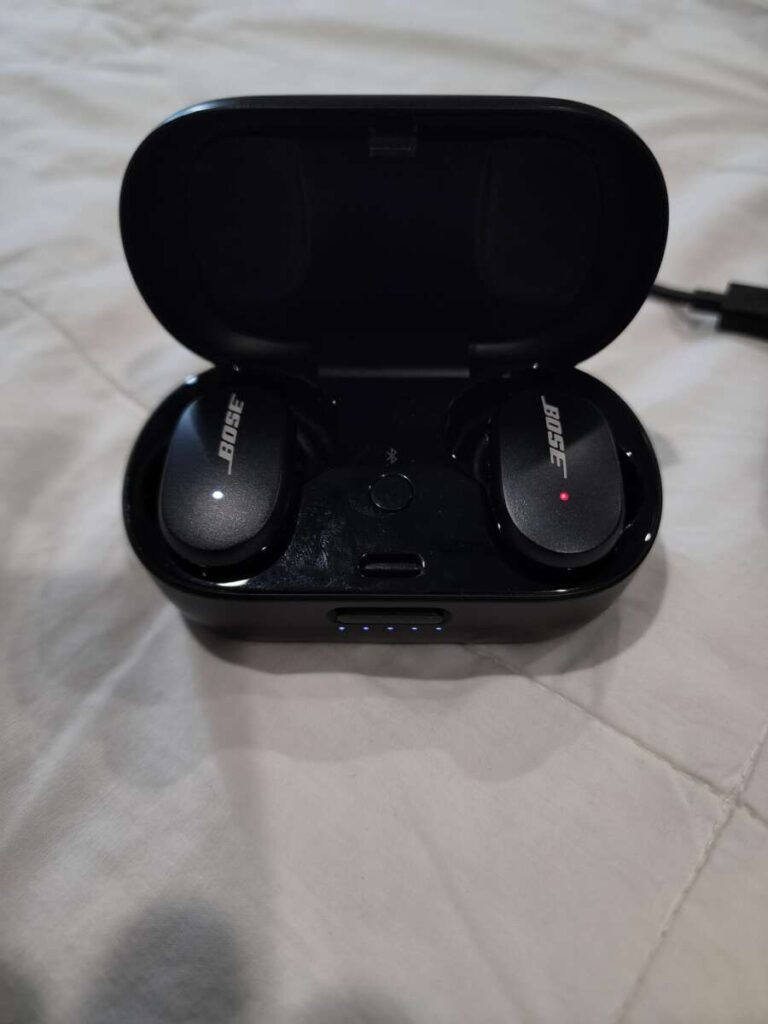
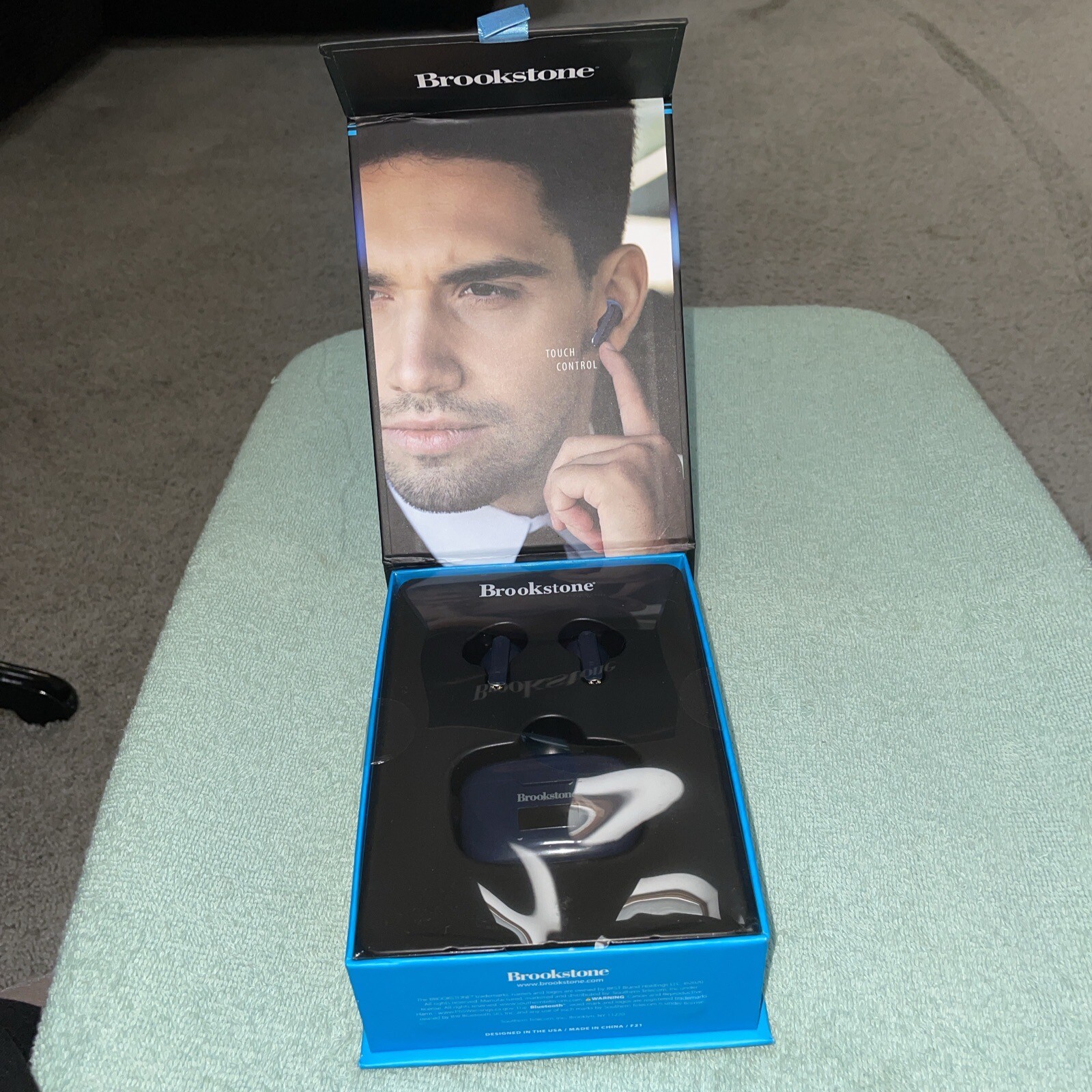
Brookstone has sold several earbud designs over the years. The pairing controls may be located:
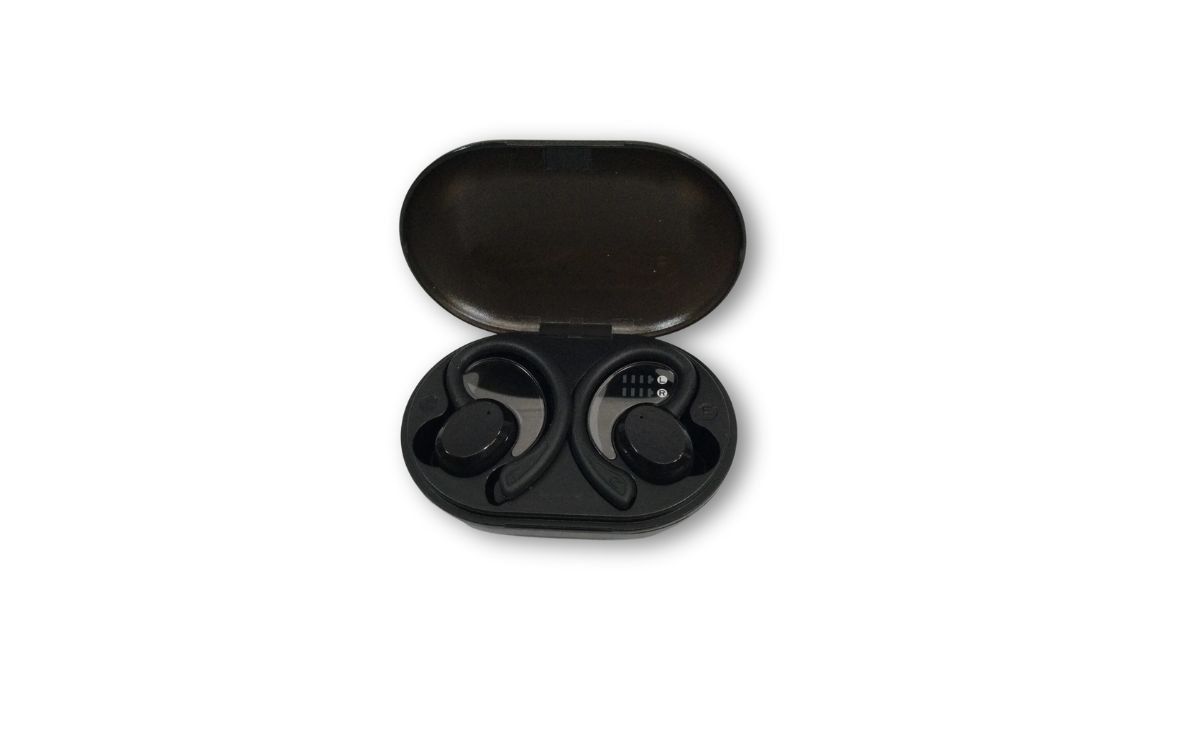
- On the charging case
- On one or both earbuds
- On a physical power button
- On a touch-sensitive surface
- Inside the charging case near the earbuds
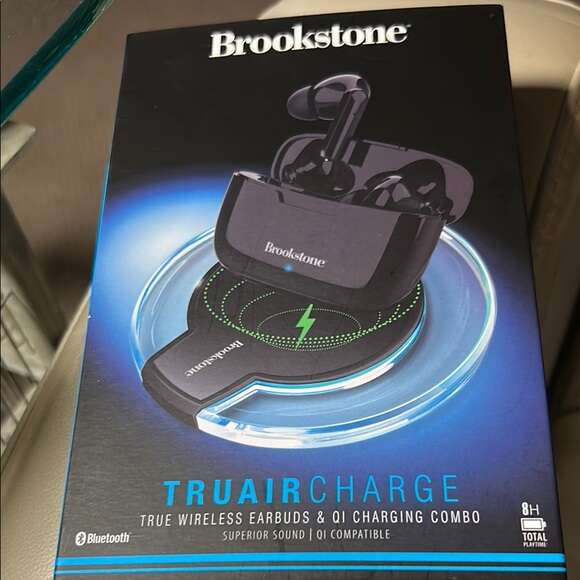
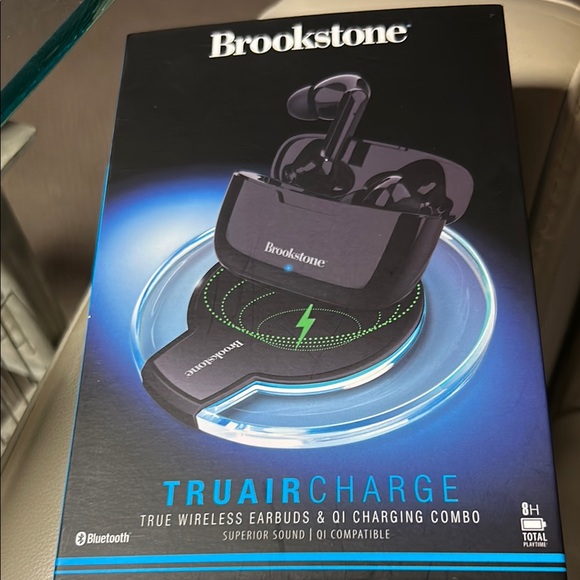
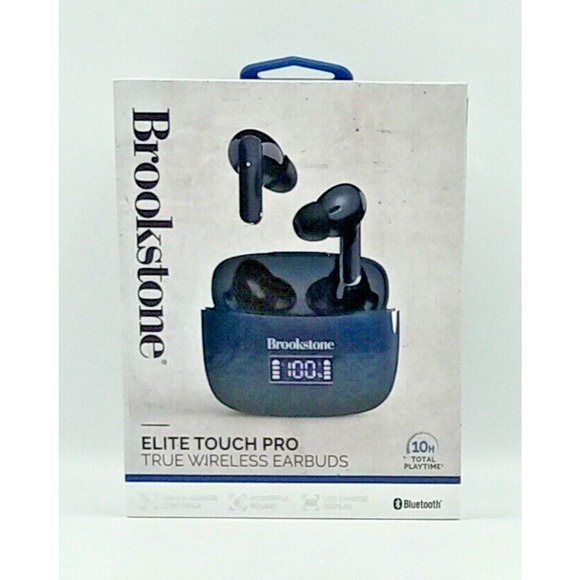
Look for the model name on the case, the box, the user manual, or the label inside the charging case. The Bluetooth name may include “Brookstone,” the model name, or a short product code.
If the steps below do not match your earbuds, use the model-specific manual. The general process is still the same: charge, enter pairing mode, open Bluetooth settings, and select the earbuds.
How to Pair Brookstone Earbuds With an iPhone
The fastest method is to place the earbuds in pairing mode before selecting them in your iPhone’s Bluetooth menu.
- Charge the earbuds and place both earbuds in the case.
- Open the charging case.
- Remove both earbuds. Many models turn on and pair with each other automatically.
- If the earbuds do not flash or announce pairing mode, press and hold the case button or earbud control for about 3 to 5 seconds.
- On your iPhone, open Settings.
- Tap Bluetooth.
- Turn Bluetooth on if it is off.
- Wait for the Brookstone earbuds to appear under Other Devices.
- Tap the Brookstone name.
- Wait until the status changes to Connected.
The first connection may take several seconds. After pairing, the earbuds often move to My Devices in the iPhone Bluetooth menu.
How to confirm the connection
Play music or a short video. You should hear sound through the earbuds rather than the iPhone speaker.
You can also check the Bluetooth screen. A successful connection normally shows:
- Connected beside the Brookstone earbuds
- Battery information on some iPhone models
- The earbuds listed under My Devices


If the earbuds appear but will not connect, tap the information icon beside their name and choose Forget This Device. Then repeat the pairing process.
How to Pair Brookstone Earbuds With an Android Phone
Brookstone earbuds can usually connect to Android phones through the standard Bluetooth menu. The wording may vary between Samsung Galaxy, Google Pixel, Motorola, OnePlus, and other Android phones.
- Put both earbuds in the charging case.
- Open the case and remove the earbuds.
- Put the earbuds into pairing mode. Hold the case button or touch control if they do not enter pairing mode on their own.
- Open Settings on your Android phone.
- Tap Connected devices, Connections, or Bluetooth.
- Select Pair new device if that option appears.
- Turn Bluetooth on.
- Select the Brookstone earbuds from the list.
- Tap Pair or Connect when asked.
Some Android phones show a pop-up pairing request. If one appears, confirm the request only when the displayed device name matches your Brookstone earbuds.
If Android asks for a PIN
Most Brookstone earbuds do not need a PIN. If your phone requests one, try 0000 or 1234, but check the manual first. Do not guess repeatedly if the request continues. The earbuds may not be in the correct pairing mode, or the phone may be connecting to a different nearby device.
How to Pair Brookstone Earbuds With a Windows PC
Windows computers can use Brookstone earbuds for music, video, calls, and other audio. The PC must have Bluetooth support. Some desktop computers need a separate Bluetooth adapter.
Windows 11
- Put the Brookstone earbuds into pairing mode.
- Open Start and select Settings.
- Choose Bluetooth & devices.
- Turn Bluetooth on.
- Select Add device.
- Choose Bluetooth.
- Select the Brookstone earbuds.
- Wait for Windows to confirm the connection.
Windows 10
- Put the earbuds into pairing mode.
- Open Start and select Settings.
- Choose Devices.
- Select Bluetooth & other devices.
- Turn Bluetooth on.
- Click Add Bluetooth or other device.
- Choose Bluetooth.
- Select the Brookstone earbuds.
After pairing, select the speaker icon on the Windows taskbar and choose the Brookstone earbuds as the sound output.
For calls, Windows may show two audio choices. A setting marked Headphones often gives better music quality. A setting marked Headset may be needed when the microphone is active, but sound quality can change.
How to Pair Brookstone Earbuds With a Mac
The earbuds must be in pairing mode before you select them on the Mac.
- Put the Brookstone earbuds into pairing mode.
- Open the Apple menu.
- Select System Settings on newer versions of macOS, or System Preferences on older versions.
- Choose Bluetooth.
- Turn Bluetooth on.
- Find the Brookstone earbuds in the device list.
- Click Connect.
If the Mac connects but plays sound through its built-in speakers, open System Settings > Sound > Output and select the Brookstone earbuds.
You can also hold the Option key while selecting the sound icon in the menu bar. This may provide a quick way to change the active audio output.


How to Put Brookstone Earbuds Into Pairing Mode
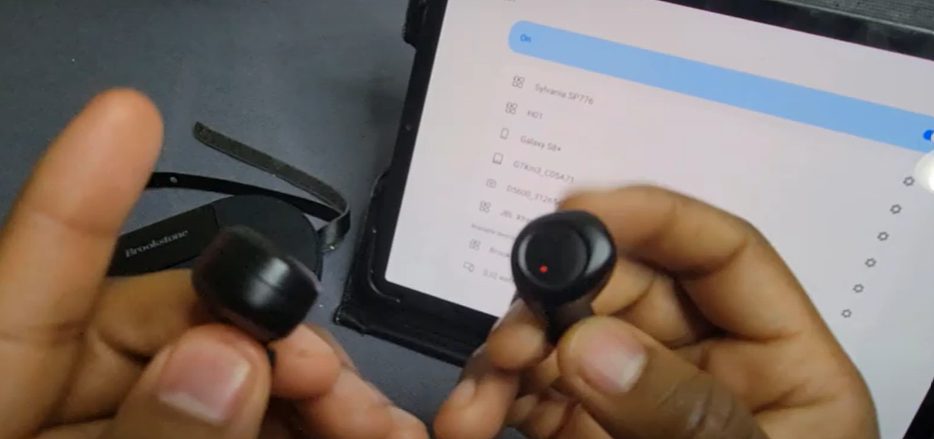
Pairing mode allows a phone or computer to discover the earbuds. A flashing blue, red-and-blue, or white light often signals this mode, but the color depends on the model.
Try these methods in order:
- Place both earbuds in the case, close the lid, wait a few seconds, and open it again.
- Remove both earbuds at the same time.
- Press and hold the button on the charging case for about 3 to 5 seconds.
- If there is no case button, press and hold both earbud touch controls.
- If the earbuds have physical buttons, press and hold the power or multifunction button.
- Watch for a flashing light or listen for a pairing tone.
Do not hold the controls for a long time unless the manual tells you to. On some models, a longer press may turn the earbuds off or reset them.
What the indicator lights mean
The meaning of each light differs by Brookstone model. In general:
| Indicator behavior | Common meaning |
|---|---|
| Slow or steady light | Earbuds are powered on or charging |
| Fast flashing light | Pairing mode |
| Blue or white light | Connected or ready to connect |
| Red light | Low battery or charging |
| No light | Earbuds may be off, fully charged, or not making contact |
Treat these meanings as general guidance, not a universal Brookstone code. The manual for your exact model takes priority.
What to Do if Brookstone Earbuds Will Not Pair
If Brookstone earbuds do not appear in the Bluetooth list, work through the checks below. Start with power and connection issues before trying a reset.
1. Charge the earbuds and case
Place both earbuds in the case and connect the case to power. Make sure the charging contacts touch the metal points on the earbuds.
If an earbud does not light up in the case, clean the contacts with a dry, soft cloth. Do not use water, metal tools, or excessive force.
2. Turn Bluetooth off and on
Turn Bluetooth off on your phone or computer, wait several seconds, and turn it back on. Then return to the Bluetooth device list.
This can clear a temporary connection error without changing saved Bluetooth settings.
3. Move away from other Bluetooth devices
Turn off Bluetooth on nearby phones, tablets, laptops, and televisions that have used the earbuds before. The Brookstone earbuds may be reconnecting to one of them.
Also move away from other wireless devices during setup. Bluetooth normally works well at short range, but walls, metal objects, and many nearby wireless signals can reduce connection stability.
4. Remove the old pairing
If the Brookstone earbuds appear in your device list but will not connect, remove the saved entry.
- On iPhone: Settings > Bluetooth > Info button > Forget This Device
- On Android: Settings > Bluetooth > Brookstone earbuds > Forget or Unpair
- On Windows: Settings > Bluetooth & devices > More options > Remove device
- On Mac: System Settings > Bluetooth > Info button > Forget This Device
Then place the earbuds into pairing mode and add them again.


5. Restart both devices
Turn the phone or computer off and back on. Put the earbuds in their case, close the lid, wait about 10 seconds, and try again.
6. Reset the earbuds
A reset usually clears old pairing data and restores the earbuds to their initial connection state. The method varies by model. Common methods include holding the case button for 10 to 15 seconds or holding both earbud controls for several seconds while they are in the case.
Use the instructions for your exact Brookstone model when possible. A reset should be the last step because it removes saved connections.

How to Fix Only One Brookstone Earbud Working
When only one earbud produces sound, the two earbuds may have lost their connection with each other. The phone may also be connected to only one side.
Try this sequence:
- In the phone’s Bluetooth settings, forget the Brookstone earbuds.
- Turn Bluetooth off on the phone.
- Place both earbuds in the charging case.
- Confirm that both earbuds are charging.
- Remove both earbuds together.
- Wait for them to link with each other.
- Turn Bluetooth back on.
- Put the earbuds into pairing mode.
- Select the Brookstone earbuds again.
If one earbud still does not work, check the audio balance setting on the phone. A balance control moved fully to the left or right can make one earbud seem silent.
On an iPhone, check Settings > Accessibility > Audio & Visual > Balance. On Android, the location varies by phone, but search Settings for audio balance or left/right balance.

How to Stop Brookstone Earbuds From Connecting to the Wrong Device
Brookstone earbuds may reconnect to a device they paired with earlier. The simplest fix is to disable Bluetooth on that old device before pairing with the new one.
You can also remove the Brookstone earbuds from the old device’s saved Bluetooth list. This prevents automatic reconnection.
If several people use the earbuds, pair them with one device at a time. After the new device connects, turn Bluetooth back on for other devices only when needed.
Most consumer Bluetooth earbuds are not designed to maintain active audio connections with several devices at once. If your model supports multipoint connection, the manual should state that feature clearly.
Common Pairing Mistakes to Avoid
These mistakes cause many Brookstone pairing problems:
- Searching for the earbuds before putting them in pairing mode
- Selecting a different nearby Bluetooth device by mistake
- Leaving Bluetooth active on the old phone
- Trying to pair an earbud that has no battery
- Resetting the earbuds before removing the old Bluetooth record
- Pairing one earbud first and the other later
- Using a case or ear tip that prevents the charging contacts from touching
- Assuming every Brookstone model uses the same button sequence
Keep the earbuds close to the phone during setup. Pairing usually works best when the case and phone are within a few feet of each other.
Key Takeaways
- Charge the Brookstone earbuds before pairing.
- Put both earbuds into pairing mode.
- Open Bluetooth settings on the phone or computer.
- Select the Brookstone device name.
- Forget the old Bluetooth entry if the earbuds will not reconnect.
- Reset the earbuds only after basic checks fail.
- Use the exact model manual when the button sequence differs.


Frequently Asked Questions
Why are my Brookstone earbuds not showing up in Bluetooth?
They may be off, out of battery, connected to another device, or not in pairing mode. Charge both earbuds, turn off Bluetooth on previously paired devices, and hold the case or earbud button until the indicator begins flashing.
Do Brookstone earbuds work with iPhones and Android phones?
Yes, Brookstone Bluetooth earbuds generally work with both iPhones and Android phones that support Bluetooth audio. The available controls, battery display, and pairing pop-ups may differ between devices.
Can I pair Brookstone earbuds without the charging case?
Some models can enter pairing mode through the earbud buttons or touch controls. Other models rely on the case button or require the case to reset the connection. Check the manual for your model.
How do I reset Brookstone earbuds?
The reset method depends on the model. Common methods include holding the charging-case button or both earbud controls for about 10 to 15 seconds. Remove the old Brookstone entry from your phone’s Bluetooth settings after the reset, then pair again.
Why do my Brookstone earbuds keep disconnecting?
Low battery, distance, wireless interference, blocked charging contacts, and outdated saved pairing data can all cause disconnections. Charge the earbuds, keep the phone nearby, forget the old Bluetooth entry, and pair them again.
Final Steps
The normal Brookstone earbud pairing process is simple: charge both earbuds, enter pairing mode, open Bluetooth settings, and select the Brookstone name. If the connection fails, remove the old pairing, prevent other devices from reconnecting, and reset the earbuds only when needed.
For a model-specific button sequence or light code, use the user manual supplied with the earbuds. Once the earbuds show Connected and play audio, the pairing process is complete.