How To Pair Galaxy Earbuds: Easy Setup Guide
If you are in the United States and just bought Galaxy Buds, pairing usually takes only a few minutes. Open the charging case, turn on Bluetooth, and select your earbuds from the device list. For the best setup on a Samsung Galaxy phone, use the Galaxy Wearable app.
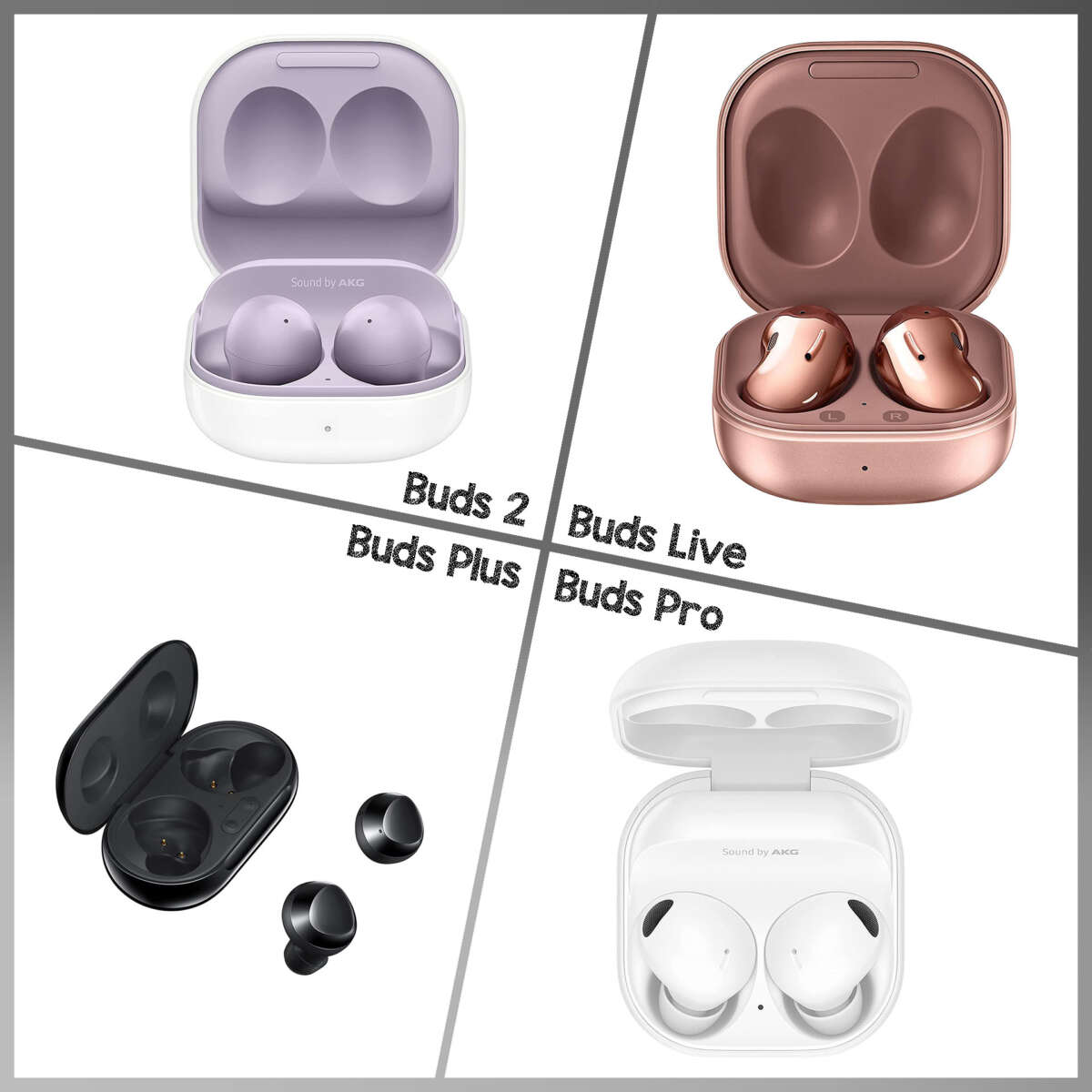
The exact steps can vary by model. Galaxy Buds2, Buds Pro, and older models use touch controls to enter pairing mode, while Galaxy Buds3 series models use a physical pairing button on the case.

What you need before pairing Galaxy Buds
Before you pair Galaxy Buds, check these basic requirements:
- Charge the earbuds and charging case.
- Turn on Bluetooth on your phone, tablet, computer, or other device.
- Keep the earbuds close to the device.
- Install the Galaxy Wearable app if you use an Android phone.
- Remove the earbuds from any device they currently use.
- Make sure the earbuds are not already connected to another nearby device.


Galaxy Buds can connect to many Bluetooth devices, including Samsung Galaxy phones, other Android phones, iPhones, iPads, Windows PCs, and some smart TVs. However, some features depend on the device and app.
For example, the Galaxy Wearable app gives you access to settings such as:
- Earbud battery levels
- Touch controls
- Equalizer settings
- Noise control
- Software updates
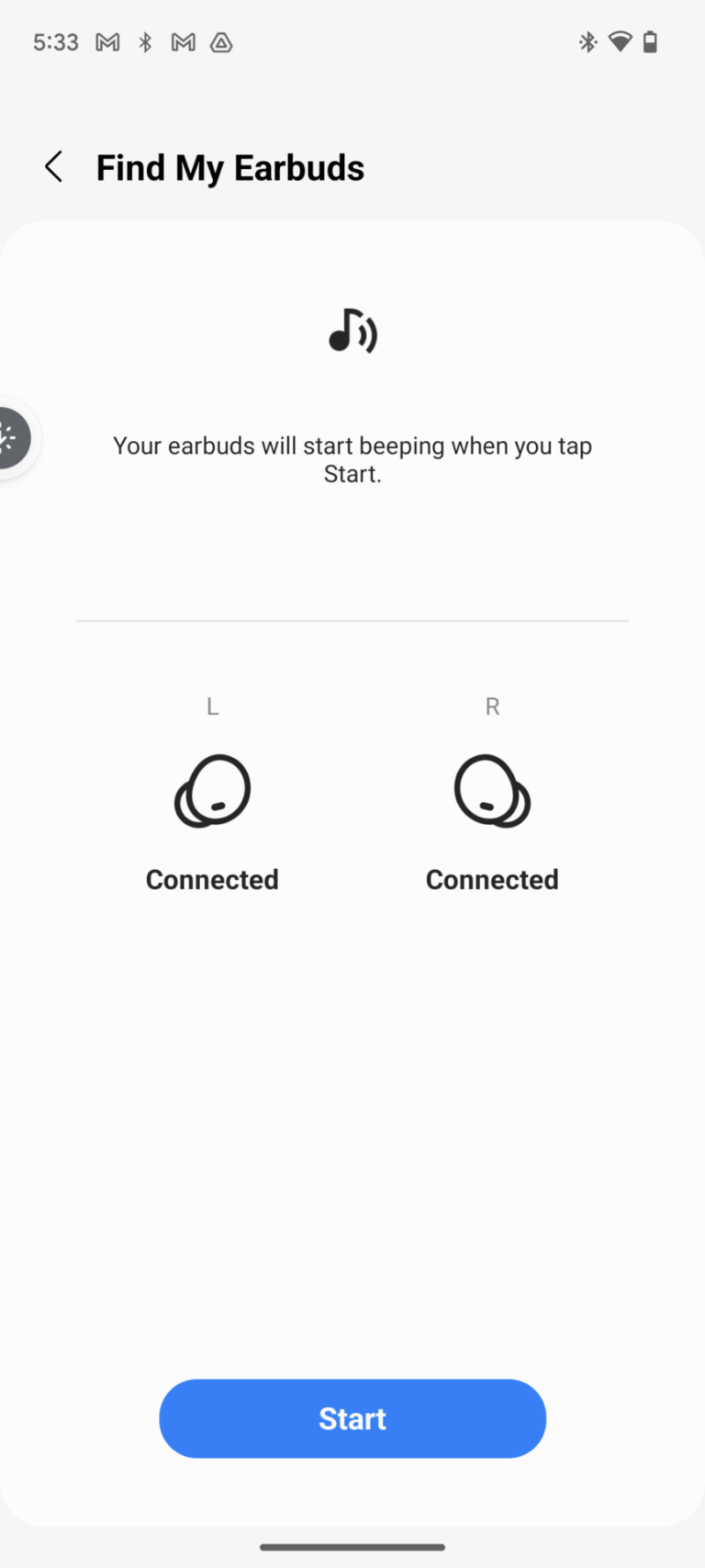
- Find My Earbuds features
- Fit tests on supported models
On an iPhone, basic Bluetooth audio usually works, but app support and advanced controls may be limited by the Galaxy Buds model and Apple’s software rules.
How to pair Galaxy Buds with a Samsung Galaxy phone
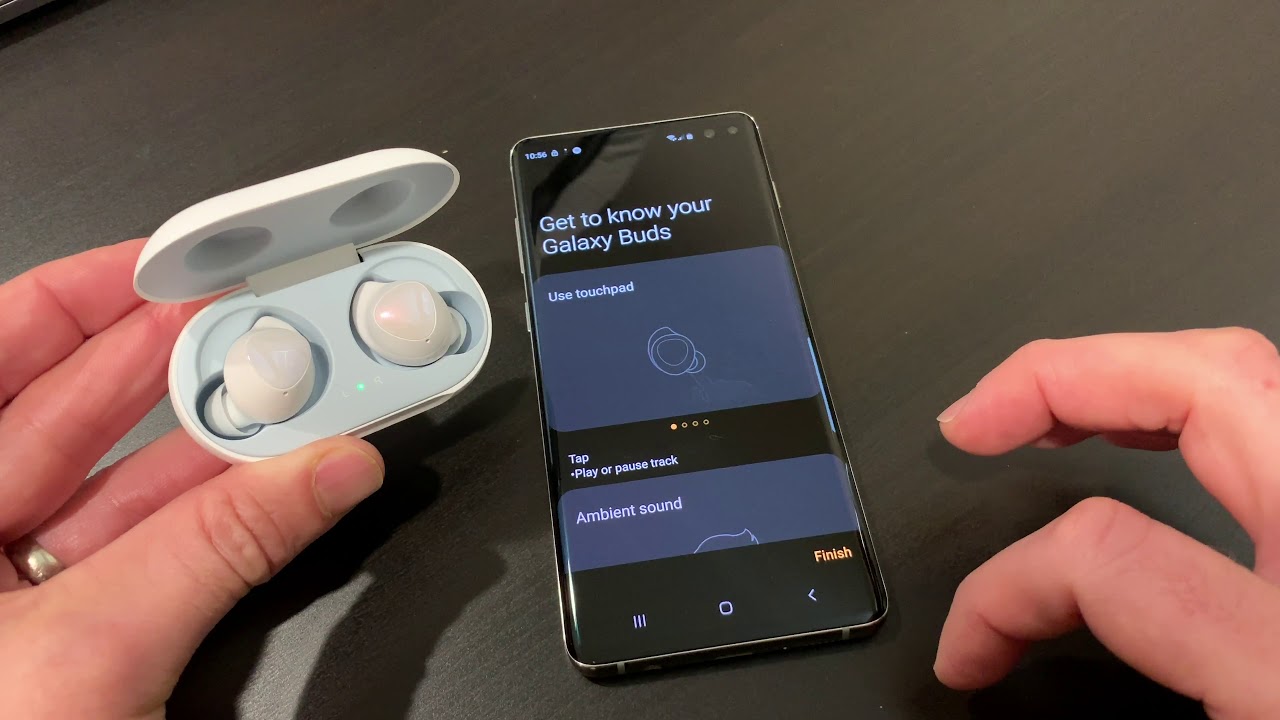
The easiest way to pair Galaxy Buds with a Samsung Galaxy phone is through the Galaxy Wearable app.
Use the Galaxy Wearable app
- Open the Galaxy Wearable app on your Samsung phone.
- Tap Start or Add new device, if shown.
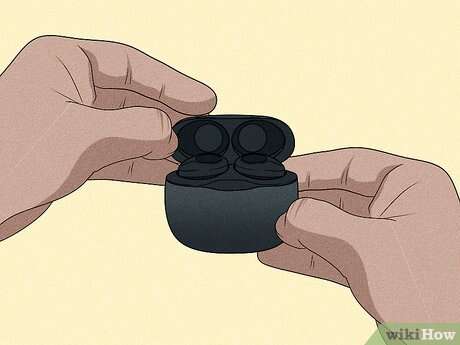
- Place both earbuds in the charging case.
- Close the case for a few seconds.
- Open the case near your phone.
- Follow the on-screen instructions.
- Accept the requested permissions.
- Install any available software update after setup finishes.
On many Samsung phones, a pop-up appears as soon as you open the charging case. Tap Connect, then follow the instructions.
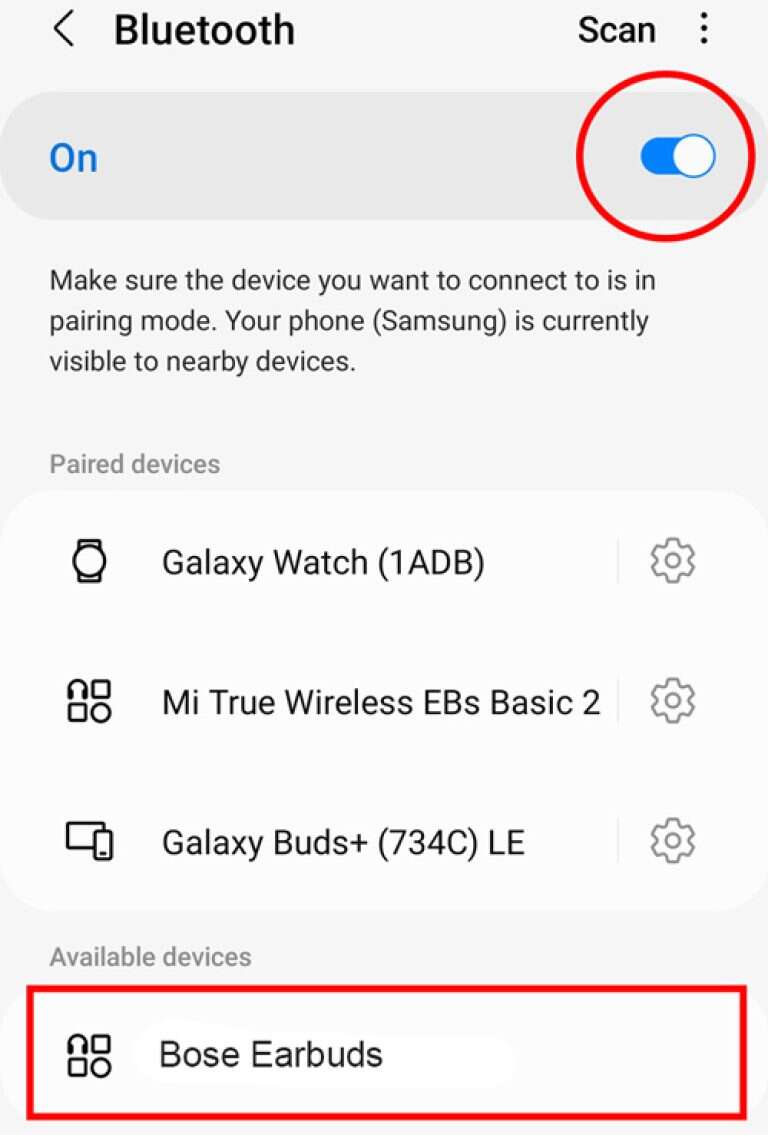
If you do not see a pop-up, open Settings, tap Connections, select Bluetooth, and look for the earbuds under available devices.
Pair Galaxy Buds through Bluetooth settings
Use this method if the Galaxy Wearable app does not detect the earbuds.
- Open Settings on your Samsung phone.
- Tap Connections.
- Tap Bluetooth.
- Turn Bluetooth on.
- Put the earbuds in pairing mode.
- Tap the Galaxy Buds name under Available devices.
- Confirm the connection.
The name may appear as Galaxy Buds, Galaxy Buds2 Pro, Galaxy Buds3, or a similar model name.


How to enter pairing mode
The method depends on the model:
- Most older Galaxy Buds models: Put both earbuds in your ears, then touch and hold both touchpads until you hear a sound or pairing message.
- Galaxy Buds already connected to another device: Turn off Bluetooth on the old device or disconnect the earbuds first.
- Galaxy Buds3 and Galaxy Buds3 Pro: Place the earbuds in the case, open the lid, and press the case’s pairing button as directed by the model instructions.
- Earbuds that do not respond: Place them in the case, close the lid, wait, then try again.
Do not remove only one earbud when trying to pair a new device. Both earbuds should normally be in the case or worn together.

How to pair Galaxy Buds with an Android phone
Galaxy Buds work with many Android phones, including phones from Google, Motorola, OnePlus, and other brands. The basic Bluetooth steps are the same.
Pair with the Galaxy Wearable app
- Install Galaxy Wearable from the Google Play Store.
- Open the app.
- Tap Start or select your Galaxy Buds model.
- Put both earbuds in the charging case.
- Open the case near your Android phone.
- Follow the instructions in the app.
- Approve Bluetooth and nearby-device permissions if requested.
The app may need permission to find nearby devices. On newer Android versions, this permission helps the phone scan for Bluetooth accessories.
Pair through Android Bluetooth settings
- Open Settings.
- Tap Connected devices, Connections, or Bluetooth. The label depends on the phone.
- Turn on Bluetooth.
- Select Pair new device, if needed.
- Put the Galaxy Buds in pairing mode.
- Tap the earbuds when they appear.
- Tap Pair or Connect.
If Android asks for a PIN, try 0000. Most Galaxy Buds do not require a PIN, so a PIN request may indicate that the wrong device was selected or that the earbuds are not in normal pairing mode.
What works without the Galaxy Wearable app?
Without the app, Galaxy Buds can usually provide basic functions:
- Playing audio
- Pausing audio
- Taking calls
- Using the earbud microphone
- Adjusting volume from the phone
You may not get all available controls. Noise cancellation, ambient sound, touch customization, updates, and battery information may require the app or may vary by model.

How to pair Galaxy Buds with an iPhone
You can pair many Galaxy Buds models with an iPhone through Bluetooth. This is useful if you have Galaxy Buds but use an iPhone in the United States.
Pair Galaxy Buds with iPhone Bluetooth
- Open Settings on your iPhone.
- Tap Bluetooth.
- Turn Bluetooth on.
- Put the Galaxy Buds in pairing mode.
- Tap the earbuds under Other Devices.
- Wait until the status changes to Connected.
If your earbuds were connected to an Android phone, disconnect them from that phone first. You can also turn off Bluetooth on the old phone for a moment.
What features are limited on iPhone?
Basic audio and calls should work through Bluetooth. However, the full Galaxy Wearable experience is not available for every newer Galaxy Buds model on iPhone.


Depending on the model, you may have limited access to:
- Earbud firmware updates
- Noise control settings
- Touch-control customization
- Battery details
- Fit tests
- Device-finding tools
Check Samsung’s support page for your exact Galaxy Buds model before buying or relying on advanced controls with an iPhone.
How to pair Galaxy Buds with a Windows PC
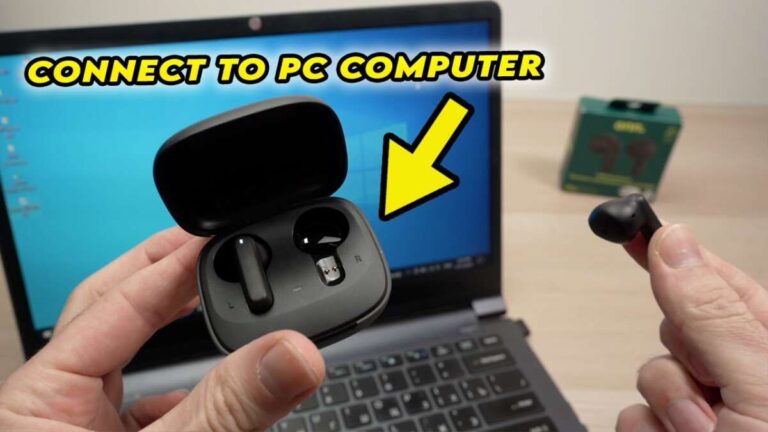
Galaxy Buds can connect to a Windows laptop or desktop like other Bluetooth headphones.
Pair Galaxy Buds through Windows 11
- Open the Galaxy Buds case.
- Put the earbuds in pairing mode.
- On your PC, open Settings.
- Select Bluetooth & devices.
- Turn Bluetooth on.
- Click Add device.
- Choose Bluetooth.
- Select your Galaxy Buds from the list.
- Wait for Windows to show that the earbuds are connected.
On Windows 10, open Settings, select Devices, choose Bluetooth & other devices, and click Add Bluetooth or other device.
Set Galaxy Buds as the sound output
If the earbuds connect but sound still comes from the computer speakers:
- Click the speaker icon on the Windows taskbar.
- Open the sound output menu.
- Select your Galaxy Buds.
- Play audio to test the connection.
For calls, check both the speaker and microphone settings in the calling app. Windows may show separate choices for stereo audio and headset audio. Headset mode can reduce sound quality because it activates the microphone.

How to pair Galaxy Buds with another device
Galaxy Buds can remember several paired devices, but they usually connect to one active audio source at a time unless your model supports automatic switching or Bluetooth multipoint-style features.
To pair with a second device:
- Disconnect the earbuds from the first device.
- Put the earbuds in pairing mode.
- Open Bluetooth settings on the second device.
- Select the Galaxy Buds.
- Confirm the connection.
Some Samsung devices support automatic switching when you use the same Samsung account. This feature depends on the earbud model, phone, tablet, software version, and account settings.
If the earbuds keep reconnecting to the first device, turn off Bluetooth on that device while pairing the second one.

What to do if Galaxy Buds will not pair
Pairing problems usually come from an existing connection, low battery, pairing mode failure, or a Bluetooth setting. Try the checks below in order.
1. Charge the earbuds and case
Place both earbuds in the case and check whether the charging light responds. Clean the charging contacts with a dry, soft cloth if an earbud does not appear to charge.


Do not use water or metal tools inside the case. Moisture and damaged contacts can create a charging or safety problem.
2. Turn Bluetooth off and on
On the phone or computer:
- Turn Bluetooth off.
- Wait about 10 seconds.
- Turn Bluetooth back on.
- Search for the earbuds again.
This refreshes the Bluetooth scan without deleting all saved connections.
3. Disconnect the old device
Galaxy Buds may not appear as available if they are still connected to a nearby phone, tablet, or computer.
Turn off Bluetooth on nearby devices, or open their Bluetooth settings and tap Disconnect for the earbuds.
4. Enter pairing mode again
Place both earbuds in the case, close the lid, and wait a few seconds. Then open the case and try the model’s pairing method again.
For many touch-control models, wearing both earbuds and touching both touchpads at the same time starts pairing mode. For case-button models, use the pairing button on the case.
5. Forget the old Bluetooth connection
If the earbuds appear but will not connect, remove the saved connection.
On Android:
- Open Bluetooth settings.
- Tap the gear or settings icon beside the earbuds.
- Select Forget, Unpair, or Remove.
- Scan for the earbuds again.
On iPhone:
- Open Settings > Bluetooth.
- Tap the information icon beside the earbuds.
- Tap Forget This Device.
- Confirm, then pair again.
On Windows:
- Open Settings > Bluetooth & devices.
- Find the Galaxy Buds.
- Select the three-dot menu.
- Choose Remove device.
- Add the earbuds again.
6. Restart both devices
Restart the phone, tablet, or computer. Then place the earbuds back into pairing mode.
A restart can fix a temporary Bluetooth service error. It will not repair a damaged earbud, failed battery, or blocked charging contact.
7. Reset the Galaxy Buds
Resetting should be a later step because it removes saved settings. If the Galaxy Wearable app supports your model, open the earbud settings and look for Reset.


After the reset, pair the earbuds as if they were new.
If the earbuds do not charge, do not appear on any device, or show signs of physical damage, contact Samsung Support or an authorized repair provider.
How to tell whether Galaxy Buds are paired
The earbuds are paired when:
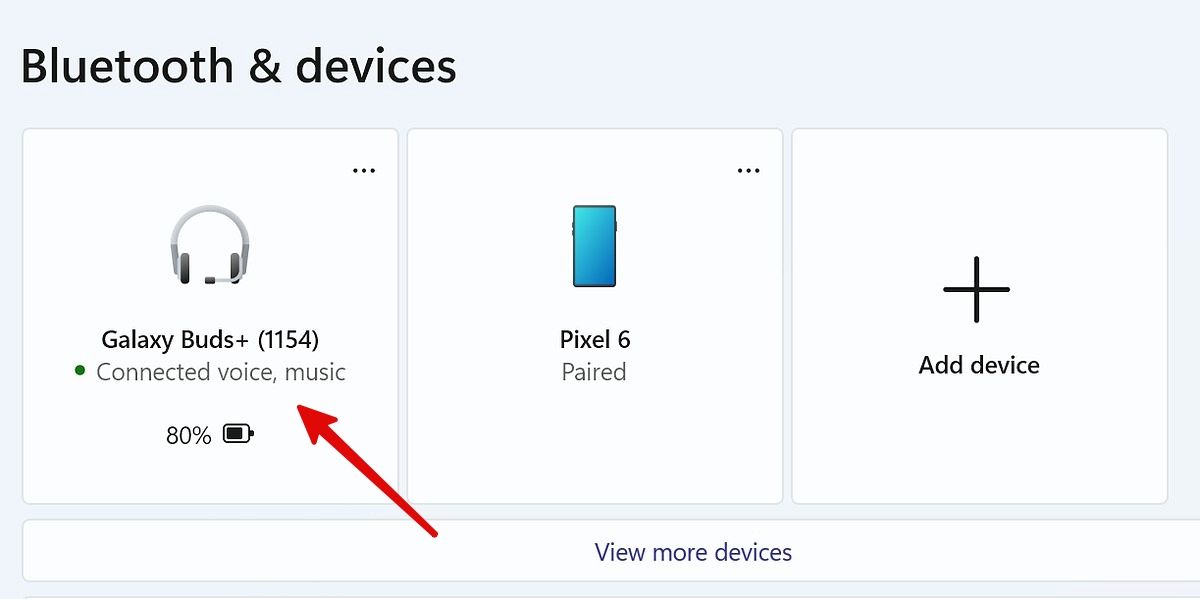
- The device shows Connected beside the Galaxy Buds.
- Audio plays through the earbuds.
- The Galaxy Wearable app recognizes the model.
- The earbuds appear under saved or paired Bluetooth devices.
- The earbuds disconnect when placed in the closed case, depending on the model.
Pairing and connecting are not exactly the same. Pairing saves the relationship between the earbuds and a device. Connecting means the earbuds are actively linked and ready to play sound.
You may pair Galaxy Buds with several devices but connect them to only one device at a time on many setups.
Common Galaxy Buds pairing mistakes
Pairing only one earbud
Both earbuds should usually be in the case or worn together when you start pairing. Pairing one earbud alone can cause connection or synchronization problems.
Leaving Bluetooth on for the old device
A nearby phone may reconnect before the new device can find the earbuds. Temporarily turn off Bluetooth on the old device.
Using the wrong app
The Galaxy Wearable app is designed for Android. On iPhone, use the iOS Bluetooth menu unless Samsung specifically provides app support for your model.
Expecting every feature on every device
Audio may work on a laptop while advanced controls do not. Feature support depends on the Galaxy Buds model and the operating system.
Ignoring software updates
An update may improve compatibility or fix connection problems. Keep the earbuds in the case with enough charge while updating through the supported app.
Galaxy Buds pairing at a glance
| Device | Main pairing method | App support | Key limitation |
|---|---|---|---|
| Samsung Galaxy phone | Galaxy Wearable or Bluetooth settings | Broadest support | Features vary by model |
| Other Android phone | Galaxy Wearable or Bluetooth settings | Usually available | Permissions may be required |
| iPhone | iPhone Bluetooth settings | Limited or model-dependent | Advanced features may be unavailable |
| Windows PC | Windows Bluetooth settings | Usually not required | Sound output may need manual selection |
| Smart TV | TV Bluetooth settings | Usually unavailable | TV menus and codec support vary |
The main choice is simple: use the Galaxy Wearable app when you have a compatible Android phone, and use the device’s Bluetooth settings for iPhone, Windows, and other equipment.

Frequently asked questions
Can I pair Galaxy Buds without the Galaxy Wearable app?
Yes. Use the Bluetooth settings on your phone, tablet, computer, or TV. The app is useful for setup, updates, battery details, and advanced controls, but basic Bluetooth audio may work without it.
Why do my Galaxy Buds not appear in Bluetooth?
They may still be connected to another device, may not be in pairing mode, or may have low battery power. Turn off Bluetooth on nearby devices, charge the earbuds, and start pairing mode again.
Can Galaxy Buds connect to two devices at the same time?
Some Galaxy Buds and Samsung devices support automatic switching, but behavior varies by model and software. Do not assume that every Galaxy Buds model supports active connections to two devices.


How do I pair Galaxy Buds after replacing my phone?
Turn off Bluetooth on the old phone, place the earbuds in pairing mode, and select them from the new phone’s Bluetooth list. If they do not appear, forget the old connection or reset the earbuds through the supported app.
Do Galaxy Buds work with iPhones?
Many models work as Bluetooth earbuds for music and calls. App support and advanced features can be limited, especially on newer Galaxy Buds models. Check support for your exact model before pairing.
Final steps
To pair Galaxy Buds, charge them, place them in pairing mode, and select them from the device’s Bluetooth menu. A Samsung Galaxy phone usually offers the most complete setup through the Galaxy Wearable app.
If pairing fails, disconnect the old device, restart Bluetooth, forget the saved connection, and try again. Reset the earbuds only after the simpler checks fail.