How To Connect Bose Earbuds To Android: Easy Guide
To connect Bose earbuds to an Android phone, turn on Bluetooth, place the earbuds in pairing mode, then select them from your phone’s Bluetooth menu. You can also use the Bose app to set up supported models, change settings, and install firmware updates. The exact button used for pairing depends on the Bose earbuds and charging case you own.
This guide covers Bose quietcomfort Ultra Earbuds, QuietComfort Earbuds II, QuietComfort Earbuds, Sport Earbuds, SoundSport Free, and similar models sold in the United States.

Before You Connect Bose Earbuds to Android
You need three things before you start:
- A charged pair of Bose earbuds
- An Android phone or tablet with Bluetooth turned on
- The correct Bose charging case, if your model uses one


Keep the earbuds and Android device close together during setup. A few inches of distance is best for the first connection.
If the earbuds were connected to another phone, tablet, or computer, turn Bluetooth off on that device for now. Some Bose earbuds may try to reconnect to the last device they used instead of entering pairing mode.
Install the Bose app
The Bose app can help you set up supported Bose earbuds. It may also provide access to:
- Earbud and case battery levels
- Firmware updates
- Noise control settings
- Touch or button controls
- Device names
- Connection settings
- Product support
Download the Bose app from the Google Play Store. The app is useful, but you can connect many Bose earbuds through Android’s Bluetooth settings without it.
Use the Bose app only from the official Google Play listing or Bose’s official website. Avoid third-party apps that claim to unlock Bose features.
Check the Android version and permissions
Most recent Android phones work with Bose Bluetooth earbuds. The menu names may differ by phone brand. For example, a Samsung phone may show Connections, while a Google Pixel may show Connected devices.
The Bose app may ask for Bluetooth, nearby-device, or location access. Android uses these permissions to scan for nearby devices. If the app cannot find your earbuds, review its permissions in:
Settings > Apps > Bose > Permissions
The exact path may vary by Android version and phone maker.

How to Pair Bose Earbuds With Android Bluetooth
The most reliable method is to pair the earbuds from the Android Bluetooth menu.


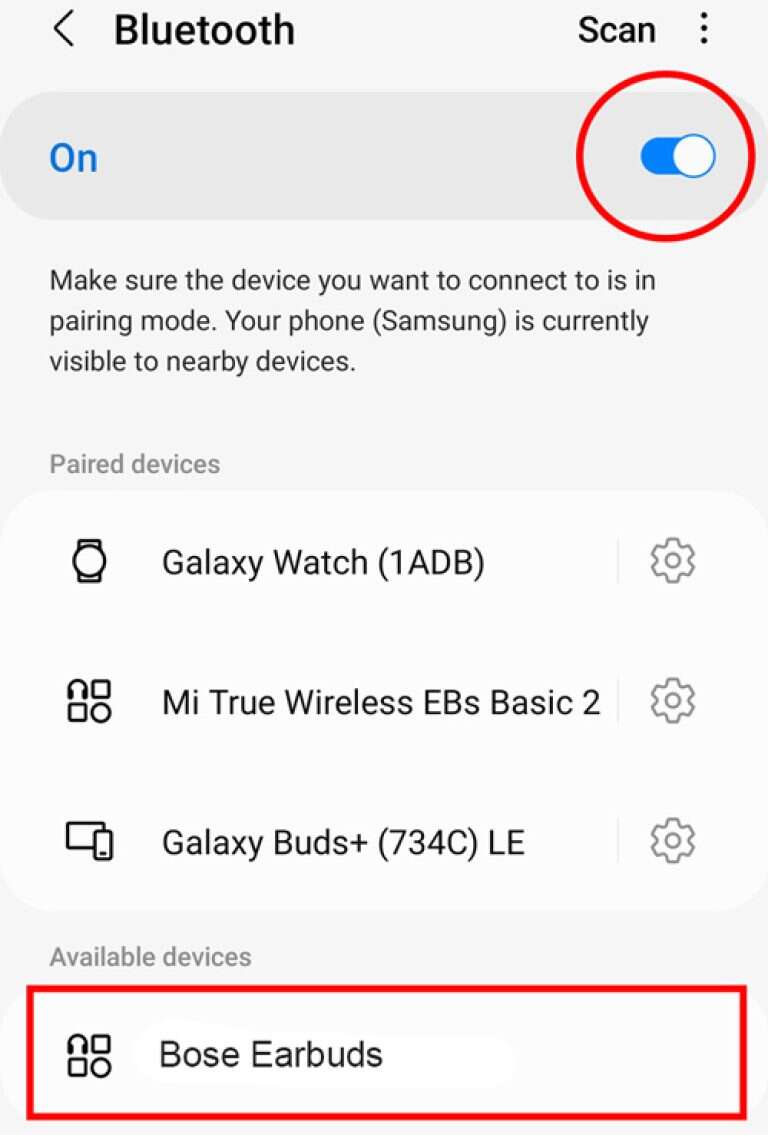
1. Open Android Bluetooth settings
On your Android phone:
- Open Settings.
- Tap Connected devices, Connections, or Bluetooth.
- Tap Pair new device if that option appears.
- Leave this screen open while you place the earbuds in pairing mode.
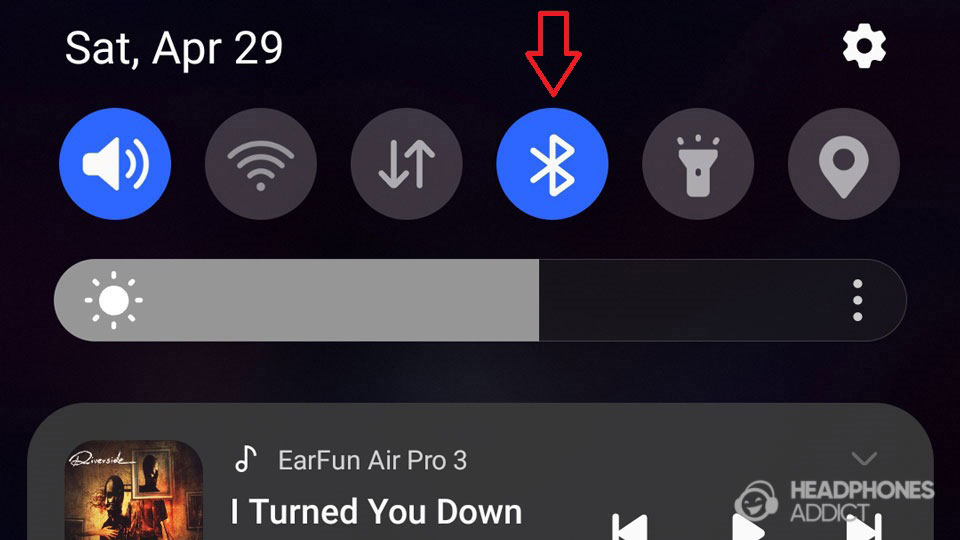
You can also swipe down from the top of the screen and press and hold the Bluetooth icon. This usually opens the Bluetooth settings page.
2. Put the Bose earbuds in pairing mode
The steps depend on the Bose model.
Bose QuietComfort Ultra Earbuds
- Put both earbuds in the charging case.
- Leave the case open.
- Press and hold the Bluetooth button on the back of the case.
- Release the button when the status light begins to pulse blue.
The earbuds are now ready to pair.
Bose QuietComfort Earbuds II
- Place both earbuds in the charging case.
- Keep the lid open.
- Press and hold the button on the back of the case.
- Wait for the case light to pulse blue.
Bose QuietComfort Earbuds
- Place the earbuds in the case.
- Open the case.
- Press and hold the case button until the light pulses blue.
Bose Sport Earbuds
- Remove the earbuds from the case.
- Press and hold the Bluetooth button on the right earbud.
- Release it when the earbuds announce that they are ready to connect, or when the Bluetooth light flashes.
Bose SoundSport Free
- Remove the right earbud from the charging case.
- Press and hold the Bluetooth button on the right earbud.
- Wait for the voice prompt or flashing Bluetooth light.
Older Bose models may use a different button or voice prompt. If your earbuds do not enter pairing mode, check the model-specific guide on the Bose support website.
3. Select the earbuds on Android
On the Android Bluetooth screen, look for a name such as:
- Bose QuietComfort Ultra Earbuds
- Bose QuietComfort Earbuds II
- Bose QuietComfort Earbuds
- Bose Sport Earbuds
- Bose SoundSport Free
Tap the name that matches your earbuds.
If Android asks you to confirm pairing, tap Pair. If the connection works, the earbuds should show as Connected.
4. Test the connection
Play music or a short video. Check that sound comes through the earbuds instead of the phone speaker.


You can also test:
- The left and right earbuds
- Music pause and play controls
- Volume controls
- Phone calls
- Noise control modes, if your model supports them
A successful connection normally shows the earbuds as connected under Android Bluetooth settings.

How to Connect Bose Earbuds With the Bose App
The Bose app can guide setup for supported earbuds. It is often the easiest choice for new users because it identifies the product and shows model-specific instructions.
- Install and open the Bose app from Google Play.
- Accept the app permissions needed for nearby-device scanning.
- Put the earbuds in pairing mode.
- Tap Add Product or the option to add a new device.
- Select your Bose earbuds when they appear.
- Follow the instructions on the screen.
- Install a firmware update if the app offers one.
Keep the charging case open and the earbuds near the phone during setup. Do not close the app or remove the earbuds from the case while an update is installing.
The app does not replace Android Bluetooth. Android still handles the main wireless connection. The app adds controls and support features on top of that connection.
Should you use the app or Android Bluetooth?
Use Android Bluetooth when you want the fastest basic connection. Use the Bose app when you want to adjust noise control, check settings, update firmware, or manage more than one Bose product.
| Method | Best for | Main limit |
|---|---|---|
| Android Bluetooth settings | Fast pairing and basic audio | Fewer Bose controls |
| Bose app | Setup, updates, and custom settings | Needs an app and permissions |
| Android Fast Pair | Quick setup on supported models and phones | Not available on every model or Android device |
Some Bose earbuds and Android phones may support Google Fast Pair. If a setup card appears near the phone, follow the instructions on that card. If no card appears, use the normal Bluetooth method above.

What to Do if Bose Earbuds Will Not Connect
Most connection problems come from one of four causes: the earbuds are not in pairing mode, they are connected to another device, the old Bluetooth record is damaged, or the earbuds need a charge.
Use these checks in order.
1. Confirm that pairing mode is active
A flashing or pulsing blue light usually means the earbuds are ready to pair. If the light does not appear, place the earbuds in the case, close the lid, open it again, and repeat the pairing step for your model.
Do not select the earbuds until they appear in Android’s list of available devices.
2. Charge the earbuds and case
Put both earbuds in the case and charge them for at least a short period. Check that each earbud sits correctly on its charging contacts.
A low battery can prevent pairing or cause the connection to drop. Clean dirty charging contacts with a dry, soft cloth. Do not use water, metal tools, or liquid inside the case.
3. Disconnect other nearby devices
Turn off Bluetooth on phones, tablets, laptops, and TVs that may know the earbuds. Then place the Bose earbuds in pairing mode again.
This step matters because the earbuds may automatically reconnect to a nearby device they have used before.


4. Remove the old Bluetooth record
If Android lists the earbuds but will not connect:
- Open Settings.
- Open the Bluetooth device list.
- Tap the gear or settings icon beside the Bose earbuds.
- Choose Forget, Unpair, or Remove.
- Restart Bluetooth.
- Put the Bose earbuds back into pairing mode.
- Pair them again.
The menu wording depends on the Android phone.
5. Restart both devices
Restart the Android phone. Place the earbuds in the case, close the lid, wait several seconds, and open it again. Then try pairing from the beginning.
This clears many temporary Bluetooth errors without changing other phone settings.
6. Update the Bose app and earbud firmware
Open the Bose app and check for updates. An update may improve compatibility or fix a connection problem, but the app must first detect the earbuds.
Keep the phone and earbuds close together during the update. Make sure the case has enough charge.
7. Reset the earbuds only as a last step
A reset can remove stored connection information or restore factory settings. The process is not the same for every Bose model.
Do not use a reset sequence from a different model. Find the instructions for the exact model on Bose support. You may need to pair the earbuds again and restore settings after the reset.
Android Bluetooth Problems and Their Likely Causes
The symptom can help point to the right fix.
| Problem | Likely cause | First step |
|---|---|---|
| Earbuds do not appear | Pairing mode is off or the battery is low | Charge them and hold the pairing button |
| Earbuds appear but will not connect | Old pairing record or another device is connected | Forget the device and pair again |
| Only one earbud works | One earbud is not charging or the pair is out of sync | Reseat both earbuds in the case |
| Audio comes from the phone | Earbuds are connected for calls but not media, or another output is selected | Select the Bose earbuds as the media output |
| Sound cuts out | Distance, interference, low battery, or software issue | Keep the phone close and restart both devices |
| Bose app cannot find earbuds | App permission issue or earbuds are not in pairing mode | Allow nearby-device access and retry |
| Earbuds connect, then disconnect | Battery, firmware, or automatic reconnection issue | Charge, update, and disable Bluetooth on nearby devices |
If only one earbud connects
First, put both earbuds in the case. Check that the case recognizes each one and that both are charging.
If one earbud stays disconnected, close the case, wait, and try again. If that fails, forget the Bose device in Android Bluetooth settings and repeat the full pairing process.
A reset may be needed for some models. Use the exact Bose instructions for your model instead of a general reset method.
If calls work but music does not
Open the Bluetooth settings for the connected Bose earbuds. Make sure Media audio is enabled. Some Android phones list separate switches for phone calls and media.
Also check the phone’s media output panel. Select the Bose earbuds instead of the phone speaker, another Bluetooth device, or a smart speaker.


If the sound keeps cutting out
Keep the phone within a normal short Bluetooth range. Walls, crowded wireless areas, and other nearby devices can affect performance.
Then try these steps:
- Charge the earbuds and case.
- Restart the earbuds and phone.
- Turn Bluetooth off and on.
- Forget and reconnect the earbuds.
- Check for Bose app firmware updates.
- Test the earbuds with another Android phone.
If the earbuds fail on several devices after a reset, contact Bose support. The issue may involve the earbuds, case, battery, or charging contacts rather than Android.
How to Reconnect Bose Earbuds After the First Setup
After the first pairing, Bose earbuds usually reconnect when you take them out of the case and Bluetooth is enabled on the Android phone.
If they do not reconnect:
- Open Android Bluetooth settings.
- Tap the saved Bose earbuds.
- Wait for the status to change to Connected.
- Play audio to confirm the output.
If another device connects first, turn Bluetooth off on that device or disconnect the Bose earbuds from it. Then select the earbuds from your Android phone.
You do not normally need to pair the earbuds from scratch each time. Use Forget only when the saved connection is damaged or the earbuds refuse to connect.
Connecting Bose earbuds to a second Android device
Put the earbuds in pairing mode again and select them on the second Android device. The way they handle two devices depends on the model and its firmware.
Some Bose earbuds support connections to more than one device, while others may connect to only one device at a time. If the second phone cannot find the earbuds, disconnect them from the first phone or turn off Bluetooth on that phone.
The Bose app can show model-specific connection options when they are available.

Common Mistakes to Avoid
Avoid these common setup errors:
- Selecting the wrong device from Android’s Bluetooth list
- Holding the wrong button for the Bose model
- Trying to pair while the earbuds are still connected to a laptop
- Forgetting to charge the case
- Closing the case before pairing mode starts
- Removing only one earbud when the model requires both
- Resetting the earbuds before trying a simple forget-and-repair cycle
- Installing an unofficial Bose app
- Blocking the Bose app from accessing nearby devices
- Assuming every Bose earbud model uses the same reset process
Bluetooth pairing does not require a Bose account for basic audio. An account or the Bose app may be useful for setup and settings, but Android can pair compatible earbuds through its own Bluetooth controls.

Frequently Asked Questions
Why are my Bose earbuds not showing up on Android?
They may not be in pairing mode, may have a low battery, or may already be connected to another device. Charge the earbuds, turn off Bluetooth on nearby devices, and hold the correct pairing button for your Bose model.
Can I connect Bose earbuds to Android without the Bose app?
Yes. Open Android Bluetooth settings, place the Bose earbuds in pairing mode, and select them from the available devices list. The Bose app is mainly useful for updates, settings, and model-specific support.


How do I put Bose QuietComfort earbuds in pairing mode?
For many QuietComfort models, place both earbuds in the case, open the lid, and hold the button on the back of the case until the light pulses blue. The exact process can vary by model.
Why does Android say my Bose earbuds are connected but produce no sound?
Android may be using another audio output. Open the media output control and select the Bose earbuds. Also check the earbuds’ Bluetooth settings and confirm that media audio is enabled.
How do I connect Bose earbuds to a new Android phone?
Turn off Bluetooth on the old phone or disconnect the earbuds from it. Put the Bose earbuds in pairing mode, open Bluetooth settings on the new Android phone, and select the earbuds.
Do Bose earbuds work with Samsung Galaxy and Google Pixel phones?
Most modern Bose Bluetooth earbuds work with Samsung Galaxy, Google Pixel, and other Android phones that support compatible Bluetooth audio profiles. Some features, such as Fast Pair or app controls, can vary by model, Android version, and firmware.
Conclusion
The standard way to connect Bose earbuds to Android is simple: charge the earbuds, place them in pairing mode, open Android Bluetooth settings, and select the Bose device. Use the Bose app if you want firmware updates, noise control settings, or other product options.
If the connection fails, forget the old Bluetooth record, stop nearby devices from reconnecting, restart both devices, and try again. For model-specific reset steps, use Bose’s official support instructions rather than a generic reset guide.