How To Put Skullcandy Earbuds In Pairing Mode: Easy Guide
To put Skullcandy earbuds in pairing mode, remove them from the case and hold the button for about four seconds.
Learning how to put Skullcandy earbuds in pairing mode is simple once you know what the LED light means. Most models enter pairing mode automatically during first setup, while older or previously connected earbuds may need a manual button press. This guide explains the steps for popular Skullcandy models, plus fixes for pairing problems, reset tips, and device-specific advice.
How to put Skullcandy earbuds in pairing mode
Pairing mode lets your earbuds search for a nearby phone, tablet, laptop, or other Bluetooth device. Think of it as opening the earbuds’ digital door so your device can find them.
Use these steps for most Skullcandy wireless earbuds:


- Charge the earbuds and charging case for a few minutes.
- Turn on Bluetooth on your phone or other device.
- Remove both earbuds from the charging case.
- If they do not enter pairing mode, press and hold the button or touch control on one earbud for about four seconds.
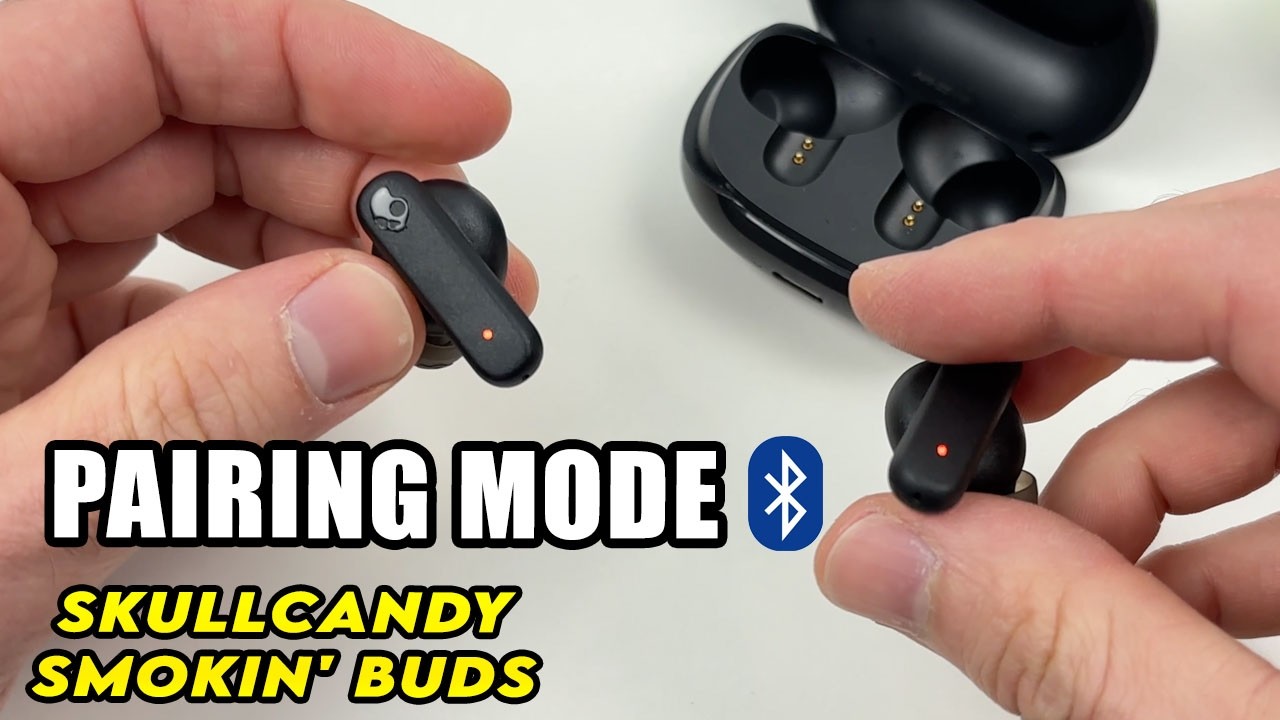
- Watch for a flashing LED light, often red and blue or blue and white.
- Open the Bluetooth settings on your device.
- Select the name of your Skullcandy earbuds.
- Wait for the “connected” message or pairing sound.
The exact light pattern can differ by model. A flashing light usually means the earbuds are ready to pair, while a solid light often means they are connected or charging.

How to put different Skullcandy earbuds in pairing mode
Skullcandy uses buttons, touch controls, and slightly different pairing steps across its product range. The general process is similar, but the timing can vary.
Skullcandy Dime and Dime 2
To pair Skullcandy Dime earbuds:
- Place both earbuds in the charging case.
- Remove them from the case.
- Turn on Bluetooth on your phone.
- If they do not start pairing, press and hold the button on either earbud for about four seconds.
- Choose “Dime” or “Dime 2” from the Bluetooth list.
The earbuds may enter pairing mode automatically if they have never connected to a device. If they connect to an old phone instead, turn Bluetooth off on that phone before trying again.
Skullcandy Jib True
For Jib True earbuds:
- Remove both earbuds from the case.
- Press and hold the button on one earbud for about four seconds.
- Look for the pairing LED pattern.
- Select “Jib True” in your device’s Bluetooth menu.
If only one earbud works, place both earbuds back in the case. Close the lid, wait a few seconds, then remove them together. This can help the left and right earbuds reconnect to each other.
Skullcandy Sesh and Sesh Evo
To put Sesh earbuds in pairing mode:
- Take both earbuds out of the case.
- Press and hold the button on either earbud for around four seconds.
- Wait for the LED to flash.
- Find “Sesh” or “Sesh Evo” in the Bluetooth settings.
- Tap the name to connect.


Some Sesh models use a physical button, so press firmly rather than tapping the outer shell. Avoid holding the button too long at first because a longer press may turn the earbud off or start a reset process.
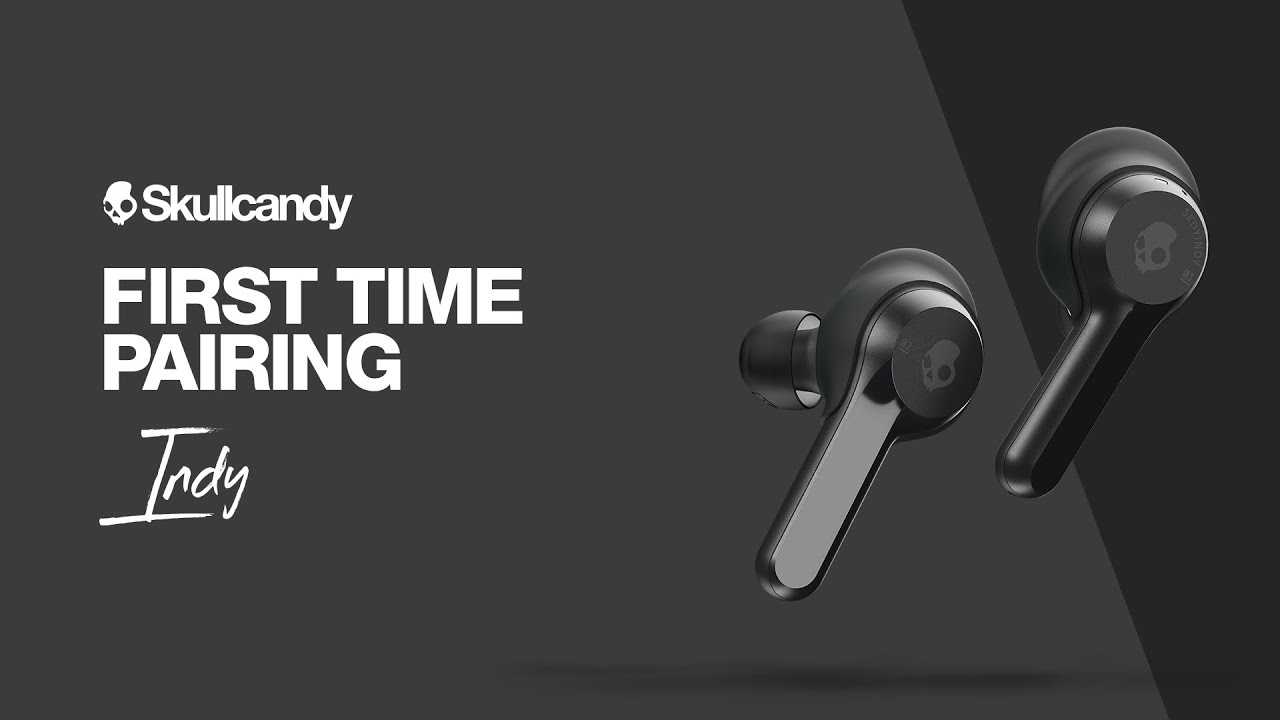
Skullcandy Indy and Indy Evo
For Indy earbuds:
- Remove both earbuds from the charging case.
- Turn on Bluetooth on your phone.
- Press and hold the touch area or button for about four seconds if pairing does not start.
- Select “Indy” or “Indy Evo” from the available devices.
Keep your fingers on the flat touch area. Touch controls can be sensitive, and repeated tapping may pause music or change tracks instead of entering pairing mode.
Skullcandy Grind and Push Active
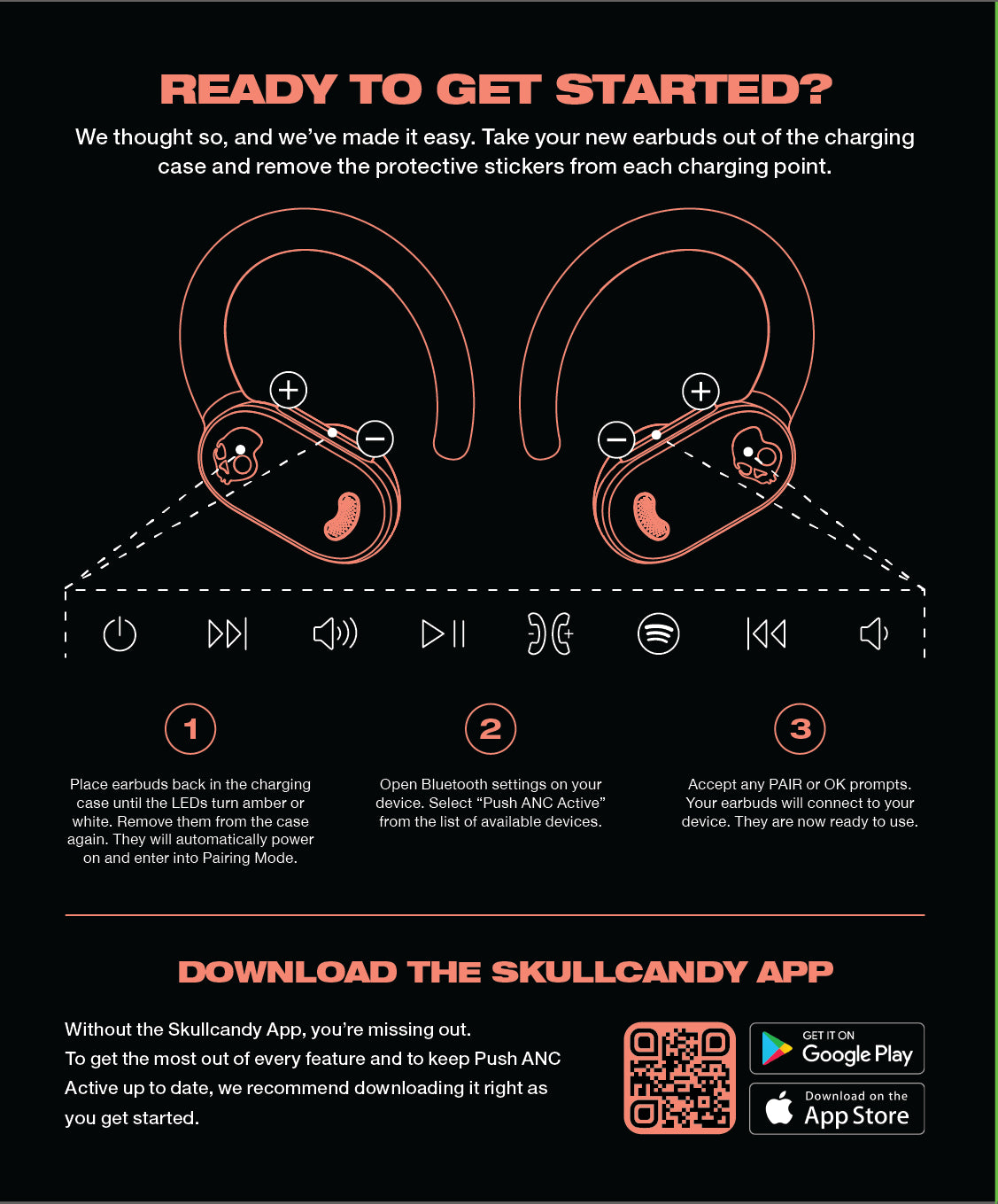
Newer models, such as Grind and Push Active, may use touch controls and voice prompts. The usual process is:
- Remove both earbuds from the case.
- Press and hold the main touch control for several seconds.
- Listen for a pairing prompt or watch for a flashing LED.
- Select the model name in your phone’s Bluetooth menu.
Because button actions can vary by firmware and model, check the user guide for the exact hold time if the standard four-second method does not work.
How to pair Skullcandy earbuds with an iPhone or Android phone
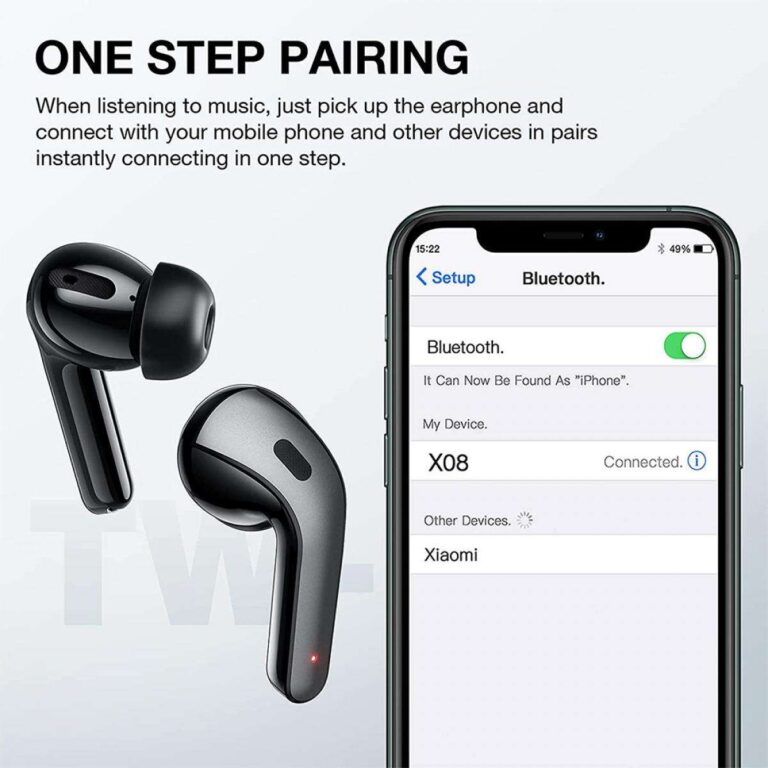
Once the earbuds are in pairing mode, connecting them to a phone takes less than a minute.
On an iPhone
- Open Settings.
- Tap Bluetooth.
- Turn Bluetooth on.
- Wait for your Skullcandy model to appear under Other Devices.
- Tap the model name.
The earbuds should move to My Devices after a successful connection. If the phone asks for a code, try “0000,” although most modern Skullcandy earbuds do not require one.
On an Android phone
- Open Settings.
- Tap Connected devices, Connections, or Bluetooth.
- Turn Bluetooth on.
- Tap Pair new device if needed.
- Choose your Skullcandy earbuds from the list.
Android menus vary by brand. Samsung, Google Pixel, Motorola, and OnePlus phones may use slightly different names, but the Bluetooth pairing process is nearly the same.
Pairing with a laptop or computer
On Windows:
- Open Settings.
- Select Bluetooth & devices.
- Turn Bluetooth on.
- Select Add device.
- Choose Bluetooth.
- Click your Skullcandy earbuds.
On a Mac:
- Open the Apple menu.
- Select System Settings.
- Click Bluetooth.
- Find your Skullcandy earbuds.
- Click Connect.


Keep the earbuds close to the computer during setup. A distance of a few feet reduces interference and makes the first connection more reliable.
What to do if Skullcandy earbuds do not enter pairing mode
When earbuds refuse to pair, the cause is often simple. They may still be connected to another device, have low battery power, or need a reset.
Try these fixes in order:
- Turn Bluetooth off on nearby phones, tablets, and computers.
- Put both earbuds in the case.
- Charge the case and earbuds for at least 15 minutes.
- Remove both earbuds at the same time.
- Hold the button or touch control for four to six seconds.
- Open the Bluetooth menu and search again.
- Restart your phone or computer.
- Move away from busy Wi-Fi routers and other Bluetooth devices.
A common mistake is searching for the earbuds while they are still connected to a previous device. Bluetooth earbuds often reconnect to the last device they used, which prevents them from appearing on a new phone.
Forget the old Bluetooth connection
If your Skullcandy earbuds appear in the Bluetooth list but will not connect, remove the saved connection.
On most phones:
- Open Bluetooth settings.
- Tap the gear or information icon beside the earbuds.
- Choose Forget, Unpair, or Remove device.
- Turn Bluetooth off and back on.
- Put the earbuds in pairing mode again.
- Select them from the list.
This creates a fresh connection instead of forcing the phone to use damaged or outdated pairing data.
Reset the earbuds
A reset can solve repeated connection failures, one-earbud problems, and incorrect Bluetooth names. The reset method is not identical for every Skullcandy model, so use the guide for your exact product.
In general, reset steps may include:
- Forgetting the earbuds from every nearby device.
- Turning Bluetooth off.
- Removing both earbuds from the case.
- Pressing a button or touch control several times, or holding it for a longer period.
- Returning the earbuds to the case.
- Removing them again and repeating the pairing process.
Do not guess the reset sequence if the model has unusual touch controls. A wrong sequence may only turn the earbuds off or change another setting.
Pairing mode versus reset mode
Pairing mode and reset mode are not the same thing. Pairing mode simply makes the earbuds visible to a Bluetooth device. Reset mode clears stored connections or restores the earbuds to their original setup.
Use pairing mode when:
• You want to connect the earbuds to a new phone.
• The earbuds work normally but do not appear in Bluetooth settings.
• You are switching from a tablet to a laptop.


Use a reset when:
• Only one earbud produces sound.
• The earbuds keep connecting to the wrong device.
• The Bluetooth connection drops again and again.
• The earbuds appear connected but produce no audio.
Resetting should be the last basic step, not the first. It removes useful connection data and means you may need to pair the earbuds again with every device.
Practical tips for faster Skullcandy pairing
Small habits can make pairing much easier. These tips work well across most Skullcandy wireless earbud models:
• Keep the earbuds within three feet of the phone during setup.
• Charge the case before troubleshooting.
• Pair one device at a time during the first setup.
• Turn off Bluetooth on devices that previously used the earbuds.
• Keep both earbuds together when removing them from the case.
• Avoid pressing touch controls while inserting the earbuds.
• Use the official model name shown in the Bluetooth list.
• Install available phone updates if Bluetooth connections fail with many devices.
• Keep the charging contacts clean and dry.


In my hands-on troubleshooting work, the most common mistake is searching for a new Bluetooth device before disconnecting the old one. The earbuds are usually working; they are simply busy talking to the last phone. Turning Bluetooth off on that phone often solves the issue in seconds.
Another useful lesson is to trust the LED and voice prompt more than the phone screen. If the light does not show a pairing pattern, the earbuds probably are not ready to connect yet.

Why Skullcandy earbuds may not appear in Bluetooth settings
Several issues can prevent earbuds from appearing:
The earbuds are still connected elsewhere
Bluetooth earbuds often reconnect automatically to the last device. Disable Bluetooth on that device or remove the saved connection.
The battery is too low
Very low battery power can prevent pairing mode from starting. Charge both the case and earbuds before trying again.
The earbuds are not synchronized
If the left and right earbuds lose their internal connection, the phone may show an unexpected name or only detect one earbud. A model-specific reset can restore synchronization.
The phone has old pairing data
A saved connection can become corrupted after system updates or repeated failed attempts. Forgetting the device and pairing again usually helps.
There is wireless interference
Wi-Fi routers, crowded public spaces, laptops, and other Bluetooth accessories can create congestion. Move to a quiet area and try again.
Skullcandy earbuds use Bluetooth, and Bluetooth performance can vary with distance, obstacles, battery level, and the connected device. No pairing guide can guarantee the same result on every phone, so testing with a second device is a useful way to identify the source of the problem.

Frequently Asked Questions
How do I put Skullcandy earbuds in pairing mode?
Remove both earbuds from the charging case and hold the button or touch control for about four seconds. When the LED flashes or a voice prompt announces pairing, select the earbuds in your device’s Bluetooth menu.
Why are my Skullcandy earbuds not showing up on Bluetooth?
They may still be connected to another phone, may have a low battery, or may not actually be in pairing mode. Turn off Bluetooth on nearby devices, charge the earbuds, and try the pairing process again.
How do I reset Skullcandy earbuds?
The reset method depends on the model. First forget the earbuds from your phone, then follow the reset steps in the guide for your specific Skullcandy product.
Can I connect Skullcandy earbuds to an iPhone?
Yes. Open Settings, select Bluetooth, turn it on, and tap the Skullcandy model when it appears. The earbuds must be in pairing mode first.
Can I pair Skullcandy earbuds with a laptop?
Yes. Open the laptop’s Bluetooth settings, choose Add device or Pair new device, and select your Skullcandy earbuds. Keep the earbuds close to the laptop during setup.
Why does only one Skullcandy earbud work?
The earbuds may have lost their connection with each other, or one earbud may not be charging. Clean the charging contacts, charge both earbuds, and use the correct reset process for your model.


How long should I hold the Skullcandy earbud button?
Start with about four seconds for pairing mode. Holding the control much longer may turn the earbud off or activate a reset function, so check the instructions for your exact model if four seconds does not work.
Conclusion
Putting Skullcandy earbuds in pairing mode usually takes only a few steps: charge them, remove both earbuds, hold the button or touch control for about four seconds, and select the model in Bluetooth settings. If they do not appear, disconnect nearby devices, forget the old connection, and try again before performing a reset.
Start with the simple method, then use the model-specific guide when needed. Save this guide for your next Bluetooth setup, and share your Skullcandy model or pairing experience in the comments.