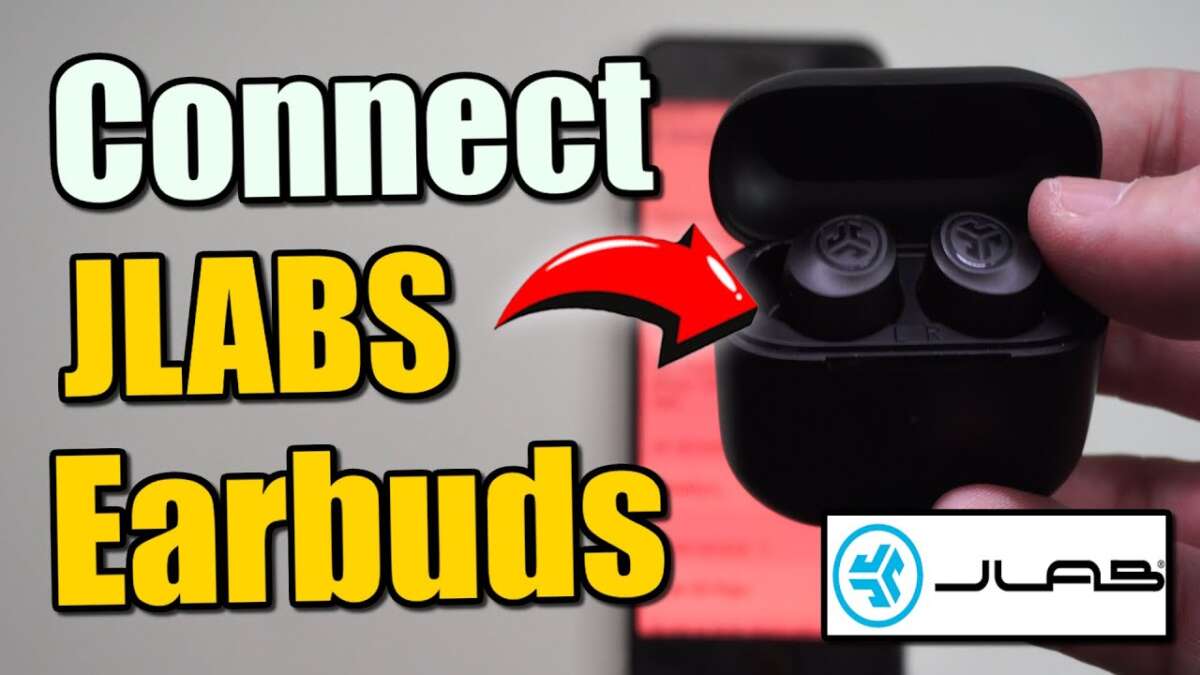
How To Connect Jlab Earbuds To Iphone: Easy Pairing Guide
To connect JLab earbuds to iPhone, turn on Bluetooth, place the earbuds in pairing mode, and select them.
Learning how to connect JLab earbuds to iPhone takes only a few minutes. The steps work for most JLab Bluetooth models, including GO Air, JBuds, Epic Air, and many newer models. This guide explains the setup, fixes common connection problems, and shares simple tips for a stable listening experience.
What to Do Before Pairing JLab Earbuds
A smooth setup starts with a few quick checks. These steps prevent most pairing problems before they happen.
• Charge both JLab earbuds and the charging case. Low power can stop the earbuds from entering pairing mode.


• Keep the earbuds within a few feet of your iPhone during setup. Bluetooth works best at close range.
• Turn off Bluetooth on nearby phones, tablets, or laptops. Your JLab earbuds may try to connect to a device they remember.
• Update your iPhone if an update is available. Newer iOS versions often improve Bluetooth support and stability.
• Remove any plastic film from the charging contacts if the earbuds are new. This film can stop the earbuds from charging or turning on.
Most JLab earbuds use standard Bluetooth audio. You do not need the JLab app to complete the first connection, although the app can provide firmware updates, sound controls, and device settings on supported models.

How to Connect JLab Earbuds to iPhone
The basic pairing process is simple. Follow these steps in order.
-
Open the charging case and remove both JLab earbuds.
-
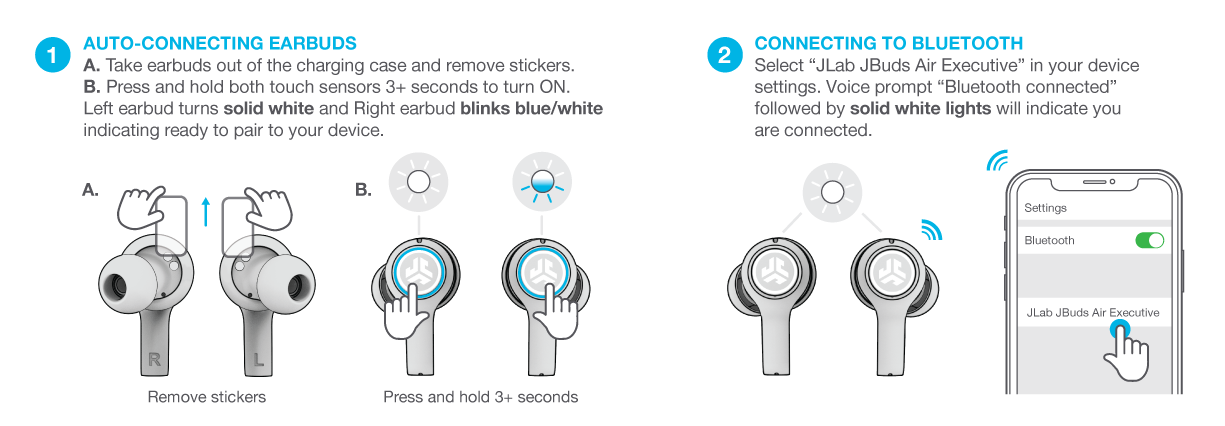
Place the earbuds in pairing mode. On many JLab models, the earbuds enter pairing mode automatically the first time you remove them from the case. Look for a flashing blue and white light or a voice prompt such as “Bluetooth pairing.”
-
Open Settings on your iPhone.
-
Tap Bluetooth.
-
Turn on the Bluetooth switch if it is off.
-
Wait for the JLab earbuds to appear under Other Devices.
-
Tap the name of your earbuds. The name may look like “JLab JBuds,” “JLab GO Air,” or a model-specific name.
-
Wait until the device moves to My Devices and shows Connected.
-
Play music or a video to test the sound.
If the earbuds do not appear, put them back in the case, close the lid, and try again. Then remove them and wait for the pairing light. This reset-like pause often helps the iPhone find the earbuds.
When learning how to connect JLab earbuds to iPhone, remember that both earbuds should usually be outside the case. Some models pair with the iPhone through the left or right earbud first, while others connect as a single stereo set.

How to Put Different JLab Earbuds in Pairing Mode
JLab has released many earbud designs. Their controls are not identical, but the pairing process follows the same idea: the earbuds must broadcast a Bluetooth signal that your iPhone can detect.
JLab GO Air and GO Air Pop
For many GO Air models, open the case and remove the earbuds. If they do not enter pairing mode, touch and hold the touch controls on both earbuds for several seconds.


Look for a flashing blue and white light on one earbud. Then open the iPhone Bluetooth menu and select the JLab device.
JLab JBuds models
Remove both JBuds earbuds from the case. Many JBuds models turn on and connect to each other automatically.
If pairing mode does not start, touch and hold the control on one or both earbuds. The exact hold time can vary by model, so check the quick-start guide if the light pattern is different.
JLab Epic Air and sport earbuds
Open the case or power on the earbuds. Sport models may use physical buttons instead of touch controls.
Press and hold the main button until the indicator flashes. Then choose the earbuds from the iPhone Bluetooth menu.
JLab models with a single earbud
Some JLab products can work with one earbud at a time. In this case, remove the earbud you want to use and place it in pairing mode.
If your iPhone shows two separate JLab entries, do not connect both at once unless the manual specifically says to do so. Two entries can mean the earbuds have lost their left-right connection.
The safest rule is to check the light and voice prompt rather than rely only on the model name. JLab changes controls across product generations, so the included guide remains the best source for model-specific button commands.
How to Connect JLab Earbuds to iPhone After the First Setup
After the first successful pairing, reconnecting should be automatic.
-
Turn on Bluetooth on your iPhone.
-
Open the JLab charging case.
-
Remove the earbuds.
-
Wait a few seconds for the earbuds to connect.
-
Check Settings > Bluetooth to confirm that the JLab device says Connected.
If the earbuds connect to another device first, switch off Bluetooth on that device or disconnect the JLab earbuds from it. Bluetooth earbuds often reconnect to the last device they used.
You can also connect from the iPhone Control Center. Swipe down from the upper-right corner on Face ID models, or swipe up from the bottom on older iPhones. Press and hold the audio control, tap the AirPlay icon, and choose your JLab earbuds.
Knowing how to connect JLab earbuds to iPhone after the first setup saves time. You normally do not need to pair them again unless you remove the Bluetooth record, reset the earbuds, or connect them to a different device.

How to Fix JLab Earbuds That Will Not Connect
Connection problems usually come from pairing mode, low battery, or an old Bluetooth record. Try these fixes from top to bottom.
Check the battery
Place both earbuds in the charging case. Confirm that the case has power and that the charging lights turn on.


Clean the small metal charging contacts with a dry cotton swab. Sweat, dust, or pocket lint can stop an earbud from charging and powering on.
Forget the old Bluetooth connection
If your iPhone sees the earbuds but cannot connect, remove the saved record.
-
Open Settings.
-
Tap Bluetooth.
-
Tap the information button next to the JLab earbuds.
-
Tap Forget This Device.
-
Confirm the action.
-
Put the earbuds into pairing mode again.
-
Select them under Other Devices.
This is one of the most effective solutions when learning how to connect JLab earbuds to iPhone. A saved Bluetooth record can become outdated after a reset, firmware update, or connection to another phone.
Restart Bluetooth
Open Settings and turn Bluetooth off. Wait about 10 seconds, then turn it on again.
You can also restart the iPhone. A restart clears temporary software errors without deleting your personal data.
Move away from wireless interference
Bluetooth shares the 2.4 GHz wireless range with many home devices. Wi-Fi routers, smart watches, game controllers, and other Bluetooth products may add congestion.
Pair the earbuds away from crowded electronics. Once connected, normal use should work across a room, although walls and metal objects can reduce the range.
Reset the JLab earbuds
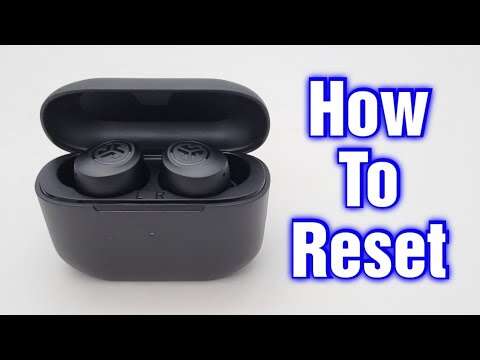
A factory reset can fix repeated pairing failures, but the reset steps differ by model. Many JLab earbuds use a touch-control sequence, while others require button presses inside or outside the case.
Use the instructions for your exact model. After the reset, forget the old JLab entry on the iPhone and pair the earbuds as a new device.

How to Improve Sound After Connecting JLab Earbuds
A successful Bluetooth connection does not always mean the sound is optimized. These settings can improve daily use.
Choose the correct audio output
Start playing audio, then open the iPhone Control Center. Tap the AirPlay icon in the audio panel and confirm that your JLab earbuds are selected.
If the iPhone sends sound to its speaker, the earbuds may be connected for calls but not selected for media playback.
Adjust the volume on both devices
Raise the iPhone volume first. Then use the earbud touch controls or buttons if your model supports separate earbud volume.
Keep the volume at a safe level. Long exposure to loud sound can harm hearing, and the World Health Organization advises limiting loud audio exposure.


Use the JLab app when supported
The JLab app may offer equalizer presets, custom controls, firmware updates, and battery information. App features vary by model.
Update firmware only with a stable connection and enough battery power. Do not remove the earbuds from the case during an update unless the app instructs you to do so.
Keep the earbuds clean
Earwax and dust can cover the speaker mesh. This may make one earbud seem quieter even when the Bluetooth connection is fine.
Use a dry, soft brush or cloth. Avoid pushing liquid into the mesh, microphone holes, or charging contacts.
How to Use JLab Earbuds for Calls on iPhone
JLab earbuds can handle phone calls, FaceTime calls, and many video meeting apps. After connecting, the iPhone normally uses the earbud microphones automatically.
To check the call route during a call, tap the audio button on the iPhone screen and select the JLab earbuds. If the other person cannot hear you, move the microphone area away from clothing and clean the earbuds carefully.
Some models use one earbud microphone more strongly than the other. If call quality is poor, try using both earbuds or switch to the other earbud if the model supports single-earbud use.
Bluetooth call quality can change with background noise, wind, and distance from the iPhone. For important calls, keep the phone nearby and avoid placing it inside a bag or behind a thick wall.

How to Disconnect or Unpair JLab Earbuds
You can disconnect JLab earbuds without deleting the saved pairing.
-
Open Settings on your iPhone.
-
Tap Bluetooth.
-
Tap the information button beside the JLab earbuds.
-
Tap Disconnect if the option appears, or turn off Bluetooth temporarily.
To remove the pairing completely, tap Forget This Device. Use this option when giving the earbuds to another person, troubleshooting a stubborn connection, or preparing to pair them with a new phone.
You can also place the earbuds in the case and close the lid. Most JLab models disconnect after they power down or begin charging.

Common Mistakes to Avoid
Small mistakes can make the pairing process seem harder than it is. These are the issues I see most often when helping people set up wireless earbuds.
• Searching for the earbuds while they are still inside a closed charging case. The earbuds may be off and invisible to the iPhone.
• Selecting a random JLab entry when several devices appear. Choose the name that matches your model.


• Trying to pair while the earbuds are connected to a laptop or another phone. Disconnect them from the old device first.
• Resetting the earbuds before trying basic steps. A reset can help, but it also removes the earbuds’ stored connection settings.
• Assuming the JLab app is required. Standard Bluetooth pairing usually works through iPhone Settings.
• Ignoring charging contacts. One earbud may appear dead because it never charged fully in the case.
A practical lesson is to change only one thing at a time. Check the battery, confirm pairing mode, and then inspect the iPhone Bluetooth menu. This approach makes it easier to find the real cause.

How to Connect JLab Earbuds to a New iPhone
If you bought a new iPhone, the earbuds may still try to connect to the old phone. Turn off Bluetooth on the old iPhone or move it out of range.
Then open the JLab case, place the earbuds in pairing mode, and select them from Settings > Bluetooth on the new iPhone. If they do not appear, forget the earbuds on the old phone and reset the JLab pair according to the model guide.
Apple devices can remember Bluetooth accessories through account and device settings, but this does not guarantee that every JLab model will transfer its connection automatically. Manual pairing is often the fastest option.
Frequently Asked Questions About How to Connect JLab Earbuds to iPhone
Why are my JLab earbuds not showing on my iPhone?
Make sure the earbuds are charged and in pairing mode. If they still do not appear, turn Bluetooth off and on, move away from other devices, and reset the earbuds if needed.
Do I need the JLab app to connect my earbuds to an iPhone?
No. You can connect most JLab earbuds through Settings > Bluetooth on your iPhone. The app is optional and may add controls, equalizer settings, battery details, or firmware updates.
How do I connect JLab earbuds to iPhone after forgetting the device?
Place the earbuds in pairing mode, open Settings > Bluetooth, and select the JLab name under Other Devices. The iPhone will create a new Bluetooth pairing.
Can I connect JLab earbuds to an iPhone and another device?
Many JLab models can remember more than one device, but they may not support active multipoint connections. If the earbuds connect to the wrong device, disconnect them there before selecting them on the iPhone.
Why is only one JLab earbud working?
The earbuds may have lost their left-right connection, or one earbud may not have charged. Put both earbuds in the case, charge them, forget the Bluetooth entry, and follow the reset steps for your model.
How far can JLab earbuds be from an iPhone?
Bluetooth range depends on the model, walls, interference, and the position of the phone. For the most reliable connection, keep the iPhone nearby and avoid blocking it with a bag or thick wall.
How do I make JLab earbuds louder on an iPhone?
Raise the iPhone volume and check the earbud volume controls. Also clean the speaker mesh and confirm that the audio output is set to the JLab earbuds.


Conclusion
Learning how to connect JLab earbuds to iPhone is usually a quick process: charge the earbuds, activate pairing mode, open the iPhone Bluetooth menu, and select the JLab device. If the connection fails, forgetting the old Bluetooth record, restarting both devices, and resetting the earbuds usually solves the problem.
Keep the earbuds charged, clean the contacts, and use the correct model guide for reset instructions. Try the steps now, and share this guide with anyone who needs help pairing JLab earbuds with an iPhone.