How To Format External SSD: Easy Step-By-Step Guide
Formatting an external SSD prepares it for use with a Windows PC, Mac, or game console in the United States. The process is simple, but it erases the drive, so back up any files you want to keep before you begin.
For most people, choose exFAT when the SSD must work with both Windows 11 and macOS. Choose NTFS for a Windows-only drive, or APFS for a Mac-only drive. Then use Windows Disk Management, File Explorer, or macOS Disk Utility to erase and format the SSD.
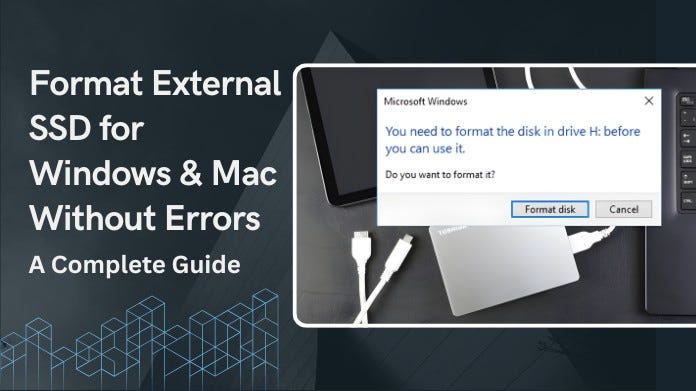
Before You Format an External SSD
Formatting deletes the file system on the SSD. A quick format usually removes the file index rather than overwriting every storage cell, but the files may still be difficult to recover with ordinary tools. Treat formatting as a destructive action.
Before you start:
- Copy important files to another drive or cloud backup.
- Close files and apps that use the SSD.
- Check that you selected the correct drive.
- Connect the SSD directly to the computer when possible.
- Keep the computer plugged into power.
- Use a reliable USB cable.
- Do not unplug the SSD while formatting.
- Check whether the SSD has a hardware write-protection switch.


What you need
You need:
- The external SSD.
- A compatible USB, USB-C, or Thunderbolt cable.
- A Windows PC or Mac.
- Enough time to copy your backup.
- Administrator access on Windows, or an administrator password on macOS.
A USB adapter or hub can cause problems if it does not provide enough power or has a poor connection. If the drive disconnects during the process, connect it directly to the computer and try again.
How to identify the correct drive
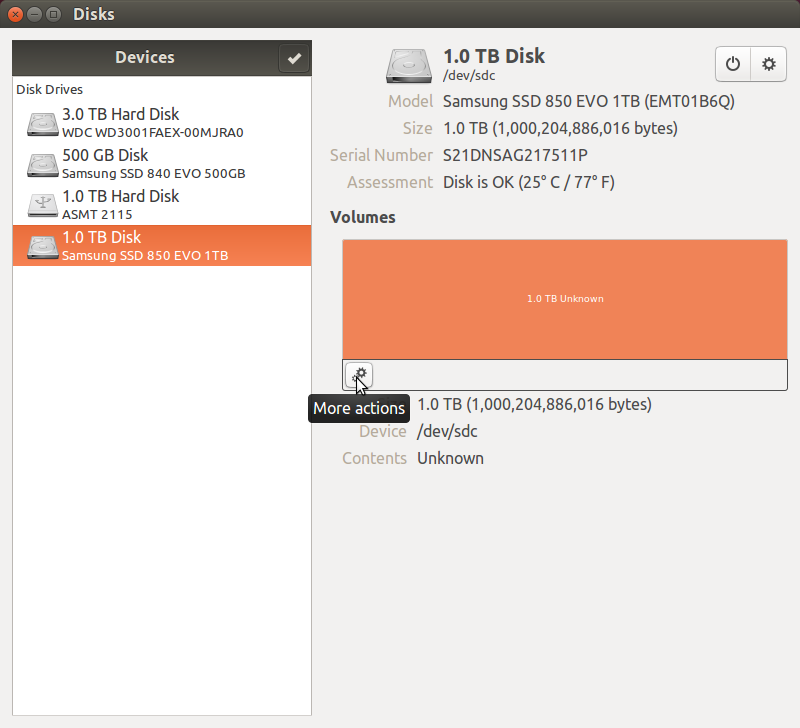
Use the SSD’s brand, model, and capacity to identify it. Do not rely only on the drive letter in Windows or the volume name on a Mac. A mistake here can erase your computer’s internal drive.
If the SSD contains files, open it first and check a few file names. You can also unplug it, check which drive disappears, and reconnect it before formatting.

Which Format Should You Use?
The best format depends on the devices that will use the SSD. There is no single file system that is best for every situation.
| Use case | Recommended format | Why |
|---|---|---|
| Windows PC only | NTFS | Full Windows support and useful Windows features |
| Mac only | APFS | Designed for modern macOS storage |
| Windows and Mac | exFAT | Built-in read and write support on both systems |
| Windows backup drive | NTFS | Works well with Windows backup tools |
| Mac backup with Time Machine | APFS | The usual choice for modern macOS |
| Camera, TV, or other device | Follow the device manual | Device support varies |
| PlayStation or Xbox storage | Console instructions | The console may format the drive itself |
NTFS
NTFS is the standard file system for Windows. It supports large files, permissions, and Windows features that exFAT does not.
A Mac can usually read an NTFS drive, but macOS does not normally provide built-in NTFS write support. That means you may be able to open files on the drive but not save new files to it without extra software.
Choose NTFS if the SSD will stay with Windows computers.
exfat
exfat is often the best choice for a drive shared between Windows and Mac. Both operating systems can normally read and write exFAT without extra software.
exFAT does not provide the same journaling and permission features as NTFS or APFS. For a simple file-transfer drive, that trade-off is usually acceptable.
Choose exFAT when you move files between a Windows PC and a Mac.


APFS
APFS is Apple’s modern file system for macOS. It is designed for solid-state drives and works well with current Mac computers.
Windows does not include built-in APFS support. A Windows PC will not normally open an APFS SSD without third-party software.
Choose APFS for a Mac-only SSD, especially when the drive will hold Mac backups or work files.
FAT32
FAT32 works with many older devices, but it has a major limit: a single file cannot normally be larger than 4 GB.
That limit can block large video files, disk images, game files, and backups. Use FAT32 only when a specific older device requires it.
What are GPT and MBR?
GPT and MBR are partition schemes. They describe how the drive stores partition information. They are different from file systems such as NTFS, exFAT, and APFS.
Choose GPT for most modern Windows PCs and Macs. GPT supports large drives and works well with current systems.
Use MBR only when an older computer, game console, or other device specifically requires it.
How to Format an External SSD in Windows 11 or Windows 10
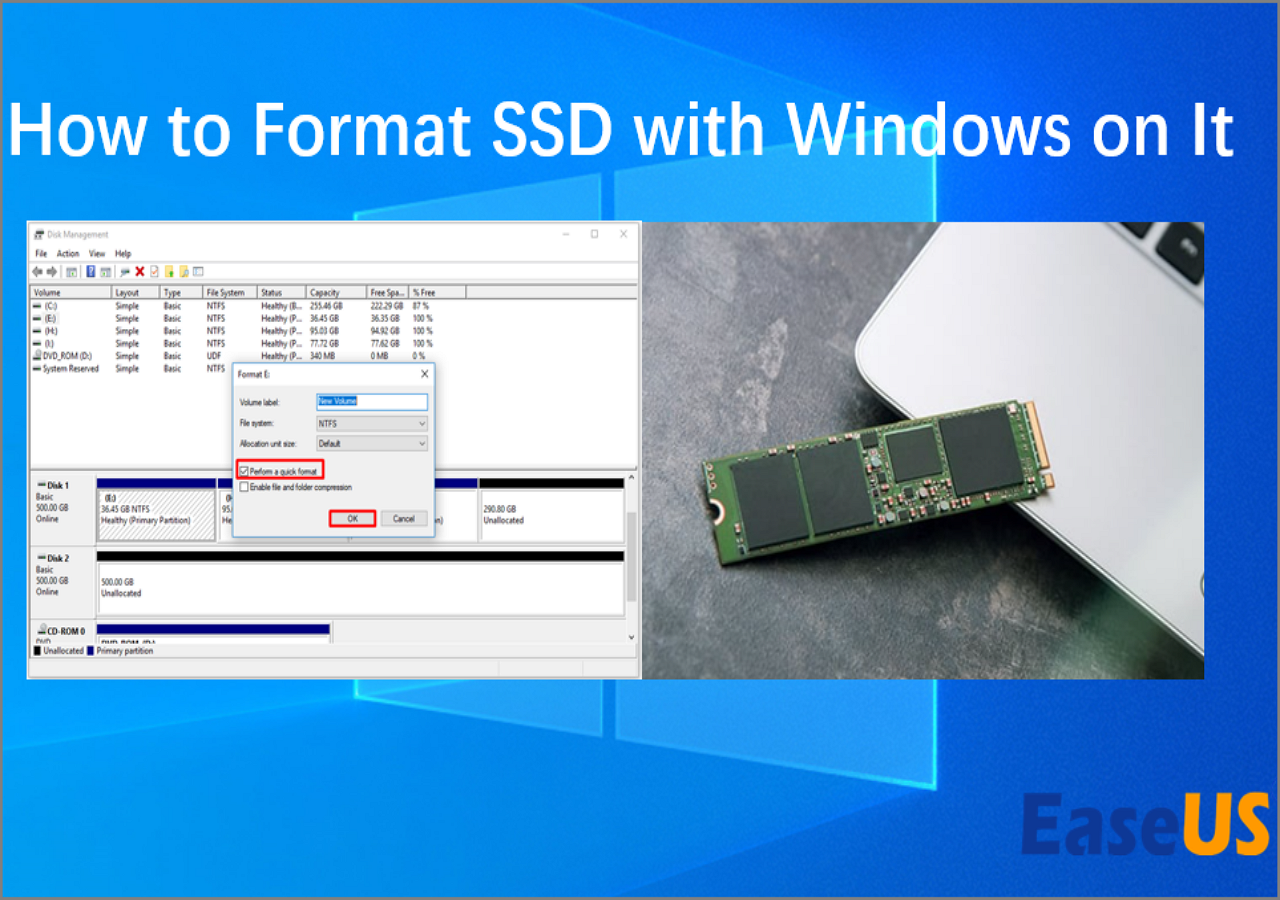
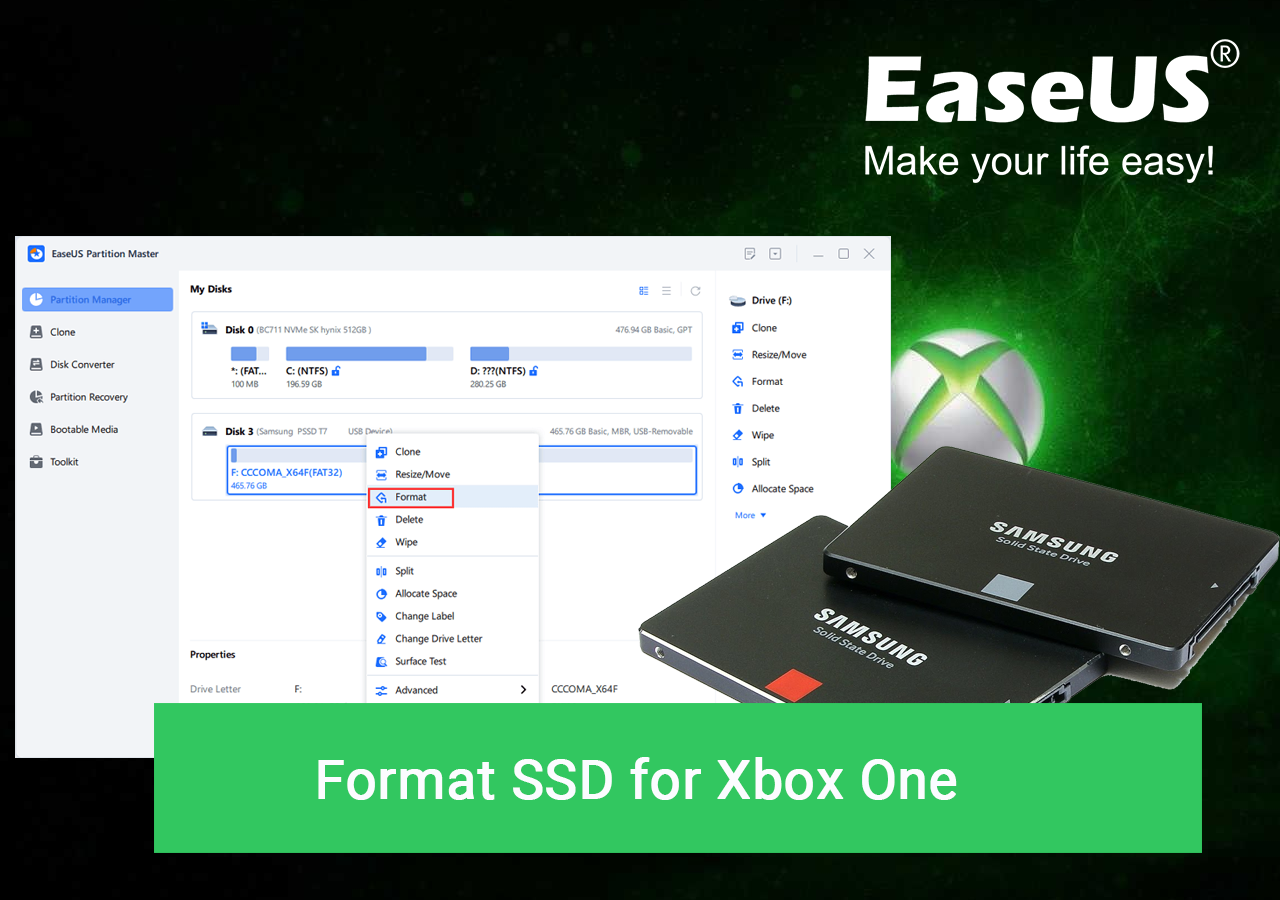
Windows offers two simple ways to format an external SSD: File Explorer and Disk Management. File Explorer is faster for a drive that already has one usable partition. Disk Management is better when the SSD is new, unallocated, offline, or divided into unwanted partitions.
Method 1: Format the SSD in File Explorer
Use this method when Windows already shows the SSD as a normal drive.
- Connect the external SSD to your Windows PC.
- Press Windows + E to open File Explorer.
- Select This PC.
- Find the external SSD under Devices and drives.
- Right-click the SSD.
- Select Format.
- Choose a file system:
- NTFS for Windows only.
- exFAT for Windows and Mac.
- FAT32 only for older device compatibility.
- Enter a name in Volume label, if desired.
- Leave Allocation unit size set to Default allocation size.
- Select Quick Format for normal use.
- Select Start.
- Read the warning and confirm.
Windows will show a completion message when the format ends. Open the SSD and create a small test folder. Copy a test file into it, then open the file to confirm that the drive works.
Method 2: Format the SSD in Disk Management
Use Disk Management when File Explorer cannot format the drive or when you need to remove old partitions.
- Connect the SSD.
- Right-click the Start button.
- Select Disk Management.
- Find the external SSD by checking its capacity and model.
- If the disk says Offline, right-click its disk label and select Online.
- If Windows asks to initialize the disk, choose GPT for most modern computers.
- Right-click the SSD’s existing volume.
- Select Delete Volume only if you want to remove the existing partition and all data.
- Right-click the unallocated space.
- Select New Simple Volume.
- Follow the wizard.
- Assign a drive letter.
- Choose NTFS or exFAT.
- Leave the allocation size at its default.
- Give the volume a name.
- Finish the wizard.
Do not delete a volume until you have confirmed that it belongs to the external SSD. Disk Management can show internal recovery partitions and other important volumes.


Windows signs of success
The process worked if:
- The SSD appears in File Explorer.
- The drive has the correct name and capacity.
- You can create a folder.
- You can copy a file to the SSD.
- You can open the copied file.
- The drive remains connected after you eject and reconnect it.

How to Format an External SSD on a Mac
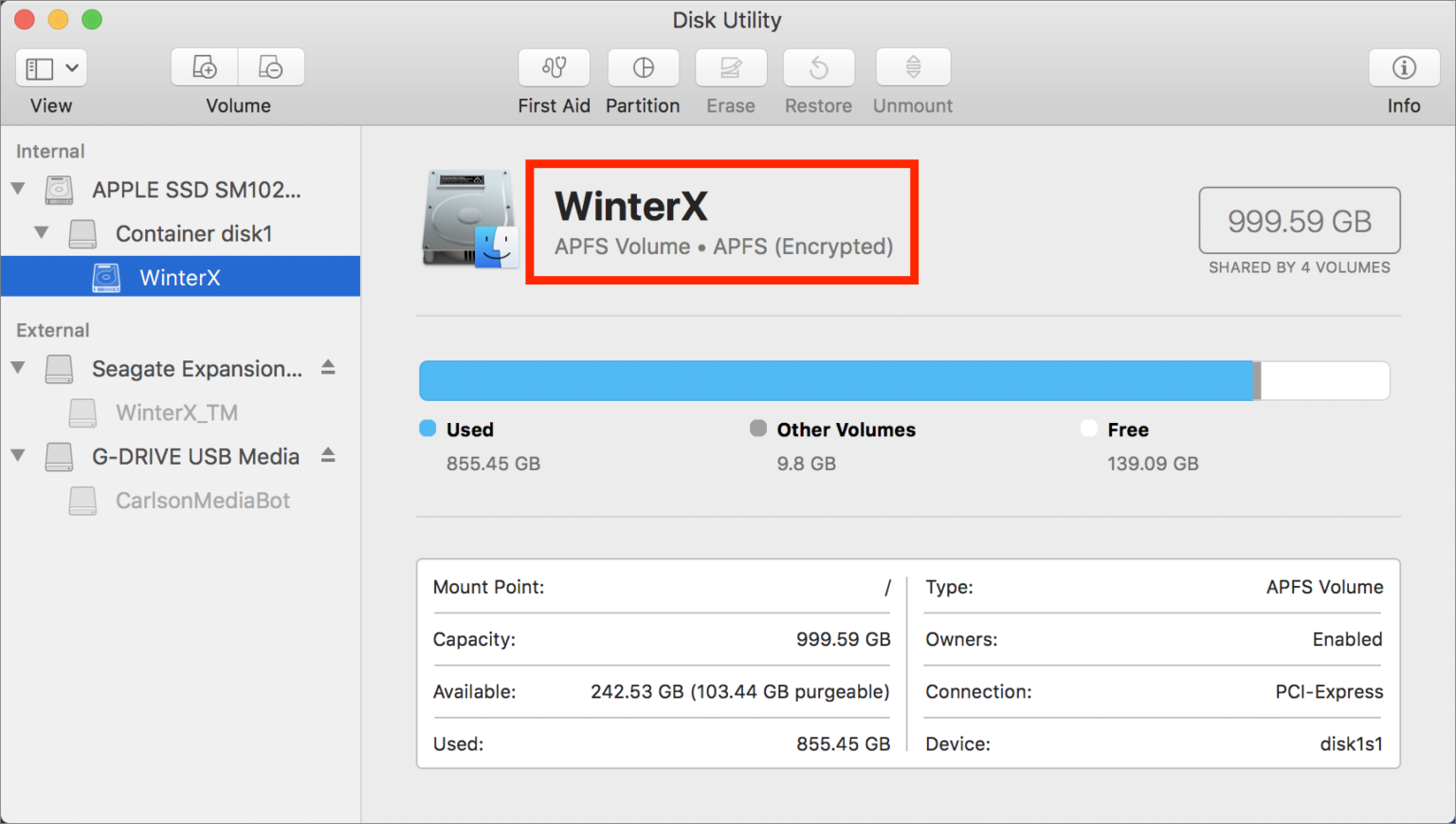
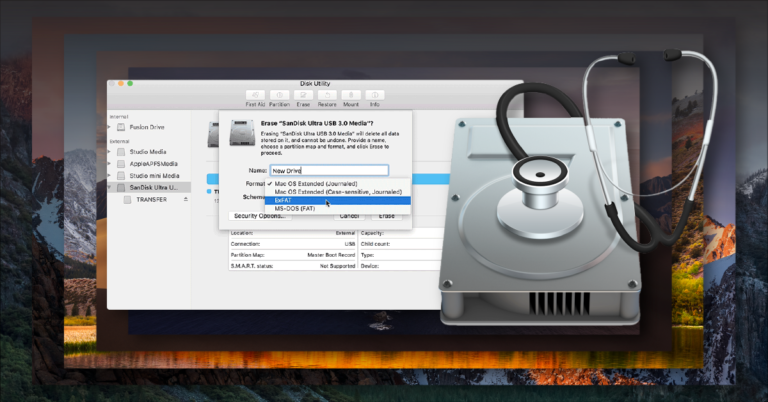
Use Disk Utility to format an external SSD on macOS. Disk Utility can erase the volume, change the file system, and select the partition scheme.
- Connect the SSD to your Mac.
- Open Finder.
- Select Applications.
- Open Utilities.
- Open Disk Utility.
- Select View > Show All Devices.
- Select the physical external SSD in the left sidebar.
- Confirm its name and capacity.
- Select Erase.
- Enter a name for the SSD.
- Choose a format:
- APFS for Mac-only use.
- exFAT for Windows and Mac use.
- Mac OS Extended (Journaled) for some older Mac systems or specific legacy needs.
- Choose GUID Partition Map under Scheme when that option appears.
- Select Erase.
- Select Done when Disk Utility finishes.
Select the physical drive, not only an old volume beneath it, when you need to remove all existing partitions. If you select only a volume, other partitions may remain.
Choosing APFS options
Disk Utility may show more than one APFS choice. For most external SSDs used with current Macs, standard APFS is the sensible choice.
Use APFS (Encrypted) when the drive will hold sensitive information and you are willing to enter a password to unlock it. Store that password safely. If you lose it and have no recovery method, the data may be inaccessible.
Testing the Mac format
After formatting:
- Open Finder.
- Find the SSD in the sidebar.
- Open it.
- Create a test folder.
- Copy a small file to the folder.
- Open the file.
- Drag the SSD to the Trash or select the eject icon before disconnecting it.
If the SSD does not appear, open Disk Utility again and check whether the physical drive is listed. A drive that appears in Disk Utility but not Finder may need a mounted volume or a new partition.

How to Format an SSD for Both Windows and Mac
Use exFAT with a GUID Partition Map when the SSD will move between modern Windows PCs and Macs.
This setup lets both systems read and write common files, including documents, photos, videos, and many disk images. It does not make the drive bootable for both systems, and it may not support special backup features from each operating system.
Recommended cross-platform setup
| Setting | Recommended choice |
|---|---|
| File system | exFAT |
| Partition scheme | GPT or GUID Partition Map |
| Allocation size | Default |
| Volume name | A short, clear name |
| Encryption | Use only if every device can unlock it |
After formatting, test the SSD on both a Windows computer and a Mac. Create a test folder on Windows, copy a file, eject the drive, and open it on the Mac. Then copy a second file from the Mac back to the SSD.
Limits of exFAT
exFAT is convenient, but it is not a full replacement for NTFS or APFS in every situation.
It may not preserve all file permissions, ownership data, symbolic links, or Mac-specific metadata. It is also a poor choice for a dedicated Time Machine backup unless the backup software and macOS version specifically support that setup.


Use exFAT for shared files. Use NTFS or APFS when one operating system controls the drive.
How to Format an External SSD for a Game Console
Format an SSD for a console through the console’s own storage settings whenever possible. PlayStation and Xbox systems may require a specific file system, drive size, USB standard, or setup process.
PlayStation
A PlayStation console may format an external drive for games or media. The exact steps and limits depend on the console model and system software.
If the SSD will be used for console games, let the console format it instead of preparing it on Windows or Mac. Console formatting can erase the drive and may prevent normal use with a computer until you format it again.
Xbox
Xbox consoles also have their own storage requirements and setup prompts. Connect the SSD, follow the on-screen instructions, and select the intended storage use.
Do not assume that an exFAT or NTFS format made on a computer will work for game storage. The console may need to create its own structure.
Other devices
Smart TVs, cameras, car systems, routers, and media players vary widely. Check the device manual before formatting the SSD. Some devices support only FAT32, while others support exFAT or NTFS.
What to Do if Windows or Mac Cannot Format the SSD
A failed format does not always mean the SSD is defective. The cause may be a cable, adapter, partition problem, permission issue, or damaged file system.
Work through these checks in order:
- Disconnect and reconnect the SSD.
- Try another USB port.
- Try another compatible cable.
- Avoid a USB hub.
- Restart the computer.
- Check whether the SSD appears in Disk Management or Disk Utility.
- Confirm that you selected the correct physical drive.
- Remove old partitions only after backing up the data.
- Try a different computer.
- Check the manufacturer’s support page for firmware or diagnostic tools.
The SSD appears but has no drive letter
In Windows Disk Management, right-click the volume and select Change Drive Letter and Paths. Add a drive letter if Windows allows it.
Do not change the letter of a system or recovery volume.
The SSD shows as RAW
A RAW label usually means Windows cannot read the current file system. If you need the files, stop formatting and use a reputable data recovery service or recovery software.
If you do not need the data, you can delete the volume and create a new one in Disk Management. This erases the existing file system.
The SSD is write-protected
Check for:


- A physical lock switch.
- A failing cable or adapter.
- A read-only setting in Windows.
- A damaged drive.
- A policy set by another computer or device.
Do not repeatedly force a failing SSD to format. Copy any accessible data first.
The SSD is not detected
If the drive is absent from both File Explorer and Disk Management, check the cable, port, power, and adapter. On a Mac, check Disk Utility and System Information.
If the drive is not detected by more than one known-good computer, it may have a hardware fault. Formatting tools cannot repair a drive that the computer cannot see.
Does Formatting Securely Erase an External SSD?
No. A normal format is not the same as secure erasure.
Modern SSDs manage data through a controller. The controller may move data between flash cells, so software that repeatedly overwrites the drive may not reach every old cell. It can also add unnecessary wear.
If you are selling, donating, or recycling an SSD, use the drive maker’s secure erase or sanitize tool when available. Full-disk encryption, followed by removal of the encryption key, may also protect data, but the exact result depends on how encryption was set up.
For highly sensitive business, legal, or government data, follow your organization’s media-destruction policy. A qualified IT professional can select a method that matches the required security level.
Common Mistakes to Avoid
Formatting the wrong drive
Capacity, model, and connection type are safer identifiers than a drive letter alone. Pause before confirming any erase action.
Choosing NTFS for a shared Mac and Windows drive
A Mac may read NTFS but cannot normally write to it without extra software. Choose exFAT if both systems need normal read and write access.
Choosing FAT32 for large files
FAT32 has a common 4 GB single-file limit. Large videos and backup files may fail even when the SSD has plenty of free space.
Unplugging the SSD during a format
An interruption can damage the partition structure. Wait for the completion message, then eject the drive through the operating system.
Using a special allocation size without a reason
Most users should keep the default allocation size. Changing it rarely improves normal SSD use and can waste space or reduce compatibility.
Expecting formatting to fix hardware failure
Formatting can rebuild a file system. It cannot repair failing flash memory, a damaged controller, or a bad USB bridge.
Using an encrypted drive without a recovery plan
Encryption protects data only while you can unlock it. Save the password or recovery key in a secure place before storing important files.


Frequently Asked Questions
Will formatting an external SSD make it faster?
Formatting can remove file-system problems and may make a previously disorganized drive easier to use. It does not usually increase the SSD’s hardware speed. Slow performance may come from the USB port, cable, adapter, thermal limits, drive fullness, or drive health.
Should I use quick format or full format?
Use quick format for a normal setup when the SSD is healthy. A full format takes longer and may help Windows check the volume, but it is not a secure erase method for SSD data.
Can I format an external SSD without losing files?
Not safely. Formatting is designed to remove the current file system. Back up the files first. If you already formatted the drive, avoid writing new data and consider data recovery before using it again.
Can I use one external SSD with Windows and Mac?
Yes. Format it as exFAT and use a compatible partition scheme such as GPT or GUID Partition Map. Test the drive on both systems before moving important files.
Is APFS better than exFAT for an external SSD?
APFS is usually better for a Mac-only SSD because it supports macOS features and is designed for modern Apple storage. exFAT is better when the same SSD must also work with Windows.
Key Takeaways
- Back up the SSD before formatting.
- Use NTFS for Windows-only use.
- Use APFS for Mac-only use.
- Use exFAT for Windows and Mac together.
- Choose GPT or GUID Partition Map for most modern computers.
- Keep the allocation unit size at its default setting.
- Use the console’s own setup process for PlayStation or Xbox storage.
- A normal format does not securely erase an SSD.
- If the drive is not detected, check the cable, port, adapter, and another computer before blaming the format.
Conclusion
To format an external SSD, first back up its files and choose the file system based on the devices that will use it. Windows users can use File Explorer or Disk Management. Mac users can use Disk Utility.
For most shared Windows and Mac drives, exFAT is the practical choice. For a Windows-only SSD, use NTFS. For a Mac-only SSD, use APFS. Confirm the drive’s model and capacity before you erase it, then test the newly formatted SSD by copying and opening a file.