What Does SSD Do For Gaming: Gaming Benefits Explained
For gamers in the United States, an SSD can make games feel much faster by cutting load times, helping large game worlds stream data, and making system tasks more responsive. However, an SSD usually does not increase average FPS on its own.
The biggest upgrade is moving from a hard disk drive (HDD) to an SSD. Upgrading from one modern SSD to a faster SSD may bring smaller gains.
Quick answer
An SSD helps gaming by:
- Reducing game and level load times
- Making fast travel and map changes quicker
- Helping open-world games load assets more smoothly
- Reducing texture pop-in in some games
- Speeding up game installs, updates, and file checks
- Making Windows and other apps respond faster


An SSD does not replace a strong graphics card or processor. Your GPU, CPU, RAM, and game settings still control most FPS results.
What is an SSD?
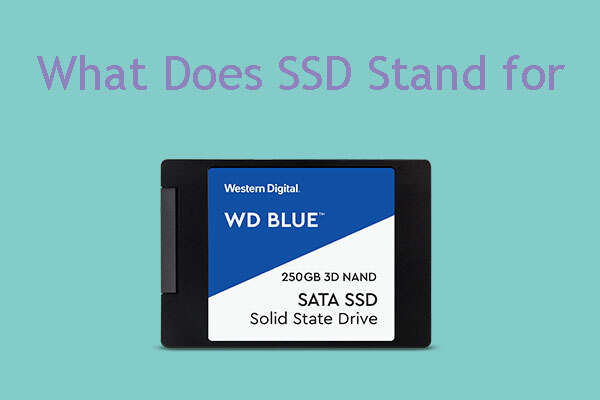
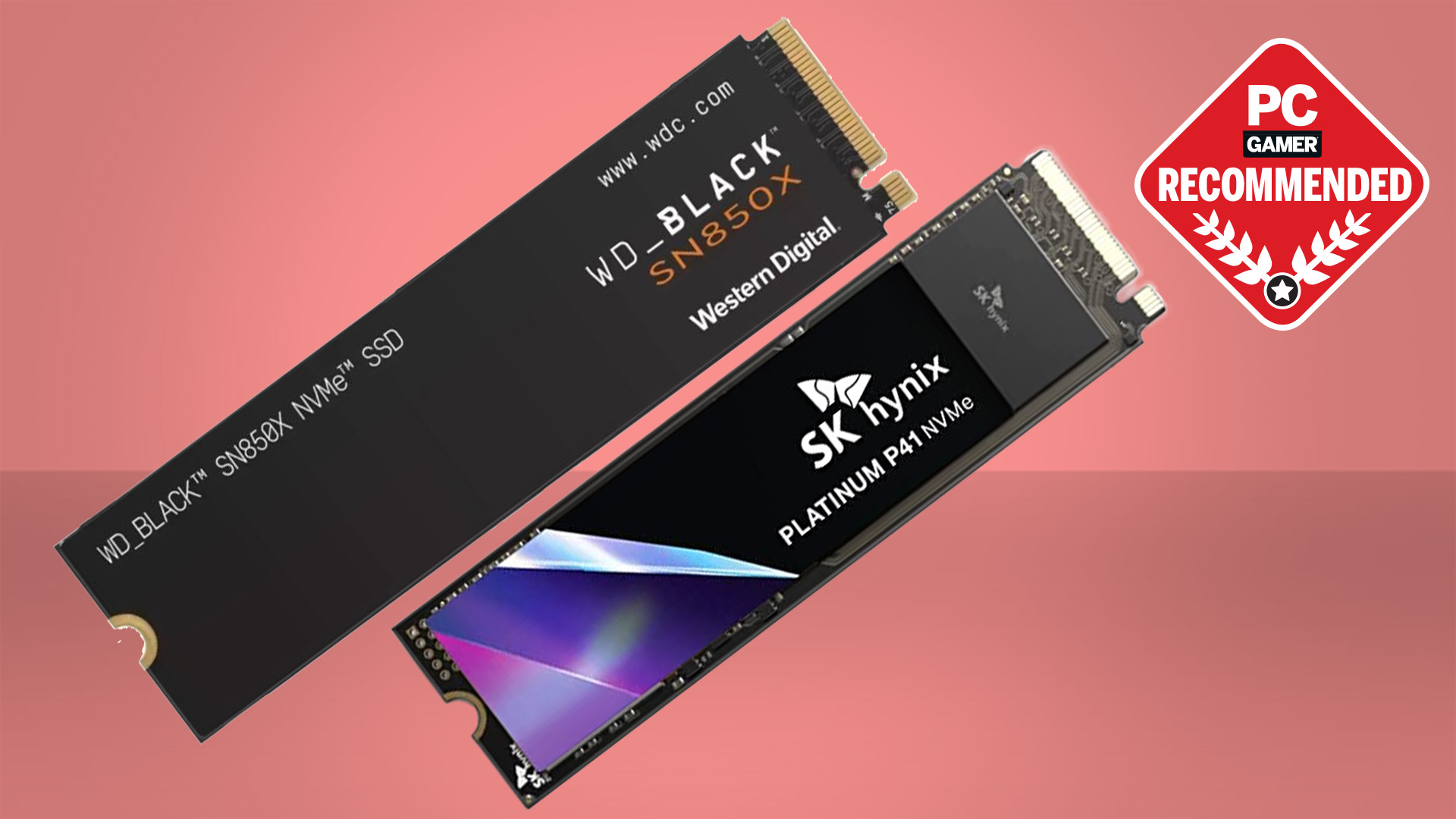
An SSD, or solid-state drive, stores data on flash memory. It has no spinning disks or moving read heads.
A hard disk drive uses moving parts. It must physically move a read head to find game files. This takes time, especially when a game needs many small files from different parts of the drive.
An SSD can access these files much faster. This matters because modern games often load:
- Maps
- Character models
- Textures
- Sound files
- Animation data
- Shader files
- Save data
- World-building assets
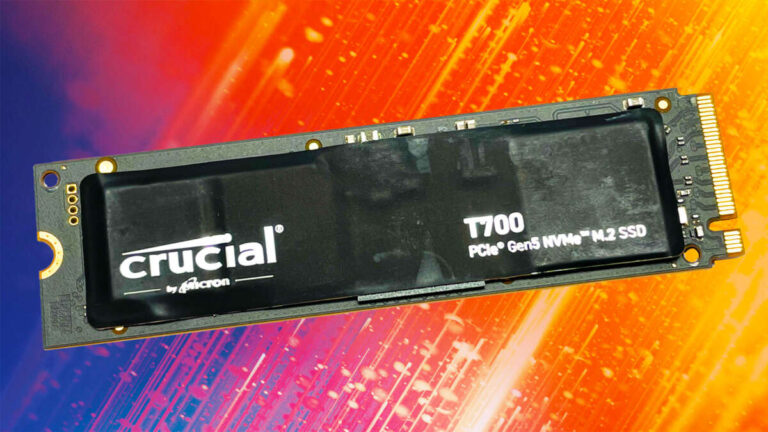
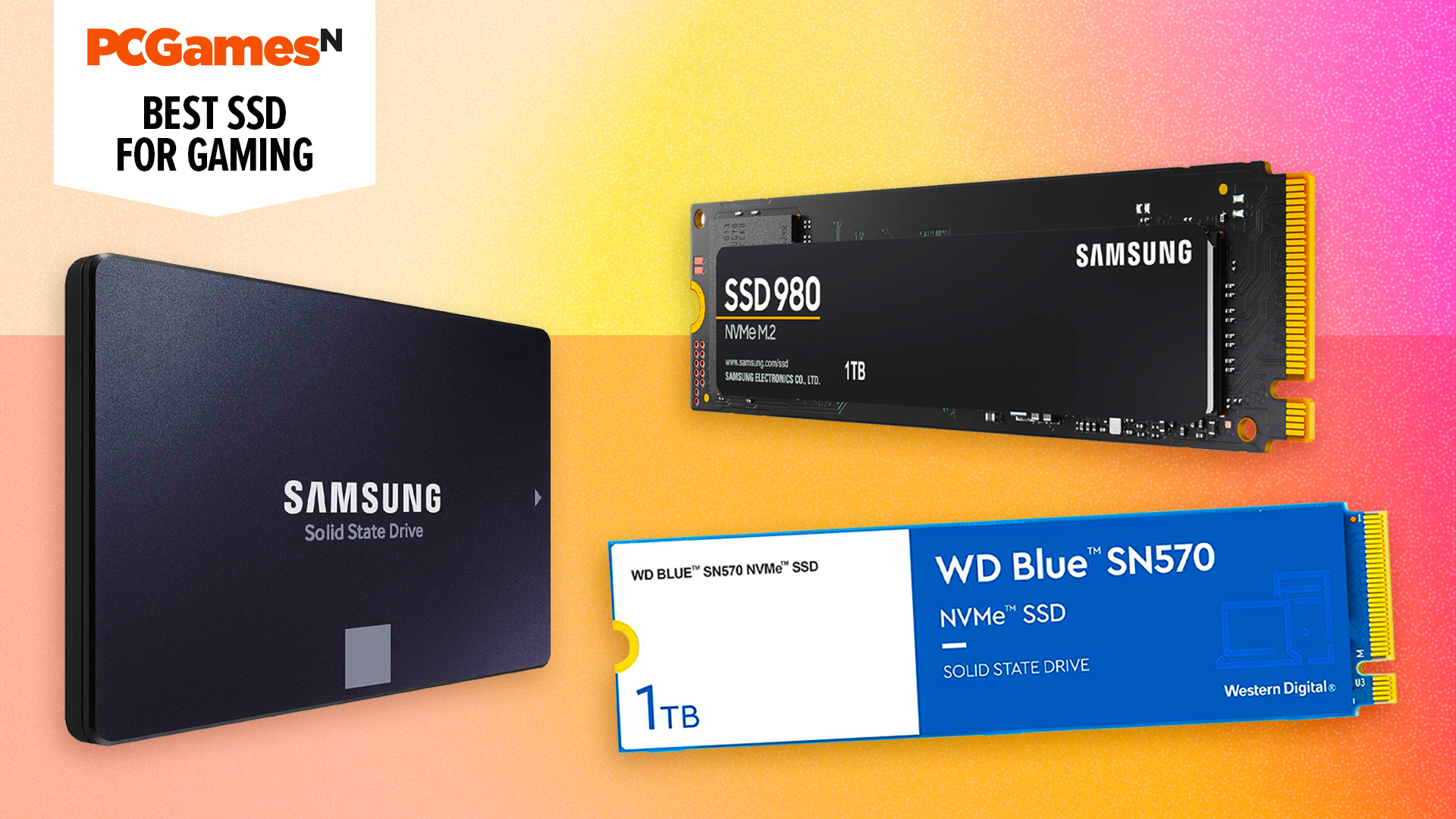
The two main SSD types are:
| SSD type | Common connection | Gaming use |
|---|---|---|
| SATA SSD | SATA cable or 2.5-inch drive bay | Large improvement over an HDD |
| NVMe SSD | M.2 slot using PCIe | Faster file transfers and strong overall performance |
Both SATA and NVMe SSDs are much faster than most HDDs for game loading. NVMe drives have higher peak speeds, but that does not mean every game loads twice as fast.
How does an SSD improve gaming?
1. It reduces loading screens
The clearest benefit is shorter loading time.
When a game starts a level, it must read data from storage and place that data into system memory. An SSD can deliver that data faster than an HDD.
The exact improvement depends on the game, hardware, file layout, and operating system. A game with many small files may benefit more from an SSD than a game that reads one large file.
An SSD can reduce time spent waiting at:
- Game launch
- Level start
- Save loading
- Fast travel
- Map changes
- Respawn screens
- Cutscene transitions


The drive is only one part of the process. A slow CPU, limited RAM, or game engine bottleneck can still limit the result.
2. It helps open-world games stream data
Open-world games load parts of the map while you move. The game may need to bring in new roads, buildings, textures, sounds, and objects without stopping play.
An SSD gives the game faster access to those files. This can help the game keep up when you:
- Drive quickly across a large map
- Move through dense city areas
- Enter a new region
- Turn the camera quickly
- Use fast travel
- Fly or travel at high speed
This process is called asset streaming. It is one reason newer consoles and PC games often list an SSD as a requirement.
An SSD cannot fix every streaming problem. Poor game optimization, low video memory, slow RAM, or a weak CPU can also cause stutter and pop-in.
3. It may reduce texture pop-in
Texture pop-in happens when a low-detail object appears first and a sharper version loads a moment later.
A faster drive can help the game retrieve high-resolution textures sooner. This may reduce visible delays in some games.
The result is not guaranteed. Texture pop-in can also come from:
- Limited graphics memory
- Low texture settings
- A weak GPU
- CPU limits
- Poor game optimization
- Network delays in online games
An SSD helps with file access. It does not increase the amount of VRAM on your graphics card.
4. It can reduce some storage-related stutter
Some games load data during play. If the storage device is slow, the game may pause briefly while waiting for files.
An SSD can reduce this type of delay. The benefit is more likely in large games with active world streaming than in small, older games.
Still, do not assume every stutter comes from storage. Check frame-time graphs and system use if possible. A game may stutter because of shaders, drivers, CPU load, memory limits, or network problems.
5. It speeds up installs and updates
An SSD can also improve tasks outside active gameplay.


Game installs, updates, file verification, and large downloads may finish sooner when the drive can write data quickly. The internet connection often becomes the main limit during downloads.
For example, a fast SSD cannot download a 100 GB game faster than your internet plan allows. It can help once the data reaches your computer.

Does an SSD increase FPS?
Usually, no.
Frames per second depend mainly on the graphics card and processor. The GPU renders each frame, while the CPU handles game logic, physics, and other tasks.
An SSD mainly affects storage access. As a result, changing from an HDD to an SSD may produce little or no change in average FPS.
You may notice improvements in:
- Load times
- Frame-time consistency during asset streaming
- Open-world movement
- Level transitions
- Game startup
- General system response
A game may show a small FPS improvement if the old drive caused severe asset-loading delays. That is not the same as an SSD directly making the GPU render faster.
SSD versus other upgrades
If your goal is higher FPS, consider the part that limits your system:
| Problem | Upgrade or change that may help |
|---|---|
| Low average FPS | Faster GPU |
| Poor performance at low resolution | Faster CPU |
| Stutter from low memory | More or faster RAM |
| Long loading screens | SSD |
| Texture pop-in | SSD, more VRAM, or better game settings |
| Slow Windows response | SSD |
| Online lag | Better network connection, not an SSD |
A useful rule is simple: buy an SSD for speed and responsiveness, not as your main FPS upgrade.
Is NVMe better than SATA for gaming?
NVMe SSDs are faster in file-transfer tests. SATA SSDs are still a major step above HDDs.
For game loading, the difference between a SATA SSD and an NVMe SSD is often smaller than the difference between an HDD and any SSD. Game engines do not always use the full sequential speed shown on a drive’s product box.
NVMe makes more sense when:
- Your computer has a compatible M.2 slot
- You transfer large files often
- You use demanding apps besides games
- The price difference is small
- You want a newer system drive
A SATA SSD may be the better choice when:
- You are replacing an HDD in an older desktop
- Your system lacks an M.2 slot
- You need a simple secondary game drive
- You already have enough NVMe storage
- You want to avoid adapter or installation issues
Check your motherboard or laptop manual before buying. M.2 slots can support different protocols, sizes, and PCIe generations.


Do PS5 and Xbox Series X|S games need an SSD?
Yes. Current-generation consoles use SSD storage as part of their design.
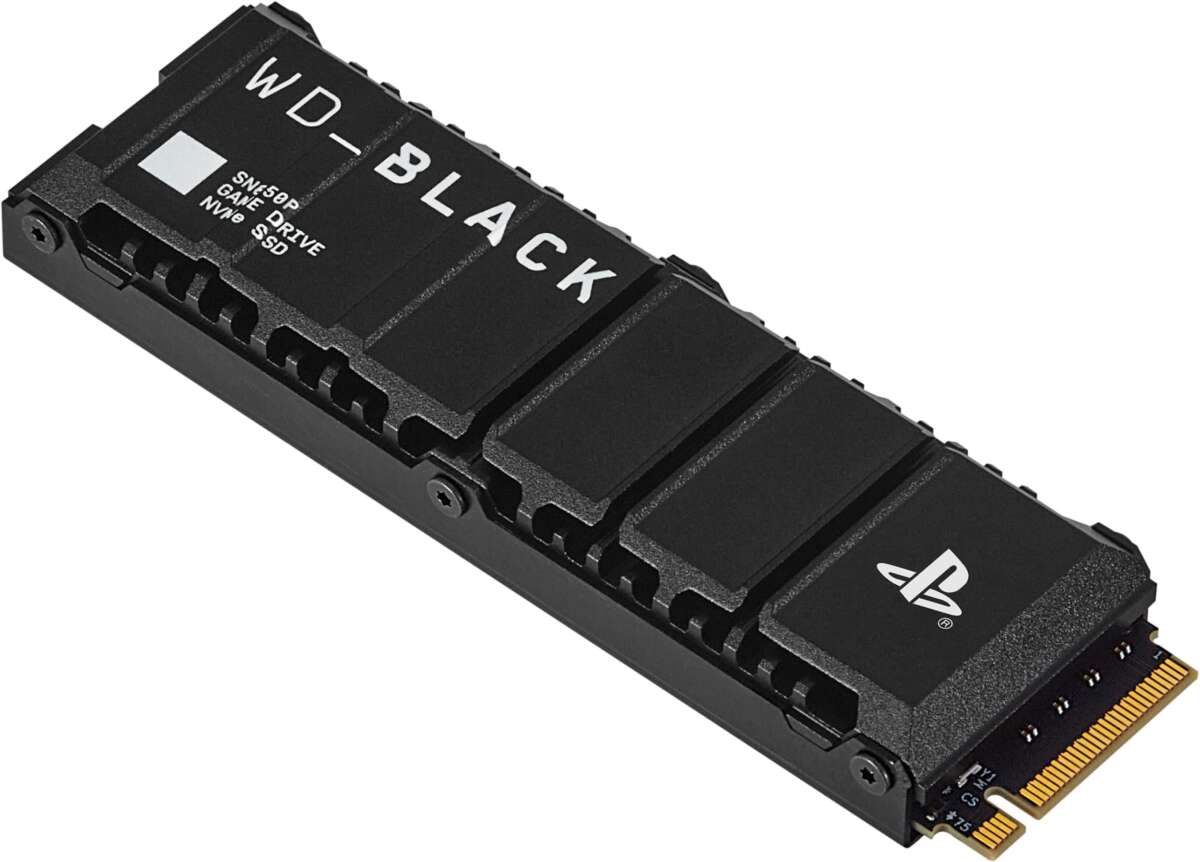
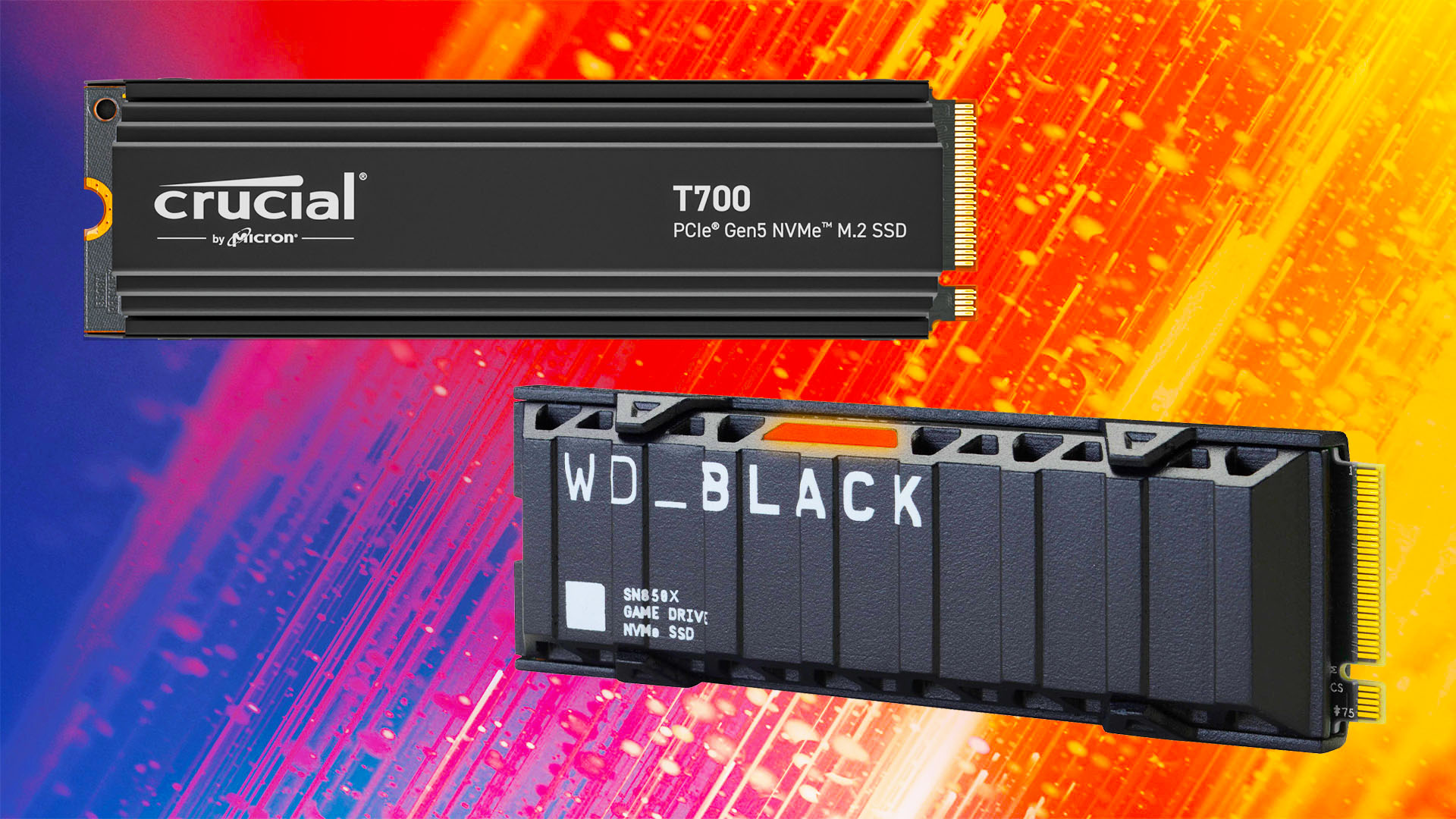
The PlayStation 5 includes an internal SSD and supports compatible M.2 NVMe SSD expansion. Sony lists requirements such as supported PCIe technology, physical size limits, and a heat-dissipation solution in its official PlayStation support guidance.
Xbox Series X|S consoles use internal custom storage. Many current-generation games must run from the internal SSD or an approved Storage Expansion Card. Some backward-compatible games can run from a USB drive, but newer optimized games may need faster storage.
This creates an important console difference:
- PS5: compatible internal M.2 SSD expansion is available
- Xbox Series X|S: official Storage Expansion Cards are used for many optimized games
- External USB drives: useful for storage, but not always for playing current-generation games
Always check the official console requirements before buying storage. A drive that works in a PC may not work as an internal console expansion drive.
How much SSD storage do gamers need?
The right capacity depends on your game library and how often you uninstall games.
| SSD size | Practical use |
|---|---|
| 500 GB | Operating system plus a small game library |
| 1 TB | Good starting point for many PC gamers |
| 2 TB | Better for several large games |
| 4 TB or more | Useful for a large library or creative work |
A drive’s advertised capacity is not fully available after formatting and system use. Games also continue to grow through updates and downloadable content.
Keep free space available. A nearly full SSD may have less room for temporary data and background tasks. The exact amount depends on the drive and its controller, so follow the manufacturer’s guidance rather than treating one percentage as a universal rule.
A separate game SSD can help organize storage. It does not need to be the same drive as Windows unless you want the simplest setup.
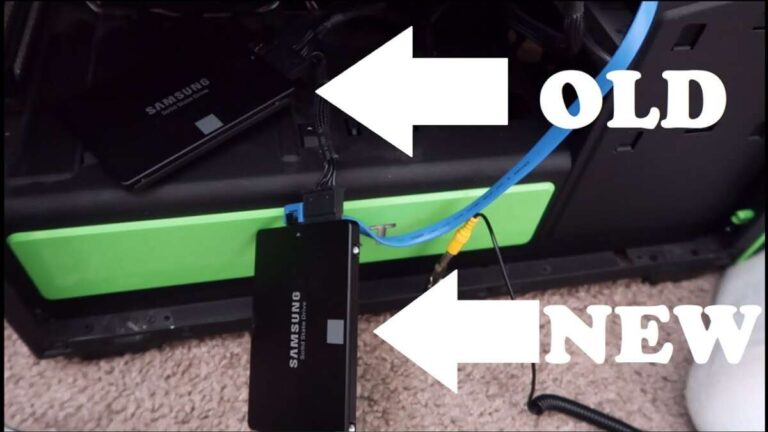
How to install games on an SSD
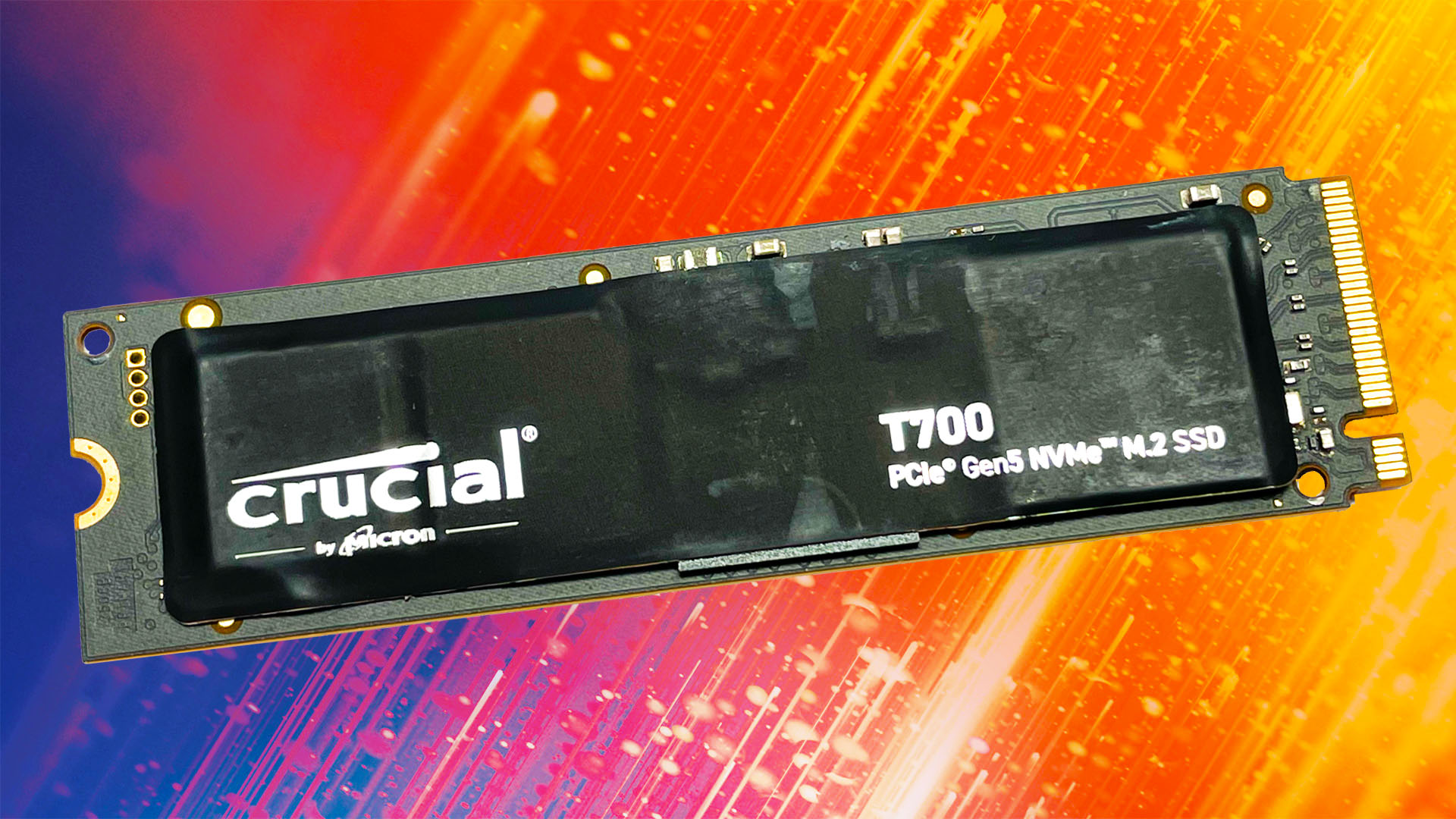
Before moving games, confirm that the SSD is installed correctly and appears in your operating system.
On a Windows PC
- Install the SSD or connect it as an external drive.
- Open Windows Disk Management if the drive does not appear.
- Initialize and format the drive when Windows asks.
- Open your game launcher.
- Choose the SSD as the library or installation location.
- Move existing games through the launcher’s storage settings when supported.
- Test the game before deleting the old copy.
Steam, the Epic Games Store, Xbox for PC, and other launchers may use different move tools. Avoid dragging a game folder by hand unless the launcher supports that method.
Signs the setup worked
You should see:
- The SSD listed in Windows
- The game launcher showing the new library path
- The game starting without a missing-file error
- Shorter loading times than the old HDD, where the drive was the bottleneck


If a game does not start, use the launcher’s file verification tool. Do not format the old drive until you confirm that your saves and game files are safe.
Common SSD mistakes
Buying based only on advertised speed
A drive may list very high sequential read speeds. Games may not use those speeds in real play.
Check compatibility, capacity, warranty terms, and independent testing when available. Peak speed alone is not a complete buying guide.
Installing an M.2 drive in the wrong slot
Some M.2 slots support SATA drives. Others support NVMe drives. Some share bandwidth with other ports.
Read the motherboard or laptop manual first. A drive that physically fits may not use the correct interface.
Expecting an SSD to fix all stutter
An SSD cannot solve a GPU bottleneck, CPU limit, overheating, bad drivers, or unstable overclock.
Check temperatures, RAM use, VRAM use, frame times, and game settings before replacing hardware.
Using an unsuitable external drive
A USB SSD can work well for many PC games. Console support is more restricted.
For PS5 and Xbox Series X|S, follow the current official storage rules. Do not assume any USB or M.2 drive can run every game.
Ignoring backups
SSDs can fail without warning. Keep important save files and personal data backed up. Cloud saves help, but they should not be your only copy of valuable files.
SSD gaming benefits: the final verdict
An SSD makes gaming faster to start and smoother to manage. Its strongest benefits are shorter load times, better asset streaming, and faster installs.
The largest improvement comes from replacing an HDD. NVMe can be faster than SATA, but the real gaming difference may be modest in many titles.
Choose an SSD when long loading screens, slow game installs, or an aging HDD bother you. Choose a GPU or CPU upgrade when higher FPS is your main goal. Before buying, check your PC or console’s storage requirements and select enough capacity for the games you actually play.
FAQs
Does an SSD make games run smoother?
It can reduce storage-related pauses and help open-world games stream assets. It will not fix every form of stutter, and it usually does not raise average FPS.
Is a 1TB SSD enough for gaming?
A 1TB SSD is enough for many players, especially if you keep only a few large games installed. A 2TB drive is more comfortable if you play many modern games.


Can I use an external SSD for PC gaming?
Yes, many PC games can run from an external SSD. USB speed, cable quality, enclosure design, and the game launcher can affect performance.
Should I install Windows and games on the same SSD?
You can. A single SSD is simple and works well for most users. Separate drives can help with organization, but they are not required for better gaming performance.
Do SSDs improve online gaming ping?
No. Ping depends mainly on your internet connection, network path, router, and game server. An SSD may speed up loading into an online game, but it does not reduce network latency.
What should I upgrade first: RAM, an SSD, or a GPU?
Choose based on the problem. Replace an HDD with an SSD for faster loading, add RAM when memory is insufficient, and upgrade the GPU for higher graphics performance and FPS.