What Is SATA SSD Drive: Complete Beginner’s Guide
Introduction
A SATA SSD drive is a solid-state storage device that uses the Serial ATA interface to save and read data. It has no spinning disks or moving read heads. Instead, it stores files in flash memory.
For most people in the United States, a SATA SSD is a practical upgrade for an older desktop, laptop, or gaming PC. It can make Windows start faster, apps open sooner, and the computer feel much more responsive than it would with a traditional hard disk drive (HDD).
A SATA SSD is not usually as fast as an NVMe SSD. However, it is often easier to install because many computers already support the standard 2.5-inch SATA format and SATA power cables.

What does SATA SSD mean?
SATA SSD combines two terms:


- SATA, or Serial ATA, is the connection standard used to transfer data between a storage drive and a computer.
- SSD, or solid-state drive, is a storage device that uses flash memory instead of moving parts.
The SATA standard is managed by the Serial ATA International Organization. Most modern consumer SATA SSDs use SATA III, also called SATA 6 Gb/s.
The “6 Gb/s” figure describes the interface’s maximum signaling rate. It does not mean the drive will read and write data at 6 gigabits per second in normal use. After protocol overhead, consumer SATA SSDs commonly reach about 500 to 560 MB/s in sequential read tests.
That speed is far above what many hard drives can deliver. Still, an NVMe SSD can be much faster because it connects through PCI Express rather than the older SATA bus.
How a SATA SSD stores data
A SATA SSD uses several key parts:
- NAND flash memory stores your files, apps, and operating system.
- The controller manages data movement, error correction, wear leveling, and communication with the computer.
- Firmware tells the controller how to manage the drive.
- A cache may help handle short bursts of activity.
- A SATA interface connects the drive to the motherboard.
Because there are no moving parts, a SATA SSD usually operates quietly and handles bumps better than an HDD. It also uses less power in many common workloads, although actual power use depends on the drive, computer, and workload.
How does a SATA SSD work?
A SATA SSD receives commands from the computer through the SATA interface. Its controller then locates the requested data in NAND flash memory and sends that data back to the operating system.
Flash memory does not work like a hard drive platter. The SSD writes data in pages and erases it in larger blocks. This creates several management challenges.
Wear leveling
Flash cells can handle only a limited number of program-and-erase cycles. The controller uses wear leveling to spread writes across the drive instead of repeatedly using the same cells.
This helps extend the drive’s useful life. A drive’s endurance is often listed as TBW, or terabytes written. TBW is a rating for expected write endurance under defined conditions.
It is not a promise that the drive will fail immediately after reaching that number.

Garbage collection and TRIM
When you delete a file, the operating system may mark its space as available without instantly erasing the flash cells. The SSD later reorganizes data through a process called garbage collection.
The TRIM command tells the SSD which data blocks are no longer needed. This helps the drive manage free space and maintain performance. Modern versions of Windows usually support TRIM, but the SSD, storage driver, and system configuration must also support it.
Error correction
Flash memory can develop errors over time. The controller uses error-correcting code, often called ECC, to detect and correct many of them. This is one reason the controller is just as important as the memory chips.

SATA SSD vs. HDD: What is the difference?
A SATA SSD is usually much faster and quieter than a hard disk drive. An HDD stores data on rotating magnetic platters. A SATA SSD stores data in flash memory.
| Feature | SATA SSD | Hard disk drive |
|---|---|---|
| Moving parts | None | Spinning platters and moving heads |
| Typical startup feel | Fast | Slower |
| Noise | Silent | May produce motor or seek noise |
| Resistance to movement | Generally better | More sensitive to shock while active |
| Cost per gigabyte | Usually higher | Usually lower |
| Random file access | Very fast | Much slower |
| Large, low-cost storage | Less cost-effective | Often useful |
| Heat and power | Often lower in common use | Varies by model and workload |
The largest difference is random access. Opening many small files can feel much faster on an SSD because the drive does not need to move a mechanical head to each location.
A SATA SSD may not improve every task by the same amount. For example, converting a large video file may depend more on the processor and graphics hardware. The benefit is often most noticeable during system startup, app launches, file searches, updates, and multitasking.
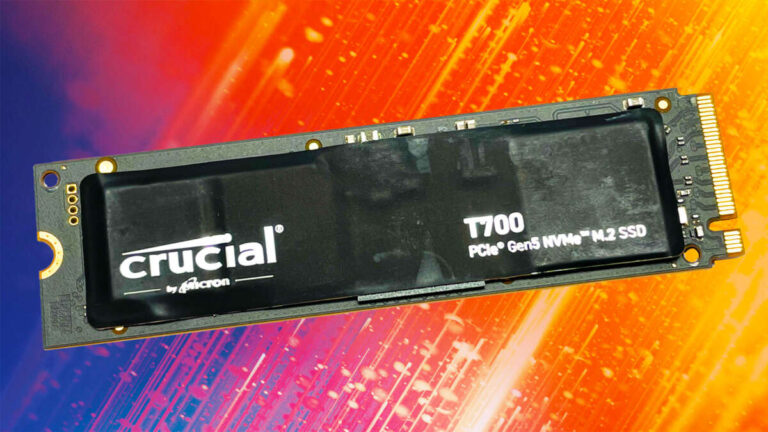
SATA SSD vs. NVMe SSD
Both SATA SSDs and NVMe SSDs use flash memory. The main difference is how they connect to the computer.
- A SATA SSD uses the SATA storage interface.
- An NVMe SSD uses the NVMe protocol over PCI Express.
- NVMe drives can use several PCIe lanes for much higher bandwidth.
- SATA SSDs are limited by the SATA interface.
| Feature | SATA SSD | NVMe SSD |
|---|---|---|
| Interface | SATA | PCI Express |
| Protocol | AHCI or SATA storage commands | NVMe |
| Common form | 2.5-inch or M.2 SATA | M.2 NVMe or add-in card |
| Sequential speed ceiling | Around the SATA limit | Depends on PCIe generation and lanes |
| Upgrade advantage | Broad support in older systems | Higher performance in compatible systems |
| Best fit | Older PCs, SATA bays, basic upgrades | Newer PCs and demanding workloads |
For web browsing, office work, streaming, and many games, a SATA SSD can already feel very fast. NVMe matters more when you move large files, edit high-resolution video, use demanding professional software, or want the fastest storage your system supports.
An important warning: M.2 does not automatically mean NVMe. M.2 describes the physical shape. An M.2 drive can use SATA or NVMe, and the computer must support the correct type.

What types of SATA SSD drives are available?
SATA SSDs come in several physical designs. Choose the type that matches your computer.
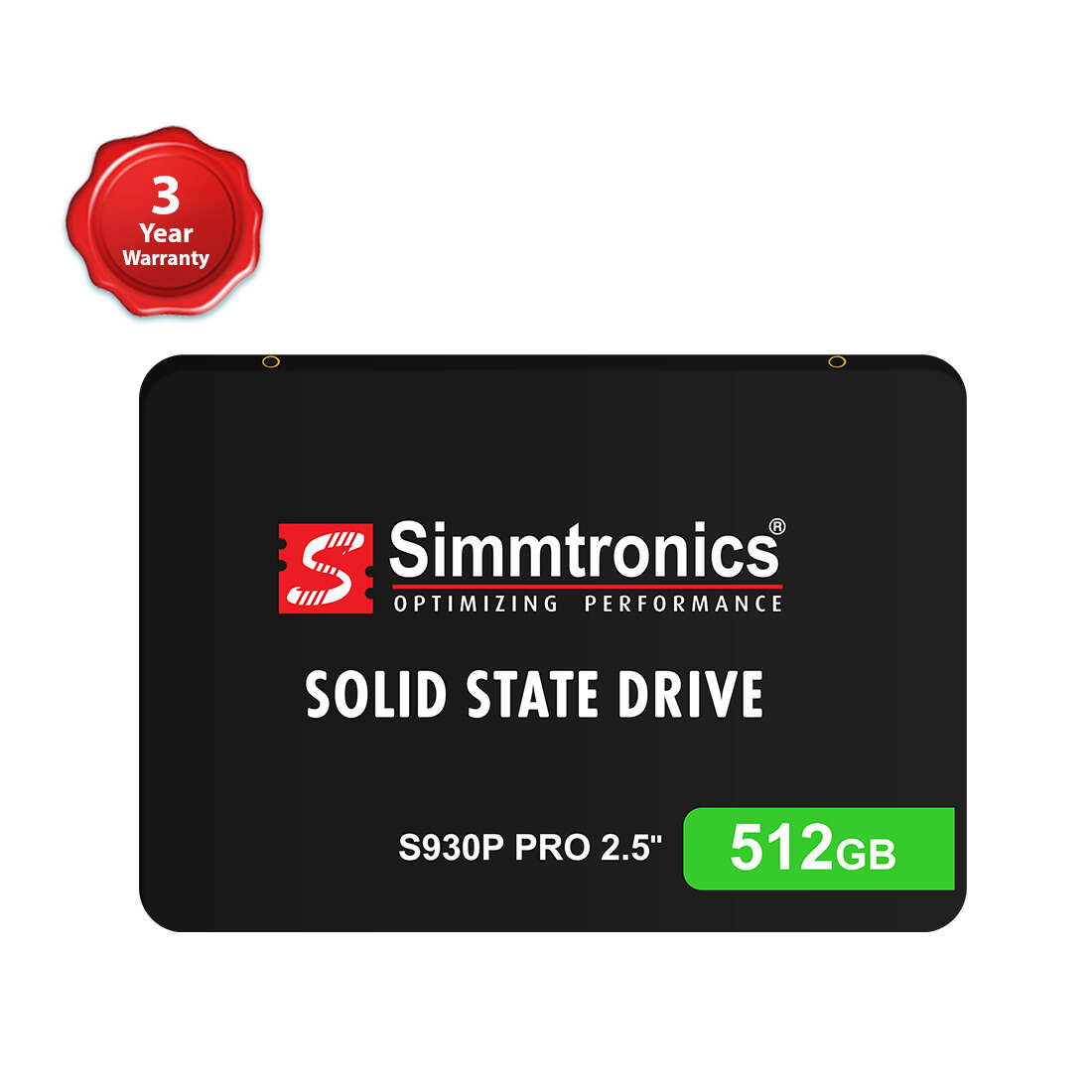
2.5-inch SATA SSD
The 2.5-inch drive is the most common SATA SSD format for desktop and laptop upgrades. It usually uses:
- A SATA data connector
- A SATA power connector
- A 7-millimeter drive height in many current models
A desktop PC may need a 2.5-inch mounting bracket if its case has only 3.5-inch drive bays. Many laptops have a dedicated 2.5-inch drive bay, but some thin laptops do not.


M.2 SATA SSD
An M.2 SATA SSD is a small circuit board that uses the M.2 slot but communicates through SATA. It does not need a separate SATA data cable.
Before buying one, check the computer or motherboard manual. An M.2 slot may support:
- SATA only
- NVMe only
- Both SATA and NVMe
- Different physical key types
The slot’s size, key notch, and supported protocol all matter.
mSATA SSD
mSATA is an older compact format. It appeared in some laptops, mini PCs, and embedded systems. It is not the same as an M.2 drive.
If your computer uses mSATA, an M.2 SATA drive will not be a direct replacement unless an appropriate adapter and compatible connection are available.
How do you know if a computer supports a SATA SSD?
Check the computer or motherboard documentation before purchasing. Look for one of these signs:
- A 2.5-inch SATA drive bay
- An available SATA data port on a desktop motherboard
- An unused SATA power plug from the power supply
- An M.2 slot that specifically supports SATA
- A manufacturer-listed storage upgrade option
For a 2.5-inch desktop installation, you normally need both a SATA data cable and a SATA power connection. Some retail SSD packages include the drive only.
For a laptop, check the drive thickness and internal layout. Some laptops use a 2.5-inch SATA drive, while others use M.2, soldered storage, or no user-accessible drive bay.
Do not assume that a free M.2 slot supports every M.2 drive. Consult the motherboard manual or the computer maker’s service guide.

How to install a 2.5-inch SATA SSD
Installing a SATA SSD is usually straightforward, but back up your important files first. The steps below describe a common desktop installation. Laptop layouts vary.
Before you start
You may need:
- The SATA SSD
- A compatible SATA data cable
- An available SATA power connector
- A mounting bracket or screws
- A Phillips screwdriver
- A backup of important files
- A USB-to-SATA adapter if you plan to clone the old drive
Turn off the computer and unplug it. If the computer has a power switch, switch it off after unplugging to discharge some remaining power. Avoid touching circuit-board contacts, and work on a clean, non-carpeted surface when possible.
Installation steps
- Back up your files. A drive upgrade is a good time to create a separate backup.
- Shut down and unplug the computer.
- Open the case according to the computer or case manual.
- Mount the SSD in a suitable 2.5-inch bay or adapter.
- Connect the SATA data cable to the SSD and a motherboard SATA port.
- Connect SATA power from the power supply to the SSD.
- Close the case and start the computer.
- Check the BIOS or UEFI to see whether the drive is detected.
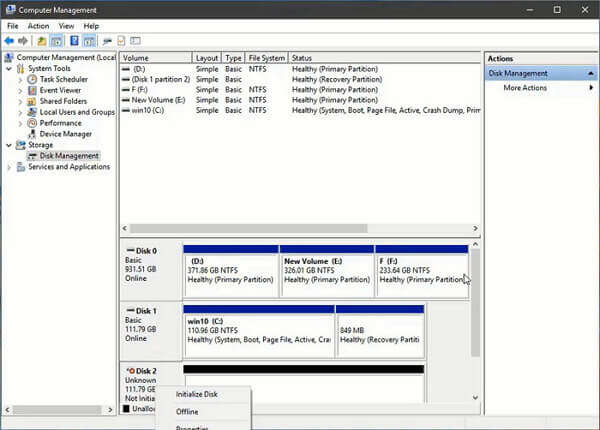
- Initialize and format the drive in Windows Disk Management if it is a new secondary drive.
- Install or clone the operating system if the SSD will replace the old system drive.


Windows may show a new drive as unallocated. That is normal for a blank drive. In Disk Management, select the correct drive before creating a partition. Choosing the wrong disk can erase existing data.
Signs that the installation worked
The installation is likely successful when:
- The drive appears in BIOS or UEFI.
- Windows detects the drive.
- Disk Management shows the expected capacity.
- You can create a partition and copy files.
- The system boots from the SSD if you cloned or installed Windows on it.
A drive’s advertised capacity and usable capacity will not match exactly. Manufacturers use decimal units, while some operating systems display capacity differently and reserve space for formatting and system functions.

Should you clone your old drive or install Windows again?
Choose cloning when you want to keep your current apps, settings, and files. Choose a clean installation when the old system has serious software problems or you want a fresh start.
Cloning can make sense when:
- The new SSD is large enough for the used space on the old drive.
- The source drive is healthy.
- The partition layout is compatible.
- You have a backup in case the process fails.
A clean installation can make sense when:
- The old Windows installation is unstable.
- The system contains unwanted software.
- You want to rebuild the computer.
- You are changing between incompatible boot modes or storage layouts.
After cloning, confirm that the computer boots from the new SSD before removing or wiping the old drive. If both drives remain installed, check the boot order in BIOS or UEFI.
Do not treat cloning as a backup. A cloned drive can copy damaged files, malware, or unwanted settings. Keep a separate backup of documents, photos, and other irreplaceable data.
How much SATA SSD storage do you need?
Capacity depends on the operating system, apps, games, media, and free space you want to keep.
| Capacity | Practical use |
|---|---|
| 250 GB | Basic office PC or light system drive |
| 500 GB | Good starting point for Windows, apps, and moderate files |
| 1 TB | Flexible choice for most home PCs and many gaming systems |
| 2 TB or more | Large game libraries, photos, video, and local projects |
These are general planning ranges, not fixed requirements. A computer with large games or video files may need much more space.
Try to leave free space available. A nearly full SSD may have less room for temporary files, garbage collection, updates, and other background work. The exact effect depends on the model, controller, firmware, and workload.

What should you check before buying a SATA SSD?
The most important checks are compatibility, capacity, endurance, warranty terms, and physical fit.
Compatibility
Confirm the drive format and interface. A 2.5-inch SATA SSD is not the same as an M.2 SATA SSD. An M.2 SATA SSD is not the same as an M.2 NVMe SSD.
Capacity
Buy enough room for your current data and likely growth. A larger drive may also offer more flexibility for updates and temporary files.


NAND type and controller
Consumer SSDs may use different types of NAND flash, such as TLC or QLC. These labels describe how many bits each flash cell stores.
- TLC stores three bits per cell.
- QLC stores four bits per cell.
QLC can help reduce cost per gigabyte, but sustained write performance and endurance may vary by model. Do not judge the drive by NAND type alone. The controller, firmware, cache design, capacity, and warranty also matter.
Endurance and warranty
Compare the manufacturer’s TBW rating and warranty conditions. These figures are useful for comparing models, but real life depends on the workload.
A home office computer may write far less data than a video editing workstation, database server, or surveillance system. A drive designed for one workload may not be ideal for another.
Performance claims
Look for both sequential and random performance. Sequential speeds describe large, continuous transfers. Random performance is more relevant to many small file operations.
Also check whether a high write speed applies only to a short cache burst. Some SSDs slow down during long, continuous writes after the cache is full.
Common SATA SSD mistakes to avoid
Buying the wrong M.2 drive
An M.2 SATA drive may not work in an M.2 NVMe-only slot. Check the manual before ordering.
Forgetting the SATA cable
A 2.5-inch SATA SSD often needs a separate data cable. Desktop users should confirm that both a motherboard port and a power connector are available.
Installing the drive without a backup
A failed clone or wrong disk selection can cause data loss. Keep an independent backup first.
Ignoring drive health
Use the SSD maker’s utility or a trusted system tool to check firmware, temperature, health information, and total host writes. These readings are useful signs, but health estimates are not guarantees.
Defragmenting the SSD
Traditional disk defragmentation is not normally needed for an SSD. Modern operating systems use storage maintenance commands such as TRIM. Follow the operating system’s own storage settings rather than forcing old HDD maintenance routines.
Filling the drive completely
Leave room for system updates and normal SSD management. A full drive can also make it harder to recover files or complete large operations.

Is a SATA SSD worth it?
A SATA SSD is usually worth considering when a computer still uses an HDD, has a compatible SATA bay, or needs an affordable storage upgrade.
It is especially useful for:
- Older Windows desktops
- Laptops with 2.5-inch SATA bays
- Office and school computers
- Basic gaming systems
- Secondary storage for frequently used files
- Systems that do not support NVMe


An NVMe drive may be the better choice for a new PC with a compatible PCIe slot. Yet the real-world difference between SATA and NVMe may be modest during everyday tasks such as browsing, email, document work, and light gaming.
The best option is the one that fits the computer, provides enough space, and matches the workload. Interface speed alone should not decide the purchase.
Frequently asked questions
Is a SATA SSD the same as a hard drive?
No. A SATA SSD uses flash memory and has no moving parts. A hard drive uses spinning magnetic platters and mechanical read/write heads. Both can use SATA, but their internal designs are different.
Is SATA SSD faster than NVMe?
Usually no. NVMe SSDs use PCI Express and can provide much higher bandwidth. A SATA SSD is still much faster than many hard drives, especially for random access and system responsiveness.
Can I use a SATA SSD in an NVMe slot?
Usually not. An NVMe-only M.2 slot may not support a SATA protocol drive. Some M.2 slots support both types, so check the computer or motherboard manual.
Does a SATA SSD need power?
Yes. A 2.5-inch SATA SSD normally needs SATA power from the power supply and a SATA data connection to the motherboard. An M.2 SATA SSD receives power through its M.2 slot.
How long does a SATA SSD last?
There is no single lifespan for every drive. Useful life depends on writes, temperature, NAND type, controller behavior, firmware, and other conditions. Check the manufacturer’s TBW rating and warranty, and keep backups of important data.
Can a SATA SSD improve gaming?
It can shorten game loading times compared with an HDD and may reduce delays when games load many small files. It does not usually increase frame rates as much as a faster graphics card or processor.
Conclusion
A SATA SSD drive is a flash-based storage device that connects through the Serial ATA interface. It offers a major responsiveness improvement over an HDD while remaining compatible with many older laptops and desktops.
Before buying, confirm the drive’s form factor, interface, capacity, and mounting needs. For a simple upgrade, a 2.5-inch SATA SSD is often the most direct choice. For a newer computer, compare SATA with NVMe and check which storage standards the system supports.
The next practical step is to identify your computer’s current drive and read the manufacturer’s storage specifications. That will tell you whether you need a 2.5-inch SATA SSD, an M.2 SATA model, an NVMe drive, or a different upgrade altogether.