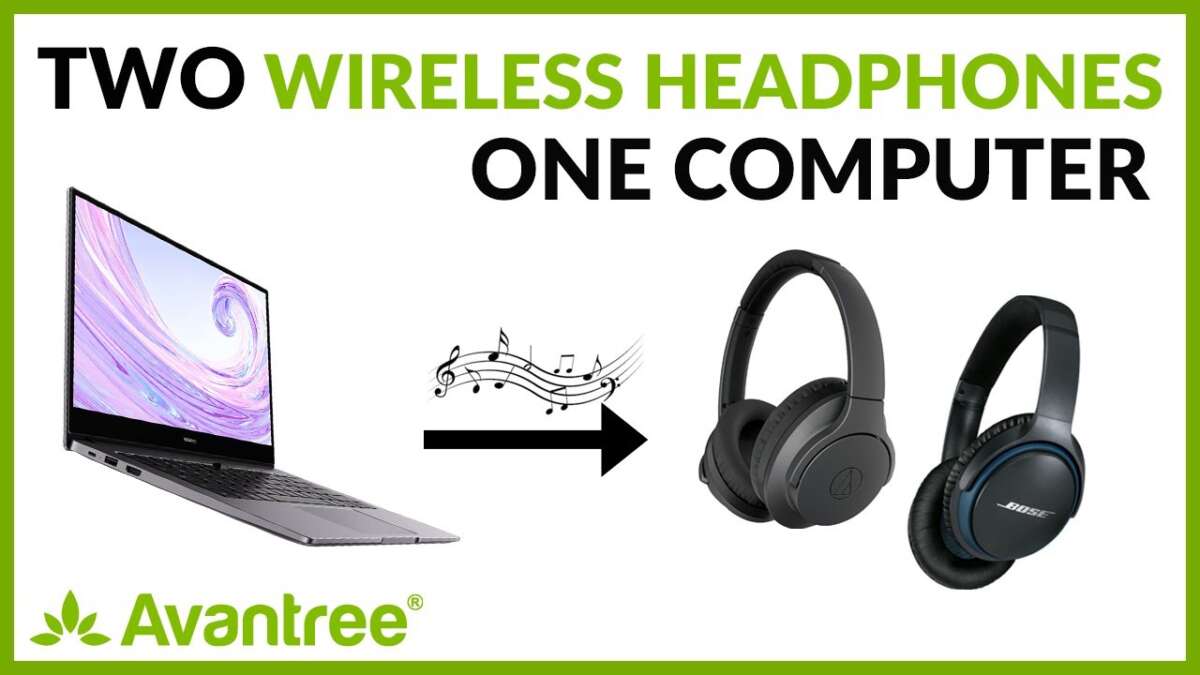
How To Use Two Headphones On PC: Easy Audio Setup
You can use two headphones on a PC with a splitter, Stereo Mix, or a virtual audio mixer.
Learning how to use two headphones on PC is useful for watching movies together, sharing game audio, teaching online, or monitoring sound while you work. The best method depends on your computer’s ports, headphone type, Windows version, and whether both listeners need separate volume control. This guide explains each option in clear steps, including the setup I recommend most often and the common mistakes that cause one headset to stay silent.
How to use two headphones on PC: Choose the right method
There are four practical ways to connect two headphones to one computer. Some methods are simple hardware fixes, while others use Windows audio settings or special software.
Choose the option that matches your setup:


• Use a headphone splitter for two wired headphones and one shared volume level.
• Use Stereo Mix to send the same sound to a second output device.
• Use a virtual audio mixer for two USB, Bluetooth, or mixed headsets.
• Use a sound card, USB adapter, or audio interface when your PC has limited ports.
The headphone splitter is usually the fastest choice. However, it will not work well if you want one person to use USB headphones and the other to use a 3.5 mm headset.

Method 1: Use a headphone splitter
A 3.5 mm headphone splitter is the easiest answer for how to use two headphones on PC when both headsets have standard audio plugs. It has one male connector that plugs into your PC and two female ports for the headphones.
What you need
• A PC with a 3.5 mm headphone output.
• Two wired headphones with 3.5 mm plugs.
• A stereo headphone splitter with one male end and two female ends.
Avoid very cheap splitters with loose ports. Poor contact can cause buzzing, low volume, or sound in only one ear.
Setup steps
-
Plug the splitter into the green headphone port on your desktop computer.
-
Connect the first pair of headphones to one splitter port.
-
Connect the second pair to the other splitter port.
-
Play music or a video and test both headphones.
-
Adjust the volume in Windows and on each headset, if its cable has a volume control.


This setup sends the same left and right audio channels to both headphones. Think of the splitter as a fork in a road: one audio signal enters, then travels down two paths.
Limits of a headphone splitter
A splitter does not create two separate audio controls in Windows. Both headphones receive the same system output, and the PC treats them as one connected device.
You may also notice lower volume if both headphones have high impedance. In that case, a powered headphone amplifier or USB audio adapter may provide better results.
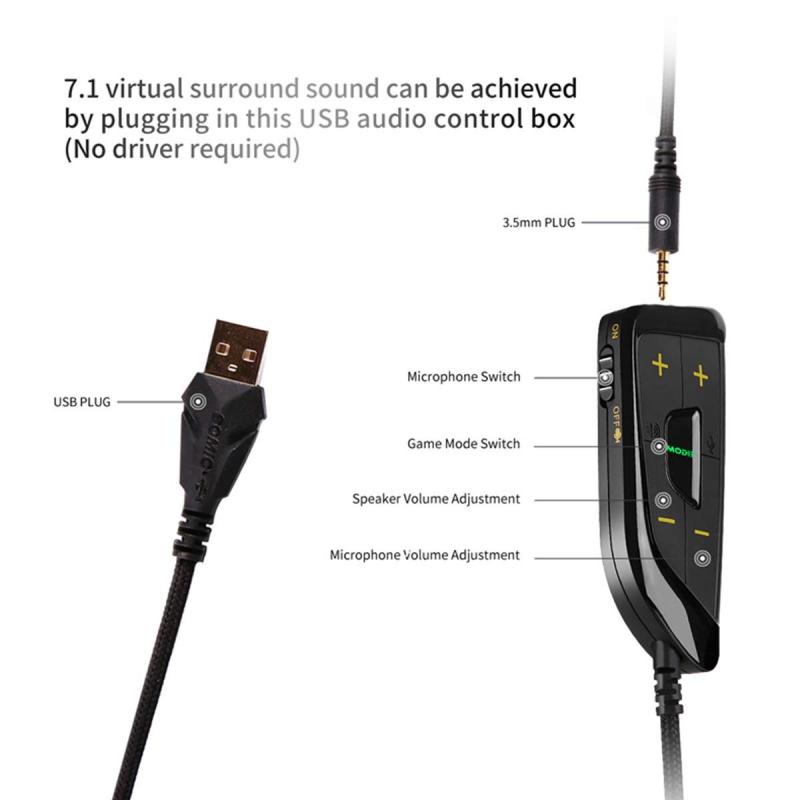
Method 2: Use Windows Stereo Mix
Windows Stereo Mix can help when you want to use two headphones on PC through two different audio outputs. For example, one headset can connect to the headphone jack while the second uses USB or Bluetooth.
Stereo Mix captures the sound that Windows is playing. You can then send that captured sound to another output device.
Turn on Stereo Mix
-
Right-click the speaker icon on the Windows taskbar.
-
Select Sound settings.
-
Scroll down and open More sound settings.
-
Select the Recording tab.
-
Right-click an empty area in the device list.
-
Turn on Show Disabled Devices.
-
Right-click Stereo Mix and choose Enable.
-
Right-click Stereo Mix again and select Properties.
-
Open the Listen tab.
-
Check Listen to this device.
-
Choose the second headphone device from the Playback through this device menu.
-
Select Apply, then OK.
Now play audio and check both headphones. Windows should send the normal output to the first headset and the Stereo Mix signal to the second.
If Stereo Mix is missing
Stereo Mix depends on the audio driver. Some Realtek and motherboard drivers include it, while others do not. A basic Windows driver may also hide the option.
Try these fixes:
• Install the latest audio driver from your PC or motherboard maker.
• Open Device Manager and check Sound, video and game controllers.
• Update or reinstall the audio device.
• Look for a recording device named What U Hear instead of Stereo Mix.
• Use a USB audio adapter if Stereo Mix remains unavailable.
Stereo Mix can also create a small delay. This delay may not matter for music, but it can be distracting during gaming or video calls.
Method 3: Use a virtual audio mixer
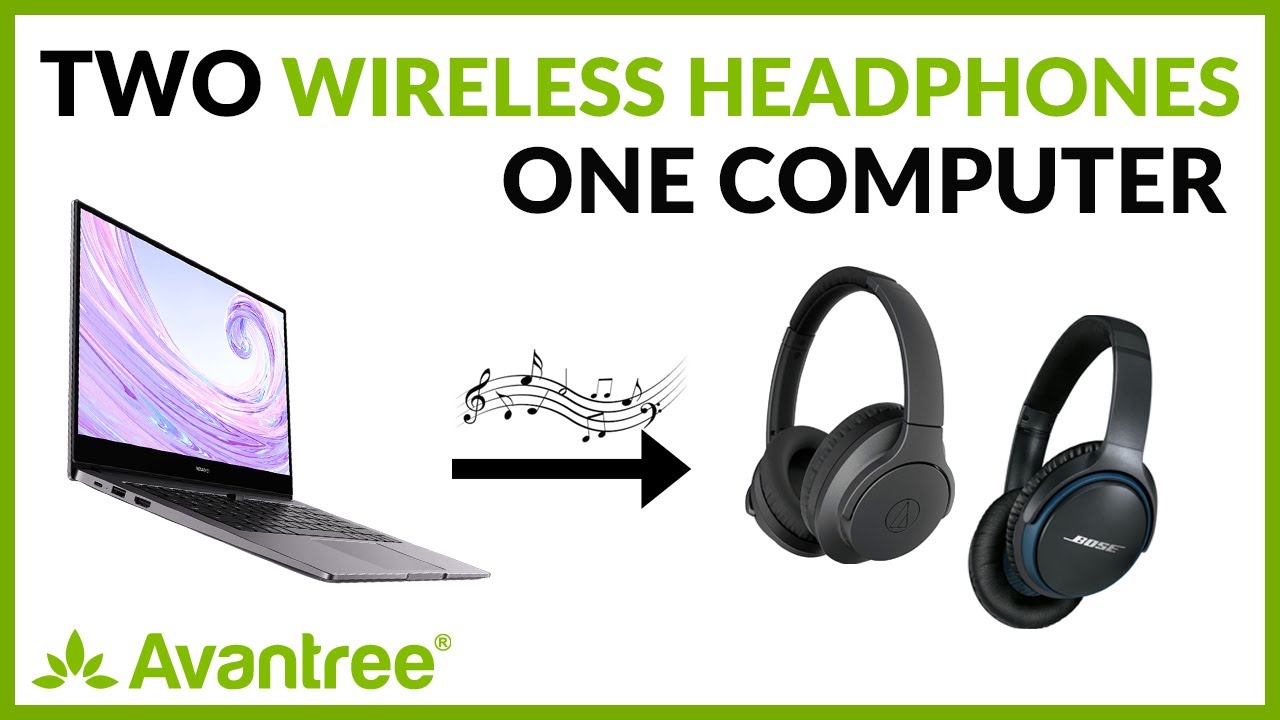
A virtual audio mixer is the most flexible answer for how to use two headphones on PC. It can route one audio source to several output devices, including USB headsets, Bluetooth headphones, speakers, and wired headphones.


Popular tools include VoiceMeeter and other virtual audio routing apps. These tools create a virtual playback device that appears in Windows like a normal speaker.
General setup process
The exact buttons vary by app, but the process is similar:
-
Install a trusted virtual audio mixer.
-
Restart the PC if the program requests it.
-
Set the virtual input or virtual output as the default Windows playback device.
-
Open the mixer.
-
Select the first headphone device as hardware output A.
-
Select the second headphone device as hardware output B.
-
Play audio and confirm that both devices receive sound.
-
Adjust the level for each output inside the mixer.
This method gives you more control than a splitter. You can mute one headset, balance volume, or route different apps to different outputs.
Important virtual mixer settings
Use the same sample rate for both audio devices when possible. A common setting is 48 kHz, but 44.1 kHz may also work well for music.
If one output crackles or drops out, check these settings:
• Match the sample rate and bit depth in Windows.
• Disable audio enhancements.
• Increase the buffer size slightly.
• Close other audio programs.
• Connect USB headsets directly to the PC instead of through an unpowered hub.
Virtual mixers are powerful, but they need more setup. They are best for streamers, teachers, musicians, and anyone who needs independent audio control.
Method 4: Use Windows app volume settings
Windows 11 and Windows 10 include per-app audio controls. These controls are useful when you want different programs to use different headphones, but they may not mirror one app to two devices by themselves.
To open them in Windows 11:
-
Open Settings.
-
Select System.
-
Choose Sound.
-
Open Volume mixer.
-
Find the app under Apps.
-
Select the desired output device for that app.
For example, you can send a music player to USB headphones and a game to a wired headset. This is different from sending the same music to both headphones.
If your goal is shared listening, use a splitter, Stereo Mix, or a virtual mixer. App volume settings are better for separating audio sources.

How to use two Bluetooth headphones on PC
Bluetooth makes how to use two headphones on PC more complicated. Most Windows computers can connect to several Bluetooth devices, but they may not send high-quality audio to two Bluetooth headphones at the same time.


Windows often treats each Bluetooth headset as a separate playback device. You can connect both, but the Sound settings usually allow only one default output at a time.
Options for two Bluetooth headphones
• Use a Bluetooth transmitter that supports dual-link audio.
• Use a virtual audio mixer and test both Bluetooth outputs.
• Connect one Bluetooth headset and one wired or USB headset.
• Use a splitter connected to a Bluetooth transmitter.
A dual-link Bluetooth transmitter is often the cleanest hardware option. Check whether it supports two headphones at once and whether your PC needs a USB, optical, or 3.5 mm connection.
Bluetooth audio can also have different delays between devices. One listener may hear speech slightly before the other. This is normal when two wireless devices use separate connections.

How to use two USB headphones on PC
Two USB headphones act as separate sound cards. Windows can detect both, but it normally sends audio to only one selected playback device.
To use two USB headsets, you need one of these solutions:
• A virtual audio mixer.
• Stereo Mix, if your driver supports it.
• A program that can duplicate audio output.
The virtual mixer method is usually more reliable. Connect both USB headphones, wait for Windows to install them, then choose each device as an output inside the mixer.
If one headset disappears, try a different USB port. Front-panel ports and unpowered hubs can sometimes cause power or connection problems. On desktop PCs, rear motherboard ports are often more stable.
How to use two headphones on PC for gaming
Gaming adds two extra concerns: sound delay and microphone feedback. A simple splitter works well for local co-op gaming because both players hear the same game audio with almost no added delay.
For wireless headsets, delay may be more noticeable. Bluetooth is fine for casual games, but a dedicated 2.4 GHz wireless headset often has lower latency.


Microphones require extra care. If both headsets have microphones, Windows may select the wrong one or create an echo. Use one microphone as the main input and mute the other unless both players need voice chat.
For local multiplayer, I recommend this order:
-
Use two wired headphones with a quality splitter.
-
Use a USB audio adapter if the PC lacks a headphone port.
-
Use a virtual mixer for two USB headsets.
-
Use dual Bluetooth only when a small delay is acceptable.

How to use two headphones on PC for Zoom or video calls
For meetings, both listeners need to hear the call clearly, but only one microphone should usually remain active. Two open microphones can create echo, feedback, and distracting background noise.
First, set up the two headphones using a splitter or audio routing tool. Then open Zoom, Microsoft Teams, Discord, or another call app and select the correct microphone.
Helpful settings include:
• Select one microphone as the input device.
• Mute the second microphone.
• Turn on echo cancellation if the app provides it.
• Test the setup before joining an important call.
• Keep both headphones connected before opening the meeting app.
Some call apps take control of audio devices when they launch. If the second headset stops working, close the app, reconnect the devices, and open the app again.
Troubleshooting two headphones on PC
When learning how to use two headphones on PC, most problems come from the wrong output device, driver limits, or incompatible connections. Work through the checks below in order.
Only one headphone works
Open Settings, select System, then Sound, and confirm that the correct devices appear. If both appear, check your routing method and make sure the second output is not muted.
With a splitter, push both plugs fully into the ports. A half-connected plug can send sound to only one side.
There is no Stereo Mix option
Enable disabled and disconnected devices in the Recording tab. If Stereo Mix still does not appear, install the correct audio driver or use a USB audio adapter and virtual mixer.
The audio has an echo
Echo usually means two microphones are active or the same signal is being routed back into itself. Mute one microphone and turn off microphone monitoring or “Listen to this device” on the microphone you are not using.


One headset has a delay
Wireless headphones can add different amounts of latency. Use wired headphones, a matching pair of wireless devices, or a transmitter designed for synchronized dual output.
The volume is too low
A passive splitter divides the available signal. Try a powered headphone amplifier, a USB sound adapter, or headphones with lower impedance.
The sound is distorted
Lower the Windows volume slightly and check the mixer level. Also match the sample rate, avoid overloaded USB hubs, and disable unnecessary audio effects.
In my own multi-headphone tests, the most common mistake was changing Windows’ default output while expecting Stereo Mix to keep working. The fix was simple: leave the main output selected, then choose the second device inside Stereo Mix or the virtual mixer.
Wired splitter versus virtual audio mixer
Both methods can solve how to use two headphones on PC, but they suit different users.
| Feature | Headphone splitter | Virtual audio mixer |
|---|---|---|
| Setup time | Very short | Moderate |
| Works with wired headphones | Yes | Yes |
| Works with USB headphones | No | Yes |
| Works with Bluetooth headphones | Not directly | Often, with limits |
| Separate volume control | Usually no | Yes |
| Audio delay | Almost none | Possible |
| Cost | Low | Free or low cost |
| Technical skill | Basic | Intermediate |
Choose a splitter when both headphones are wired and you want the simplest setup. Choose a virtual mixer when the headphones use different connection types or need separate volume control.
Safety and sound quality tips
Using two headphones is generally safe, but high volume can harm hearing. The World Health Organization recommends keeping personal listening volume at a safe level and taking regular breaks.
Use these habits:
• Start at low volume and raise it slowly.
• Keep the volume comfortable during long sessions.
• Take breaks during movies, gaming, and work.
• Avoid boosting quiet headphones to extreme levels.
• Replace damaged cables that crackle or expose wires.
Also remember that a splitter does not improve sound quality. It only divides the signal. For clean sound, use a good adapter, secure connections, and headphones that do not need more power than your PC can provide.
Frequently Asked Questions
Can I use two headphones on PC at the same time?
Yes. You can connect two wired headphones with a splitter or use Stereo Mix or a virtual audio mixer for separate audio devices. The best choice depends on whether the headphones use 3.5 mm, USB, or Bluetooth.
Can I connect two Bluetooth headphones to a Windows PC?
You may be able to pair both, but Windows may not play audio through both at the same time. A dual-link Bluetooth transmitter or virtual audio mixer can provide a better solution, although wireless delay may differ between devices.
Does a headphone splitter reduce sound quality?
A good splitter causes little noticeable sound loss, but it can reduce volume when both headphones draw power from the same output. A powered amplifier can help with demanding or high-impedance headphones.
Why is Stereo Mix missing on my computer?
Stereo Mix depends on the audio driver and hardware. Install the latest driver from your PC or motherboard maker, enable disabled recording devices, or use a USB audio adapter with a virtual mixer.
Can two people use separate microphones with two headphones?
Yes, but you must select and manage both microphone inputs in Windows or your communication app. For most calls, using one active microphone prevents echo and feedback.
Can I control the volume for each headphone separately?
A splitter usually provides one shared Windows volume level. Stereo Mix or a virtual audio mixer can provide separate controls, depending on the devices and software.
Conclusion
The easiest way to use two headphones on PC is a 3.5 mm splitter when both headsets are wired. For USB or Bluetooth headphones, Stereo Mix or a virtual audio mixer offers more flexibility, while a dual-link Bluetooth transmitter can simplify wireless listening.
Start with the simplest method that fits your hardware. Test the audio, keep the volume comfortable, and mute extra microphones to prevent echo. Try the setup today, then explore your Windows sound settings to create a listening system that works for both users.