What Is The Best SSD: Find The Right Drive
For most people in the United States, the best SSD is a 2TB PCIe 4.0 NVMe SSD with a good warranty, strong random-read speed, and enough endurance for your workload. The WD Black SN850X and Samsung 990 Pro are strong high-end choices. A lower-cost model may be better for basic storage, while a PCIe 5.0 SSD makes sense only for a small group of users.
There is no single best SSD for every computer. The right choice depends on your device, budget, storage size, and use. A desktop used for gaming has different needs from a laptop, a video-editing workstation, or a PlayStation 5.
This guide explains what to look for and which SSD type fits each common use.
Quick answer: Which SSD should you buy?
A 2TB PCIe 4.0 NVMe SSD is the best balance for most US buyers. It offers fast game loads, quick app launches, and enough space for Windows, programs, and many large games.
Here are the best choices by use:
| Use | Best SSD type | Example models | Why it fits |
|---|---|---|---|
| Best for most desktop PCs | PCIe 4.0 NVMe, 2TB | WD Black SN850X, Samsung 990 Pro | Fast, mature, and widely supported |
| Best for gaming | PCIe 4.0 NVMe with strong random speed | WD Black SN850X, Samsung 990 Pro | Good game and system response |
| Best for laptops | Efficient PCIe 4.0 NVMe | Samsung 990 Pro, SK hynix Platinum P41 | Strong speed with attention to power use |
| Best for a budget PC | PCIe 4.0 NVMe, 1TB or 2TB | Crucial P3 Plus, WD Blue SN580, TeamGroup MP44 | Lower cost for normal use |
| Best for PlayStation 5 | PCIe 4.0 NVMe with heatsink | WD Black SN850X with heatsink, Samsung 990 Pro with heatsink | Meets the console’s speed and size needs |
| Best for heavy work | High-end TLC NVMe, 2TB or more | Samsung 990 Pro, Solidigm P44 Pro, WD Black SN850X | Better sustained performance and endurance |
| Best for external storage | USB 3.2 Gen 2 or USB4 portable SSD | Samsung T7 Shield, Crucial X10 Pro | Simple setup and good portability |
These are examples, not mandatory choices. A less expensive SSD can feel just as fast during basic web use, office work, and game play.
What is an SSD?
An SSD, or solid-state drive, stores data on flash memory. It has no spinning disks or moving read heads. This makes it quieter, faster, and more resistant to shock than a traditional hard disk drive.
Most modern internal SSDs use one of two designs:
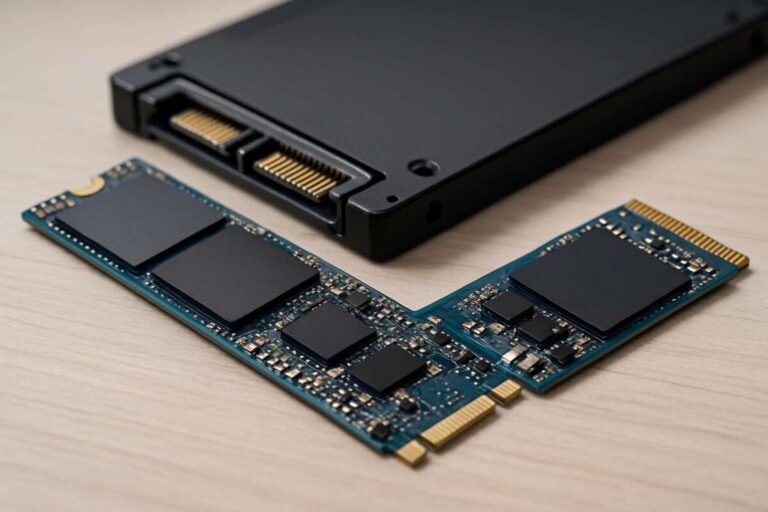
- 2.5-inch SATA SSD: Uses the older SATA connection. It is much faster than a hard drive but slower than an NVMe SSD.
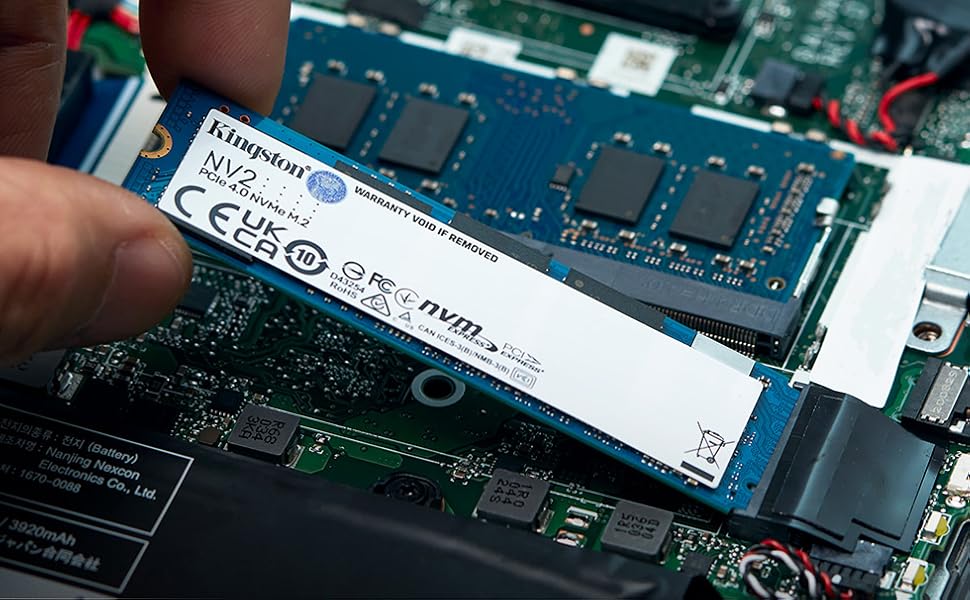
- M.2 NVMe SSD: A small stick-shaped drive that uses the PCI Express bus. It is the usual choice for new desktops and laptops.
The M.2 label describes the physical shape. It does not always mean that the drive is NVMe. Some M.2 drives use SATA, so check the computer’s manual before buying.
An SSD’s headline speed is only part of the story. The drive also depends on its controller, flash type, firmware, temperature, cache, and workload.

PCIe 3.0, PCIe 4.0, or PCIe 5.0: Which one is best?
For most people, PCIe 4.0 is the best choice. PCIe 3.0 remains useful in older systems, while PCIe 5.0 is aimed at buyers who move very large files or want the newest platform.
Typical advertised sequential speeds look like this:
| Interface | Typical top read speed | Best fit |
|---|---|---|
| SATA III | About 500–560 MB/s | Older PCs and simple upgrades |
| PCIe 3.0 NVMe | About 3,000–3,500 MB/s | Older NVMe systems |
| PCIe 4.0 NVMe | About 5,000–7,500 MB/s | Most new PCs and consoles |
| PCIe 5.0 NVMe | About 10,000–14,000 MB/s | Heavy file work and high-end PCs |
A PCIe 4.0 drive usually works in a PCIe 3.0 slot, but it will run at the older slot’s speed. A PCIe 5.0 drive may also work in an older slot, but it will not reach PCIe 5.0 speeds.
PCIe 5.0 drives often use more power and produce more heat. They may need a large motherboard heatsink or an active cooler. For gaming and daily work, the extra sequential speed often has a small effect on real-world load times.
Choose PCIe 5.0 when you regularly:
- Edit large 4K or 8K video files.
- Move hundreds of gigabytes at a time.
- Work with large scientific, engineering, or virtual machine files.
- Use software that can take advantage of very high storage throughput.
For a normal gaming PC, a good PCIe 4.0 SSD is usually the more balanced choice.
The SSD features that matter most
Capacity
Capacity affects comfort more than peak speed. A 500GB drive can work for Windows and basic programs, but it fills quickly after installing several large games.
Use this simple guide:
- 500GB: Office work, web use, and a light system drive.
- 1TB: A good starting point for most users.
- 2TB: The best balance for gaming and general use.
- 4TB or more: Large game libraries, media work, or many virtual machines.
A drive should not be filled to its maximum capacity. Keeping some free space helps the SSD manage background tasks and maintain performance. Aim to leave at least 10% to 20% free when practical.
NAND flash type
NAND flash stores the data. The main types are:
- TLC: Stores three bits per cell. It usually offers a strong balance of speed, endurance, and cost.
- QLC: Stores four bits per cell. It allows lower prices and larger capacities, but long write jobs may slow down more sharply.
- SLC: Stores one bit per cell. It is fast and durable but too expensive for most consumer SSDs.
TLC is the safer default for a primary drive, gaming PC, or work system. QLC can be a good value for game storage, media libraries, and routine home use when the price is much lower.
DRAM and host memory buffer
Some SSDs include DRAM to map file locations. Others use a host memory buffer, or HMB, to use a small amount of system memory.
A DRAM-equipped SSD can be useful for:
- Long file transfers.
- Heavy multitasking.
- Frequent writes.
- Workstations and content creation.
A DRAM-less SSD is not automatically bad. Modern controllers and HMB can provide good results for everyday tasks. Look at the full design rather than treating “DRAM-less” as an automatic rejection.
Sequential and random performance
Sequential speed measures large, continuous transfers. It matters when you copy large video files or disk images.
Random performance measures many small, scattered operations. It has more influence on system responsiveness, app launches, updates, and many game tasks.
Manufacturers often advertise maximum sequential speeds under ideal conditions. Those numbers do not predict every real-world task. For a system drive, random performance, latency, firmware quality, and thermal control also matter.
Endurance and warranty
SSD endurance is often listed as TBW, or terabytes written. It estimates how much data the drive can write during its warranty period.
For example, a 600 TBW rating does not mean the drive will fail immediately after 600TB. It is a warranty and endurance guideline, not a countdown timer.
For most home users, endurance is not a major concern. A drive used for constant video capture, scratch files, or database work deserves more attention.
Check:
- Warranty length.
- TBW rating.
- Whether the warranty has a capacity limit.
- The manufacturer’s support policy.
- Firmware update tools.
The best SSD for gaming
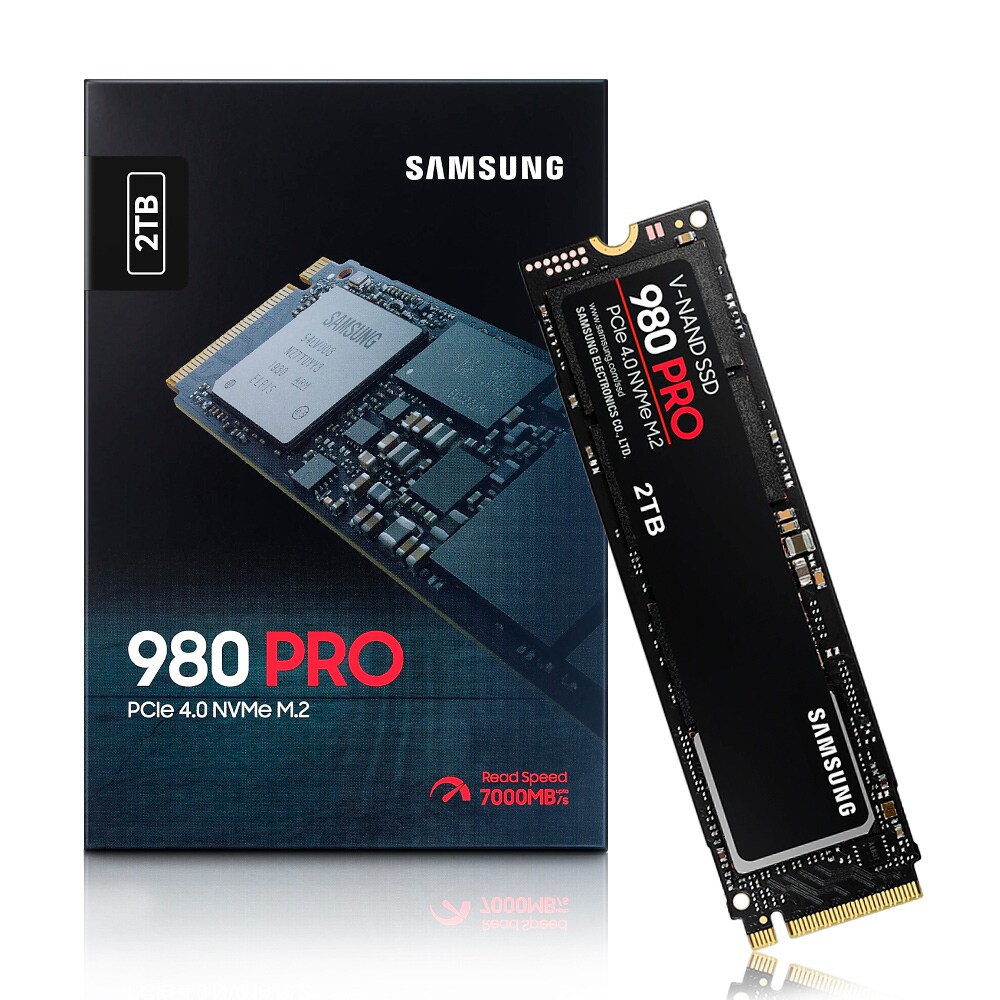
The best gaming SSD for most PC users is a 2TB PCIe 4.0 NVMe drive with good random performance and a heatsink or motherboard cooling cover.
The WD Black SN850X and Samsung 990 Pro are common high-end examples. Both are designed for demanding consumer systems and offer much higher peak performance than SATA SSDs.
A gaming SSD helps with:
- Game installation and updates.
- Level loading.
- System boot times.
- Texture streaming in some newer games.
- Faster file transfers.
It does not make your graphics card render frames faster. Moving a game from a slower SSD to a faster SSD may reduce some load times, but the difference between two good PCIe 4.0 drives can be small.
Choose 2TB if you play modern games. Many current PC games can use more than 100GB each, and some use far more. A 1TB drive can work, but it leaves less room for updates and other programs.
Avoid paying a large premium for PCIe 5.0 only for gaming unless independent testing of your specific games shows a useful gain.
The best SSD for a laptop
The best laptop SSD is the fastest model that fits the laptop’s size, interface, power, and cooling limits.
Before buying, check the service manual or manufacturer specifications for:
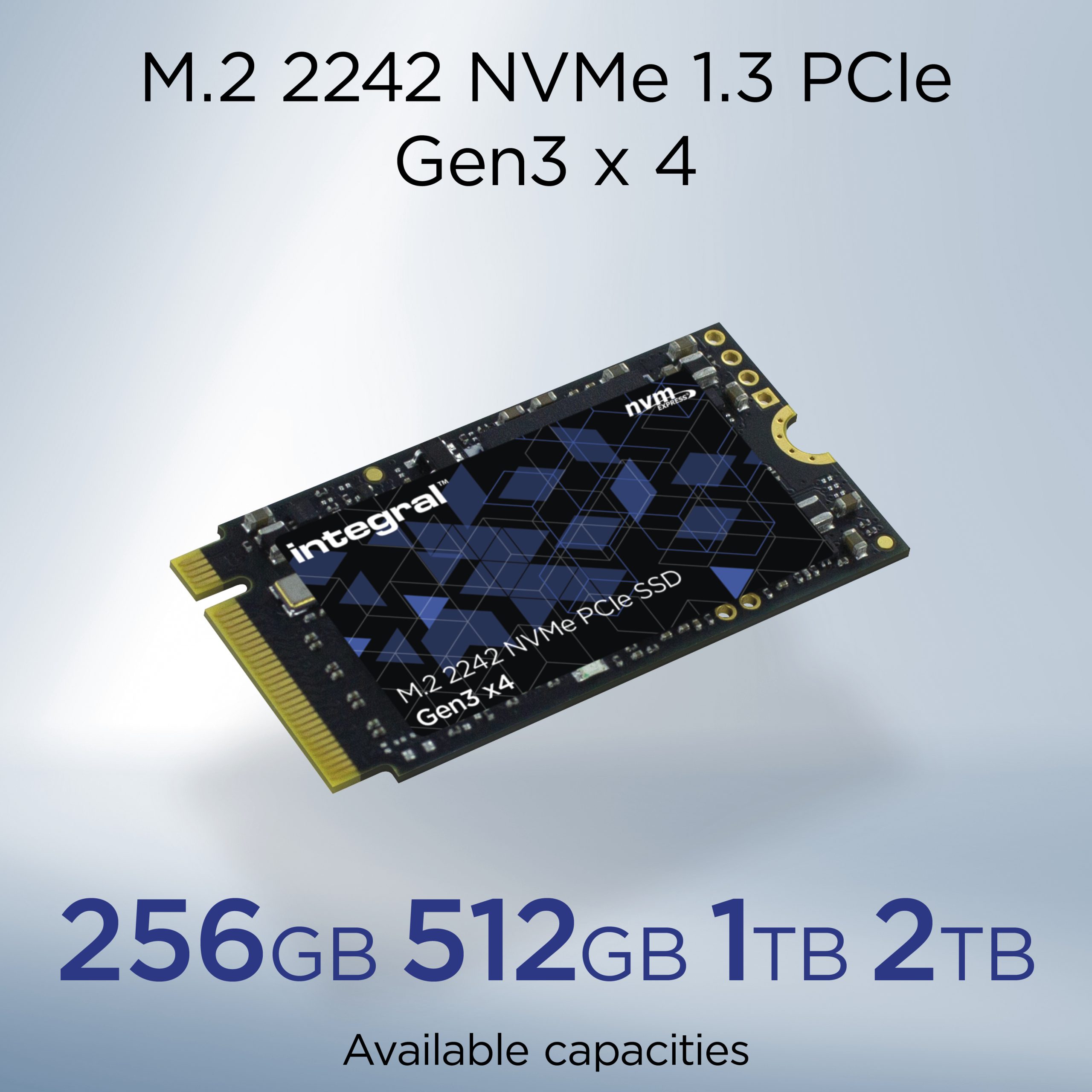
- M.2 2280 or another physical size.
- NVMe or SATA support.
- PCIe generation.
- Single-sided or double-sided drive limits.
- Maximum supported capacity.
- Whether the laptop has a replacement screw or thermal pad.
Laptop cooling is often limited. A very hot SSD can reduce speed during long transfers and may use more battery power. An efficient PCIe 4.0 model can be a better laptop choice than a hotter PCIe 5.0 drive.
If the laptop has only one storage slot, consider buying 2TB rather than replacing a smaller drive later. Back up the old drive before cloning it.
The best SSD for a PlayStation 5
The PlayStation 5 requires a compatible internal M.2 NVMe SSD. Sony’s published requirements include a PCIe 4.0 x4 interface, a capacity from 250GB to 4TB, and a recommended sequential read speed of at least 5,500 MB/s.
The SSD also needs suitable cooling. Many PS5-compatible drives are sold with a heatsink. If you buy a drive without one, use a heatsink that meets the console’s size limits.
Suitable examples include:
- WD Black SN850X with a compatible heatsink.
- Samsung 990 Pro with a compatible heatsink.
- Sony-licensed PS5 expansion drives.
Check the current PlayStation support page before installing. Requirements and approved product details can change. The drive must fit both the M.2 bay and its cover.
The Xbox Series X and Series S use a different storage system. They require a proprietary expansion card for internal-style game expansion. A normal M.2 NVMe SSD cannot replace that expansion card for optimized games.

The best budget SSD
The best budget SSD is usually a 1TB or 2TB PCIe 4.0 NVMe model from a known manufacturer, provided it has a clear warranty and suitable reviews for your workload.
Budget models may use QLC NAND, a smaller cache, or a DRAM-less design. Those choices can lower the price. They may also cause slower performance during very long write jobs.
A budget SSD is a reasonable choice for:
- Web browsing and office work.
- A secondary game library.
- Media storage with regular backups.
- A low-cost PC build.
- Replacing a failing hard drive.
Spend more for a TLC model when the drive will hold your operating system, receive frequent large writes, or serve as a work drive.
Do not choose by the lowest price alone. A very cheap SSD may have a weak warranty, poor firmware support, or a design that changes without a clear model revision. Check the exact model number and capacity.
Internal SSD or external SSD?
An internal SSD is best when you can install it inside the computer. It offers a direct connection and usually the lowest latency.
An external SSD is better when you need portability or cannot open the device. USB performance depends on the drive, enclosure, cable, and computer port.
Common external interfaces include:
- USB 3.2 Gen 1: Lower speed, often enough for backups.
- USB 3.2 Gen 2: Up to about 10Gbps in the interface standard.
- USB 3.2 Gen 2×2: Up to about 20Gbps with matching hardware.
- USB4: Can offer higher performance, but the exact result depends on the device and cable.
A fast NVMe drive in a slow USB enclosure will not reach its internal speed. Check the port and cable before paying for a premium portable SSD.
For travel, a rugged portable SSD such as the Samsung T7 Shield can be more useful than a fragile bare drive. No external SSD should be treated as the only copy of important files.

How much should you spend on an SSD?
SSD prices change often, so use capacity and features rather than a fixed price target.
A practical buying rule is:
- Set the capacity you need.
- Confirm interface and physical compatibility.
- Compare TLC and QLC designs.
- Check warranty and endurance.
- Compare the final price with similar models.
- Buy the better-supported option when the price difference is small.
A 2TB PCIe 4.0 SSD often provides better value than a 1TB premium model. Larger drives may also sustain writes better because they have more flash memory available for internal management.
Do not pay extra for a high-end drive if your computer has only a SATA interface. Do not buy a low-end drive for a professional workload simply because its advertised read speed looks high.
Common SSD buying mistakes
Buying the wrong interface
An M.2 slot may support SATA, NVMe, or both. Confirm the exact support before ordering.
Ignoring the heatsink
High-speed NVMe drives can become hot during long workloads. Use the motherboard cover or the drive’s included heatsink when required.
Treating advertised speed as normal speed
Maximum sequential speed is measured under controlled conditions. Small files, low free space, heat, and background tasks can reduce performance.
Filling the drive completely
Keep free space available. A full SSD may have less room for caching and background management.
Using one drive as the only backup
An SSD can fail, be lost, or be damaged. Keep important files in at least two separate locations, with one copy ideally stored away from the computer.
Ignoring firmware updates
Firmware can fix bugs or improve compatibility. Use the manufacturer’s official tool and follow its backup guidance before updating.
Buying a counterfeit or altered drive
Use a trusted US retailer. After installation, verify the capacity and model with a reputable system utility. An unusually low price deserves caution.
How to choose the right SSD in five steps
-
Identify the device.
Check the motherboard, laptop manual, or console requirements. -
Choose capacity.
Select 1TB for basic use, 2TB for most gaming systems, or 4TB and above for large libraries and work files. -
Select the interface.
PCIe 4.0 NVMe is the usual target for a new PC. Use SATA when the system requires it. -
Match the drive to the workload.
Choose TLC and stronger endurance for frequent writes. QLC may be fine for cheaper secondary storage. -
Check cooling, warranty, and support.
Confirm the heatsink, TBW rating, warranty term, and firmware tool before buying.
You have chosen well when the drive fits the slot, runs at the expected interface speed, stays within safe temperatures, and provides enough free space for your planned use.
Key takeaways
- The best SSD for most people is a 2TB PCIe 4.0 NVMe SSD.
- The WD Black SN850X and Samsung 990 Pro are strong high-end examples.
- PCIe 5.0 is useful for heavy file work, but it is not required for most gaming PCs.
- Check laptop, motherboard, and console compatibility before buying.
- Prefer TLC for heavy use, while QLC can reduce cost for lighter storage needs.
- Capacity, warranty, cooling, and sustained performance matter as much as peak speed.
- Keep backups. An SSD is not a backup by itself.
Frequently asked questions
Is NVMe always better than SATA?
NVMe is usually faster, especially for large transfers and many simultaneous tasks. SATA SSDs are still useful for older computers, external enclosures, and extra storage. A SATA SSD is also a major upgrade over a hard drive.
Is a 1TB SSD enough for gaming?
A 1TB SSD is enough for Windows and several games. A 2TB SSD is more comfortable because modern games can be very large and updates need free space.
Is PCIe 5.0 worth it for a gaming PC?
Usually not. PCIe 5.0 can be valuable for large file transfers and specialist workloads, but a good PCIe 4.0 SSD is often the better value for games.
Should I buy an SSD with DRAM?
DRAM can help with sustained workloads and heavy writes, but it is not required for every PC. A well-designed DRAM-less SSD can work well for basic use and game storage.
How long do SSDs last?
There is no single service life for every SSD. Lifespan depends on writes, heat, flash type, controller, and usage. Check the manufacturer’s TBW rating and warranty, and keep backups of important files.
Final recommendation
For a new US desktop or gaming PC, buy a 2TB PCIe 4.0 TLC NVMe SSD from a reputable brand. The WD Black SN850X is a strong general recommendation, while the Samsung 990 Pro is another high-end option. Choose a cheaper model when your workload is light, and choose PCIe 5.0 only when your work can use its extra throughput.
The next step is to check your computer’s manual for the supported M.2 size, interface, and PCIe generation. That compatibility check matters more than buying the SSD with the highest number on its box.
Sources and further reading
- NVM Express specifications
- PlayStation support: M.2 SSD requirements
- [Microsoft Xbox storage expansion information](https://www.xbox.com/en-US/accessories/hard-drives/ seagate-1tb-expansion-card)
- Samsung 990 PRO specifications
- Western Digital WD_BLACK SN850X specifications
- Crucial SSD support and specifications