How To Pair Beats Earbuds To Android: Easy Guide
To pair Beats earbuds to Android, turn on Bluetooth, open the Beats case, and select them from available devices.
Learning how to pair Beats earbuds to Android is simple once you know where pairing mode lives. The steps can vary slightly by model, such as Beats Studio Buds, Beats Fit Pro, or Beats Flex, so this guide covers the common process, fixes failed connections, and explains how to reconnect your earbuds later.
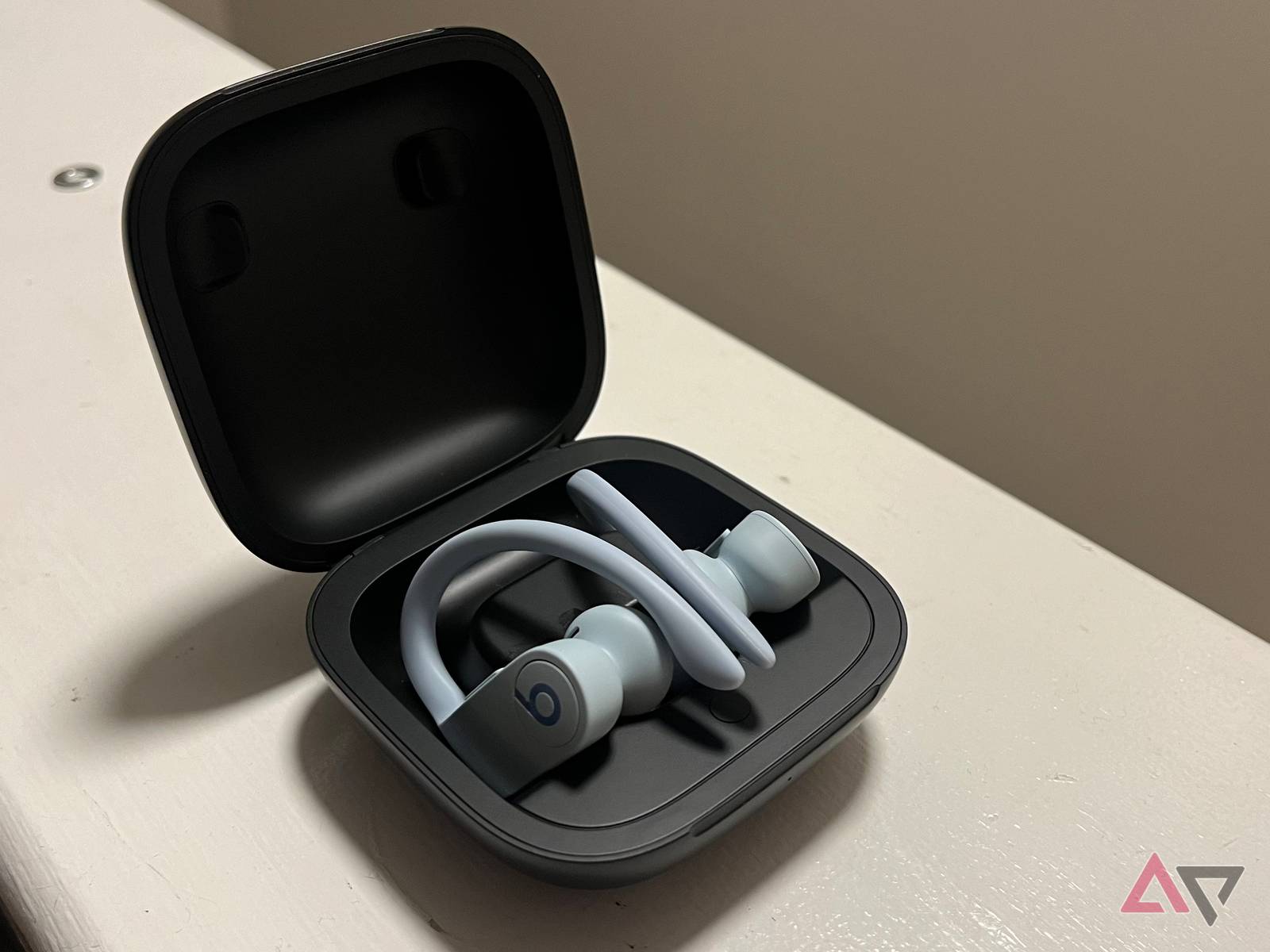
How to Pair Beats Earbuds to Android
Most Beats earbuds use standard Bluetooth, so they work with nearly any modern Android phone or tablet. You do not need an iPhone or Apple device to complete the setup.


Follow these steps to pair Beats earbuds to Android:
- Charge the earbuds and their case for a few minutes.
- Unlock your Android phone.
- Open the Settings app.
- Tap Connected devices, Connections, or Bluetooth. The name may vary by Android brand.
- Turn on Bluetooth.
- Place both Beats earbuds inside the charging case.
- Open the case lid.
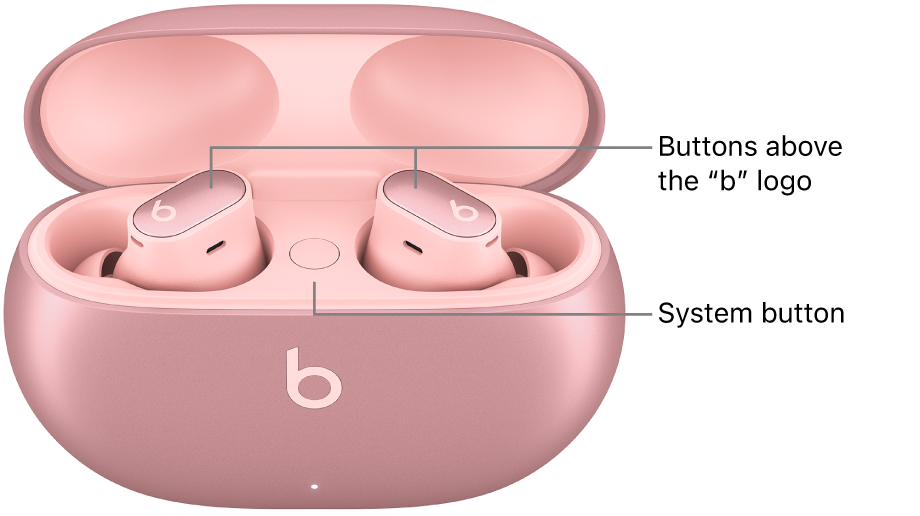
- Press and hold the system button on the case until the indicator light flashes white.
- Look under Available devices on your Android phone.
- Tap the name of your Beats earbuds.
- Select Pair or Confirm if Android shows a pairing request.
The flashing white light usually means the earbuds are ready to connect. Once pairing is complete, the earbuds should appear under Saved devices or Paired devices.
If your Beats model does not have a charging case, such as Beats Flex, press and hold the power button until the indicator light flashes. Then select the earbuds from the Bluetooth menu on your Android device.

Before You Pair Beats Earbuds to Android
A few quick checks can prevent most connection problems. Think of Bluetooth pairing like introducing two people in a busy room. Both devices must be awake, close, and ready to listen.
Before you pair Beats earbuds to Android, check the following:
• Keep the earbuds within 3 feet of your phone during setup.
• Charge the earbuds and case. A very low battery can stop pairing mode from working.
• Turn off Bluetooth on nearby phones, tablets, or laptops that have used the earbuds before.
• Make sure Airplane mode is off, or manually turn Bluetooth back on if needed.


• Remove thick protective cases that may make it hard to press the case button.
• Keep your Android phone updated. Menu names may differ on Samsung Galaxy, Google Pixel, Motorola, and OnePlus devices.
You can also place the earbuds in the case, close the lid, wait about 10 seconds, and open it again. This often clears a temporary connection error without a full reset.
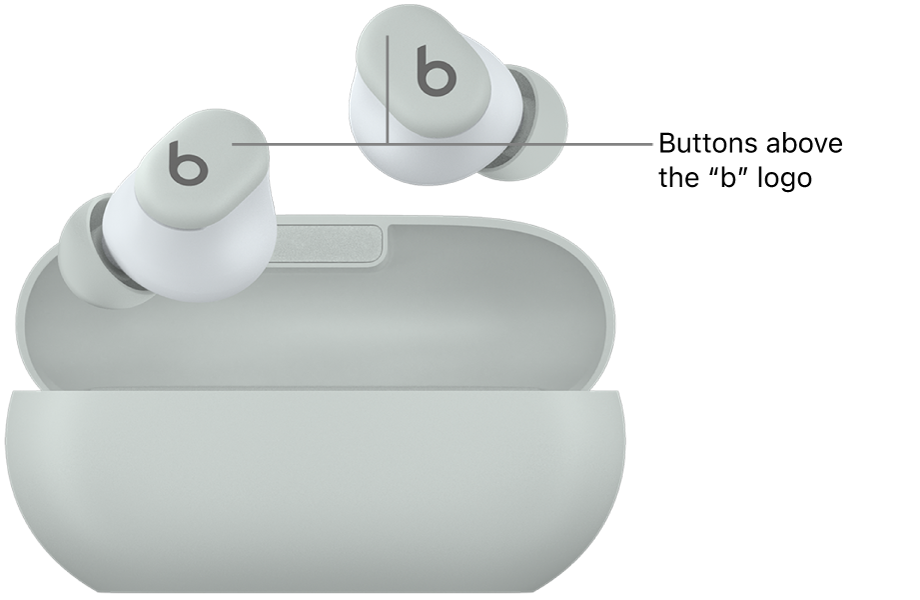
How to Put Different Beats Models in Pairing Mode
The pairing method depends on the Beats product. Most current models use the button on the charging case, but older headphones may use a power button.
Beats Studio Buds and Beats Studio Buds Plus
Place both earbuds in the case and leave the lid open. Press and hold the button inside the case until the light flashes white. Your Android phone should then show the earbuds in its Bluetooth list.
Beats Fit Pro
Put both Beats Fit Pro earbuds in the charging case. Keep the lid open, then press and hold the case system button until the light flashes white. Select Beats Fit Pro on your Android phone.
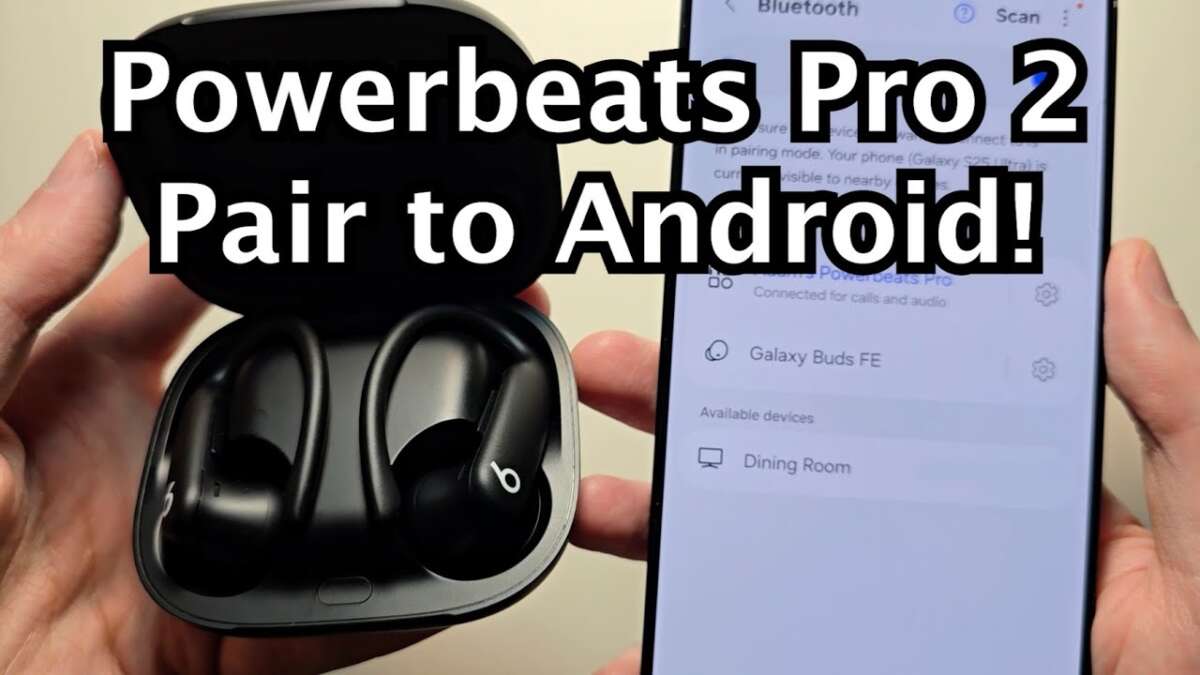
Beats Powerbeats Pro
Put the earbuds in the charging case and open the lid. Press and hold the button inside the case until the indicator flashes white. Keep the case near your phone while you complete the connection.
Beats Flex
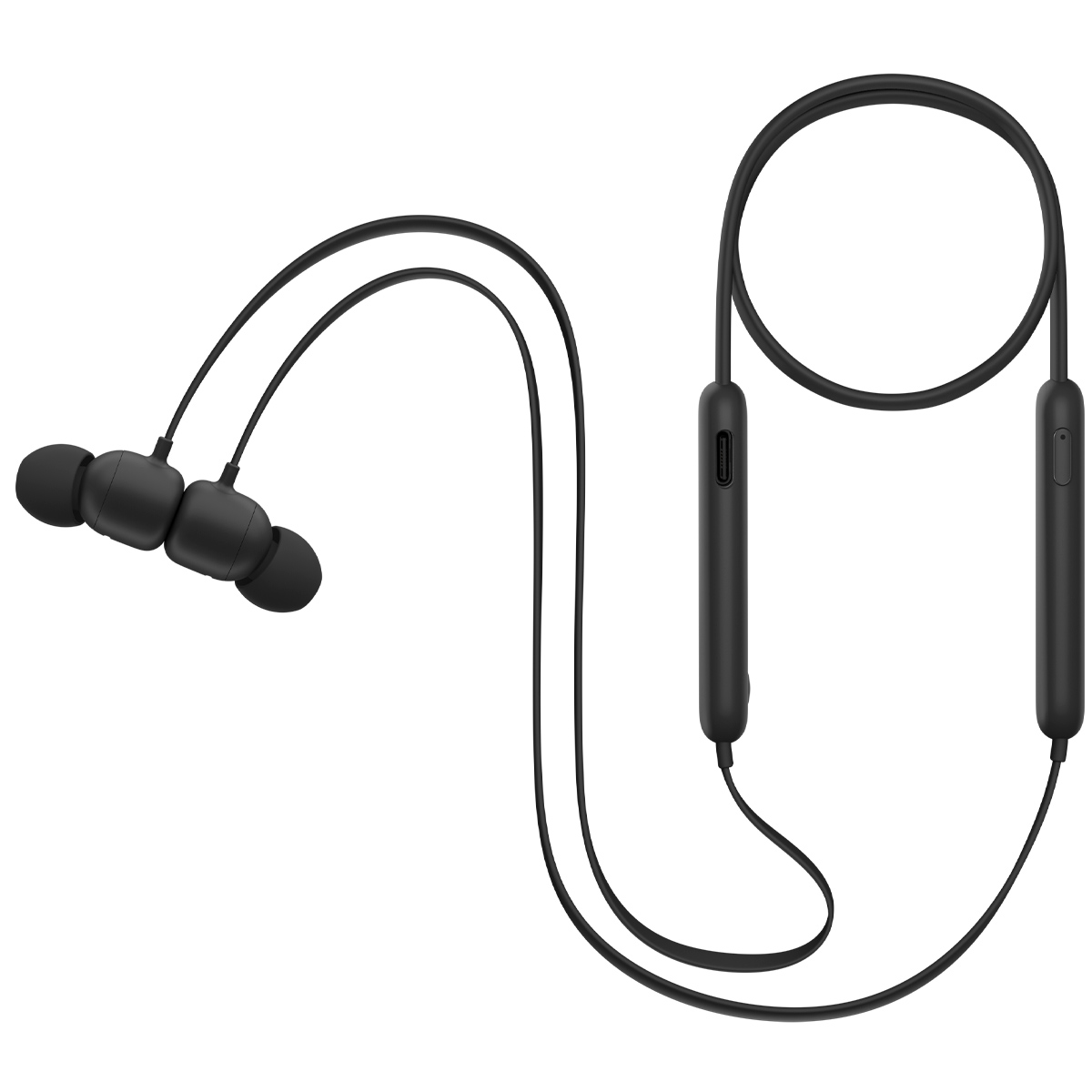
Turn on Beats Flex by holding the power button. Continue holding it until the light flashes. Open Bluetooth settings on Android and choose Beats Flex from the device list.
Beats Solo Buds
Place the earbuds in their case, open the lid, and press the pairing button if your model includes one. If the earbuds do not appear, hold the case button for several seconds until the status light flashes.
Beats headphones
For wireless Beats headphones, press and hold the power button. Many models enter pairing mode when the light begins to flash. Then open Android Bluetooth settings and tap the headphone name.
Exact button locations can differ by model and production year. If your earbuds do not enter pairing mode, check the quick-start card included with the product or the model-specific support instructions.
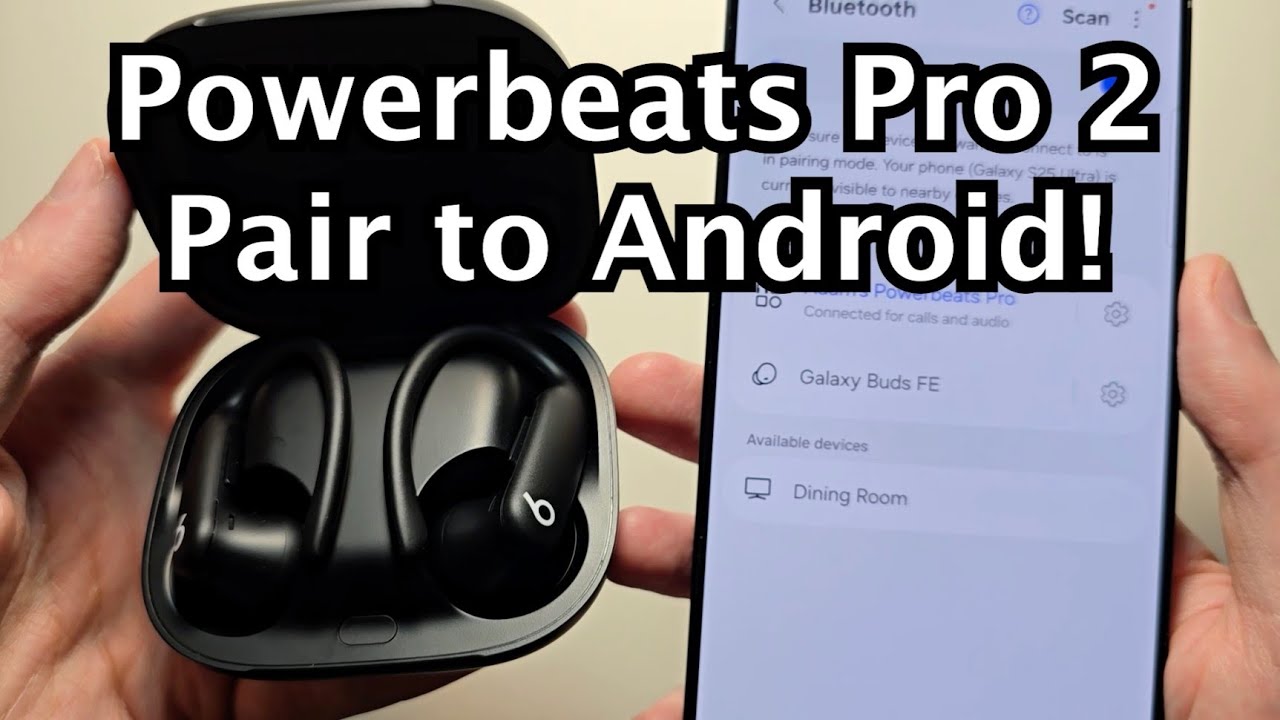
How to Pair Beats Earbuds to Android Through Fast Pair
Some Beats models support Google Fast Pair on compatible Android devices. Fast Pair can show a pop-up card when the earbuds are nearby and ready to connect.
To use Fast Pair:
- Turn on Bluetooth and Location on your Android phone.
- Unlock the phone.
- Open the Beats case near the phone.
- Put the earbuds into pairing mode if no pop-up appears.
- Tap the connection notification.
- Follow the instructions on the screen.
Fast Pair is convenient, but it is not required. If no pop-up appears, you can still pair Beats earbuds to Android through the regular Bluetooth settings.


Fast Pair support depends on the Beats model, Android version, Google Play services, and phone settings. The standard Bluetooth method is the most reliable option when the pop-up does not appear.
Pair Beats Earbuds to Android Using the Beats App
The Beats app for Android can make setup easier on supported models. It may show battery levels, provide firmware updates, offer control settings, and help manage device features.
After you pair Beats earbuds to Android through Bluetooth, open the Beats app and follow its setup instructions. The app may ask for permissions, such as access to nearby devices or notifications.
You can usually use Beats earbuds without the app. However, installing it may help you:
• Check left, right, and case battery levels.
• Rename the earbuds.
• Adjust available controls.
• Install firmware updates.
• Find support information for your model.
The app does not replace Android Bluetooth settings. If the earbuds do not connect, start with Bluetooth pairing first, then use the app for extra features.
What to Do When Beats Earbuds Do Not Appear
If your earbuds are missing from the Android Bluetooth list, they may not be in pairing mode. This is the most common reason people cannot pair Beats earbuds to Android.
Try these steps in order:
- Put both earbuds in the case.
- Close the lid for 10 seconds.
- Open the lid.
- Press and hold the case button until the light flashes white.
- Turn Bluetooth off and on again on your Android phone.
- Move away from other Bluetooth devices.
- Search for available devices again.
If the earbuds still do not appear, restart your Android phone. Also check whether they are connected to another device nearby. Bluetooth earbuds often reconnect automatically to the last phone, tablet, or computer they used.
On some Android phones, you may need to tap Pair new device or Scan before the earbuds appear. The setting may be inside Settings, Connected devices, Bluetooth, or Connections.

How to Fix Beats Earbuds That Keep Disconnecting
A successful first connection does not always mean the problem is over. Weak battery levels, distance, software errors, and wireless interference can cause repeated disconnections.
Use these fixes:
• Keep the phone and earbuds close. Bluetooth works best at short range.
• Charge both earbuds evenly. One earbud may disconnect if its battery is empty.


• Remove the earbuds from your ears and place them in the case for 10 seconds.
• Turn off battery saver for the Beats app if Android limits its background activity.
• Forget the Beats device and pair it again.
• Restart both the earbuds and Android phone.
• Install available Android, Beats app, and firmware updates.
Walls, crowded public spaces, Wi-Fi equipment, and many nearby wireless devices can also affect performance. In a busy gym or airport, moving a few feet away from other devices may help.
During testing and troubleshooting, one easy mistake appears often: the earbuds show as connected, but audio still plays through the phone speaker. Pull down the Android Quick Settings panel, tap the media output control, and choose your Beats earbuds.
How to Forget and Re-Pair Beats Earbuds
If the connection profile becomes corrupted, forgetting the device usually solves the issue. This removes the saved Bluetooth record from Android and lets you create a fresh connection.
To forget the earbuds:
- Open Settings.
- Tap Connected devices or Bluetooth.
- Find your Beats earbuds under Saved devices.
- Tap the gear icon beside the name.
- Select Forget, Unpair, or Remove.
- Confirm the choice.
- Put the earbuds back into pairing mode.
- Select them from Available devices.
Forgetting the device does not erase your music, apps, or personal files. It only removes the Bluetooth connection record. You may need to repeat this process on other phones or computers that have saved the earbuds.

How to Reset Beats Earbuds Before Pairing Again
A reset can help when the earbuds refuse to enter pairing mode, connect to the wrong phone, or show an unusual battery status. Reset instructions vary by model, so avoid holding random buttons for a long time.
For many Beats earbuds, the general process is:
- Place both earbuds in the charging case.
- Leave the case open.
- Press and hold the system button.
- Continue holding it until the light flashes red and white, or until the model’s reset signal appears.
- Release the button.
- Close and reopen the case.
- Try to pair the earbuds again.
A reset removes saved pairing information. Afterward, you must pair Beats earbuds to Android as if they were new.


If the status light never changes, charge the case and try again. A damaged case, blocked charging contact, or hardware fault may require professional support.
Features That May Differ on Android
Beats earbuds work well with Android, but some features may differ from those available on Apple devices. This is normal and does not mean the earbuds are defective.
Depending on the model, Android users may have access to:
• Bluetooth audio and phone calls.
• Automatic play and pause.
• Noise cancellation and transparency modes.
• Button or touch controls.
• Battery information through the Beats app.
• Firmware updates through the Beats app.
Some Apple-only services may not work in the same way on Android. For example, Apple account integration and certain device-finding features may be limited. Google Fast Pair and the Beats Android app can provide some helpful alternatives, but feature support depends on the exact model.
Check the product specifications before buying if you need a specific feature. Compatibility is broad, but it is not identical across Android and Apple devices.
Tips for Better Sound and Battery Life
Once you pair Beats earbuds to Android, a few habits can improve daily use. Good fit matters as much as good Bluetooth settings.
Try these practical tips:
• Use the correct ear tip size to create a comfortable seal.
• Clean the speaker grilles with a dry, soft brush.
• Keep the charging contacts free of dust.
• Store the earbuds in the case when you are not using them.
• Avoid leaving the case in a hot car or direct sunlight.


• Keep your Android phone on the same side of your body when possible.
• Use noise cancellation only when you need it to preserve battery life.
Earwax and dust can block sound and make one earbud seem quieter. Do not push sharp objects into the mesh. Gentle cleaning protects the speaker and helps maintain balanced audio.
Common Mistakes to Avoid
Many pairing problems come from small steps that are easy to miss. Avoid these mistakes when you pair Beats earbuds to Android:
• Searching for the earbuds before putting them in pairing mode.
• Leaving the case closed while trying to connect.
• Choosing a similarly named Bluetooth device.
• Pairing only one earbud after a failed setup.
• Ignoring a nearly empty case battery.
• Trying to connect while the earbuds are still linked to another phone.
• Resetting the earbuds before trying a simple Bluetooth restart.
The best approach is to work from simple fixes to advanced ones. Start with pairing mode, battery, distance, and Bluetooth settings. Use a reset only when those steps do not work.
Frequently Asked Questions About How to Pair Beats Earbuds to Android
Can you pair Beats earbuds with any Android phone?
Yes. Most Beats earbuds use Bluetooth and can pair with Android phones that support Bluetooth audio. Some advanced features may require a compatible Android version or the Beats app.
Why are my Beats earbuds not showing up on Android?
The earbuds may not be in pairing mode, or they may still be connected to another device. Place them in the case, open the lid, hold the case button until the light flashes white, and scan for devices again.
Do I need the Beats app to pair Beats earbuds to Android?
No. You can pair Beats earbuds through Android Bluetooth settings without installing an app. The Beats app can add battery details, controls, support tools, and firmware updates on supported models.
How do I put Beats Studio Buds in pairing mode?
Place both earbuds in the case and open the lid. Press and hold the case button until the indicator light flashes white, then select Beats Studio Buds from your Android Bluetooth list.
Can Beats earbuds connect to Android and iPhone?
Yes. Beats earbuds can be paired with Android phones, iPhones, tablets, and computers that support Bluetooth. They can remember multiple devices, but they normally connect to one active device at a time.
Why do my Beats earbuds connect but have no sound?
Open Android’s media output selector and choose your Beats earbuds. If that does not help, check the Bluetooth device settings and confirm that Media audio is enabled.
How do I reset Beats earbuds for a new Android phone?
Place the earbuds in the case, open the lid, and hold the system button until the reset light pattern appears. The exact signal varies by model, so check the instructions for your specific Beats product.
Conclusion
Pairing Beats earbuds to Android usually takes less than a minute: turn on Bluetooth, place the earbuds in pairing mode, and select them from the available device list. If the connection fails, check the battery, distance, nearby devices, and saved Bluetooth records before trying a reset.
Once you pair Beats earbuds to Android, the Beats app can help with battery checks, controls, and updates on supported models. Try the steps above with your specific Beats model, and share this guide with anyone who is having trouble connecting their earbuds.