What Is An SSD Card: Simple Guide For Beginners
If you are shopping for storage for a Windows PC, Mac, camera, game console, or phone in the United States, you may see the term “SSD card.” The phrase is often used loosely, but it does not describe one standard product.
An SSD, or solid-state drive, is a storage device that saves data on flash memory. It has no spinning disks or moving read heads. A memory card, such as an SD card or microSD card, also uses flash memory, but it is a smaller removable card made for cameras, phones, handheld consoles, and other devices.
So, an “SSD card” may mean one of three things:
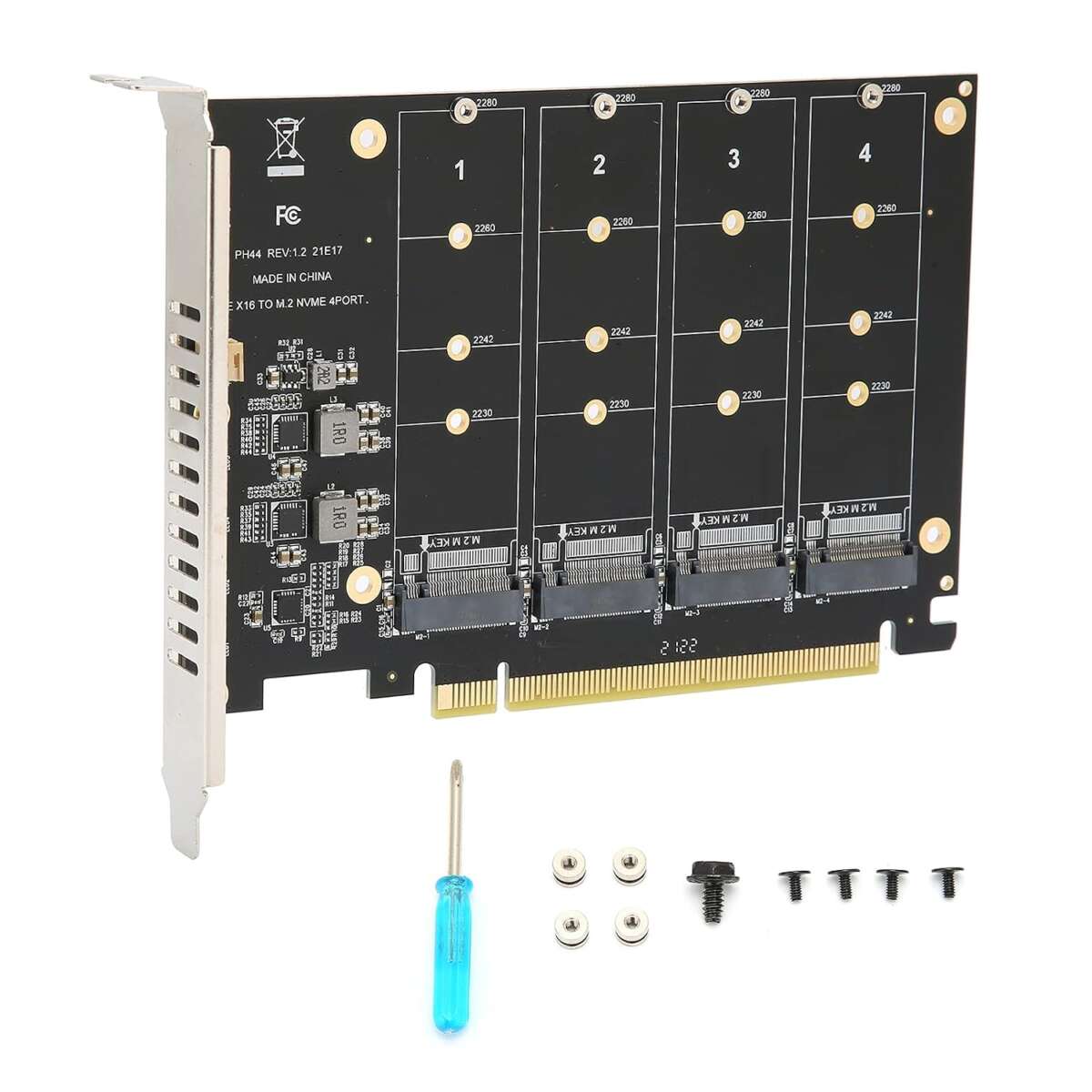
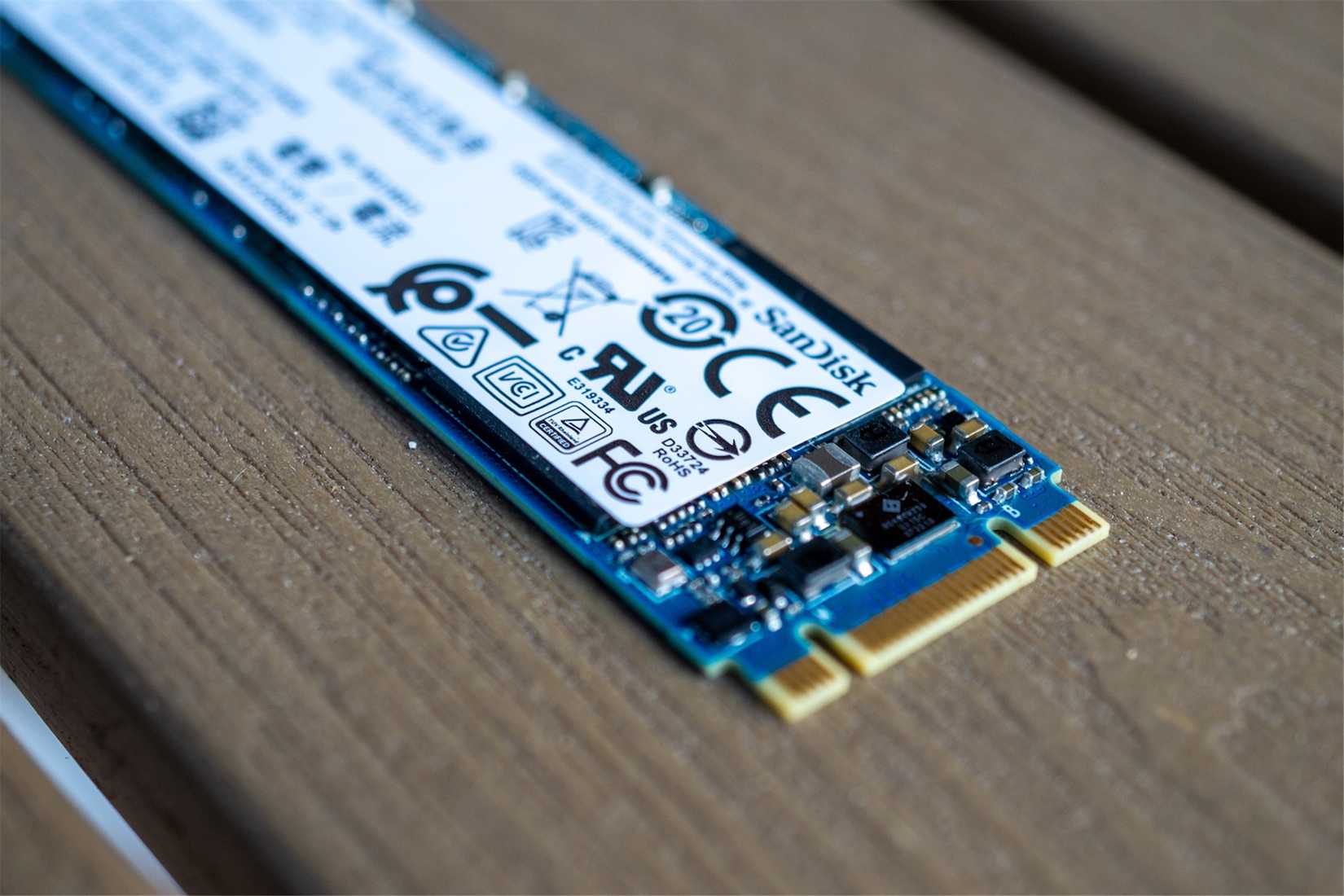
- An internal SSD, such as a 2.5-inch SATA SSD or an M.2 NVMe SSD
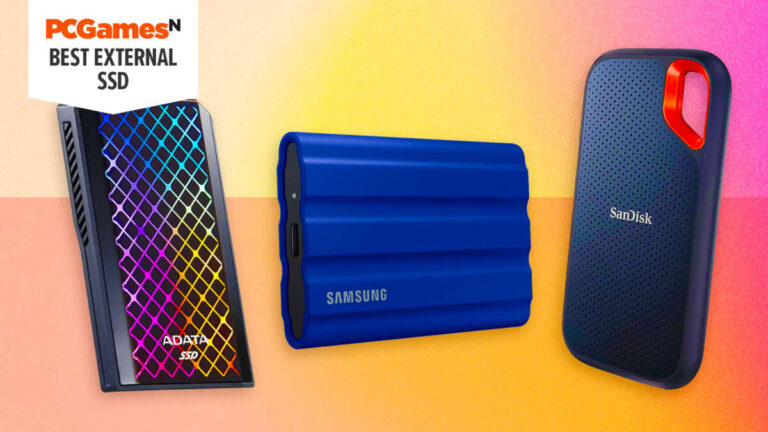
- A portable external SSD with a USB cable
- An SD or microSD memory card, which is not usually called an SSD


The right choice depends on your device, connection type, storage needs, speed target, and budget.
What Is an SSD?
An SSD is a storage device that uses flash memory to keep files, programs, and operating system data. Because it has no moving parts, an SSD can access data quickly and operate more quietly than a traditional hard disk drive.
Inside a typical SSD are several key parts:
- NAND flash memory: Stores your data even when the device is turned off.
- Controller: Manages data movement, error correction, wear leveling, and communication with the computer.
- Firmware: Software inside the drive that controls how the SSD works.
- DRAM or other memory: Helps map stored data and can improve performance on some models.
- Connection interface: Links the SSD to the computer, such as SATA or PCIe.
The term solid-state means the drive stores data in solid electronic components rather than on moving magnetic disks.
How an SSD stores data
NAND flash memory contains cells that hold an electrical charge. The controller reads the charge level to determine whether a cell represents stored data.
SSDs commonly use these NAND types:
| NAND type | Bits per cell | General trade-off |
|---|---|---|
| SLC | 1 | Very fast and durable, but expensive |
| MLC | 2 | Good performance and endurance, less common in consumer drives |
| TLC | 3 | Common balance of cost, speed, and endurance |
| QLC | 4 | Higher capacity at a lower cost, but often lower sustained write performance |
These categories describe how much data each memory cell stores. They do not, by themselves, tell you whether one SSD is better for every use.
Why SSDs feel faster
An SSD can locate electronic data without waiting for a disk platter to spin or a read head to move. This helps with:
- Starting a computer
- Opening apps
- Loading game levels
- Searching files
- Copying many small files
- Installing software
The connection also matters. A fast NVMe SSD may perform much better than a SATA SSD in demanding workloads, but both may feel much faster than a hard drive during normal computer use.


Is an SSD Card the Same as an SD Card?
No. An SSD and an SD card both use flash storage, but they are different product types with different shapes, connectors, controllers, and typical uses.
An SD card is a removable flash memory card. It is common in digital cameras, drones, Android devices, dash cameras, and some game consoles. An SSD is usually a larger storage drive designed for a computer, console, or external enclosure.
The phrase “SSD card” can cause confusion because:
- Some sellers use it as an informal name for a small solid-state drive.
- Some people use it when they mean an SD card.
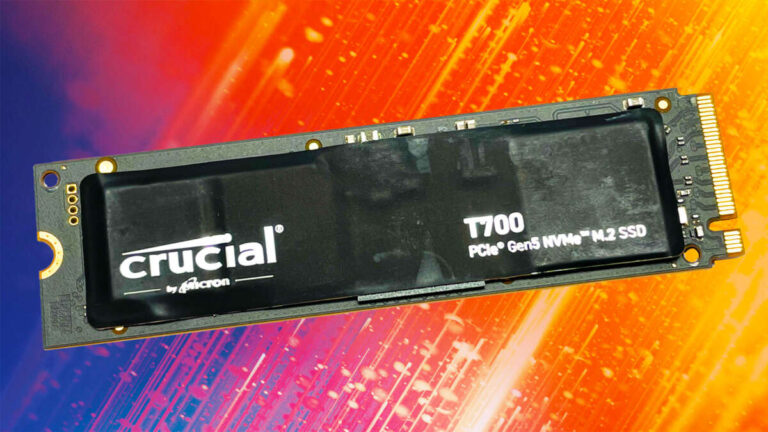
- An M.2 SSD looks like a small circuit board, but it is not an SD card.
- A portable SSD may look like a large memory card but normally connects through USB.
SSD versus SD card
| Feature | SSD | SD or microSD card |
|---|---|---|
| Common shape | 2.5-inch drive, M.2 board, or portable enclosure | Small removable card |
| Typical connection | SATA, PCIe/NVMe, or USB | SD card slot or adapter |
| Common use | Computers, consoles, external storage | Cameras, phones, drones, handheld devices |
| Performance | Usually higher, especially for sustained work | Varies widely by card and device |
| Upgrade method | Installed internally or connected by cable | Inserted into a compatible card slot |
| Main concern | Interface and physical fit | Card format, speed class, and device support |
If a product listing says “SSD card,” check the connector and exact model. Look for terms such as M.2 2280, NVMe, 2.5-inch SATA, USB-C portable SSD, SDXC, or microSDXC.

What Are the Main Types of SSDs?
The main SSD types are 2.5-inch SATA SSDs, M.2 SATA SSDs, M.2 NVMe SSDs, and external portable SSDs. They may use similar flash memory, but their physical design and connection determine compatibility and speed.
2.5-inch SATA SSD
A 2.5-inch SATA SSD uses the same general data and power connections found in many 2.5-inch laptop hard drives.
It is useful for:
- Upgrading an older laptop
- Replacing a desktop hard drive
- Adding storage to a computer with an open SATA bay
- Building a low-cost system
SATA has a lower maximum data rate than modern PCIe NVMe connections. Still, a SATA SSD can make an older computer feel much more responsive than it would with a hard drive.
M.2 SATA SSD
An M.2 SATA SSD is a slim circuit board that fits into an M.2 slot. Despite its M.2 shape, it uses the SATA storage protocol.
This distinction matters because an M.2 slot may support:
- SATA only
- PCIe/NVMe only
- Both SATA and PCIe/NVMe
The drive and the slot must support the same protocol. Physical fit alone does not prove compatibility.
M.2 NVMe SSD
An M.2 NVMe SSD uses the PCI Express bus and the NVMe protocol. NVMe was designed for fast storage and can handle many parallel data requests.
NVMe drives are common in newer:
- Windows laptops
- Desktop computers
- Gaming PCs
- Workstations
- Some game consoles


An NVMe drive may use PCIe 3.0, PCIe 4.0, or PCIe 5.0. The computer must support the same generation to reach the drive’s intended performance. A newer drive may work in an older slot, but it can operate at the older slot’s limits.
External portable SSD
A portable SSD places solid-state storage in a protective enclosure. It usually connects through USB-C, USB-A, or Thunderbolt.
An external SSD can be useful for:
- Backups
- Moving large files
- Photo and video projects
- Expanding laptop storage
- Carrying a game library
- Transferring data between compatible computers
The USB port, cable, enclosure, and SSD all affect speed. A USB-C connector does not automatically mean the drive uses the fastest USB standard.

How Fast Is an SSD?
SSD speed depends on the storage interface, drive design, workload, temperature, and the amount of data being written. A manufacturer’s sequential read speed is not the same as the speed you will see for every task.
Two common performance measures are:
- Sequential speed: Moving large blocks of data in a continuous stream.
- Random speed: Reading or writing many small files from different locations.
A drive may advertise a high sequential read speed but feel similar to another SSD when opening everyday apps. Large file transfers and professional video work are more likely to show the difference.
SATA versus NVMe
SATA SSDs are limited by the SATA interface. NVMe SSDs use PCIe and can provide much higher sequential speeds, especially on PCIe 4.0 and PCIe 5.0 systems.
For most users:
- Moving from a hard drive to any good SSD brings the biggest noticeable improvement.
- Moving from a SATA SSD to an NVMe SSD may help large transfers and demanding applications more than basic web browsing.
- More advertised speed does not guarantee a faster overall computer if the processor, memory, software, or source drive is the bottleneck.
Why write speed may drop
Many SSDs use a temporary fast-writing area called an SLC cache. When that cache fills during a long write, the drive may slow down.
This can happen when:
- Copying hundreds of gigabytes at once
- Recording large video files
- Installing several large games
- Creating backups
- Working with large virtual machines
A short file transfer may match the advertised speed. A long transfer may not. Review sustained-write behavior when the workload involves large, continuous writes.

How Much SSD Storage Do You Need?
Choose capacity based on the files and programs you expect to keep locally. Leave free space for the operating system, updates, temporary files, and the SSD’s internal maintenance.
Common capacity choices include:
| Capacity | Practical fit |
|---|---|
| 256GB | Basic office use or a small system, but limited |
| 512GB | General use, schoolwork, and a moderate app collection |
| 1TB | A flexible choice for many PCs and gaming systems |
| 2TB | Large game libraries, media files, and creative work |
| 4TB or more | Extensive video, photography, backups, or large project files |
The usable space is lower than the number on the package because manufacturers use decimal units while operating systems often display capacity differently. Formatting and system partitions also consume some space.


A simple planning example:
- Operating system and updates: 80GB
- Apps: 120GB
- Games: 500GB
- Personal files: 150GB
- Free working space: 150GB
That total is 1,000GB, so a 1TB drive would leave little room for growth. A 2TB SSD would provide more breathing room.
Do not treat an SSD as a backup. A drive can fail, be lost, damaged, encrypted by malware, or erased by mistake. Keep important files in at least one separate backup.

How Do You Install an SSD?
The installation method depends on whether the SSD is internal or external. Before opening a computer, confirm the manufacturer’s instructions and check whether the system has a user-replaceable drive.
Installing a 2.5-inch SATA SSD
- Back up important files.
- Shut down the computer and disconnect power.
- Open the case or service panel according to the manufacturer’s instructions.
- Connect the SATA data cable to the motherboard.
- Connect the SATA power cable from the power supply.
- Secure the SSD in the drive bay.
- Start the computer and check the BIOS or UEFI to see whether the drive is detected.
- Initialize and format the drive in the operating system if it is new.
- Clone the old drive or install the operating system, depending on your plan.
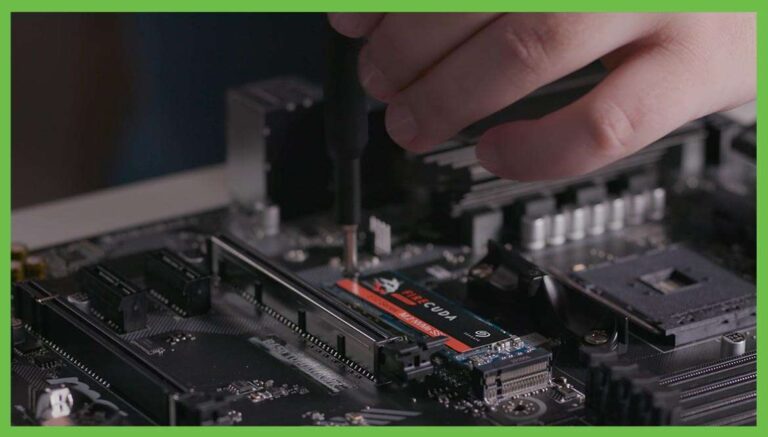
Installing an M.2 SSD
- Confirm the M.2 slot supports the SSD’s protocol and size.
- Turn off the computer and disconnect power.
- Remove the correct cover or heatsink.
- Insert the M.2 drive at the angle shown in the manual.
- Press it flat and secure it with the proper screw or latch.
- Replace the heatsink if the system includes one.
- Start the computer and check BIOS or UEFI detection.
- Initialize the drive or install the operating system.
Do not force an M.2 drive into a slot. Notches, key positions, screw locations, and supported lengths matter.
Using an external SSD
An external SSD usually needs no internal installation:
- Connect it with a compatible data cable.
- Wait for the operating system to detect it.
- Format it only if it is new or you have already copied the needed files.
- Eject it through the operating system before unplugging it.
- Keep a second copy of important data.
If the drive is not detected, try another cable and port before assuming the SSD has failed.

How Do You Check SSD Compatibility?
Check the computer, the drive, and the interface together. The most common mistake is buying an SSD that fits physically but uses a protocol the system does not support.
Before buying, verify:
- Physical size: For M.2 drives, common lengths include 2230, 2242, 2260, and 2280. The numbers describe width and length in millimeters.
- Protocol: The slot may require SATA, NVMe, or either one.
- Bus: NVMe drives use PCIe. Confirm the supported PCIe generation.
- Drive bay: A 2.5-inch SSD needs a compatible bay and cables.
- Operating system: Confirm that the computer supports the operating system you plan to use.
- Firmware and installation limits: Some laptops restrict drive size or require a particular drive position.
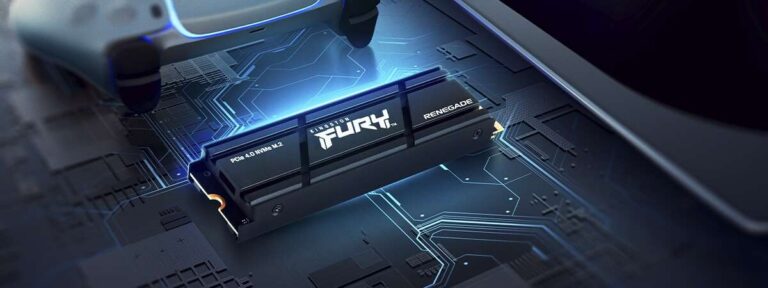
- Heatsink clearance: A desktop graphics card or laptop cover may block a tall heatsink.
- Console support: Game consoles may require a certain capacity, speed, physical size, or heatsink design.
The best evidence is the device maker’s service manual or support page. If the manual lists an M.2 NVMe 2280 slot, a 2.5-inch SATA SSD is not a direct replacement for that slot.

SSD Advantages and Limitations
SSDs offer strong everyday performance and quiet operation, but they are not the best answer for every storage job.
Advantages
- Faster startup and app loading than a hard drive
- No spinning parts
- Quiet operation
- Lower resistance to movement during normal use
- Small designs, especially M.2 models
- Low access latency
- Good fit for laptops and portable storage


Limitations
- Higher cost per terabyte than some hard drives
- Performance can fall during long writes
- Flash memory has finite write endurance
- Data recovery can be difficult after some failures
- Heat can reduce performance in demanding workloads
- Compatibility depends on the interface and physical design
- An SSD is not a backup
SSD endurance is often listed as TBW, or terabytes written. TBW is a manufacturer rating for the amount of data written under stated conditions. It is not a promise that the drive will fail immediately after reaching that number, nor does it guarantee a specific service life for every user.
For normal home and office use, other factors may matter more than chasing the highest endurance rating. For heavy write workloads, compare the warranty, TBW rating, controller design, sustained-write behavior, and independent testing.

Common SSD Mistakes to Avoid
Buying by connector shape alone
USB-C, M.2, and SATA describe different aspects of a product. A USB-C port may support different USB standards. An M.2 drive may use SATA or NVMe.
Better approach: Check the exact protocol and bus supported by both devices.
Assuming every M.2 drive works in every M.2 slot
M.2 is a form factor, not a complete compatibility standard.
Better approach: Read the computer or motherboard manual before purchasing.
Using a nearly full SSD
An SSD needs working space for data management. A nearly full drive may show lower performance and leave less room for updates.
Better approach: Keep free space available and move large files that you do not need every day.
Treating advertised speed as a guarantee
Advertised figures often describe ideal sequential tests. They may not represent small-file work, long writes, or an external enclosure.
Better approach: Match reviews and specifications to your actual workload.
Storing the only copy of important files on the SSD
A solid-state drive can fail without warning.
Better approach: Use a backup system with a separate drive or a reputable cloud service. Test that you can restore files.
Removing a portable SSD without ejecting it
Unplugging during a write can corrupt files or the file system.
Better approach: Eject the drive through the operating system and wait for confirmation.


How to Choose the Right SSD
Use this short decision process:
- For an older laptop with a 2.5-inch hard drive: Choose a 2.5-inch SATA SSD if the laptop supports it.
- For a newer desktop or laptop with an M.2 NVMe slot: Choose an M.2 NVMe SSD that matches the supported size and PCIe generation.
- For backups or moving files between computers: Choose an external SSD with the correct USB cable and port.
- For a camera, drone, or phone card slot: Choose the required SD, microSD, SDHC, or SDXC card instead of an SSD.
- For a game console: Follow the console maker’s storage requirements.
- For large creative workloads: Compare sustained write performance, capacity, cooling, and endurance—not only peak read speed.
For many general-purpose computers, a 1TB internal SSD offers a practical balance of capacity and convenience. That is a planning guideline, not a universal rule; your files and device limits should decide the purchase.
Frequently Asked Questions
Is an SSD better than an SD card?
Neither is always better. An internal SSD is usually faster and better suited to an operating system or computer applications. An SD card is designed for removable storage in devices with an SD or microSD slot.
Can I use an SSD as a memory card?
Usually not directly. A camera or phone that accepts an SD card normally cannot accept an M.2 or 2.5-inch SSD. Some devices can use an external SSD through USB, but they must support that connection and provide enough power.
Is NVMe the same as SSD?
No. SSD describes the storage device. NVMe is a protocol used by many PCIe SSDs. An NVMe SSD is one type of SSD.
Do SSDs last longer than hard drives?
There is no universal answer. SSDs have no moving parts, but flash memory has write limits and electronic components can fail. Hard drives have moving parts and can be sensitive to shock. Backups matter for both types.
Can an SSD improve gaming?
It can reduce game loading times and may improve texture or level loading in some games. It does not automatically increase frame rates, which depend mainly on the graphics processor, processor, memory, game settings, and software.
Should I buy a SATA SSD or an NVMe SSD?
Choose based on compatibility and workload. NVMe is usually the better fit for a compatible modern slot, especially for large transfers and demanding applications. A SATA SSD remains a useful upgrade for systems that do not support NVMe.
Final Answer: What Is an SSD Card?
An “SSD card” usually refers to a solid-state drive in a small card-like form, such as an M.2 SSD, or it is an informal name for an SD memory card. The terms are not interchangeable.
An SSD stores data on flash memory and connects through SATA, PCIe/NVMe, or USB. An SD card is a removable flash memory card made for devices with an SD or microSD slot. Before buying, check the device manual, connection type, physical size, supported capacity, and intended workload.
The safest next step is simple: identify the slot or port on your device first, then choose storage that matches its exact requirements.