How To Find Soundcore Earbuds: Easy Guide
If you lost your Soundcore earbuds in the United States, start with the Soundcore app. Open the app, select your earbuds, and look for Find Device or Find My Earbuds. If your model supports the feature and the earbuds still have power, the app can play a sound through the left or right earbud.
If the earbuds are out of battery, inside a closed charging case, or far outside Bluetooth range, the app may not be able to make them ring. In that case, use the earbuds’ last known location, retrace your steps, and search common places such as a car, couch, bed, backpack, desk, or charging area.

Use the Soundcore App to Find Your Earbuds
The Soundcore app is the first method to try because it can communicate directly with supported Soundcore earbuds. The exact menu name and feature set can vary by model and app version.
Steps to make your Soundcore earbuds play a sound
-
Install or open the Soundcore app.
On an iPhone, use the Apple App Store. On an Android phone, use Google Play. -
Turn on Bluetooth.
Keep Bluetooth enabled while you search. -
Open the Soundcore app and select your earbuds.
Your earbuds must appear as a connected or recently connected device. -
Look for “Find Device,” “Find My Earbuds,” or a similar option.
The feature may be inside the earbud settings or device controls. -
Choose the missing earbud.
Some models let you select the left or right earbud separately. -
Start the sound.
Walk slowly through nearby rooms while listening for the alert tone. -
Stop the alert when you find it.
Use the app’s stop button, or place the earbud in its charging case if the model allows that to stop the sound.


The sound works best in a quiet room. Remove background noise by turning off a television, fan, or air conditioner. Search at floor level as well as on shelves and furniture because small earbuds often roll under objects.
Signs that the search feature is working
The search is likely working when:
- The app shows the earbuds as connected.
- The battery level appears in the app.
- The selected earbud produces an alert sound.
- The sound becomes louder as you move closer.
- The app lets you choose the left or right earbud.
If the app shows a device but does not play a sound, the earbud may be too far away, out of charge, blocked by the charging case, or not supported by the feature.

What You Can and Cannot Find
The Soundcore app does not work like a universal GPS tracker. Most wireless earbuds use Bluetooth, which has a limited range and does not normally provide live location on its own.
| Situation | What you can usually do |
|---|---|
| Earbud is nearby and powered on | Try the Soundcore app’s sound feature |
| One earbud is missing | Search for the left or right earbud separately |
| Earbuds are inside an open case | Try connecting and playing a sound |
| Earbuds are inside a closed case | The sound may be blocked or unavailable |
| Charging case is missing | Look for a last known connection or retrace your route |
| Earbuds are out of battery | Use physical searching only |
| Earbuds are far away | Bluetooth searching may not work |
| Earbuds were reset or paired with another phone | Your phone may no longer connect automatically |
The most important limit is that the charging case usually cannot play a sound by itself. If you lost the case with the earbuds inside, the app may not be able to help unless the earbuds remain active and detectable.
A last connected location is also not proof of the current location. It tells you where your phone last communicated with the earbuds, not where they are now.

Find Soundcore Earbuds When They Are Offline
When the Soundcore app cannot connect, use a short, careful search rather than repeatedly trying to pair the earbuds.
1. Check the last place you used them
Think about the last confirmed use, not the last place you remember carrying them. Check:
- The pocket of your jeans, jacket, or workout clothes
- A backpack, purse, or laptop bag
- Your car seat, center console, and floor mats
- The couch and the gap between cushions
- Your bed, nightstand, and blankets
- A desk, kitchen counter, or bathroom shelf
- Near a charger or power outlet
- Under furniture and rugs
Use a flashlight held close to the floor. The light can make a dark earbud or its case easier to see.


2. Search in a fixed pattern
Start at the last known location. Search one small area at a time, then move outward. Avoid walking randomly from room to room because that makes it easy to check the same places twice.
A useful order is:
- Clothing and bags
- Furniture and bedding
- Car and entryway
- Work areas and charging spots
- Floor, rugs, and spaces under furniture
3. Check for a Bluetooth connection
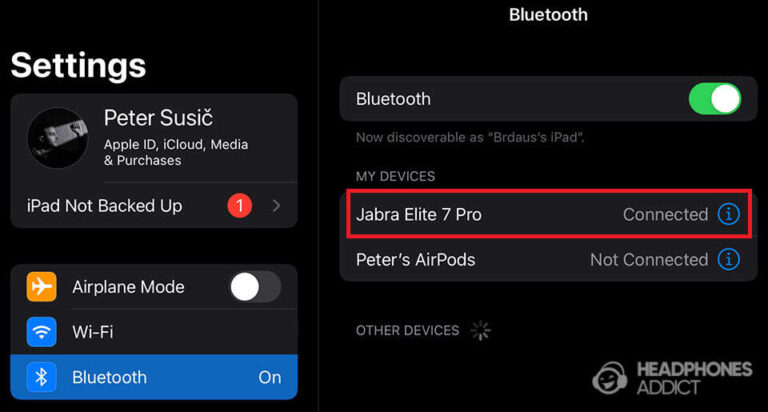
Open your phone’s Bluetooth settings and watch for the Soundcore earbuds. If they reconnect, stay in that area and use the Soundcore app.
Bluetooth can connect through some walls and objects, so a connection does not identify the exact spot. Treat it as a clue, not a map.
4. Ask whether someone moved them
In a home, office, gym, or shared vehicle, another person may have moved the earbuds or case. Check lost-and-found areas if you misplaced them at a store, library, airport, hotel, transit station, or workplace in the United States.

Fix “Find Device” When It Does Not Work
If the Soundcore app cannot find the earbuds, check the simple causes first. Do not assume the earbuds are permanently lost.
The earbuds do not appear in the app
Try these steps:
- Turn Bluetooth off and back on.
- Open the Soundcore app again.
- Keep the phone close to the earbuds.
- Open the charging case if the earbuds are inside.
- Confirm that the earbuds have battery power.
- Restart the phone.
- Check whether the earbuds are connected to another nearby device.
- Update the Soundcore app if an update is available.
If the earbuds were paired with another phone, turn Bluetooth off on that phone temporarily. A nearby tablet, laptop, or family member’s phone may be connecting to them first.
The app connects but cannot play a sound
Possible causes include:
- The earbud battery is too low.
- The earbud is inside a closed case.
- The earbud is outside Bluetooth range.
- The model does not support the search feature.
- The app lost permission to use Bluetooth or nearby devices.
- The earbud is connected only on one side.
- The app or firmware needs an update.
On an iPhone, check Settings > Bluetooth and confirm Bluetooth access for the Soundcore app if the permission appears. On Android, check the Soundcore app’s permissions for nearby devices and Bluetooth-related access. Menu names can differ by Android version and phone brand.
The app shows only one earbud
This usually means the other earbud is out of range, out of power, or not making contact with the charging pins. Search for the visible earbud first. Then place it in the case, charge the case, and try again with the other side.
Clean dirty charging contacts with a dry, soft cloth. Do not pour liquid into the case or use metal tools on the contacts.

Find a Missing Soundcore Charging Case
Finding the case is harder because the case often has no speaker and may not maintain a Bluetooth connection when the earbuds are stored inside.


Start with these locations:
- The last place you removed the earbuds
- The pocket or bag used that day
- The car’s cup holders and seat gaps
- A bedside table or desk
- Near a computer or phone charger
- A gym locker or changing area
- A coat rack, entry table, or kitchen counter
- Between couch cushions
- Under a bed or dresser
If the earbuds are not inside the case, try connecting to them through the Soundcore app. A successful connection may help you separate a missing case from missing earbuds.
Do not rely on third-party Bluetooth scanner apps as exact tracking tools. They can sometimes detect a nearby Bluetooth signal, but signal strength changes with walls, people, furniture, and phone position. They cannot normally tell you the precise location of a lost case.

Can You Use Apple Find My or Google Find My Device?
Do not assume that every Soundcore model appears in Apple Find My or Google Find My Device. Compatibility depends on the exact earbud model and its documented support.
Apple Find My works best with Apple devices and accessories designed for that network. Google Find My Device, now part of Google’s broader device-finding system, also requires compatible hardware and software support. A normal Bluetooth pairing does not automatically add Soundcore earbuds to either service.
Check the official product page, user manual, or Soundcore support page for your exact model. Look for terms such as:
- Apple Find My support
- Google Find My Device support
- Find My network support
- Find Device in the Soundcore app
- Last known location
If your model does not list this support, use the Soundcore app and a physical search instead. Avoid apps or websites that claim they can turn any ordinary Bluetooth earbud into a GPS tracker.
Safety Tips While Searching
Keep the search safe and simple:
- Do not turn the alert volume up near your ear.
- Do not wear the earbud while using the search tone.
- Avoid digging into dark spaces with your bare hands.
- Use a flashlight before reaching under furniture.
- Do not use water or cleaning fluid inside the charging case.
- Do not open or puncture the earbud battery.
- If you lost the earbuds in traffic, on train tracks, or in another dangerous place, do not retrieve them yourself.
Lithium-ion batteries can be damaged by crushing, puncturing, heat, or water. If an earbud is swollen, hot, cracked, leaking, or smells unusual, stop handling it and follow local battery disposal guidance.

Common Mistakes That Make Earbuds Harder to Find
Several habits can waste time during a lost-earbud search.
Searching only at eye level
Earbuds are small and can roll under beds, tables, cabinets, and car seats. Search the floor with a flashlight.
Assuming the last Bluetooth location is exact
Bluetooth connection range varies. The phone may connect through a wall or from another room. Use the connection as a general clue.
Looking only for the earbuds
The missing item may be the charging case, not the earbuds. Check whether one or both earbuds are still in your possession.


Repeatedly resetting the earbuds
A factory reset can remove the pairing information that helps the phone reconnect. Try the app and Bluetooth checks before resetting anything.
Forgetting other connected devices
A laptop, tablet, television, or second phone may be using the earbuds. Temporarily disable Bluetooth on nearby devices during the search.
Ignoring the app’s model limits
Soundcore sells many earbud lines, including Liberty, Space A40, Life, and other models. Features can differ by product, firmware, app version, and phone operating system. Use the instructions for your exact model.

What to Do If You Still Cannot Find Them
If the earbuds remain missing after a full search, take these steps:
- Check the last place you visited.
- Contact the business, gym, hotel, airline, transit agency, or workplace.
- Review recent photos or messages to confirm where you used them.
- Check bags and clothing again after a break.
- Mark the earbuds as lost in any supported device-finding service.
- Avoid sharing personal information with people who claim to have found them.
- Check Soundcore’s official support pages for replacement-earbud or replacement-case options.
Replacement availability depends on the model and region. In the United States, use Soundcore’s official support or customer-service channel to confirm whether a replacement case or single earbud is available. Do not buy a replacement part until you verify that it matches the exact model.

Frequently Asked Questions
Can I find Soundcore earbuds without the app?
Sometimes. If the earbuds are already paired with your phone, check Bluetooth settings and try playing audio. The Soundcore app is usually more useful because supported models may offer a dedicated search sound.
Can Soundcore earbuds be tracked when they are turned off?
No. An earbud that is powered off or out of battery cannot normally send a Bluetooth signal. You must search its last known area or retrace your route.
Can I make the charging case beep?
Usually not. Many charging cases do not include a speaker or a separate tracking function. Check your exact model’s manual before relying on this feature.
Why can I find one earbud but not the other?
The earbuds can lose power at different times or be in different locations. Search for each side separately, and check whether both earbuds are charging correctly in the case.
Will a Bluetooth scanner show the exact location?
No. A scanner may show that a signal is nearby, but it cannot normally provide an exact address or room. Walls and objects can also make signal readings misleading.
Conclusion
To find Soundcore earbuds, open the Soundcore app, connect to the earbuds, and use Find Device if your model supports it. Search one earbud at a time, keep your phone nearby, and listen in a quiet space.
If the app cannot connect, check battery power, Bluetooth permissions, other connected devices, and the last place you used the earbuds. For a missing charging case, physical searching and lost-and-found checks are usually more useful than Bluetooth tools. Always verify features and replacement options for your exact Soundcore model through official U.S. support.